

Battlefield 2042 is an intense game for nearly every PC. Accordingly, it is even more important to know what performance you have. MeinMMO shows you how to see your FPS in Battlefield 2042.
Especially for PC players, FPS (Frames per Second) is an important metric to know how well your game is running. We present 3 methods to display your FPS.
Depending on whether you own the game on Origin or Steam. If you want to see the FPS independently of Steam or Origin, we also explain a method that we do not recommend. All these methods work regardless of whether you are using Windows 10 or Windows 11.
If you are unhappy with your FPS and want to optimize them, we recommend our guide to the 5 most important settings that improve your performance and gameplay.
About Origin:
This method is only relevant for players who own Battlefield 2042 on Origin.
How to display your FPS:
- Click the small arrow next to your name in the bottom left of Origin.
- Press application settings.
- In the top tab, select ‘Origin In-Game’.
- Choose where you want your FPS displayed in the screen corner under the option “Display FPS counter”.

You will now see the FPS in every Origin game in the selected corner.
How do I turn off the FPS display? If you want to turn off the display, follow the same steps as above. Under “Display FPS counter” this time choose the option “Do Not Show”.
About Steam:
This method is only relevant for players who own Battlefield 2042 on Steam.
How to display your FPS:
- Click on ‘Steam’ in the upper left corner in Steam and then on ‘Settings’.
- Select ‘In-Game’ from the options on the left.
- Under “In-Game FPS Counter”, select where you want your FPS displayed in the screen corner.
- After making a selection, click ‘Okay’.
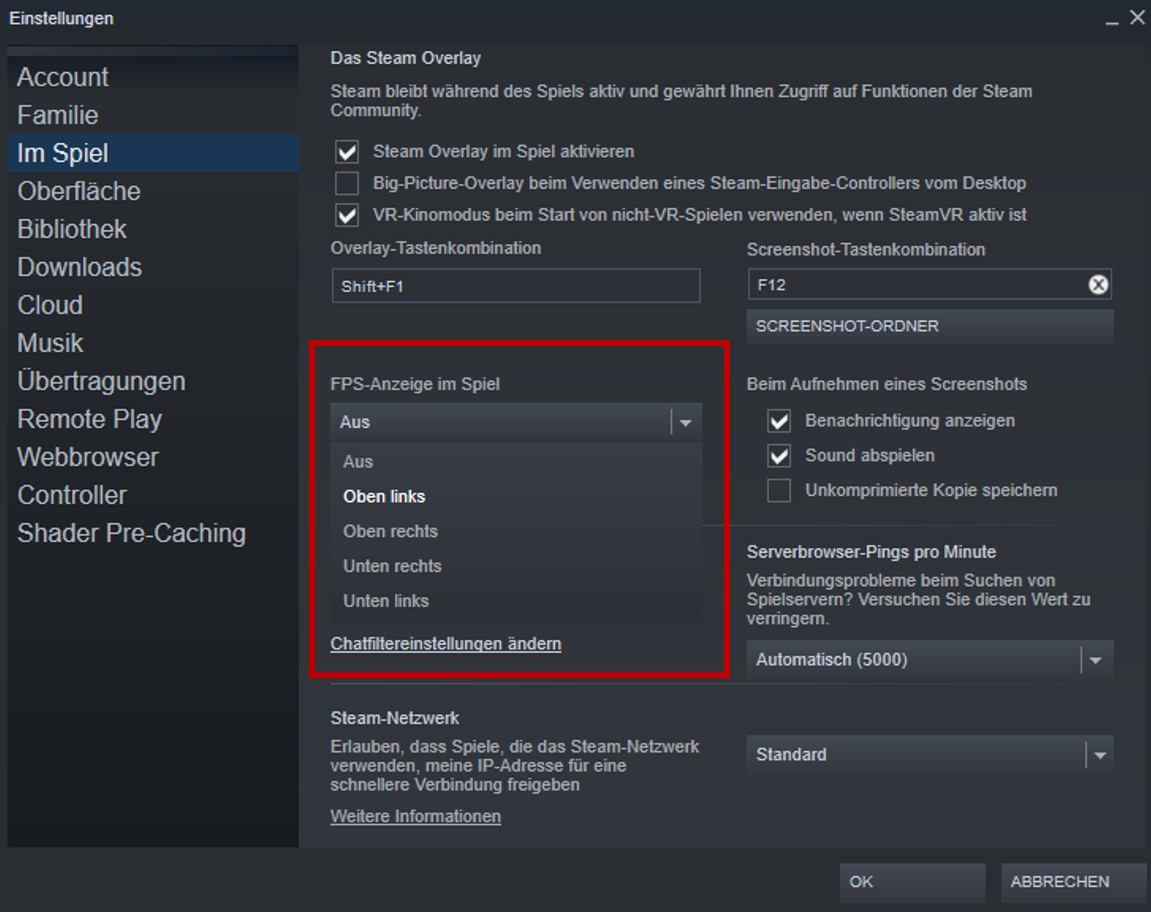
You will now see the FPS in every Steam game in the selected corner.
How do I turn off the FPS display? If you want to turn off the display, follow the same steps as above. Under “In-Game FPS Counter”, this time choose the option “Off”.
Display FPS in-game through the console (not recommended):
If you want to display your FPS directly in the game, you can use a console command. However, we do not recommend this method because it displays separate FPS values for the graphics card and processor. Therefore, it is difficult to get accurate information at a glance.
How to display your FPS:
- Press the ‘^’ key on the keyboard in the game (on most keyboards next to the 1 key). This opens the console.
- Type the following console command into the console:
PerfOverlay.DrawFps 1- Press Enter to confirm the selection.
- Press the ‘^’ key again to close the console.
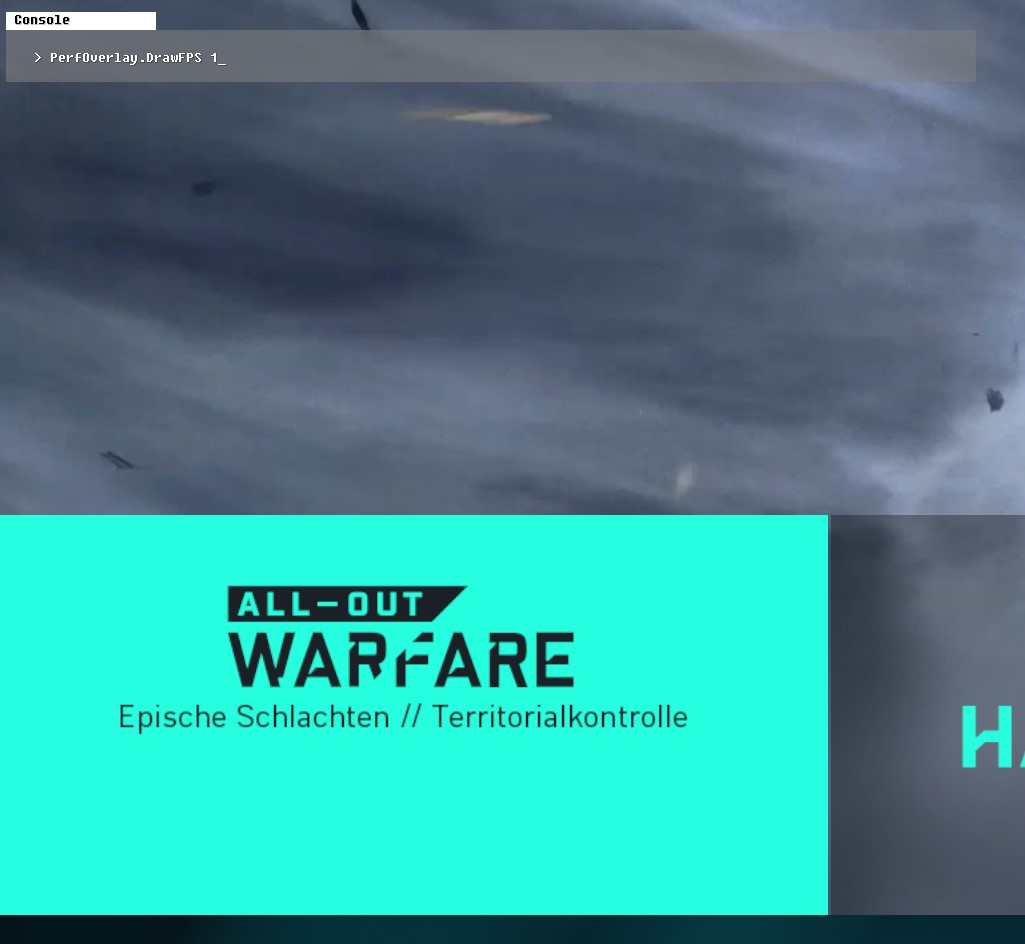
How do I turn off the FPS display? If you want to remove the display, follow the same steps, but replace the 1 in the console command with a 0. So type into the console:
PerfOverlay.DrawFps 0No matter which method you choose: With the FPS display, you get important information about your PC’s performance in Battlefield 2042.
It will be exciting to see how the game develops after the rocky start. Also, whether the performance will improve significantly with patches. If you want to know first what weapons are available, you can find our list here: All 22 weapons from Battlefield 2042 at a glance – Here are their pros and cons

Your opinion is important to us!
Do you like the article? Then let us know!