

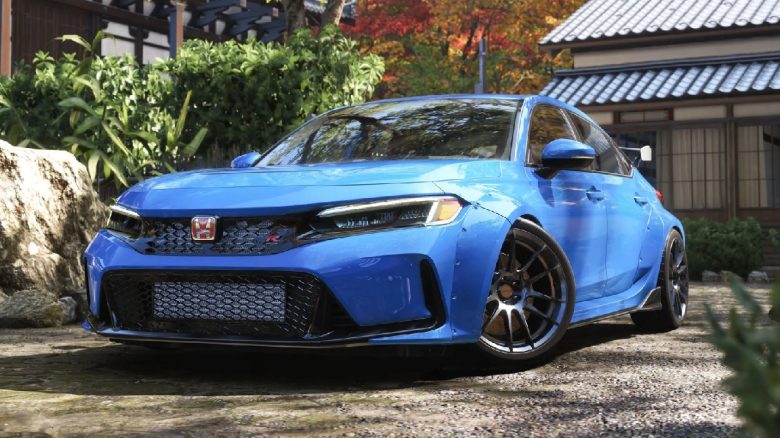
MeinMMO explains the best settings for Forza Horizon 6. We show you what to look out for and how to get the most FPS.
You want to get a few more FPS from the new racing game and are looking for the best settings without sacrificing graphics quality? We present you with the best options and explain where you can save the most performance.
In general, we also recommend taking a look at the system requirements of Forza Horizon 6 before you deal with the settings.
Forza Horizon 6: The Best Settings for PC (Microsoft Store and Steam)
- HDR: Any
- Impact: Minimal
- Why: Significantly expands the color spectrum and brightness differences. It costs little performance but requires a good monitor (at least HDR 600), as the image can otherwise appear “washed out”.
- Resolution: Native to your main monitor
- Impact: High
- Why: The resolution is the biggest factor for GPU load. Always choose the native resolution of the monitor and adjust performance via upscaling (DLSS/FSR), rather than lowering the resolution, as the image will become blurry otherwise.
- Framerate: Uncapped / 60 FPS
- Impact: High
- Why: Your framerate determines how smooth the game looks. If you set a frame limit, you prevent your system from calculating unnecessary frames and working harder than necessary. However, you can limit FPS to a maximum of 60. Better option: Turn off the limiter in-game and instead enable the FPS limit through your GPU software to 120 or 144 FPS (depending on performance).
- V-Sync: Off
- Impact: Low
- Why: V-Sync prevents screen tearing but adds noticeable input lag. If you have a monitor with G-Sync or FreeSync, you should definitely disable V-Sync in the game, because the monitor takes over that function.
- Fullscreen: On
- Impact: Low
- Why: Exclusive fullscreen mode gives the game priority over Windows background processes. This provides the most stable frame times and usually prevents issues with overlays or other programs.
- Show FPS: Off
- Impact: None
- Why: Displays your FPS in the game but has no impact on your performance otherwise.
- Motion Blur: Off / Low
- Impact: Low
- Why: Makes your game appear blurry during motion and applies a blur effect over the game. Can be tiring for the eyes and head over time, so be sure to disable it. In racing games, a bit of blur helps increase the sense of speed. However, too much of it makes the image look muddy.
- User Interface Scaling: As needed
- Impact: None
- Why: Adjusts the menus to your monitor size. The larger your monitor, the larger you should scale the menus.
Anti-Aliasing
- TAA: Off
- Impact: Medium
- Why: TAA provides smoother edges, but can cause blur and ghosting during fast movements like in Forza Horizon 6. Therefore, it’s better to turn it off.
- AMD FSR 4.1.5 AA: Off
- Intel XeSS AA: Off
Nvidia DLSS Technologies
- Nvidia DLSS: On / As needed
- Impact: High
- Why: The AI-based processes render the image internally at a lower resolution and upscale it. Both provide a massive FPS boost.
- Frame Generation: As needed
- Impact: Massive FPS boost
- Why: Generates artificial intermediate frames. The FPS display can improve significantly, but the game feel (latency) will not improve to the same extent. Can lead to ghosting in the game.
- Nvidia Reflex Low Latency: On
- Impact: Low
- Why: Reduces latency in the game and can improve the overall gaming experience. Requires appropriate hardware.
Resolution Scaling
- AMD FSR 3.15: On / As needed
- Impact: High
- Why: The AI-based processes render the image internally at a lower resolution and upscale it. Both provide a massive FPS boost.
- Intel XeSS: On / As needed
- Impact: High
- Why: The AI-based processes render the image internally at a lower resolution and upscale it. Both provide a massive FPS boost.
- AMD FidelityFX CAS: Off
- Impact: Medium
- Why: Sharpens anti-aliasing TAA. If you turn off TAA, then turn off CAS as well to save performance.
Cams FoV
Graphics Settings in Detail
Presets: Custom
Detail Level
- World / Car Detail Fidelity: High
- Impact: Medium
- Why: Controls at what distance objects (LOD) are rendered in detail. “High” prevents the unpleasant popping of details while driving without overloading the graphics card.
- Environment Texture Quality: VRAM-dependent
- Impact: Low (with sufficient graphics memory)
- Why: Determines the sharpness of floors and walls. As long as your graphics card has enough memory, you should choose the maximum here, as it makes the biggest visual difference. At high settings, you should have at least 8 GB of VRAM.
- Geometry Quality: High
- Impact: Medium
- Why: Affects the complexity of 3D models in the distance. A good compromise to ensure the landscape does not look too “flat” in the distance.
Reflections
- Reflection Quality: Medium / High
- Impact: High
- Why: Especially important with glossy car paints. “Medium” is often sufficient to produce credible reflections during high-speed driving.
- Screen-Space Reflection Quality: High
- Impact: Medium
- Why: Calculates reflections of objects visible on the screen. Costs significantly less than ray tracing and is the standard for beautiful water and wet roads.
- Raytraced Reflection Quality: Off / On (High-End only)
- Impact: Extremely High
- Why: Physically accurate reflections. Often negligible in a fast racing game since you have little time at 200 km/h to admire the exact reflection in the side mirror.
Shadows
- Shadow Quality: Medium
- Impact: High
- Why: Shadows consume a lot of computing power. “Medium” usually provides clean edges under the car, while “Ultra” often only unnecessarily increases the shadow distance.
- Night Shadows: High
- Impact: Low to Medium
- Why: Allows shadows from headlights at night. Greatly increases immersion in night races and should be activated if possible.
Performance
- Audio Quality: High
- Impact: Almost none
- Why: Has little to no impact on graphics quality but makes the game world and cars sound better.
Other Settings
- Quality of Deformable Terrain: High
- Impact: Medium (CPU & GPU)
- Why: Important for off-road passages to realistically capture tire tracks in mud or sand.
- Particle Effect Quality: Medium
- Impact: Medium (notable during crashes/smoke)
- Why: Controls sparks, dust, and exhaust smoke. “Medium” prevents FPS drops when many cars are kicking up dust at the same time.
- Volumetric Fog Quality: Low / Medium
- Impact: High
- Why: Creates dense light beams and fog. Looks atmospheric, but costs disproportionately much performance. Here you can get the most “free performance”.
- Lens Effects: On
- Impact: Almost none
- Why: A purely aesthetic effect when driving directly into the sun. A matter of taste, but costs hardly any frames per second.
- Motion Blur Quality: Off/Low
- Impact: Low
- A bit of blur in racing games helps increase the sense of speed. However, too much of it makes the image look muddy.


Long-time players of Forza Horizon surely know it: You grab some absurd-looking car with poor base performance and install the beefiest engine available. Dariusz Müller has followed this old tradition in Forza Horizon 6 as well: I chased a pink tricycle with 800 hp through Japan in Forza Horizon 6 and failed the moose test

Your opinion is important to us!
Do you like the article? Then let us know!