

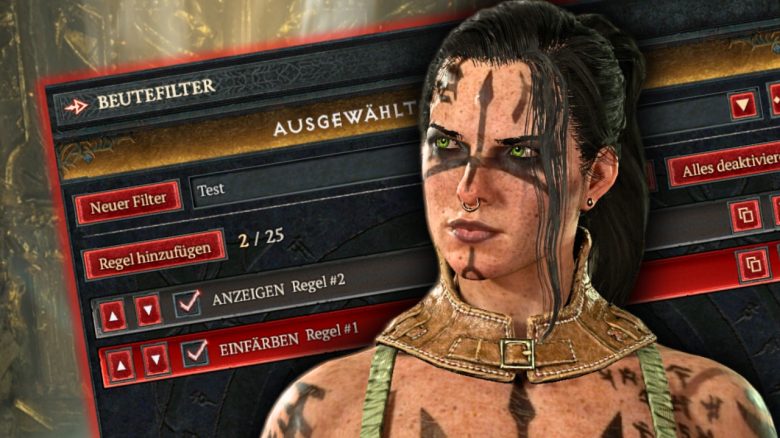
Mit der zweiten Erweiterung hat Diablo 4 endlich einen Lootfilter bekommen, mit dem ihr gezielt nach Items suchen könnt. Wo ihr ihn findet und wie ihr ihn einstellt, erfahrt ihr hier auf MeinMMO.

Was ist der Lootfilter? Der Lootfilter wird quasi seit dem Release von der Community gefordert und ist nun endlich im Spiel. Mit dem Filter könnt ihr Ausrüstungsgegenstände gezielt ausblenden, einblenden oder farblich markieren. Das gilt für euer Inventar, die Beutetruhe und das Angebot bei Händlern.
Der Filter kam zwar mit „Lord of Hatred“, ist aber ein Feature für das Basisspiel – ihr müsst den DLC also nicht besitzen, um ihn zu nutzen.
Lootfilter in Diablo 4 finden und aktivieren
Wo finde ich den Lootfilter in Diablo 4? Ihr findet den Beutefilter im Spielmenü unter „Optionen“ im Reiter „Gameplay“. Dort habt ihr die Option, den Beutefilter direkt zu öffnen. Ihr könnt aber auch einen Haken in der Zeile da drüber setzen, damit der Beutefilter direkt im Menü angezeigt wird. Danach könnt ihr ganz einfach über das Spielmenü auf den Lootfilter zugreifen.
Unter „Steuerung“ lässt sich zudem eine Taste belegen, um den Filter ein- und auszuschalten. Das ist besonders praktisch, um zu prüfen, ob der Filter richtig arbeitet, oder um kurzzeitig alle Drops auf dem Boden zu sehen und aufheben zu können.
Wie nutze ich den Lootfilter in Diablo 4? Im Menü des Filters habt ihr zwei Möglichkeiten: Ihr könnt entweder einen komplett neuen Filter anlegen oder einen Filter über einen speziellen Code importieren. Bestehende Filter lassen sich zudem jederzeit durch das Hinzufügen oder Bearbeiten von Regeln und Bedingungen anpassen.
Lootfilter: Regeln und Bedingungen einstellen
So legt ihr Lootfilter an: Zuerst vergebt ihr einen Namen, was euch bei der Übersicht hilft, falls ihr später zwischen verschiedenen Filtern wechseln wollt. Danach fügt ihr Regeln hinzu (maximal 25 pro Filter), die ihr einzeln aktivieren oder deaktivieren könnt. Die Regeln werden von oben nach unten gewichtet. Ihr könnt die Reihenfolge jederzeit ändern, Regeln duplizieren oder löschen.
Den Regeln könnt ihr dann noch verschiedene Bedingungen zuordnen.
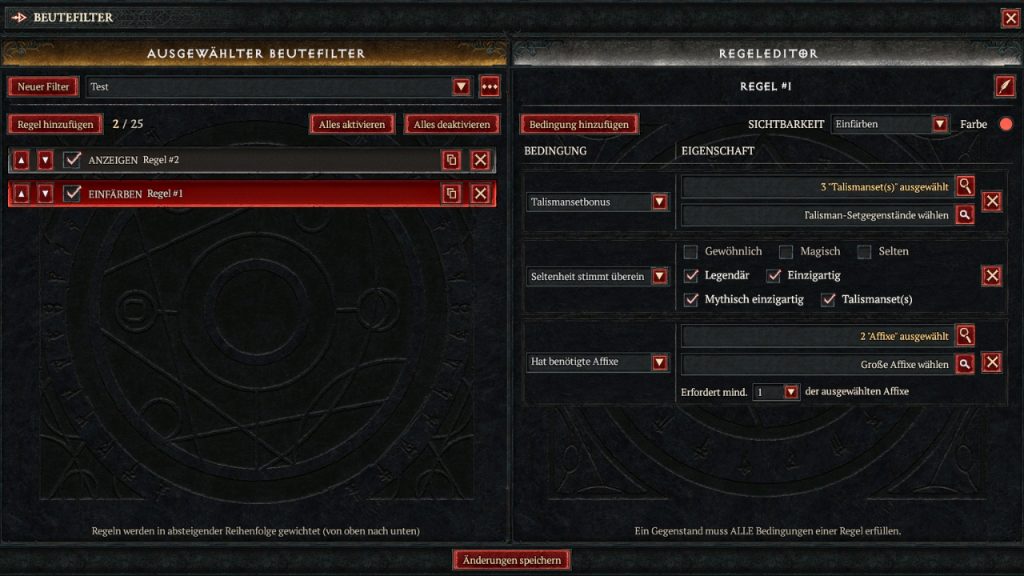
Euch stehen insgesamt zehn verschiedene Bedingungen zur Auswahl. Sobald ihr Bedingungen festlegt, solltet ihr die Sichtbarkeit bestimmen. Rechts oben lässt sich einstellen, wie der Beutefilter genau greifen soll: Ihr könnt Items entweder anzeigen oder ausblenden lassen, sie in eurer Wunschfarbe einfärben oder die Textkennzeichnung verbergen.
Folgende Bedingungen könnt ihr einstellen:
- Bereich der Gegenstandsmacht
- Seltenheitsstufe (magisch bis mythisch + Talismansets)
- Gegenstandseigenschaften (keine oder „vermacht“)
- Kodex-Aufwertung
- Große Affixe (mindestens 1–4)
- Gegenstandstyp (z.B. Zweihandschwert, Brustschutz, Amulett)
- Bestimmte Affixe
- Optionale Affixe
- Bestimmte Uniques
- Talismanset-Bonus
Beachtet dabei, dass ein Item alle festgelegten Bedingungen einer Regel erfüllen muss, damit der Filter greift. Um eure Einstellungen mit anderen zu teilen, könnt ihr den Filter übrigens über einen Klick auf die drei Punkte neben dem Filternamen einfach exportieren.
Diablo 4: Lord of Hatred
- Epaper direkt nach der Bestellung lesen
- 148 Seiten zu Blizzards Action-Rollenspiel-Hit
- coole Builds für alle neuen und alten Klassen
- legendäre Ausrüstung dank Horadrim-Würfel
- Codes für zwei exklusive Waffen im Heft
- kämpfen müsst ihr immer noch selbst
Ihr könnt mehrere Filter einrichten, aber es kann immer nur einer aktiv sein. Habt ihr einen Filter mit vielen Regeln eingerichtet, könnt ihr einzelne Regeln durch Entfernen der Häkchen deaktivieren, um gezielter zu farmen.
Ein Beispiel für einen Lootfilter im Endgame inklusive detaillierter Erklärung findet ihr etwa bei dem Diablo-Experten Raxxanterax auf YouTube.
Sollte ich den Lootfilter direkt einrichten? Zu Beginn eurer Reise ist fast jeder Loot nützlich, sei es zur direkten Verbesserung oder zum Zerlegen beim Schmied, um wichtige Materialien zu erhalten. Ein Filter ist hier noch nicht nötig. Spätestens im Endgame hilft der Beutefilter jedoch enorm dabei, Loot zu filtern und nur noch das aufzusammeln, was ihr wirklich gebrauchen könnt.


Neben dem Lootfilter hat das Update viele weitere Neuerungen in das ARPG gebracht. Welche Inhalte kostenlos für alle sind und was exklusiv im DLC steckt, erfahrt ihr in unserer Übersicht: Diablo 4: Lord of Hatred und Season 13 erscheinen gleichzeitig – Was ist kostenlos, was gibt’s nur im DLC?

Deine Meinung ist uns wichtig!
Gefällt dir der Artikel? Hast du irgendwelche Kommentare? Sag uns, was du denkst!





























Kommentare