

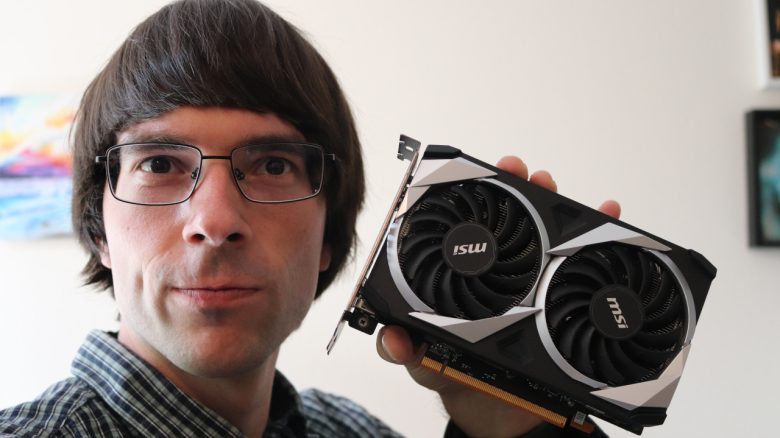
MeinMMO editor Benedikt Schlotmann recommends cleaning the graphics card in your PC. It only costs a few euros and requires a screwdriver. Although it involves some effort, it can be worth it. At least if you have some skill. Because with the fine technology, you can break something if you’re not careful.
If the performance of the computer is no longer sufficient, upgrading is often considered. Because this often yields the best results.
In some cases, it may already be enough to thoroughly clean your graphics card after many years of use and to renew the thermal paste. This can ultimately be sufficient for better performance. Because dirty hardware overheats quickly, throttles performance or causes the PC to crash completely.
We do not accept any liability for damage to your hardware that you cause yourself.
Cleaning the graphics card is worth it, but you should have a delicate touch
What you need for it: Generally, you will need a suitable screwdriver and appropriate thermal paste. I usually buy the one from ARCTIC. This costs between 5 and 8 euros on Amazon or from other retailers.
If you want to be particularly careful, you can also use a ceramic or plastic screwdriver. Also handy: Isopropyl alcohol for cleaning the graphics card, which costs between 3 and 5 euros for a bottle and can be found in your local hardware store.
An anti-static mat or a corresponding wrist strap is practical, but usually rather optional. You can also ground yourself on a radiator. For such an optional wrist strap, you pay between 5 and 10 euros, but you don’t necessarily need it.
How do you clean the graphics card? Normally, cleaning is not difficult, but it requires skill and sensitivity. Basically, every graphics card is built a little differently. The chip used is usually identical across a GPU series, but details such as design, fans, or size can vary by manufacturer.
- First, you carefully disassemble the graphics card by removing the screws on the back of the GPU. Some expensive models also have a backplate that is similarly secured with screws.
- Next, you can gently remove the fan. Be careful here, as the fan is often connected to the board with a thin cable.
- In the next step, you can remove the old thermal paste, clean the graphics card, and screw it back together. In some cases, manufacturers also use thermal pads that can be replaced as well. This also varies by manufacturer.
- Finally, you should check the temperatures in a test to see if everything works.
My additional tip: Take several hours for cleaning as a buffer, because mistakes happen quickly under stress. Especially when working with sensitive hardware.
Is the effort worth it? Yes, a thorough cleaning and reapplication of thermal paste can lead to significantly better temperatures for your graphics card. This has several advantages: On the one hand, the graphics card stays cooler, and the fans don’t need to spin up as much. On the other hand, performance remains consistent and isn’t throttled at too high temperatures. With my old graphics card, this was a gain of between 5 and 10 degrees Celsius and that, in turn, ensured a lower noise level.



If you have some handy skills, you can easily clean your graphics card yourself. Especially when the warranty on your graphics card has expired, and you have been using it for several years, it’s worth it. Because dust and dirt collect quickly in individual components of the PC. I personally recommend that if you have pets in the house, you should clean your PC regularly.

Your opinion is important to us!
Do you like the article? Then let us know!