


In Pokémon GO, you can quickly sort your monsters using filters and tags. We at MeinMMO will show you how to use both functions and what you should consider.

What functions are we talking about? With daily catches, the Pokémon storage fills up relatively quickly. To separate the wheat from the chaff, you have the option in Pokémon GO to sort your monsters using various filters or assign them tags.
We have summarized below how this works and what you should consider.
All filters in Pokémon GO and how you can use them
What are these filters? In Pokémon GO, you can not only sort the caught specimens according to various criteria, such as name or last catch. You can also use the search function to get a specific selection of monsters.
We have summarized all the filters you can currently use in Pokémon GO for you and explained what they show you. For better clarity, we have divided the numerous filters into the following 5 categories:
- General search filters, such as name, Pokédex number, or region
- Search by types and attacks
- Strength of Pokémon
- Search by age, distance, and evolution
- Filter for specific types of Pokémon and tags
General search filters
The following search criteria include the general information of the monsters, such as their name, nickname, Pokédex number, or their region:
| Filter | What is being searched? |
| Pikachu | If you enter the name of a Pokémon, such as Pikachu, all monsters with this name will be displayed. |
| +Pikachu | If you add a ‘+’ before the name of the Pokémon, all monsters with that name and its evolutionary stages will be shown. In the case of Pikachu, this will also display Pichu and Raichu. |
| MeinMMO | If you have given a monster a nickname, for example, ‘MeinMMO’, you can specifically search for that Pokémon by entering the name. |
| 150 | By entering a number, you can search for the respective entry behind this Pokédex number. Thus, with the number ‘150’, all Mewtwo in your collection will be shown. |
| 1-151 | By adding a hyphen, you can search for all monsters in a certain Pokédex range. In the example, this would be all monsters of the first generation. |
| Kanto | If you enter the name of a region (Kanto, Johto, Hoenn, Sinnoh, Unova, Galar, Alola, Kalos) in the search, only monsters that first appeared in this region will be displayed. |
| XXS | This filter shows all Pokémon of size XXS. |
| XXL | With this, you can see all Pokémon that are of size XXL. |
Search by types and attacks
To be well prepared for the next battle, you can filter your monsters by types and attacks. You can also see which Mega evolutions you can perform, which monsters are weather boosted, and where you have special attacks.
| Filter | What is being searched? |
| Plant | By entering your desired type, such as ‘Plant’, you will see all monsters from your collection that possess this type. |
| Plant&Poison | By adding an ‘&’ between two types, Pokémon will be displayed that possess both types. |
| @Plant | If you enter ‘@’ in combination with a type, you will filter for all Pokémon that have attacks of this type. |
| @Charm | If you enter an ‘@’ in the search and add a specific attack, for example, ‘Charm’, then all your monsters with this attack will be shown. |
| @Counter&@Body Slam | If you want to get all monsters with a specific moveset, you need to combine the respective attacks with an ‘&’. In the example, this would be all Pokémon with the moveset “Counter and Body Slam”. |
| @3Ghost | If you add the level of the attack between the ‘@’ and the type, all fast and charge attacks of this type will be displayed. In the example, you would filter for all monsters with fast ghost charge attacks. |
| @special | By entering ‘@special’, you will see all monsters that have an exclusive attack, such as Flora Statue for Venusaur. |
| @Weather | With this, you will see which monsters in your collection have their attacks currently boosted due to the weather. |
| Mega evolution | By entering this, all Pokémon will be shown that you can currently Mega evolve. |
| mega1 | If you search for ‘mega’ in combination with the numbers 1 to 3, all monsters that have the respective mega level will be shown. In the example, those would be all with the base level in Mega evolutions. |
Strength of Pokémon
To find out how strong your monsters are or to conduct targeted searches for WP and HP values, you can use the following filters:
| Filter | What is being searched? |
| 0* | Each monster can receive a rating of 0-4 stars based on its values. Here, 0 is the worst and 4 is the perfect Pokémon. By entering the respective number in combination with a ‘*’, all monsters with this rating will be displayed. |
| 3Attack-value | If you enter the desired rating (0-4) in combination with the respective attribute (Attack-value, Defense value, HP), all monsters will be displayed that have the respective rating in this area. |
| WP500 | With this filter, all Pokémon with a WP of your specified number will be shown, in the example 500 WP. |
| WP400-500 | If you set an upper and lower limit, combined with a hyphen, all your monsters that have a WP between these values will be shown, for example from 400 to 500 WP. |
| WP500- | If you only add a hyphen, without setting an upper limit, all monsters with the entered WP or more will be shown, e.g., 500 and more. |
| WP-500 | If you write the hyphen instead between ‘WP’ and your number, all monsters with this WP or less will be shown, in the example 500 or less. |
| HP100 | With this entry, all monsters with this HP value will be shown, e.g., 100 HP. |
| HP100-200 | As with the filter for WP, you can also search for upper and lower limits for HP if you combine them with a hyphen. |
| HP100- | With this entry, all Pokémon with the specified HP will be shown or higher. In the example, that would be 100 HP or more. |
| HP-100 | With this, all Pokémon that have your desired HP value or less will be shown. In the example, this would be all monsters with 100 HP or less. |
Attention: Pokémon that are currently injured and therefore have no HP are not considered in the search for HP. Also, be careful when searching for the attribute to ensure you put a hyphen between ‘Attack’ and ‘Value’.
Search by age, distance, or evolution
Especially when trading, it can be useful to choose monsters that were caught far apart or have a certain age. To filter these, you should use the following search terms:
| Filter | What is being searched? |
| Age0 | This filter allows you to search for Pokémon that you caught during a certain time. With ‘Age0’, all monsters from the last 24 hours will be shown. With ‘Age1’, all Pokémon caught from 24 hours to 48 hours ago. |
| Year2016 | By entering ‘Year’ and any year, all Pokémon that you caught in that searched year will be shown, e.g., 2016. |
| Distance500 | By entering ‘Distance’ and any number, all monsters caught within the corresponding radius of your current location will be displayed, e.g., 500 km. |
| Distance500- | If you add the entry with a hyphen, all monsters are filtered that were caught in a radius of the specified number or further from your current location. In the example, that would be 500 km or more. |
| Distance500-1000 | By setting a lower and upper limit, you can restrict the radius accordingly. In the example, all Pokémon caught at a distance of 500 km to 1,000 km from your current location will be shown. |
| evolve | All monsters that you can currently evolve will be shown through this filter. |
| new evolution | With this, all monsters will be shown through which you can generate a new Pokédex entry. However, note that you may not be able to perform these directly, as you may be missing candies or the corresponding requirements. |
| evolve&new evolution | With this combined search, all monsters will be shown that you can evolve immediately and at the same time generate a new Pokédex entry. |
| trade evolution | This filter shows you all monsters that you can evolve through a trade without the effort of candies. You can find out which trade evolutions are currently available here. |
| item | Monsters that can only evolve using items can be found by entering ‘item’. |
Filter for specific types of Pokémon and tags
If you are looking for specific monsters that you have hatched or to which you have assigned a tag, you can use the following filters:
| Filter | What is being searched? |
| hatched | With this, all Pokémon that you have received from eggs will be shown. |
| onlyhatchlings | With this filter, all your baby Pokémon that can only hatch from eggs will be displayed. |
| legendary | This filter will find all legendary Pokémon in your collection. |
| mysterious | This will show you all mysterious monsters that you have in your storage. |
| Ultra beasts | By entering ‘Ultra beasts’, all your Ultra beasts will be shown. |
| Crypto | To have your Crypto Pokémon at a glance, you can search for them with this filter. |
| Redeemed | This will show you all redeemed Pokémon. |
| costumed | With this filter, all costumed monsters that you could catch at special events will be displayed, e.g., Pikachu with flower crown. |
| shiny | If you want to review your shiny collection, all monsters can be found with this filter. |
| traded | With this search function, you can find all monsters that you have received in a trade from a friend. |
| Lucky | If you conducted a lucky trade with a friend, you can display your collection of lucky Pokémon by entering ‘Lucky’. |
| Defender | By entering ‘Defender’, all Pokémon that are currently defending a gym for you will be shown. |
| Favorite | This filter shows all monsters that you have marked as favorites. |
| Buddy0 | This will show you which monsters you have not yet had as buddies. |
| Buddy1 | If you search for the word ‘Buddy’ in combination with the numbers 1 to 5, all monsters that you have had as your buddy in the game and that have the corresponding buddy level will be shown. 1 stands for the monsters with which you have not yet earned a heart. For the numbers 2-5, you orient yourself based on the levels Good Buddy, Super Buddy, Hyper Buddy, and Best Buddy. |
| #powerup | If you want to search for your tags, enter a ‘#’ with the respective name of your tag in the search box. In our example, this would be the tag ‘powerup’. All monsters that you have assigned this tag will now be shown. |
How to easily search in Pokémon GO
How can you search in Pokémon GO? To filter the monsters by the mentioned criteria, you need to do the following:
- First, open your Pokémon storage.
- Now click the “Search” field at the top.
- You can now enter your corresponding search filters here or select one of the suggested criteria, if this fits you.
- Through “Show more”, you can see further suggestions.

What should be considered? When filtering your monsters, you should always pay attention to correct spelling; otherwise, the search query will not work correctly.
By entering “&”, you can combine requests and thus filter several criteria. Thus, the input ‘costumed&Pikachu’ will show you all costumed Pikachu. With a comma, you can expand the search to several parameters. The input “costumed&Pikachu,Eevee” will thus show you all costumed Pikachu and Eevee.



How to use tags in Pokémon GO
What are tags? As an addition to the filter function in Pokémon GO, you can create so-called tags. These are a type of categories that you choose yourself and assign to your monsters. They help you structure your Pokémon storage better.
This is especially useful when you want to sort out certain monsters and are waiting for a timely event where you can benefit from a sending bonus. But tags are also a good idea for selecting monsters you want to trade or level up.
How can you use the tags? To be able to use the tags, you first need to create them. Proceed as follows:
- Open your Pokémon storage.
- Click on the “Tags” tab in the upper left corner.
- Now you can assign a new tag with the “+” symbol at the bottom left.
- Give it a name, choose a desired background color, and confirm your entry with “Done”.
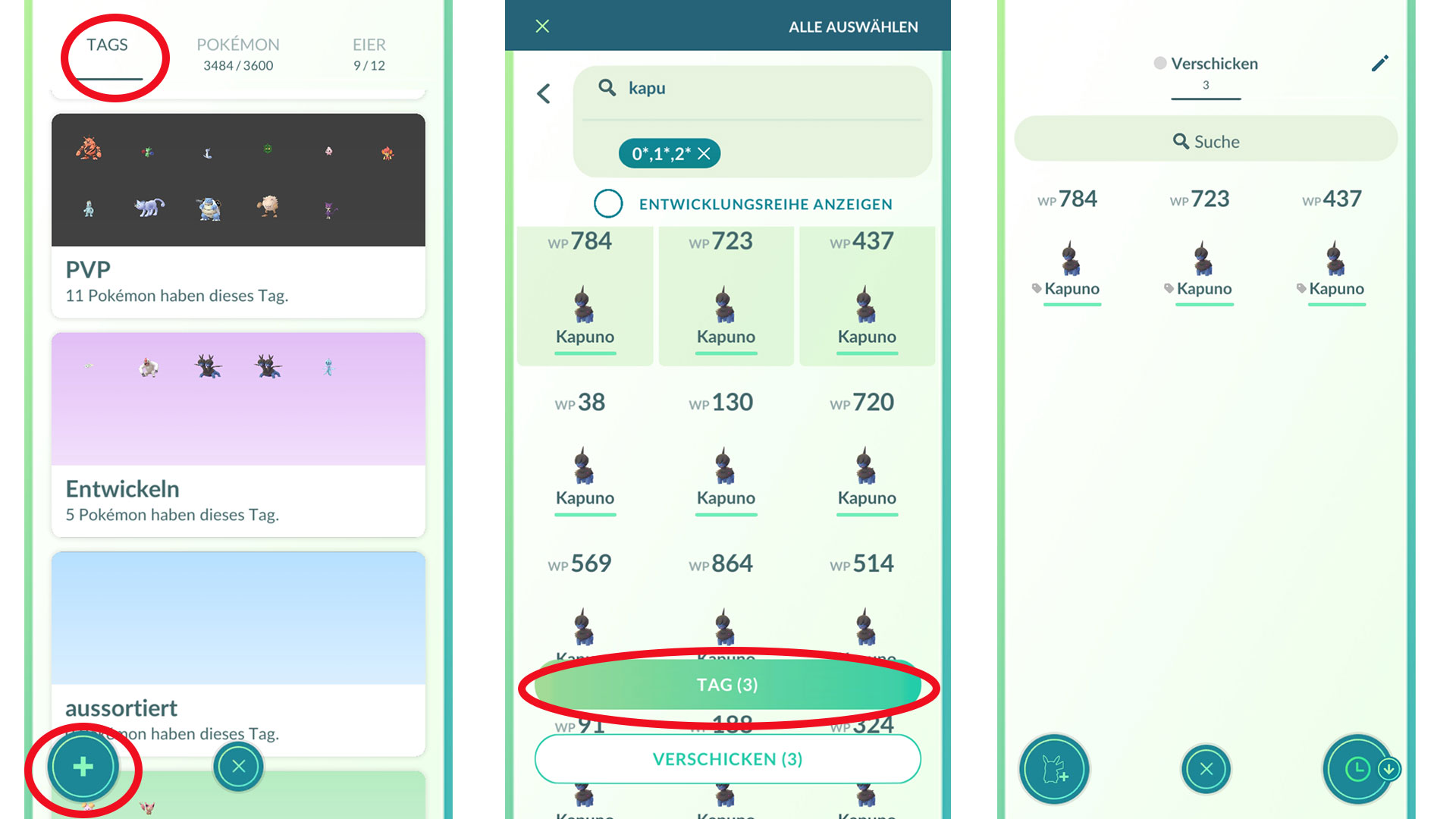
Now your tag is saved, and you can add your desired monsters. You can do this either within the tag itself by opening the tag and clicking the Pikachu icon at the bottom left. However, assigning tags is easier via the normal view of the Pokémon storage:
- Search for your desired monsters, e.g., using the filter function.
- Select the corresponding monsters by holding them down.
- Now select the “Tag” button.
- A list with all the tags you own will now appear. Click on the desired one and confirm with “Done”.
- If you haven’t created a tag yet, you can do this in the list by clicking on “Add new tag”.
Alternatively, you can also add a Pokémon to the tag as follows:
- Click the monster.
- Open the menu bar via the 3 lines at the bottom right.
- Click on “Tag”.
- Select the tag accordingly.
You can tell if a monster has a tag by the small label icon next to its name in the general overview.
How do you like the filter and tag function in Pokémon GO? Have you tried it yourself? Feel free to let us know here on MeinMMO in the comments and exchange ideas with other trainers about it.

Your opinion is important to us!
Do you like the article? Then let us know!