Do you know that feeling when you get stuck on the loading screen of GTA 5 Online for minutes and it just won’t continue? This setting helps many players during the loading process.
Here’s the problem: The loading times for the online mode of GTA 5 have already become a meme in the community. The reason is that the loading process sometimes takes 10 to 15 minutes until a player is assigned to an online session. GTA Online loads forever and nothing happens.
In between, there are error messages that no compatible session was found, and now it is either being watched or GTA 5 is being joined.
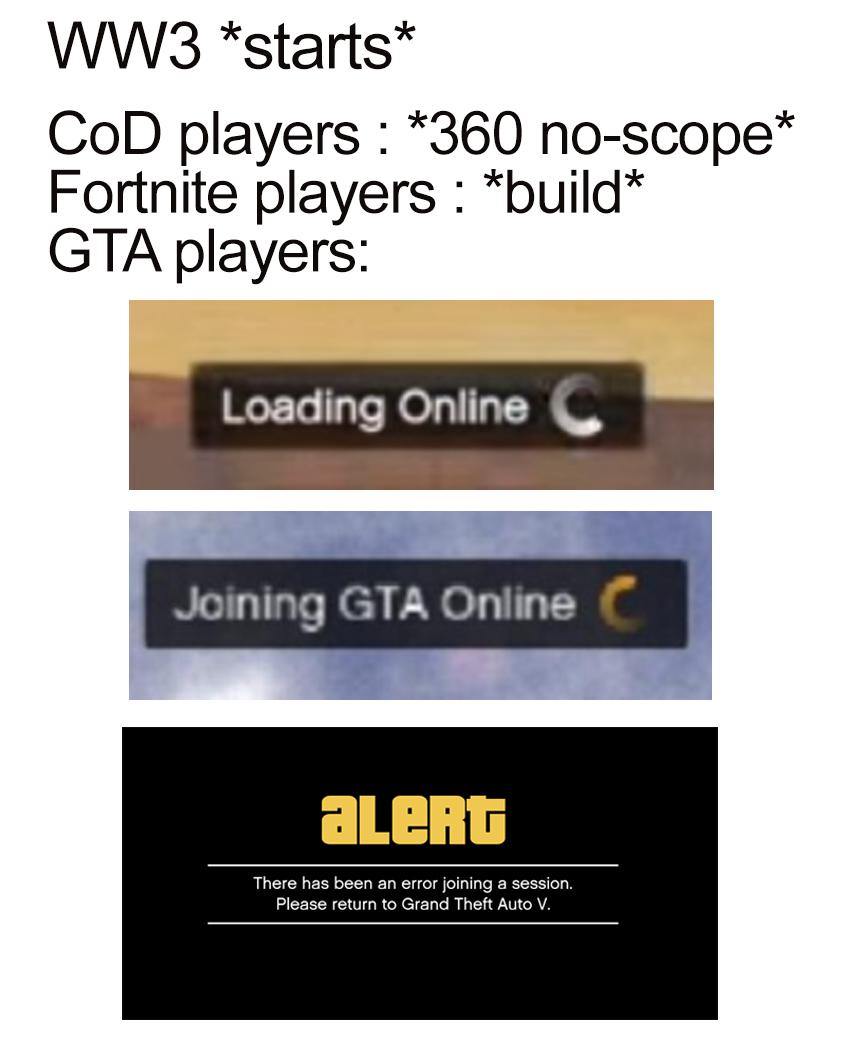
Sometimes, there is not even an error message. And so you sit in front of the screen for minutes, piece by piece looking at the various motives and texts that Rockstar Games presents to the players while waiting for an online session. For example, they point to this jammer search that helps you with the Casino Heist.
We have measured: If everything goes according to plan, joining the world of GTA Online took us an average of about 3 minutes. Plus/minus 20 seconds. However, from experience, we can say that joining has sometimes taken much longer for us.
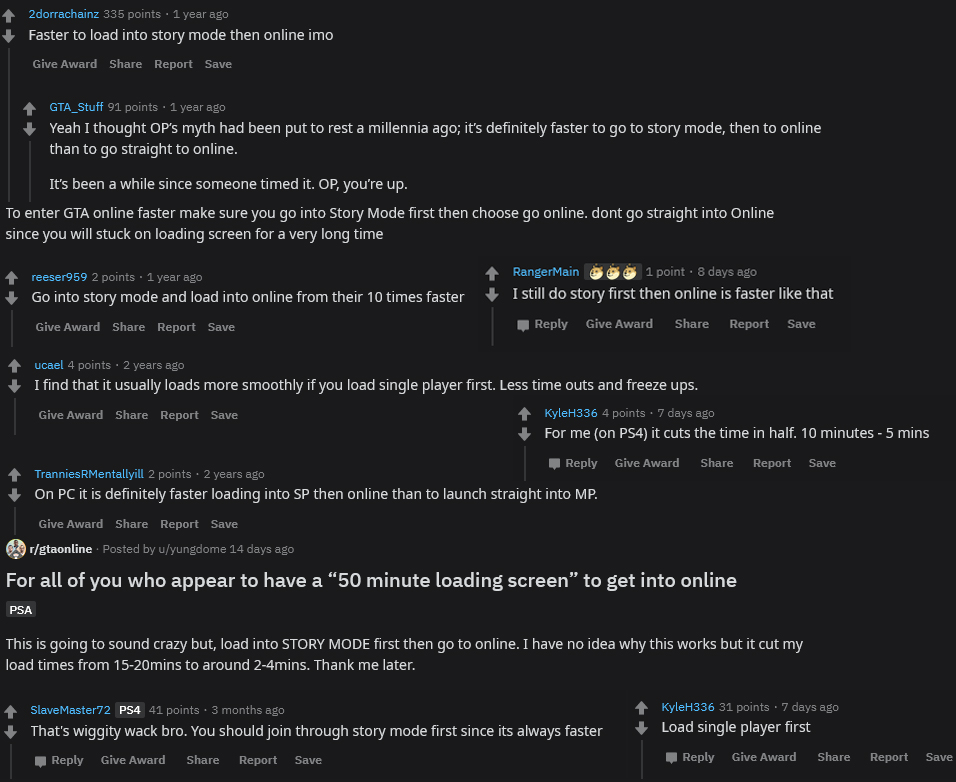
The solution: In the community, you often hear the same phrase as a suggested solution. “Just load into story mode first. From there, you enter online mode. It’s much faster.” This is supposed to shorten the loading times of GTA Online on PC, PS4, and Xbox One.
This habit dates back to the last console generation. However, players are convinced that it would help even now.
What is meant is a setting in GTA 5.
- Open the menu (Start on the controller, ESC on PC) in online mode or story mode
- Switch to the “Settings” tab
- In the menu on the left side, select the “Save and Start” option
- If necessary, switch the option under “Startup Page” to “Off”
- Select the setting “Load into Story Mode” under “Startup Behavior”
This setting changes the startup behavior of GTA 5. When you start the game, it doesn’t stay on a startup page where you choose between online and story. Instead, the game loads directly into story mode.
You can, of course, also manually choose story mode on the startup page initially.
So let the game load into story mode, open the menu via ESC or start. Click now on Online and then on Start GTA Online. Then select your desired session mode.
This setting should prevent incredibly long loading screens (as long as everything is okay with the Rockstar Games servers). Some players swear by this method.
I, Patrick, have been using this method for a few weeks now and have had fewer problems with loading screens. The only thing I notice is the extended time during peak hours, such as in the evenings or on weekends.
Try this setting as well and let us know after a few days if it loads you into the world of GTA Online faster. Do you have any other tips to shorten loading times? Then let us know in the comments.