Since the beta, the gameplay of CoD Vanguard has become significantly faster. It’s clear from the release: it’s one of the fastest CoDs in recent years. Therefore, it is all the more important to find the right settings. MeinMMO shows you the 10 most important settings:
Update from May 3, 2022: We have updated the links and slightly rephrased some sentences.
Which settings are we talking about? Call of Duty: Vanguard has a very extensive settings menu. These settings often make only a small difference in the game, but they have a significant impact on the rapid time-to-kill.
This is not about adjustments to graphical splendor or optimizations of frames per second. Instead, it concerns subtleties with which you can improve your gameplay in Vanguard. These settings are important for both PC and consoles.

We have compiled 11 settings with tips on how you can adjust the settings to stay one step ahead of the competition. With a click, you can get to the setting you are looking for:
- Setting 1: Aiming Input Device
- Setting 2: Sensitivity
- Setting 3: ADS Sensitivity
- Setting 4: Button Layout
- Setting 5: Input Device Response
- Setting 6: Aim Assist
- Setting 7: Tap or Hold
- Setting 8: Artistic Effects
- Setting 9: Field of View
- Setting 10: Audio Settings
- Setting 11: Various Minor Settings
Setting 1: Aiming Input Device
What does this setting do? Whether you’re playing on PC or console: In CoD Vanguard, you can choose whether you prefer to play with the mouse or the controller.
Recommendation: Controller on console, mouse on PC
Here, your comfort with the input device and whether you’re playing in the living room on the TV or at a desk matter.
- Mouse: Aiming with the mouse is inherently more precise, but especially on a couch, it’s much less practical to set up. PC players should generally have better success with the mouse than with the controller.
- Controller: The lack of precision is compensated for by very good aim assist. Controller aim is harder to learn but can quickly gain advantages over the mouse due to these programmed supports. The CoD professional league exclusively uses the controller.
Setting 2: Sensitivity
What does this setting do? Sensitivity determines how strongly your character reacts to movements of the analog stick or mouse. This setting determines the rotation speed of your crosshair. Therefore, it is one of the most important settings for your aim.
Recommendation: Individual
In general, no values can be recommended for this setting, as it depends significantly on personal preferences. However, we have some points for you to consider.
- Mouse – Find a setting that allows for a comfortable 180-degree turn without becoming exhausting after a lot of turns in a short time.
- Controller – Try to find a setting where your stick rarely hits the edges when aiming. Either start high and work your way down to a comfortable level slowly, or start low and see how much higher you can go.
Setting 3: ADS Sensitivity
What does this setting do? This setting determines which method is used to reduce your mouse sensitivity while aiming down sights (ADS).
Recommendation: Individual
With mouse: ADS sensitivity mode “Relative”, Monitor Distance Coefficient: 0.00 or 1.33
Depending on your weapon preference and playstyle, a lower or higher setting can significantly improve your gameplay. Experiment a lot here, preferably with one setting for at least an entire game. On the controller, an ADS sensitivity of 0.9 can have a positive effect, as it acts almost like a small precision boost. However, you will lose speed when aiming.

For mouse players, the recommended ADS sensitivity mode is “Relative” with one of the 3 Monitor Distance Coefficients:
- 0.00: With this, the perceived difference in mouse sensitivities is lowest for small aim movements. This helps especially with tracking aim, meaning continuous automatic fire. However, this setting has disadvantages against enemies who appear suddenly at the screen edge.
The equivalent of this setting is the standard setting in games like Apex Legends or the CoD games up to Black Ops 4 (i.e., the value used in the ADS sensitivity mode alternative). - 1.33: This setting is a good all-round value and is suitable for both tracking and quick reaction shots with semi-automatic weapons and snipers.
The equivalent of this setting is the standard setting in the Battlefield games or also Counter-Strike: Global Offensive. - 1.78: This setting is very popular among snipers and others who want to quickly react to distant heads. However, for machine gun fans, this may be too difficult to control.
The equivalent of this setting is the standard setting in games like Valorant, Destiny 2, and Splitgate.
Setting 4: Button Layout
What does this setting do? Both with the controller and with mouse and keyboard, button mappings can be adjusted. The controller has preset sets, while the PC controls can be completely adjusted manually.
Recommendation: Individual
Use new mappings to make the gaming experience as comfortable as possible for you.
- Mouse: Crouch on a comfortable button
The perhaps most important button is the crouch button. Set it up so that you have quick and secure access to it without it becoming tiring. C and CTRL are popular here, but Shift and V can also work well. Even the side mouse buttons are very suitable for this.
Also assign grenades to a mouse button to continue using WASD while aiming the grenade.
- Controller: “Button Jumper” or “Tactical Button Jumper”
The “Button Jumper” setting assigns jump to the left shoulder button and is a popular setting among professionals. The sets that assign crouch to R3/RS are also recommended. This includes “Tactical Button Jumper.” Try experimenting a bit.
Setting 5: Input Device Response
What does this setting do? Here you can adjust how the game responds to inputs.
Recommendation:
- Mouse: Everything off
Keep mouse acceleration, filtering, and smoothing disabled unless you know exactly what you’re doing. These settings are important for some players, but the options in Vanguard are not as good as external tools that achieve the same effect. - Controller: Linear or Dynamic
Under the controller menu, you’ll find the “Aim Response Curve.” Of the 3 settings “Standard,” “Linear,” and “Dynamic,” the last two are recommended, depending on preferences. Try them all out once.
But be cautious with worn-out controllers! With them, it can happen that with “Linear” and “Dynamic,” the crosshair moves without any touch or lags behind when in use.
Setting 6: Aim Assist
What does this setting do? This point is only relevant for players with a controller. Aim assist helps players compensate for the lack of precision of controllers through technical aiming support. This way, you can keep up with mouse players.
Recommendation: Standard
The aim assist works in Vanguard again similarly to Modern Warfare. For more information, check it out here:
Setting 7: Tap or Hold
What does this setting do? There are several maneuvers for which you can adjust whether you need to hold the button down or just tap it.
Recommendation: Tap for sliding
Here, too, you must find your own preferences. Setting sliding as “tap” is especially recommended. This way, you immediately go into a slide when sprinting, making you more aggressive and helping you get shot less often.
Setting 8: Artistic Effects
What does this setting do? There are a few artistic effects that are meant to make the game look more cinematic. These include film grain, weapon and world motion blur.
Recommendation:
- Film Grain: Off
- World Motion Blur: Off
- Weapon Motion Blur: Off
- Camera Movement: 50 %
In every multiplayer game, the rule is: completely and unequivocally disable these filters! In multiplayer, the player’s performance counts, not the realism of the optics. This often distracts and actively hinders you. When starting the campaign, however, you should reactivate the settings.
Setting 9: Field of View
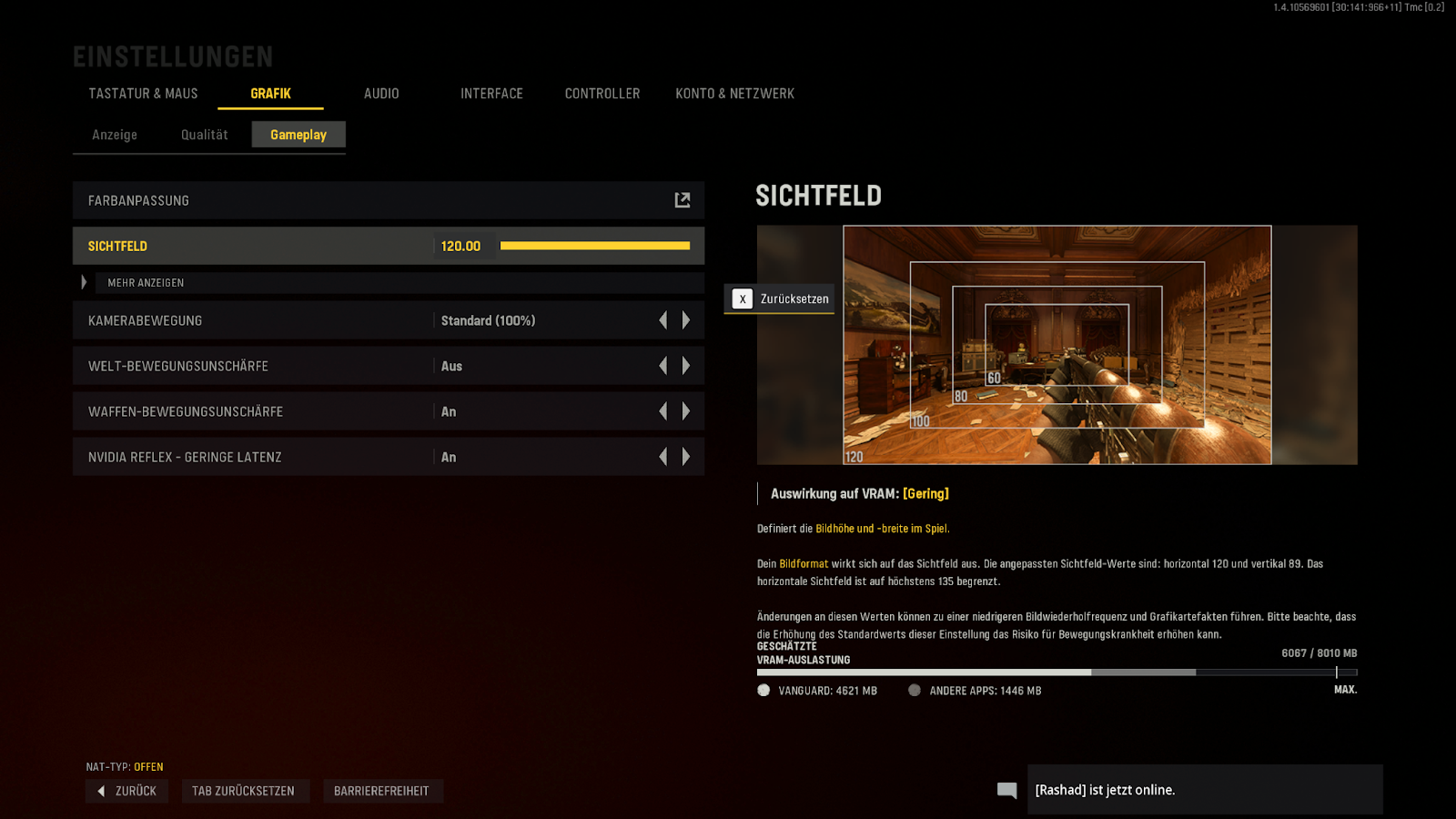
What does this setting do? This setting is now also available for console players and is not just reserved for the PC version. With it, you enlarge the visible area.
Recommendation: 90, 103, 110, or 120.
It is generally underestimated how important your field of view settings (FOV) are for your aim. 103 is the default setting in games like Valorant, while 120 is typical in Quake Champions.
The rule is:
- The smaller the field of view, the faster your rotation speed appears.
- With smaller fields of view, the movements of your character also appear slower.
- The smaller the field of view, the larger enemies appear on the screen. This can help with aiming.
- With smaller fields of view, you are more likely to miss enemies, as this impressive Reddit post shows:
- The larger the field of view, the slower your rotation speed appears.
- With larger fields of view, the game noticeably feels faster. In particular, the perceived tempo of your character is significantly higher.
- The larger the field of view, the smaller enemies appear on the screen, which can make aiming more difficult.
- Larger fields of view give you more overview of the map, which can be especially important with Vanguard’s short TTK.
Setting 10: Audio Settings
What does this setting do? Vanguard offers a selection of preset audio sets that regulate the audio frequencies and thus influence the acoustic properties.
Recommendation: Headphones
The neutral tone is generally the best. However, it can be helpful to boost the highs to hear footsteps better. The previously recommended setting for high boost, however, does not seem to be available in Vanguard at release. Therefore, we recommend headphones with the appropriate audio set.
Also, make sure that the music volume is lower than the rest. Otherwise, the music could drown out important audio information.
Setting 11: Various Minor Settings
What do these settings do? These settings are spread throughout the options menu and can improve minor details that together make for a big improvement. These settings are:
In the “Controller” menu:
- Trigger Effect (Available with PS5 controller): Off
- Weapon Fire Threshold (Available with PS5 controller): Off
These settings use the adaptive features of the PS5 controller. While this might be nice for the campaign, it can be distracting in multiplayer and slow your reactions. - Dead Zone: Individual
For details, the article is recommended, which explains the dead zone for Warzone and Modern Warfare and provides configuration tips.
In the “Interface” menu:
- Mini-map Shape: Square
With this setting, your mini-map is a little larger and therefore gives you more information.
- Mini-map Rotation: On
This is a matter of taste. With rotation, you don’t have to process the relationship between the camera and the mini-map first. So if you tend to look too much at the mini-map anyway, you might take even longer without rotation.
It is important to emphasize that all settings are also a matter of taste. Depending on your goals, preferences, strengths, and weaknesses, one setting helps you more than another. The same goes for weapons – sometimes your favorite weapon is just not meta.
However, the earlier you start discovering your own preferences, the faster you will have an advantage over opponents who do not follow these tips.
It is important to take the time to discover your own preferences rather than just copying the settings from your favorite streamer. This will not only improve your gameplay in Vanguard multiplayer; you will also be well prepared in the Warzone.
Here you will always find the best weapons for the battle royale of Call of Duty: CoD Warzone: The best weapons with setups