For many PC players, controlling with mouse and keyboard in Monster Hunter World is a challenge. However, you can freely assign the keys and adjust them to your own liking. With these tips on key assignment, your gaming fun could directly increase.
Basic settings can be optimized: Especially in ranged combat, the basic settings with mouse and keyboard are not very intuitive. Operating inventory and ammunition simultaneously is quite complicated. In melee combat, the settings are solid, but there are also a few tips for optimization.
Here are a few suggestions for a more comfortable key assignment:
Quick Access: Assign the Radial Menu to Keyboard
You have a radial and a scroll menu: When you are on a mission, you can access your items through the scroll menu at the bottom right. You can easily operate it with the mouse wheel and scroll through the items. However, you are actually faster with the radial menu.
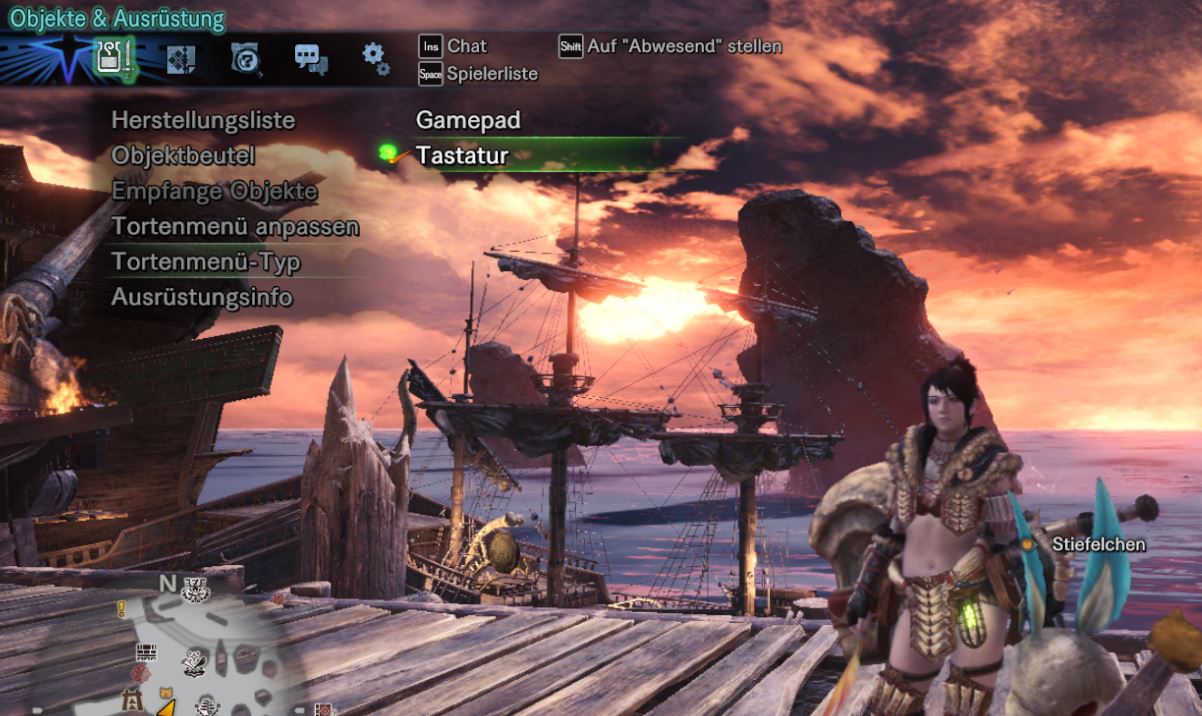
Assign the radial menu to the keyboard and use the F-keys: By default, the radial menu is set to gamepad. Here, select “Radial Menu Type” to Keyboard in the options. Now you can access the various radial menu assignments much faster using the F-keys.
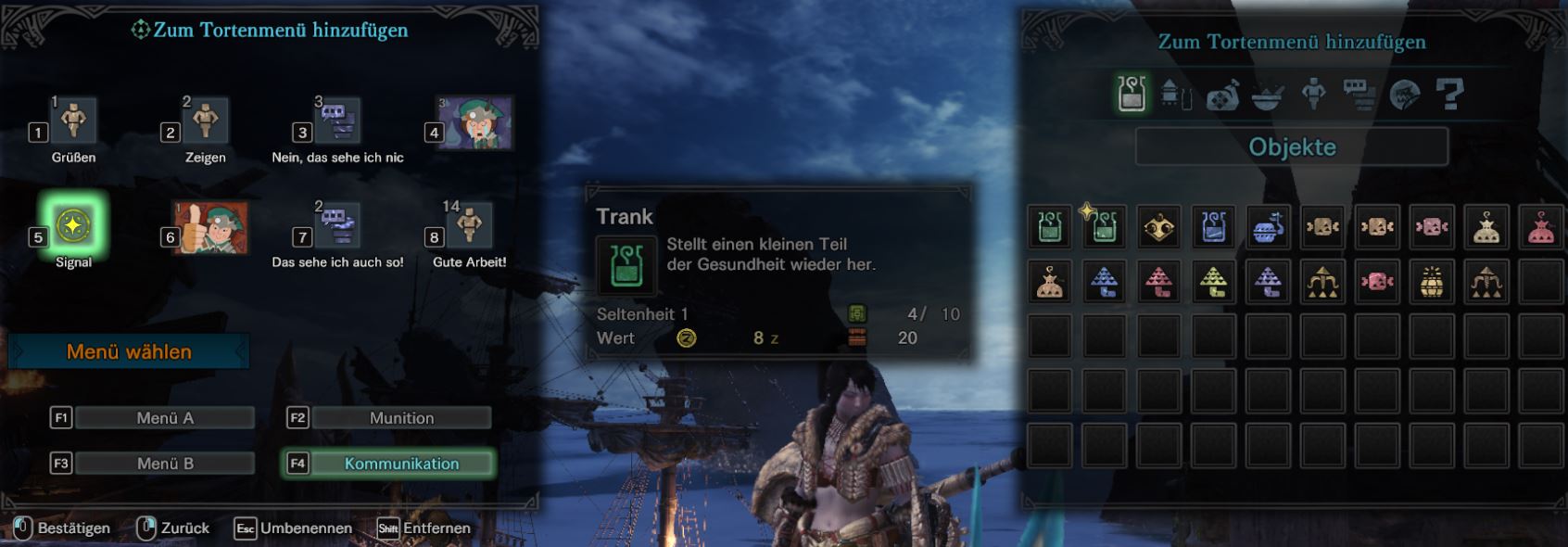
Individually customize the radial menu: Now you can freely adjust the radial menu and assign the F1-F4 keys. This gives you quick access to your items, emotes, or different types of ammunition. This can be a great relief for ranged players.
Use the mouse wheel in the radial menu as well: To access the radial menu, the Q key is set as the default. You can then navigate through the menu with right and left clicks. You can also use the arrow keys or the mouse wheel. However, this does not work when using ranged weapons.
Disable Automatic Targeting
Automatic targeting is annoying and unnecessary: In Monster Hunter World, monsters are automatically targeted by a red crosshair. Your character will automatically turn to the monster. This can be quite annoying with the controller and even more unnecessary with the mouse. You can manually track monsters well in view and have more control over your movements.
Mouse speed can be changed
A matter of personal preference: Some players find the speed too slow with the mouse and feel like playing with a joystick. You can adjust the speed in the options. Just select Camera and try out which speed works well for you. The default setting is 50.
More than two buttons on the mouse? Use them
Use your extra buttons for combat: Many PC gamers have a mouse with multiple buttons. Ensure that the various combat actions like blocking are distributed across the mouse. The keyboard should only be used for inventory and movement. How you want to assign these keys can also depend heavily on the weapon, your mouse, and your preferences.
No extra buttons on the mouse? Then assign the keys for melee combat like this
Swap a few keys on the keyboard: If you only have two buttons available on the mouse, you should swap the following functions for better and faster access:
- Item Menu from “Q” to “Tab”
- “Sprint/Sheath Weapon” from “Shift” to “Q”
- “Draw Weapon/Block” from “CTRL” to “Shift”
Note: You will also need to adopt this setting in the ranged combat tab if you wish to use it there as well.
Ranged Combat: Assign “Draw Weapon/Standard Attack” to the Left Mouse Button
Optimize the automatic draw like this: In the ranged weapon tab, you will find “Draw Weapon/Standard Attack”. Assign this to the left mouse button. It is currently set to “Shoot with Drawn Weapon”. You can now assign it to any button, as shooting will still work with left-click.
The advantage: Usually, drawing the weapon is set to CTRL and only then can you attack with a left-click. With the other assignment, you can quickly draw the weapon and shoot immediately.
Ranged Combat: Aim with Right Click and Shoot with Left Click – Here’s How
Optimize the control in ranged combat like a shooter, assign:
- “Show Crosshair” from “V” to Right Click
- “Special Attack” from Right Click to “Shift”
Special attack includes the Wyvern explosion mines of the light bowgun.
This is how the Slingshot and Capture Net Work
Slingshot: The slingshot is mapped to both V and C.
- If you pull it out with V, you must hold the key and after the shot, it will automatically be sheathed.
- If you pull it out with C, the hunter keeps the slingshot in hand even after shooting. You then need to press C again to sheath it.
Capture Net: You can catch pets and earn research points for them. You can find the net in the inventory and equip it with E. After that, you have to use C or V like with the slingshot to throw the net.
This makes hunting the monsters in Monster Hunter World directly easier: Here you can see all beasts in our large list along with their loot and habitats.