
Do you want to share your games on Steam with other people? Then you can activate and set up a family library, also known as Steam Family Sharing. This allows you to share games for different accounts on the same computer, but also on other PCs – however, there are restrictions.
What is the family library on Steam? With this tool, multiple family members can share games with each other, while each has their own Steam accounts.
Multiple people can access a game, but achievements and gameplay progress are saved individually in the Steam Cloud for each account.
How to set up the family library
If you want to set up the family library on your Steam account, it first depends on whether you want to share games or access the library of others. There are two options:
- You own the library and want to share your games.
- You are a family member and want to gain access to a game.
However, there is an important requirement for both options: “Steam Guard” must be activated on all involved accounts.
What is Steam Guard? This is an additional security measure to protect your Steam account.
Normally, you log in using your name and password and then have access to your account. If Steam Guard is activated, you will receive a code via email or the Steam Mobile App when logging in on an unfamiliar device and must enter this code.
Option 1: You activate the family library as the owner
How can I set up my Steam family library through the browser? If you want to set up the family library in your browser, follow these steps:
- Step 1: Check if your Steam Guard is activated: go to your account name in the top right corner, then to “Account Details”, and you will see your security status.
- Step 2: Directly below, you will see the “Family Settings” section, click here on “Manage Family Library”.
- Step 3: Now you will see with which devices and users you can share your Steam library, select the corresponding person to share your games.


How can I set up my Steam family library via the client? You can also configure who can access your games through the Steam client:
- Step 1: Check if your Steam Guard is activated: go to “Steam” in the top left, then “Settings” and navigate to “Account”, where you will see your security status.
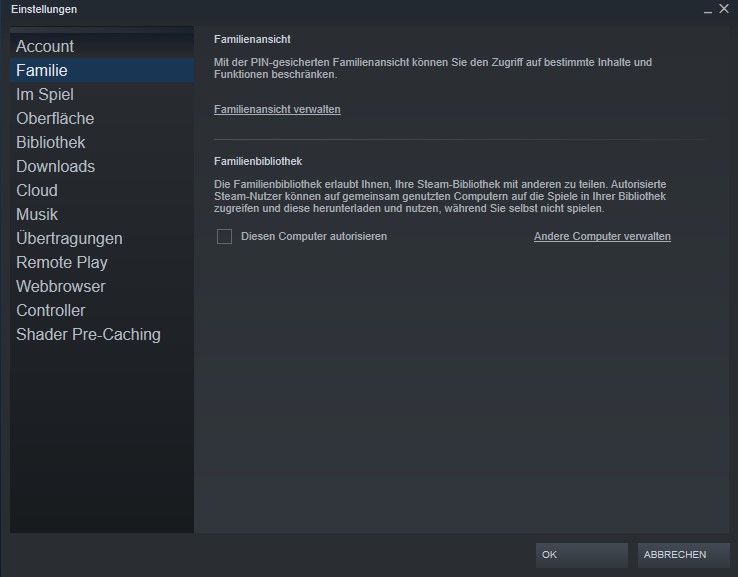
- Step 2: On the left sidebar, go to the “Family” section and select “Authorize This Computer”.
- Step 3: In the list, you can now select accounts that have logged in on the same computer before and with whom you want to share your Steam library.
If you want to add another device, go to “Manage Other Computers”. You will be redirected to the management window of the browser.

Option 2: You request access to a game from the family library
Via your Steam client, you can also request access to a specific game as a family member:
- Step 1: Check if your Steam Guard is activated: go to “Steam” in the top left, then “Settings” and navigate to “Account”, where you will see your security status.
- Step 2: In the Steam Library, you will see which games another person owns that is using the same PC, click “Play”.
- Step 3: Now you can request access and the owner will receive an email with a link and can unlock you on this PC.
Can games be shared with another PC?
Can I share games through the family library with another PC? In general, it is possible to share games with people outside your household, but Steam points out:
“Although the family library can be used with users who are not accessing Steam from the same location, technical limitations may lead to issues for which Steam cannot provide support” (as of January 18, 2023)
Can you play simultaneously in the family library? No, the function does not allow simultaneous play. The owner of the library always has priority and can play a game at any time.
This means: If a family member is currently playing a game and the owner logs into the game at the same time, the family member will receive a message. It states that you can either buy the game yourself or log out, and a timer of 5 minutes will be started.
Important: If a Steam library is shared, the entire library can only be used by one person at a time. So even if the family member and the owner want to play different games from the same library at the same time, that is not possible.
How to deactivate the family library
If you want to deactivate access to your games in the family library, uncheck the accounts in the list of authorized users.
To do this, go to the overview of people who have access to your Steam library and remove the checkmark next to their username.
You can find a guide here on what you need Steam gems for and how you can sell them.