

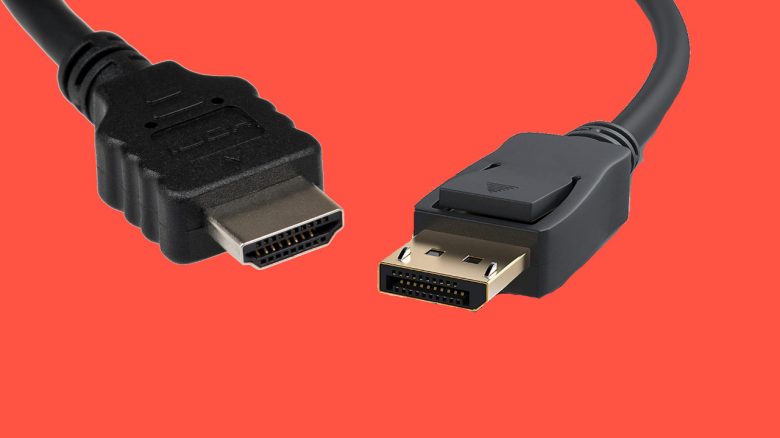
Players can choose between two connections when gaming: DisplayPort and HDMI. But which one is better for gaming on the PC, PS5, or Xbox Series X? MeinMMO explains the differences and gives tips on which to choose.
If you want to connect your PC or console to a monitor or TV, you currently have the choice between two standard connections if you want to transmit both audio and video simultaneously: We’re talking about HDMI and DisplayPort (DP).
Which is better: HDMI or DP? But what advantages and disadvantages do the two standards actually have, and which one is better suited for gaming in the long run? In this article, MeinMMO explains the differences between the cables and presents at the end who should choose which cable.
- HDMI
- These functions are offered by HDMI
- HDMI 2.1 for Xbox Series X|S and PS5
- HDMI: What are certifications?
- DisplayPort
- DisplayPort over USB-C
- HDMI or DisplayPort – Which is the better alternative?
HDMI is the prevalent standard in the audio-video sector
HDMI actually stands for “High-Definition Multimedia Interface”. The connection allows both video and audio to be transmitted in high quality from the console or PC to the TV or monitor.
HDMI has the advantage that you will find the connection almost everywhere. Both gaming monitors and TV devices offer HDMI. If you buy a new device in this area, you can be sure that an HDMI connection is included. Devices like consoles or your PC can be easily connected via HDMI.
Very old devices like CRT monitors usually do not offer HDMI, but rather older connections like VGA instead.
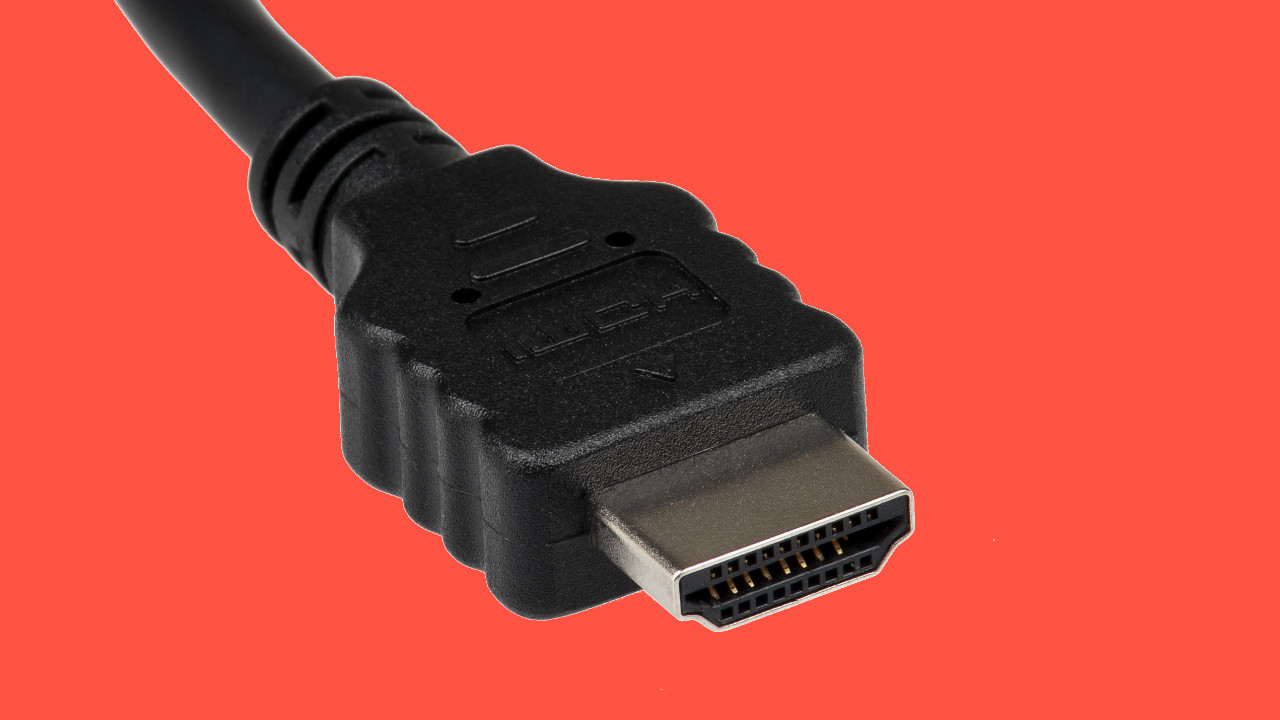
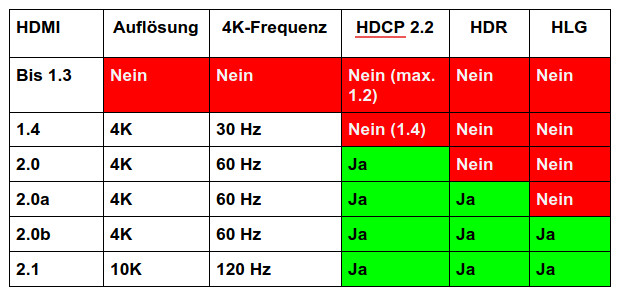
What versions are there? HDMI has been continuously developed and improved over the years. 4K resolutions have been officially supported since HDMI 1.4. The current state of technology is HDMI 2.1. Here, the performance and transmission rate are the fastest. In addition to the next-gen consoles, the new graphics cards like the Radeon RX 6700 XT and the GeForce RTX 3080 support HDMI 2.1.
What can the latest version do? HDMI 2.1 can transmit videos and games in 8K at 60Hz or 4K content at 120Hz. This is especially exciting because both the PS5 and Xbox Series X support HDMI 2.1. However, to use HDMI 2.1, you also need a TV that supports it. Because HDMI 2.1 cannot simply be retrofitted. You can find recommended 4K TVs with HDMI 2.1 in our buying guide here on MeinMMO:

HDMI Specs and Types at a Glance
This is what HDMI offers: With HDMI 1.4, you have the option to use a 4K resolution with a refresh rate of 30 Hz. In Full HD (1080p), 120 Hz is possible, and in WQHD, 75 Hz is possible. With compression (reduction of image quality), you also get 120 Hz with WQHD.
From HDMI 2.0, 4K content with a refresh rate of 60 Hz is already possible. While you can theoretically reach 240 Hz in Full HD, you officially reach 144 Hz on WQHD. However, this depends on the manufacturer of the device. With HDMI 2.0, you also get official support for HDCP 2.2. This is especially important if you want to watch series and movies in 4K resolution.
With HDMI 2.0a and 2.0b, while the refresh rate does not further increase, starting from 2.0a, you get HDR support and with HDMI 2.0b, additionally HLG support.
From HDMI 2.1, not only is a refresh rate of 120 Hz possible at 4K resolution, but also up to 240 Hz in WQHD resolutions if your screen supports it. WITH ALLM, VRR, and eARC, you get additional features that are important if you want to game with the device.
Why is HDCP 2.2 important? HDCP stands for “High-bandwidth digital Content Protection” and is a copy protection for digital content. If you want to watch a 4K movie or series, you need HDCP 2.2. All devices (receiver, TV, etc.) must be compatible.
What is HLG? HLG or “Hybrid Log Gamma” is especially important for those of you who regularly watch TV or use the TV program. Since HDR cannot easily be transmitted via satellite or cable, HLG plays a role here. HLG looks almost as good on high resolutions. The problem is that HLG is not yet widely used. If you watch TV regularly, you should at least keep HLG in mind.
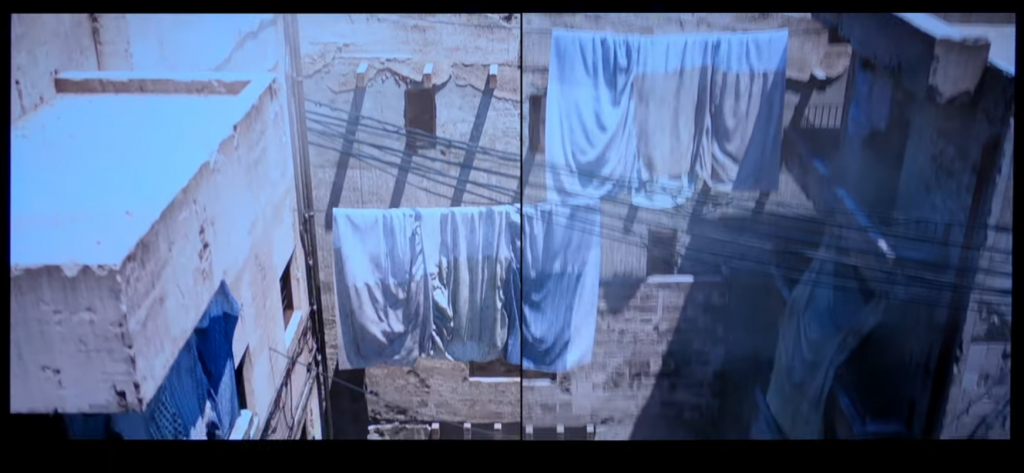
Why is HDR important? HDR or “High Dynamic Range” provides better contrast and richer colors. The higher brightness range makes the image look more realistic, as HDR can shade objects better. This makes the image look nicer.
There are also differences with HDR: While HDR 10 brings specific information once, HDR10+ offers dynamic capabilities and can thus continuously adapt the image to the information provided.
Is 144 Hz possible with HDMI? In principle, HDMI 1.4 already offers enough bandwidth for refresh rates beyond 120 Hz, and with some devices, 144 Hz via HDMI is also possible, although HDMI does not officially support that.
From HDMI 2.0, the standard officially also supports more than 120 Hz at Full HD and WQHD. However, it depends on your monitor. Because many monitors are designed to provide 144 Hz and more only via DisplayPort (via heise.de).
You should therefore check your device’s manual to see if the manufacturer supports more than 120 Hz via HDMI.
That’s why you should pay attention to HDMI 2.1
HDMI 2.1 offers not only a significantly higher transmission rate than HDMI 2.0 (18 Gbit/s vs. 48 Gbit/s), but also new features that are important for the gamers among you. Especially if you want to buy a PS5 or Xbox Series X or already own one. Because the next-gen consoles support the latest technology.
Two features are particularly important for gamers. One is the dynamic adjustment of the refresh rate (VRR), and the other is the automatic optimization of the response time (ALLM). With eARC, another feature is added, which is more relevant to the home theater sector.
Auto Low Latency Mode (ALLM): ALLM is a feature that ensures that the console directly switches the TV into a gaming mode.
- This turns off unnecessary features and saves data to transmit the image directly to the TV.
- This reduces latency between the console and playback on the TV.
Variable Refresh Rate (VRR): VRR is also a feature that HDMI 2.1 offers.
- With VRR, the console can freely adjust the refresh rate between 30 Hz and 144 Hz and thus avoid disturbances known as screen tearing.
- Screen tearing occurs when the device’s signal does not match the frequency of the output device.
What is eARC? Another additional feature is “Enhanced Audio Return Channel” (eARC). This denotes object-based sound standards, including Sony’s 3D audio or Dolby Atmos. These require the new standard eARC, which HDMI 2.1 provides. eARC can also transport significantly larger audio signals like 7.1 audio. This is particularly important for those interested in home theaters.
HDMI: What are certifications?
HDMI cables are certified so that buyers can be sure that the cables meet certain requirements. The HDMI Forum stands behind certifications. Several companies have come together here.
So, anyone buying an HDMI cable with the “Ultra High Speed” designation from the HDMI Forum can be sure that the cable supports 4K, UHD, and HDR.
What you should keep in mind: It can happen that you still find HDMI cables without a seal that still work. This can be due to them being leftover stock without a seal or cables that have not been tested. The former will work in any case, in the latter case, you need to be more specific about whether they meet the requirements.
DisplayPort is less common, does not support PS5 and Xbox Series X
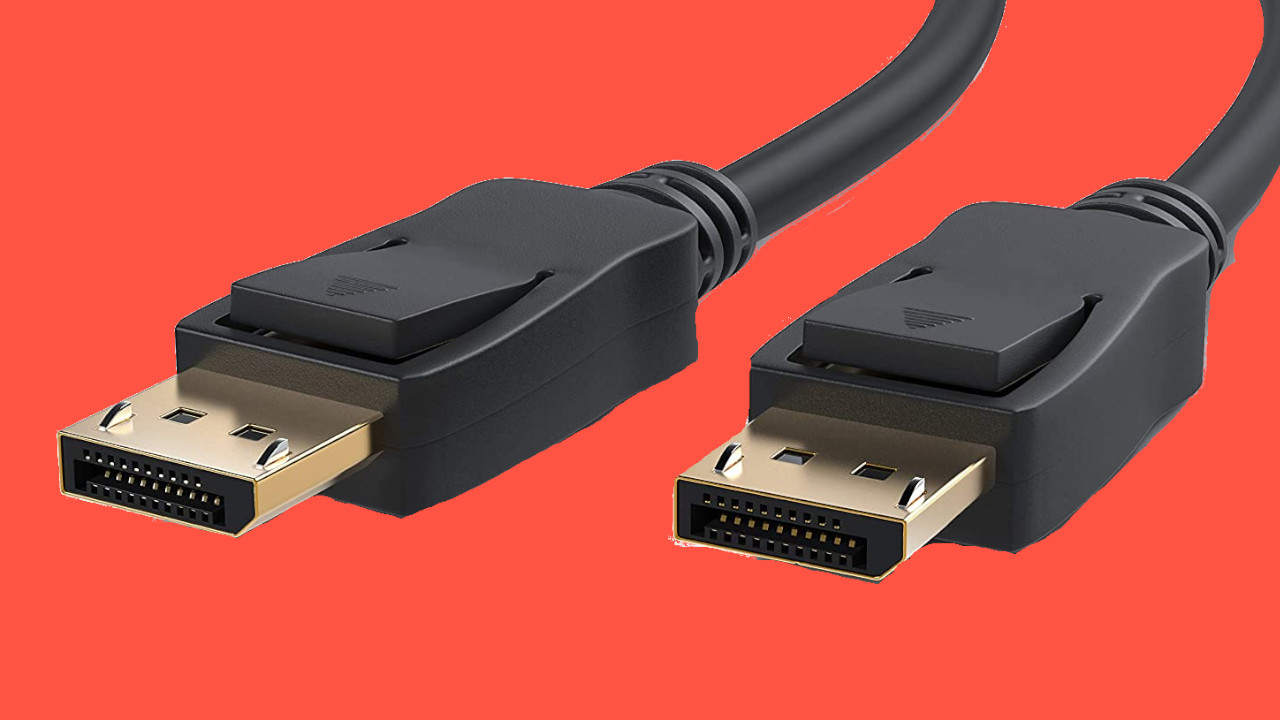
DisplayPort transmits both video and audio in high quality like HDMI. In contrast to HDMI, however, you will not find DisplayPort on every device. Consoles and many TV devices do not offer DisplayPort but rely on HDMI as the standard.
DisplayPort plays a significant role for PC gamers, as all modern graphics cards offer DisplayPort connections. Many modern gaming monitors also often offer multiple DisplayPort connections.
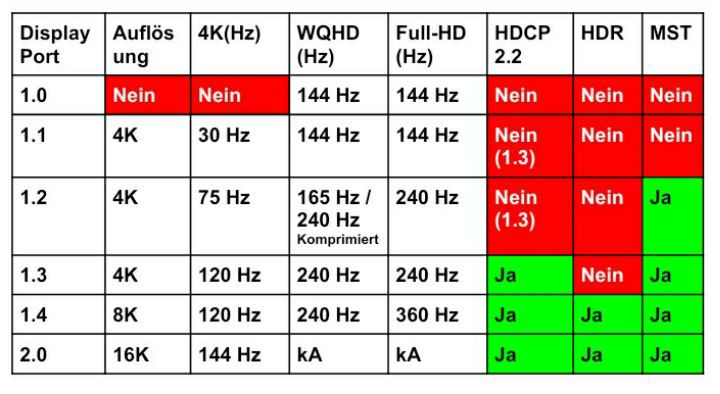
DisplayPort Specs and Types at a Glance
What versions are there? There are several development stages of DisplayPort (DP). The latest version is DisplayPort 2.0, but you will not currently find it on any device. DP 2.0 is expected to be released sometime in 2021.
The older versions 1.2 and 1.3 are still the most commonly found. The current version DP 1.4 is not yet widely used. With DisplayPort 2.0, 16K content at 60Hz is expected to be possible. With DP 1.4, it is already possible to display 4K content at 144Hz.
This is what DisplayPort offers: While you already get multi-screen support (MST) from DisplayPort 1.2, the modern copy protection technology HDCP 2.2 (High-bandwidth digital Content Protection) is only available starting from DP 1.3. This is especially important if you want to stream series or movies in 4K quality. If you primarily game on your monitor, you can ignore HDCP.
More exciting for gamers is HDR support starting from DisplayPort version 1.4. HDR (High Dynamic Range) significantly improves not only colors but also contrasts. HDR offers you a more realistic image and colors.
With DisplayPort 1.4, you get all the essential functions you need when using DisplayPort. DP 2.0 additionally offers support for 16K resolutions. However, this is still not relevant.
Who is MST interesting for? MST stands for “Multi Stream Transport” and allows you to operate multiple monitors via a single port. This way, you can daisy chain monitors. However, the monitors require both a DisplayPort input and output. The first monitor is connected to the PC, and the second monitor is then connected to the output of the first monitor.
DisplayPort over USB Type C
What is “DisplayPort over USB Type C”? This allows you to use the USB-C port fully for DisplayPort. You have access to the full performance of DisplayPort.
Does my device support DisplayPort over USB-C? Devices that support DP over USB-C usually have a small DP logo near the USB-C port. This way, you can be sure whether DisplayPort is supported.
If no symbol is present, you can still try it out. Because not all USB-C ports that can use DP have a corresponding symbol.
What happens if my device is not supported? Nothing should happen. Neither audio nor video will be transmitted since this is not supported. You may receive an error message that the USB port does not support the cable.
HDMI vs. DisplayPort – What is the difference between HDMI and DisplayPort?
Speed:
- As of now (April 16, 2021), HDMI 2.1 is the fastest standard. HDMI achieves 4K at 120 Hz and 8K at 60 Hz. The data rate is 48 Gbps (Gigabits per second).
- In comparison, DisplayPort only manages 33 Gbps, though 4K resolutions are even possible with up to 144 Hz on DisplayPort.
- With DisplayPort 2.0, the data rate of DisplayPort significantly exceeds HDMI: then the rate is 80 Gbps, and even 16K resolutions at 60 Hz are possible. However, this is still not relevant for current monitors.
Audio:
- Both HDMI and DisplayPort support up to 8 digital audio channels with up to 24 bit and 192 kHz.
- In contrast to DisplayPort, HDMI has an audio return channel (ARC). This means that you need one less cable when sending audio data from your TV device to a receiver.
Setup of multiple monitors:
DisplayPort has the advantage that you can daisy chain monitors and only need one cable to connect to the computer. The monitors can then connect to each other and pass the signal through. With HDMI, you need to connect each monitor to the graphics card or console for the devices to output a signal.
Connection options:
- HDMI to DisplayPort is not straightforward because the cables are not compatible with each other. You then need a corresponding adapter.
- In contrast to HDMI, DisplayPort is also compatible with other connections like VGA or USB-C. Here you can also connect external graphics cards or monitors to VGA or USB-C.
- HDMI has the advantage that you can control connected devices. For example, it is possible to turn on a PS5 using your TV remote control if the TV and console are connected via an HDMI device.
- There are also HDMI cables with internet function (Ethernet). Your TV can connect to the internet if you have already connected your console with an Ethernet cable.
DisplayPort to HDMI – with adapter or special cable it works
Why does it work? Both HDMI and DisplayPort are interfaces for digital image and audio data. Therefore, both standards are fundamentally compatible with each other. You therefore do not need a converter for analog materials.
This is how it works: If you want to use a DisplayPort cable with an HDMI connection or vice versa, you need either a corresponding cable or an adapter.
Both options cost between 10 and 15 euros and can be easily used with the existing connections.
HDMI or DisplayPort – Which is the better alternative?
Which is the better choice between HDMI and DisplayPort depends on the platform you are on. Depending on whether you are gaming on a console or a PC, one of the two standards is the better choice:
Gaming on console: If you’re gaming on the PS5 or Xbox Series X|S, then HDMI is the best choice. Because both devices have HDMI 2.1 ports. DisplayPort is not available here anyway.
However, to take advantage of all the benefits of HDMI 2.1, you also need a corresponding 4K TV or monitor that supports HDMI 2.1. Because retrofitting HDMI 2.1 is not possible. Here we have shown you what an 8K setup for the PS5 would theoretically cost.
A recommended HDMI cable with 2.1 support is, for example, this cable, which you can buy directly on Amazon:
Gaming on PC: On the gaming PC, the DisplayPort connection is in the long term the better choice. Especially with DisplayPort 2.0, the refresh rate will be noticeably higher than with HDMI. Devices with DisplayPort 2.0 are expected to arrive in the fall.
Another advantage is that you can easily daisy chain multiple monitors with a DisplayPort cable. With HDMI, you need to connect each monitor separately to your graphics card.
DisplayPort is also essential for special hardware like VR: Neither the Valve Index nor the Oculus Rift S support an HDMI connection.
Recommended DisplayPort cables are available from manufacturers such as CSL and KabelDirect:
HDMI or DP for 144 Hz? In principle, we would advise you to use DisplayPort for fast refresh rates. Because here the chances are good that DisplayPort and a 144 Hz monitor will work well together.
If you want to go with HDMI, you need to check with the manufacturer whether they even support high frequencies via HDMI. Because your device must be able to send and receive 144 Hz in Full HD or WQHD via HDMI.
What you should keep in mind with HDMI and DisplayPort:
- DisplayPort and HDMI both transmit digital video and audio signals
- DP and HDMI do not fit together. Since both are digital interfaces, you can fundamentally use an adapter.
- HDMI 2.1 currently offers a faster transmission than DP 1.4. DP 2.0 has already been announced, which should provide a significantly higher data rate than HDMI 2.1.
- DisplayPort is particularly interesting for PC gamers due to its compatibility and frame rate.
- HDMI is especially interesting for owners of next-gen consoles (PS5 and Xbox Series X|S) and home theater systems. In the audio sector, HDMI offers more options with eARC.
- HDMI cables can provide internet and control functions unlike DisplayPort. You should pay attention to the label when purchasing.
- DisplayPort is also compatible with other connections like VGA or USB-C. You can also connect external graphics cards or monitors to VGA or USB-C.
- FreeSync is possible in the form of VRR, but it must also be supported by the TV/monitor. On PC, FreeSync/G-Sync takes over.
Recommended monitors for PC and next-gen: If you are still looking for a recommended gaming monitor for your computer or next-gen console, take a look at our buying guide. Here on MeinMMO, we present the best gaming monitors for PS5 and Xbox Series X|S in detail and give you tips on what to look for when buying.

Your opinion is important to us!
Do you like the article? Then let us know!