

In a few moments, the PlayStation 5 will also launch in Germany. Sven Galitzki from MeinMMO already has a PS5 at home. He shows you some settings that everyone should at least know for the PS5 launch. Additionally, there are some tips for starting in the next-gen.
When will the PS5 be released here? In the USA and some other countries, the PlayStation 5 has been available since November 12. And it will soon be available here as well. In Germany and other European countries, the PS5 will launch on November 19.
What to expect here in the article: MeinMMO has already been provided with a PS5 from Sony ahead of its launch in Germany. And I, Sven Galitzki, shooter expert at MeinMMO, was able to test the new PlayStation – starting with Destiny 2, of course.
If you are among the lucky ones who have also gotten a PS5 at launch or will, then I will show you some tips and tricks that will hopefully make your start on your PlayStation 5 a bit easier. Setting up the PS5 is mostly simple and intuitive. However, some quite important details are not always immediately apparent.
You should definitely know these PS5 settings
I have now spent some days with the PlayStation 5 and have gone through almost every setting option of the new Sony console. Here I present to you the most important settings that every PS5 owner should know right at the start of the next-gen.
First of all: Mute the microphone
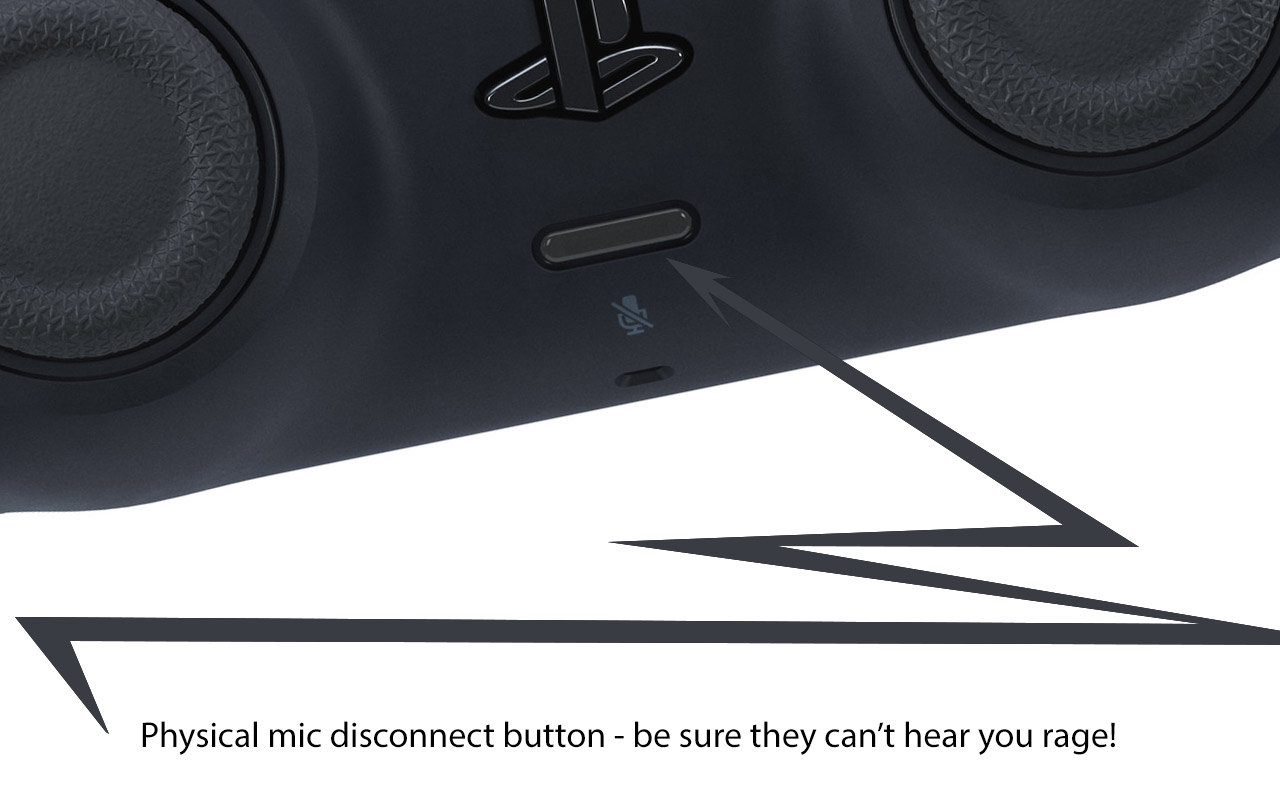
Even if you do not connect a headset to the PS5 – the new console has an integrated microphone. Or rather, not the console itself, but the new DualSense controller. However, what not everyone knows: the microphone provides surprisingly good voice quality and is activated by default – and continuously, unless you manually mute it.
This can lead to some embarrassing situations if you inadvertently reveal private information during a party or in an in-game voice chat. Therefore, in my opinion, the microphone should be disabled first.
This can be done in two ways:
- Firstly, via a button on the PS5 controller. This does not light up when the microphone is on and lights up continuously when the microphone is muted. You can therefore turn it off directly with the press of a button on the DualSense.
- Secondly, you can mute the microphone in the console settings and also set it as the new default. Once your PS5 starts, the microphone will always be off, and the mute button will light up.
If you want to change the default setting, you can do so under “Settings / Sound / Microphone / Microphone Status while Logged In”. There you must select “Mute”.
By the way, if you connect a headset with an integrated microphone via jack or wirelessly to the PS5, it takes over the control of the mute function (if available).
Performance mode or resolution mode?
The PlayStation 5 allows you to make numerous default settings for games. For example, what difficulty level you want to play by default, or which perspective you prefer if given a choice in a game.
But what is much more important: you can choose between different performance modes for games.
You have the choice between:
- Game Default Setting
- Performance Mode (higher frame rate prioritized)
- Resolution Mode (higher resolution prioritized)
Some games offer both. However, with some (like Spider-Man), you have to choose. Here, I have to say that the performance mode is worth it to me the most – especially if you do not use a 4K monitor or TV. Because especially the 60 (or more) FPS currently represent one of the most important aspects of the next-gen for me.
By the way, this may be purely subjective, but I feel that even some PS4 games like The Division 2 or Elite Dangerous run a bit more smoothly with performance mode activated, even though the feature is more aimed at newer PS5 games. Just try it out and see for yourself.
You can find this setting under “Settings / Saved Data and Game App Settings / Game Defaults / Performance Mode or Resolution Mode”
Select the Right Game Version
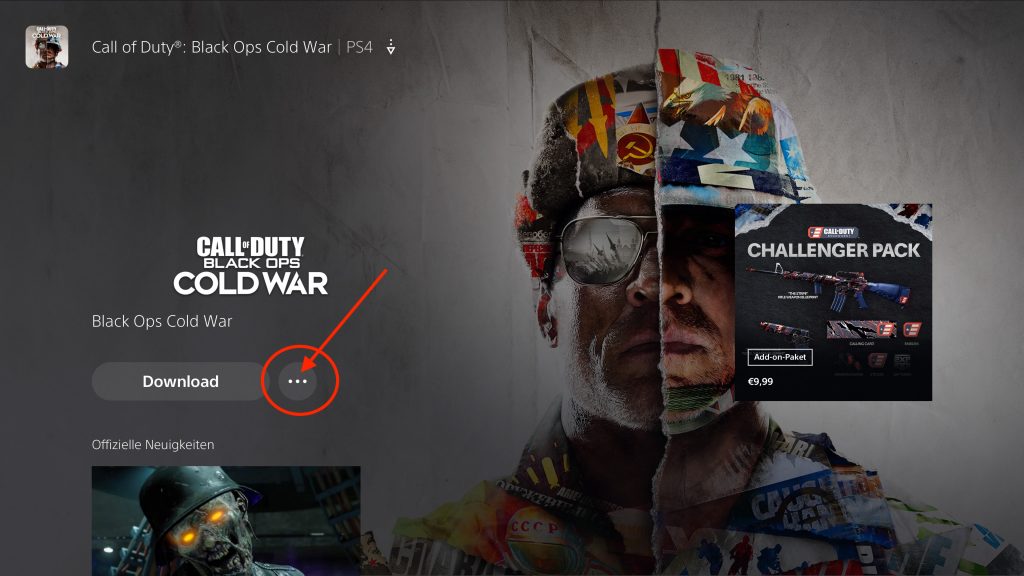
On the PlayStation 5, you can not only play PS5 games but also enjoy thousands of PS4 games through backward compatibility. Some games have both a PS4 and a PS5 version or plan to release one – such as the new Call of Duty: Black Ops Cold War. And with such so-called cross-gen games, you need to be careful about which version you download and end up playing. Otherwise, you might end up playing the PS4 version on the PS5, even though there is also a version specifically for next-gen.
To ensure that you are actually playing the PS5 version (if available), you can check by
- Checking whether you selected the PS5 version when downloading the respective game from the PS Store
- Checking which version you are starting on the console
Click here before downloading 
Then select the right version 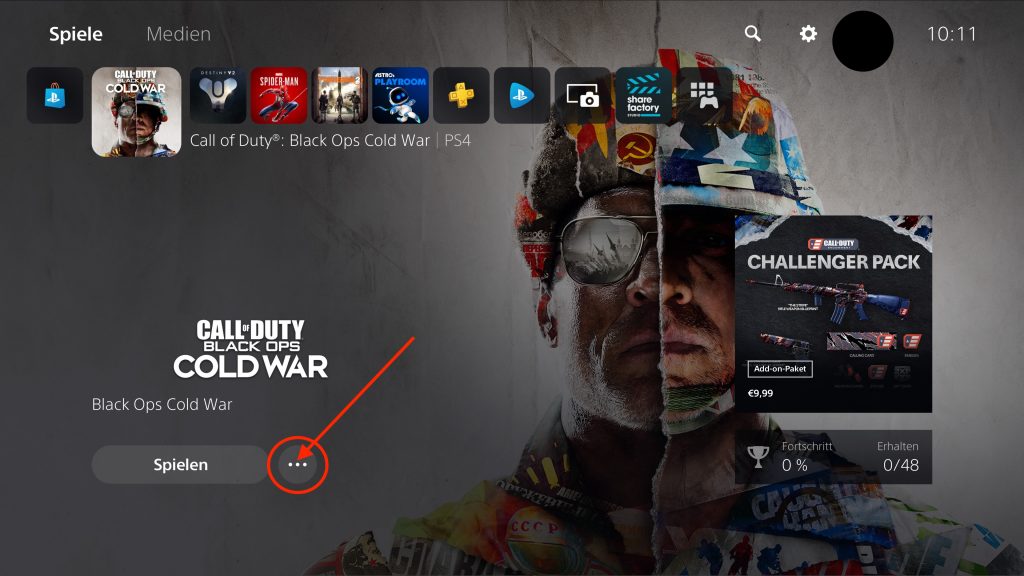
Or select before playing 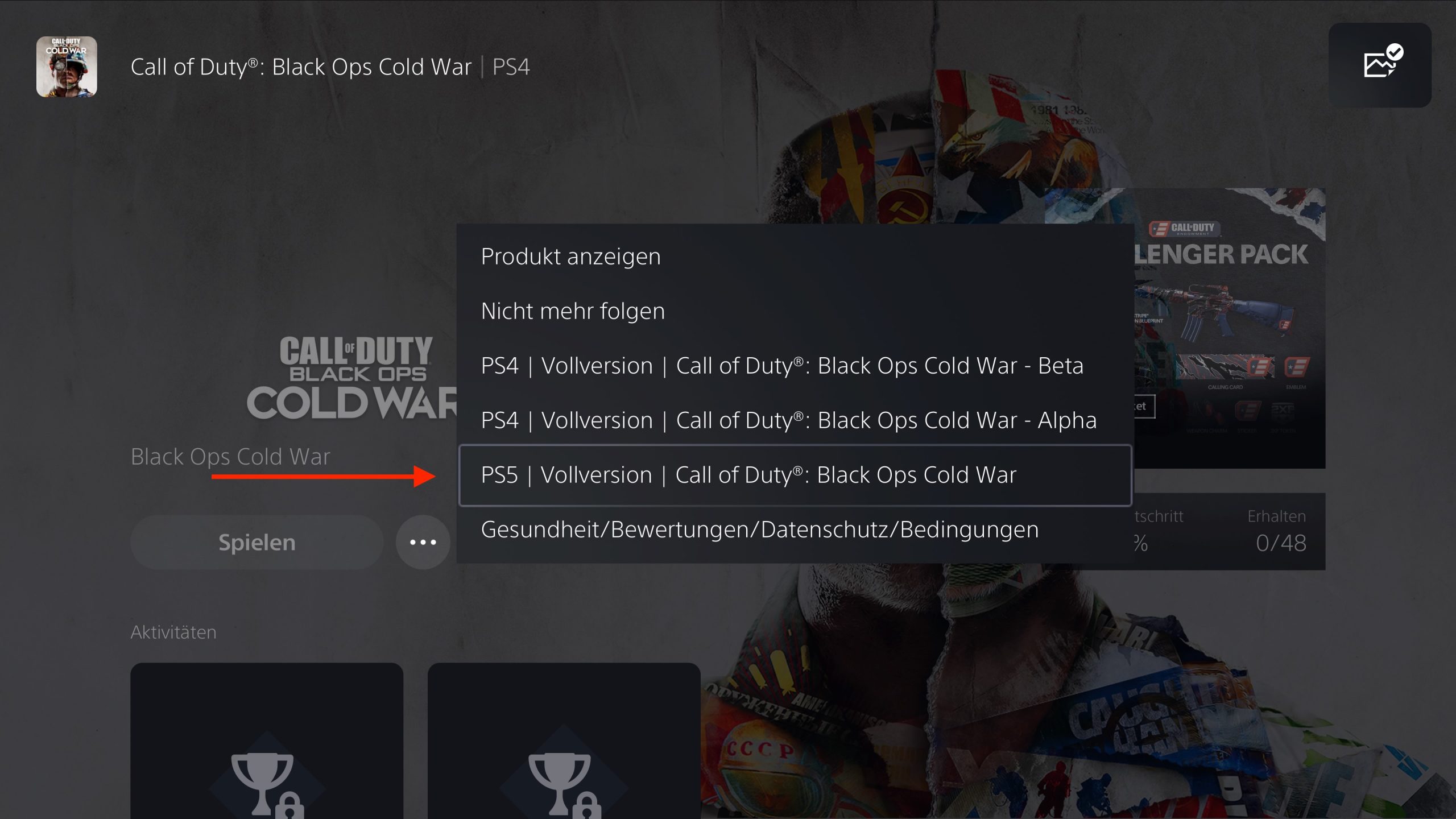
And then choose the right version
You do this in both cases by selecting the game in the PS Store or navigating to the corresponding tile for the game in the main menu and clicking the field with the three dots next to “Play” or “Download”.
There you have the option to choose between the different versions of the game.
Disable Automatic Trophy Videos
The PS5 offers an ultra-fast SSD, but the storage space on it is limited and cannot currently be expanded – at least not in a way that allows you to store PS5 games on it. With the pre-installed Astro’s Playroom, 667 GB of free storage is available for games, apps, and media right out of the box. And based on my personal experience, this can fill up in no time.
However, by disabling a trophy function, you can proactively save some storage space. The PS5 takes a screenshot and records a 15-second video every time you earn a new trophy and saves them by default. Over time, this can accumulate a substantial amount of clips that (I assume for most) unnecessarily take up portions of the precious SSD storage.
However, you can change that – and here’s how: Go to “Settings / Captures and Broadcasts / Trophies”. There you need to deactivate “Save Trophy Videos” – if you want, also “Save Trophy Screenshots”.
Turn Haptic Feedback and Adaptive Triggers of the DualSense On/Off
One of the coolest things about the PlayStation 5 is for many the new DualSense controller. It supports haptic feedback and adaptive trigger buttons in supported games. In short: If games support it, you can feel what type of ground you are moving on or which weapon you are currently firing with.
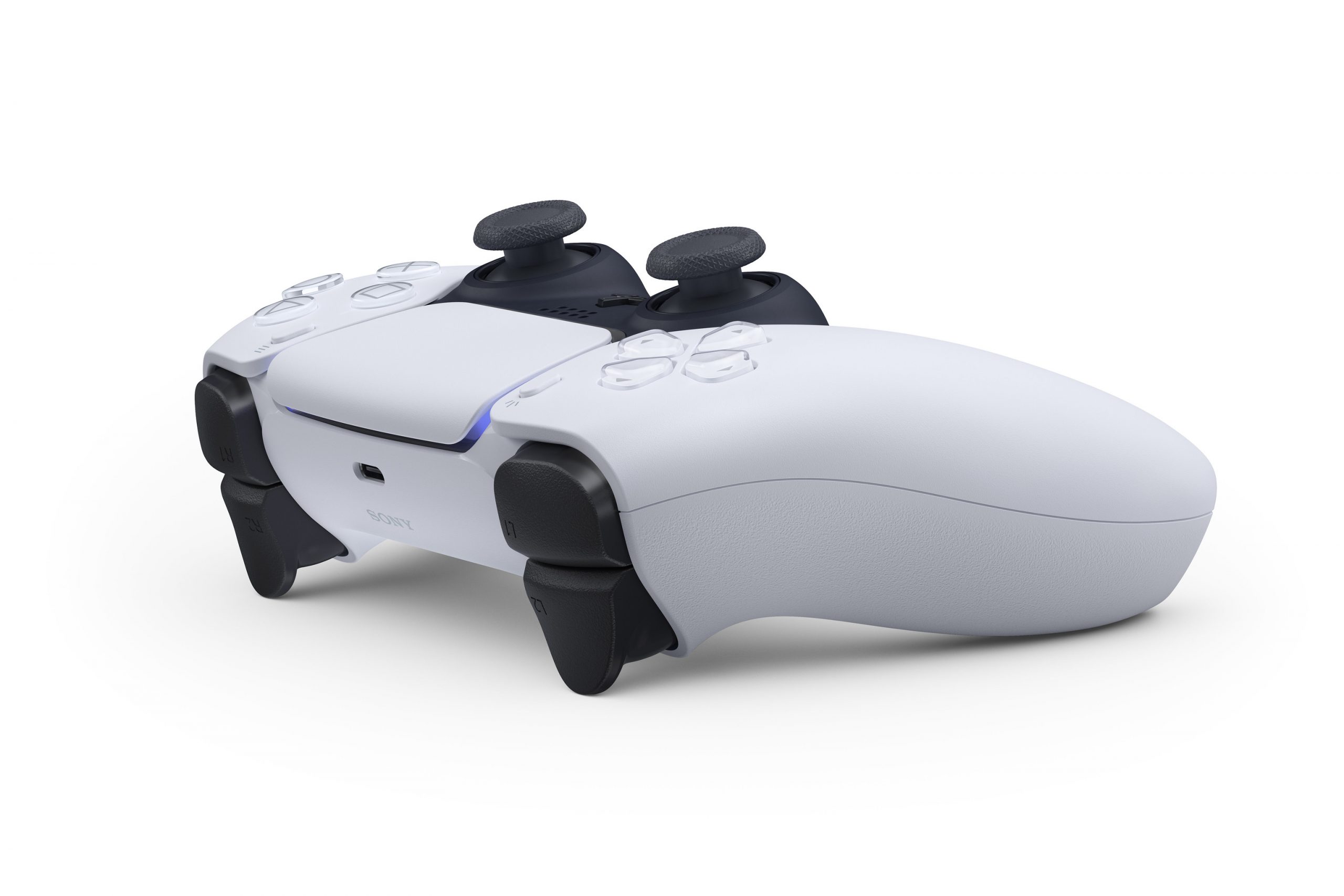
The PS5 controller is praised for this by many players, testers, and critics. But as cool as this feature may be for many – it is not for everyone. There are indeed reports that some people do not cope well with it or find it disturbing after a while.
Ultimately, it is something everyone has to decide for themselves. The feature is activated by default. However, where it can be turned off is not immediately obvious to everyone.
If you want to enjoy these functions less intensively or turn them off completely based on your experiences, you can do so here: “Settings / Accessories / Controllers”.
There you will find the options
- “Vibration Intensity”
- “Trigger Effect Intensity”
There you can choose between strong, moderate, weak, and off – depending on what appeals to you the most.
Here are some tips for starting with the PS5
In addition to the mentioned settings, the following little things are quite worth knowing and could make the start of your journey on the PS5 a bit more pleasant:
Play Astro’s Playroom first: Astro’s Playroom is pre-installed on all PS5 consoles. It is, in essence, a kind of playful showcase that familiarizes you with the cool functions and features of the new DualSense controller.
I tried it late and must say I regret it in hindsight. Because it really shows you what the new PS5 controller is capable of – and pretty quickly.
In short: I recommend everyone to try Astro’s Playroom after the first setup of the PS5.
Charge your controller using the back USB port: If you do not have a charging station for your PS5 controller, then pay attention now. You have to charge the DualSense with the included USB-C cable at the console. It is especially convenient to do this in rest mode, when you are not gaming. However, some users report problems here.
Some say the controller does not charge correctly or only for a while – even if you configure the available functions in rest mode to ensure that the USB ports provide power continuously and not just for 3 hours.
Personally, I have not had any problems with this. If you do, it is recommended to use the USB port on the back of the PS5 for charging the DualSense – not the one on the front. Reports suggest that this might help circumvent or resolve the charging issue.

Do not use the PS5’s standby mode with Spider-Man: Miles Morales: There are also reports that it can lead to problems and crashes on the PS5 if you play the new Spider-Man: Miles Morales and then simply put the console in standby mode without completely closing the game first. So keep this in mind if you want to prevent issues.
Mute all audio via the controller: What many also do not know: The DualSense controller offers the option to mute all audio completely. This is especially convenient if you want to have a brief conversation with someone or take a call.
To do this, simply hold the microphone button on the controller for about a second until it starts to blink. Then you know you did everything right. To enjoy full audio again, just press the button again.
Accessing the Control Center is slightly different: For new players, this should not be a problem, but veteran PlayStation 4 users will need to adjust a bit. To access the Control Center, you now only need to tap the PS button on the controller briefly instead of holding it down.
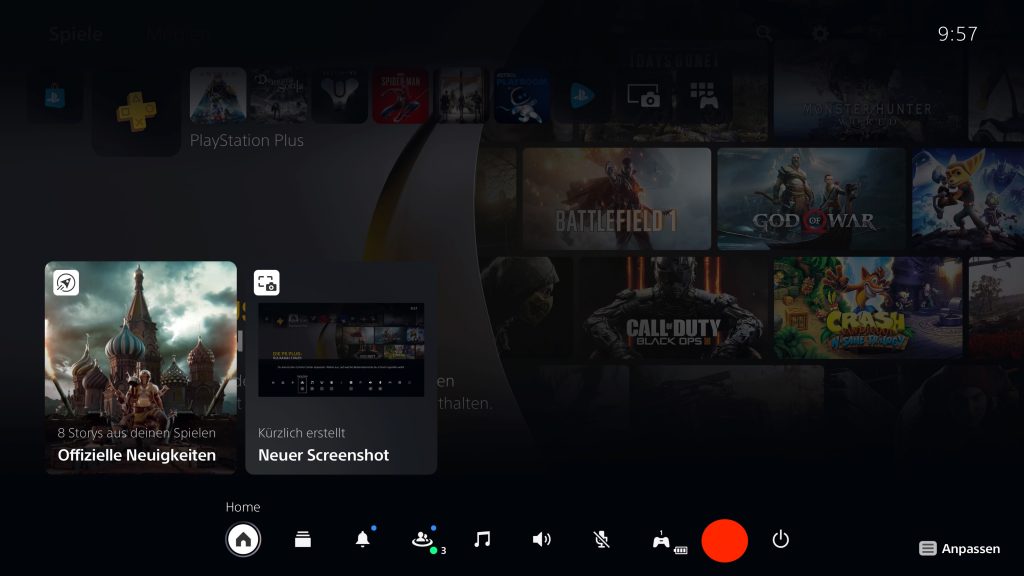
By the way, once you’ve brought up the Control Center menu, you can customize it with a click on the options button of the DualSense controller.

You can choose directly which inline status to log in with: When you start your PS5, you can not only choose the user you want to log in with, but also directly select the desired online status if you wish.
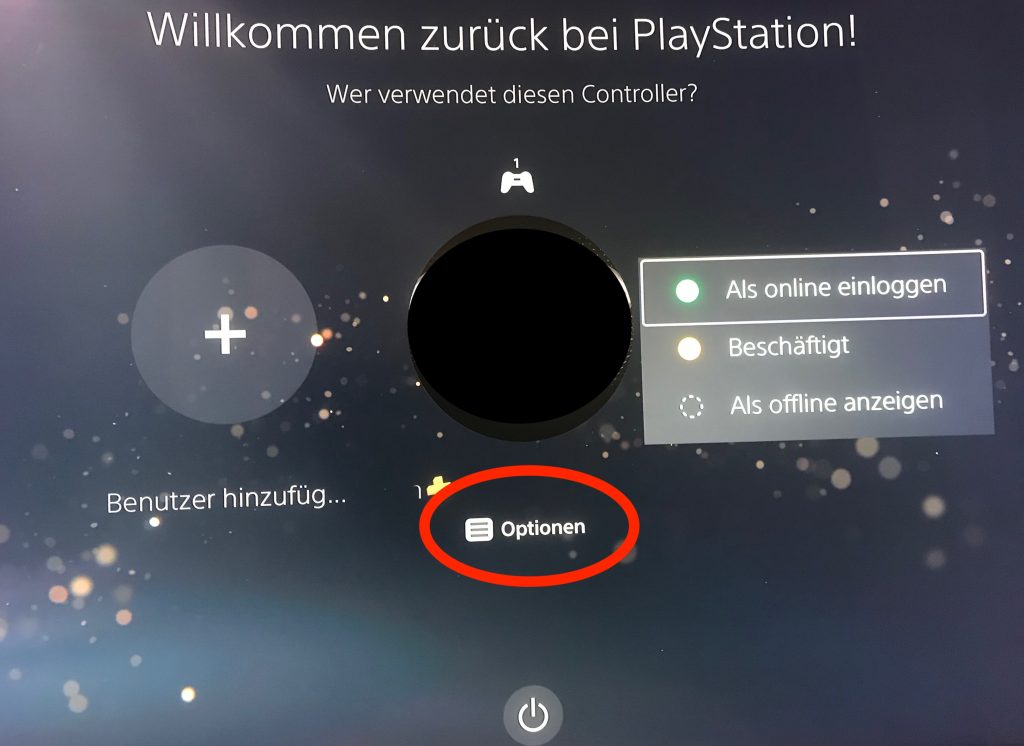
To do this, press the options button of the PS5 controller in the profile selection and choose the desired status if you want to change it directly.
And sorry for the image quality – the system cannot take screenshots in this menu. So I had to use my phone.
Here you can find your game library: If you want to load some of your old favorites, you will no longer find the game library in the PS Store, but only on the far right of the main menu of your PS5.

Here you can find your game library 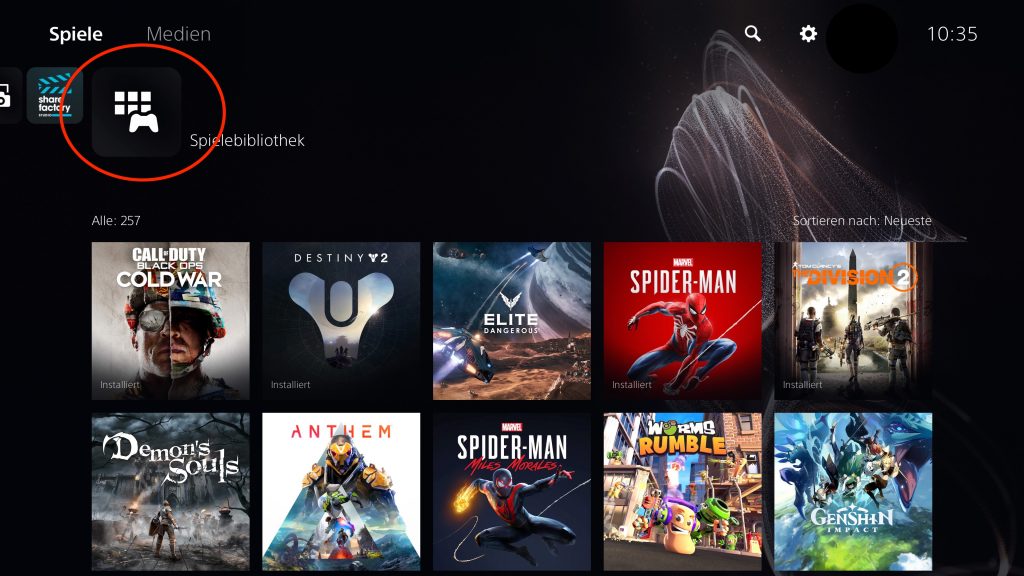
Here you can find your game library
And before you search for a long time – there is no folder function: While on the PS4 you could organize your games and apps into different folders, this is currently not possible on the PS5. So before you rummage through the extensive settings options – the option is (yet?) not there.
I hope this makes starting on the new console a bit easier for you. If you have any further questions, feel free to ask in the comments. And if you are still trying to order a PS5, you might have luck on November 19, launch day: Want a PS5? Then you need to keep an eye on these retailers on November 19

Your opinion is important to us!
Do you like the article? Then let us know!