

In the MMORPG The Elder Scrolls Online (ESO), there are many options to configure. We have compiled 19 tips from MeinMMO author Andreas Bertits and ESO YouTuber Alex0s.

The MMORPG The Elder Scrolls Online can be played well with the standard settings, of course. However, efficiency plays an important role in MMORPGs these days. That’s why we show you settings that will enhance your gaming experience.
You can access the settings by pressing the ESC key in the PC version of ESO (on PlayStation, it’s the Options button, and on Xbox, it’s the Menu button) and then selecting “Settings.” Here, you’ll find various sub-options that we will now go through.
Key Mapping
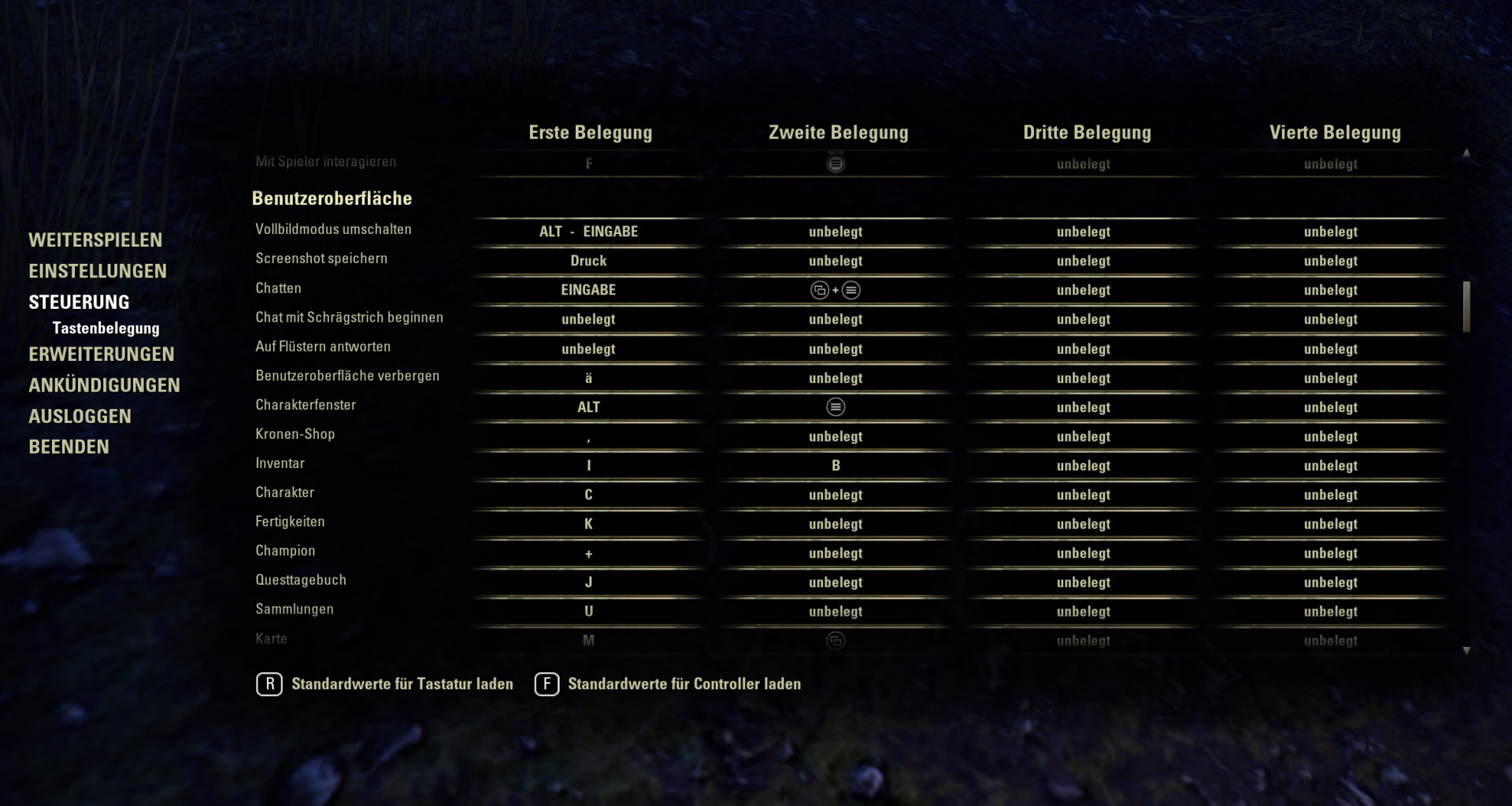
This is where you should make settings that will allow you to play better. Remap your keys here in a way that feels more comfortable for your gameplay.
Dodge Roll: This function is extremely important, so you should assign it to an easily accessible key. Dodging is essential in ESO to avoid attacks. If the key is placed in a location that is difficult to reach, it can have serious consequences for your character’s health.
Video
Custom Scaling: With this setting, it is possible to adjust the interface size. If you want to see more of the game world, turn the slider down. This takes up less space for the displays.
If you want the displays to be more prominent, turn the slider up.
Anti-Aliasing: An option that is not really important in general. If you enable anti-aliasing, it will noticeably cost you performance. Depending on the setting, you can lose a quarter of your performance or even more. Whether the smoothed edges in the game are worth it to you is something you must decide for yourself.
Combat
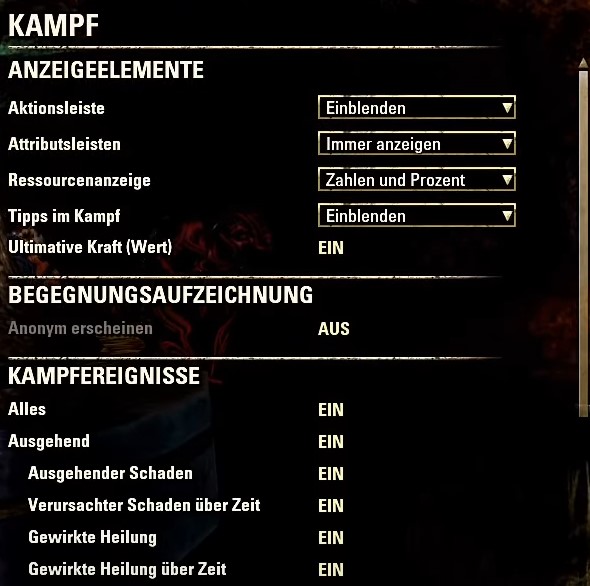
Ultimate Ability (Value): If you set this option, you will receive notifications about when your ultimate ability is available again. This helps you plan better and act more tactically. It is a very useful feature, especially in tougher fights.
These very useful settings come from the well-known ESO YouTuber Alex0s, who also presents the options in his video:
Social
Word Filter: Here you can censor certain words. Insults, for example, will no longer be displayed. However, this can make it more difficult to follow chats. If you don’t mind curse words, set the option to “Off.” This makes the chat much easier to read.
Video Settings
Fullscreen Mode: Set the fullscreen mode in the graphics options, as this leads to a more stable frame rate. This can vary in windowed mode, resulting in a choppy image.
Reflection Quality: Disable this setting in the video options under graphics. ESO calculates reflections even when none are visible. This will cost you some performance without providing any real visual benefit because no reflections are displayed anyway. This can bring an additional 10 to 15 FPS in performance.
Particle Systems and Particle Distance: Set the system to at least 1024 and the distance to 50. This way, performance is not significantly impaired, but you can still see particles in the distance, which helps provide better situational awareness. This way, you can quickly recognize when, for example, a spell attack is aimed at you.
Viewing Distance: Never set this below 37, as it will be difficult for ranged fighters to recognize their opponents from a distance otherwise. However, a value above 100 can negatively affect performance, especially in cities.
Additional Effects from Allies: You can disable these, as the most important graphical effects remain visible. Healing or buffs that are beneficial to you will still be shown. Effects that are not relevant to you will not be displayed, which improves performance.
Gameplay
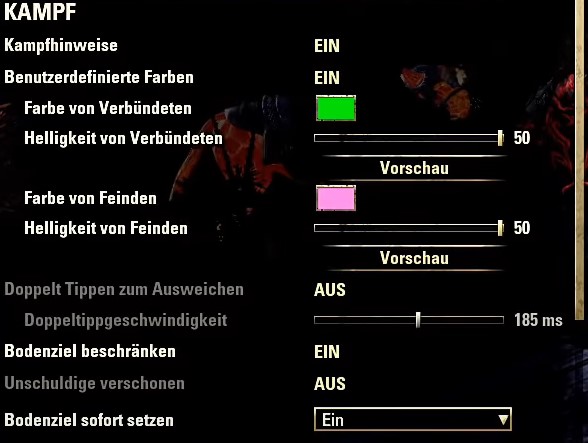
Custom Colors: Set a color for markers here that is easily recognizable to you. This is especially important for color-blind players, as it helps them see marked areas better.
Instant Ground Targets: Normally, you have to first select a location where the arrows should rain down, and then execute or confirm the attack, such as with a rain of arrows. If you activate the option “Instant Ground Targets,” the attack will be executed immediately after selecting the target.
This is especially useful with bad ping because sometimes commands are not transmitted correctly with a poor connection. An attack with just one input has a better chance of being executed with bad ping.
Camera
Field of View: Set the field of view for both the first and third person perspectives to the maximum possible value. This way, you can see more on the screen and respond more quickly to attacks, for example.
Interface
Latency: Set this to see the ping. This makes it possible to react to a poor connection and perhaps decide to conduct a fight a little later when performance is better.
Names
Show Group Members: Set this to “Always,” so you can see where your allies are based on names, especially in PvP. This makes battles much clearer.
Health Bars: Turn this option on too, so you can see how much health your group members and also your opponents have. This is also very useful in ESO PvP, so you can focus on an already wounded enemy, for example.
Combat
Attribute Bars: You should set this option to “Always Show” so that you can constantly see which buffs are active and how much health you have – even outside of combat.
Resource Display: If you set this to “Numbers and Percentages,” exact values for health and Magicka will be displayed for you and even for the enemies. This is useful to see exactly how many health points the opponent has left.
Combat Events: If you enable this option, the exact damage numbers that you deal will be shown. In combination with the resource display, you can fight more effectively.
Bonus: Auto-Loot for ESO+
Another useful feature exists for ESO+ users. In the gameplay section, there is an option to activate “Auto Loot” for them. Then you no longer have to pick up items manually.
Are there perhaps settings that help you in ESO that are not mentioned here? Then let us know in the comments.
It is also important to know that ESO has revised the Champion System.

Your opinion is important to us!
Do you like the article? Then let us know!