

In Call of Duty: Modern Warfare 2 you have a wide selection of settings: graphical settings, controls, sound – many adjustments have not been optimized for multiplayer. MeinMMO shows you 10 settings you should adjust immediately.

First of all: You will not find recommendations for your graphical settings on PC and no specialized guide for consoles here. Click here for our other settings guides:
- CoD MW2: Settings for more FPS on PC
- CoD MW2: Best settings for PlayStation and Xbox
- CoD MW2: Best settings for louder footsteps
We present general settings here that will give you an advantage over players who do not adjust the settings.
With one click you can jump to the desired section of the article:
- Image filter
- Field of view
- Sound
- Input settings
- Controller
- Mouse & Keyboard
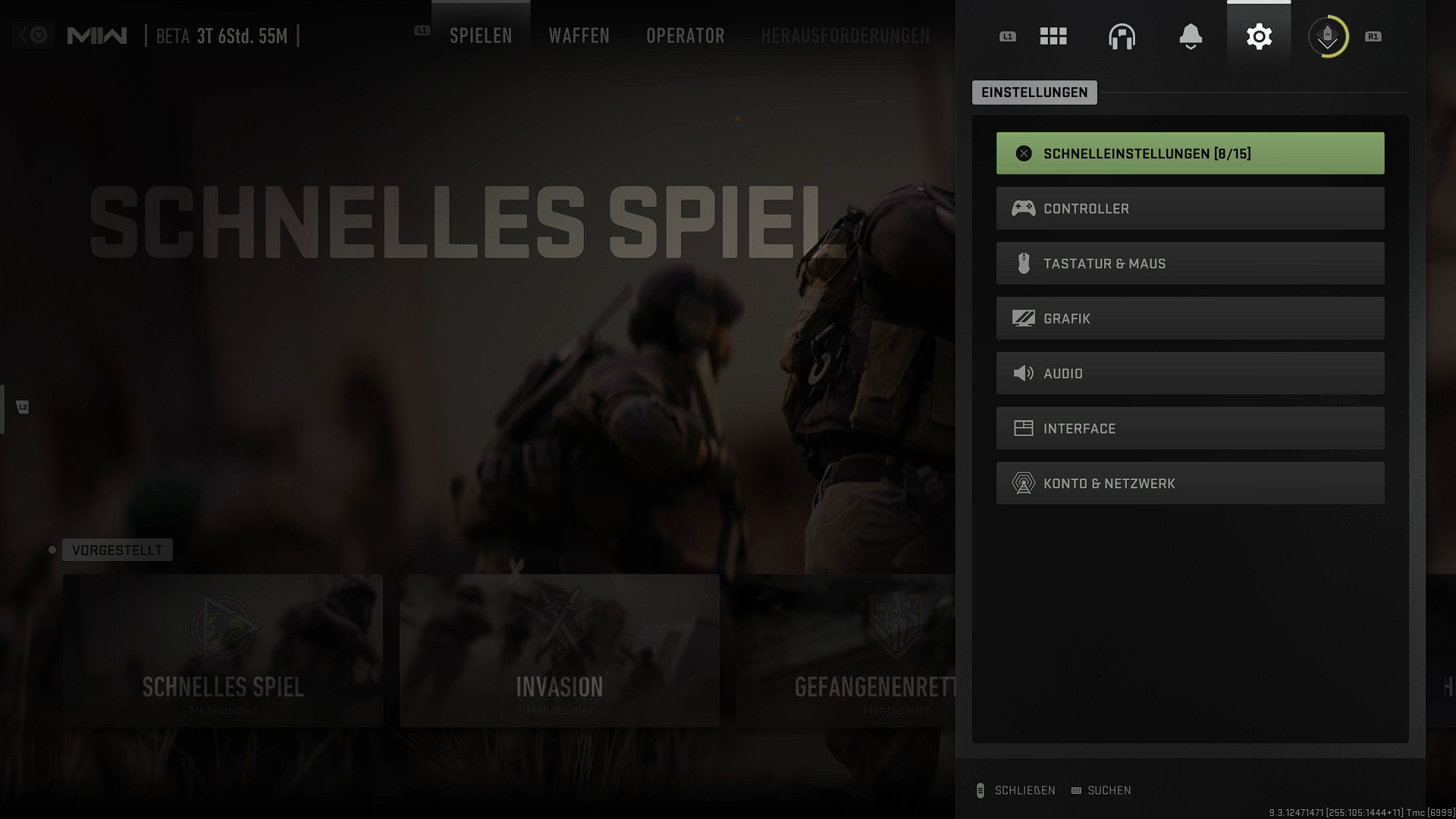
CoD MW2: Settings – Image filter
1. Setting – World motion blur: Disable
2. Setting – Weapon motion blur: Disable
3. Setting – Film grain: Set to 0.00
4. Setting – Depth of field: Disable
There are some graphical options that make everything look a little prettier and more realistic in the CoD MW2 story. However, such things do not belong in multiplayer, and all types of image filters should be disabled. By default, some are enabled.
If you have the setting “AMD FidelityFX CAS” you can experiment with it a bit. AMD promises sharper scene renderings without affecting performance. Play around with the value or turn it off directly.

CoD MW2: Settings – Field of view
5. Setting – Field of view: 90, 103, 110, or 120
6. Setting – External field of view: 90
With the field of view, you set how much of the game you see in your screen frame. A high value might be worth it since your screen edge shifts. But the image also gets a little distorted, everything feels faster, and there is a minimal fisheye effect.
With a smaller field of view, opponents appear larger on the screen. The larger field of view gives you a wider view. Decide for yourself what is more important to you.
CoD MW2: Settings – Sound
7. Setting – Audio mix: Headphones
8. Setting – Volume: Music 30 / Dialogue 30 / Effects 100 / Hits 80
In sound, it is mainly about well audible effects. This especially includes the footsteps of enemies, but also the direction from which gunfire comes.
The audio setting “Headphones” offers you a limited dynamic range that focuses on the essentials. The larger the dynamics, the more the sound focus is on other noises that could distract from the important effects.
CoD MW2: Settings – Input settings
When it comes to input devices, everyone has their preferences. We want to give you a few tips for mouse, keyboard, and controller.
9. Settings – Controller
- Vibration: Off
- Trigger effect (PS5): Off
- ADS sensitivity multiplier: 0.9
- Reverse triggers: On
Vibration and other controller effects can impair your aiming abilities and reactions. Avoid them in multiplayer. Also, reverse your front and back triggers, as the back triggers usually have a longer distance to travel than the front ones.
The ADS sensitivity multiplier is a strong tool to secure a slight aim boost when aiming. The sensitivity decreases by 10% when aiming down sights, which can be very helpful when targeting. If you find the change in sensitivities confusing while gaming, turn it off again.
10. Setting – Mouse & Keyboard: The settings for your mouse inputs are very dependent on your individual taste. We refrain from making recommendations for sensitivity at this point.
However, what is worth trying are new keybindings. Assign actions like “Crouch” or “Throw grenade” to mouse buttons you otherwise wouldn’t use. This gives you a little more time in the match and keeps you from having to use the keyboard as much.
If you have any tips or recommendations for settings in Modern Warfare 2, or questions about specific settings, leave a comment on the topic. We are happy to help and will include tips in our list.
Are you looking for powerful weapons in Modern Warfare 2? Then check this out: CoD MW2: The best weapons with setups

Your opinion is important to us!
Do you like the article? Then let us know!