

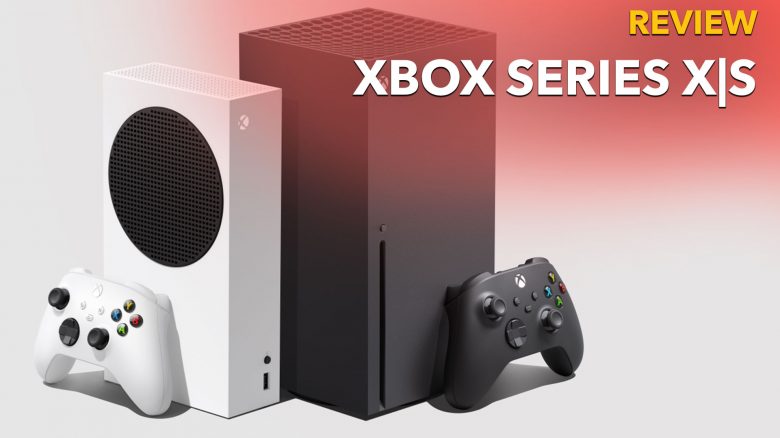
We tested Microsoft’s Xbox Series X and Series S for you. In the test, our editor Patrick Freese particularly focused on the social features that the consoles offer for multiplayer players. He also compared the loading times of multiplayer titles between the two new consoles.
We at MeinMMO received both next-gen consoles, the Xbox Series X and Series S, from Microsoft. In my unboxing, I unpacked the Series S and X for you, laid them side by side, and showed the famous banana comparison.
But I didn’t just want to stop at unpacking.
I was itching to try out the consoles right when I received the packages. And how that felt, I can finally share with you.
What you can expect from the review:
With this review, I want to show you how satisfied I am as an MMO player with the new Xbox Series X and Series S. For that, I tested
- the social section with voice chats, group invitations, and interface
- the technical section with loading times, accessories, and the pros and cons of next-gen in multiplayer titles
- In the coming days, we at MeinMMO will test more multiplayer games on Xbox Series X and Series S for you
How good are the social features of the consoles?
As an MMO/multiplayer player, there are some features that I need from a console, and they should work as seamlessly as possible. I don’t want to spend hours dealing with the settings of a party chat but just want to turn on the console, invite friends, and play together with them.
I looked closely at how the Xbox Series X and Series perform in this area. How easy is it actually to play a multiplayer game with friends or chat alongside your games?
Are there differences to the Xbox One X? In terms of social functions, last-gen and current-gen are on par. The Xbox One X and the new Series consoles don’t take anything away from each other. So, if you are already familiar with the Xbox ecosystem and have experienced the social features in detail, you can skip this section and go directly to the technical section.
Xbox players will feel right at home once the Series X or S is started. You start in your familiar Xbox environment with the homepage, voice chats, shortcuts, and the standard social functions. However, some things have changed in terms of technology.
With friends in voice chat
How easy is it to invite friends or create a group? Inviting new or existing friends to a party/group is incredibly easy. Even for someone who has never owned an Xbox, the controls are intuitive.
You press the guide button on the controller (the Xbox button), and you land directly in an interface with the essential functions. In second place, there is the tab “People”. Here you can see at a glance:
- Who is currently online?
- Who is playing what?
- Which clubs are currently active? (These are community meeting points for chatting and playing various games)
- Who did I play with last?
- People search
- and group search
So, I have the essential functions to create groups clearly laid out in front of me. And that after only 2 button clicks (Guide button, then RB to switch the tab)
For online friends, you can see immediately which platform they are online on in the Xbox ecosystem and what they are doing there. For example, friend Pascal is currently playing Dragon Ball Z: Kakarot while Fiffy is waiting on the home screen and is likely open to playing.
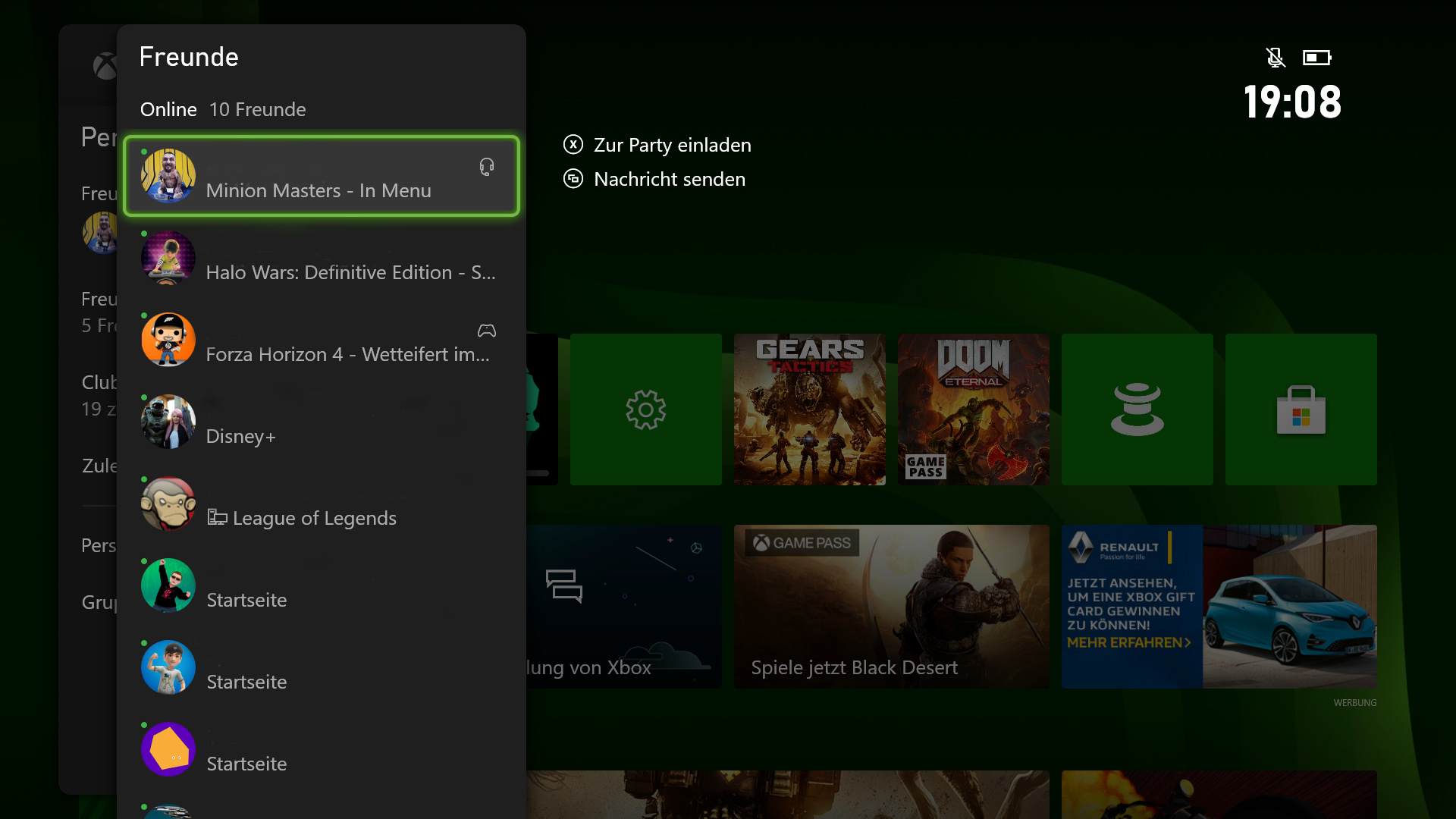
To start a voice chat, I just need to select the relevant person and invite them. This also works with multiple people, who can then be invited in the same way.
It took me less than 3 minutes to invite friends to a group, including starting the console.
Another plus is that you can always call up the party again through the guide menu. In every game or menu, you have your group ready at hand with just 2 or 3 clicks and can mute yourself or others via shortcut.
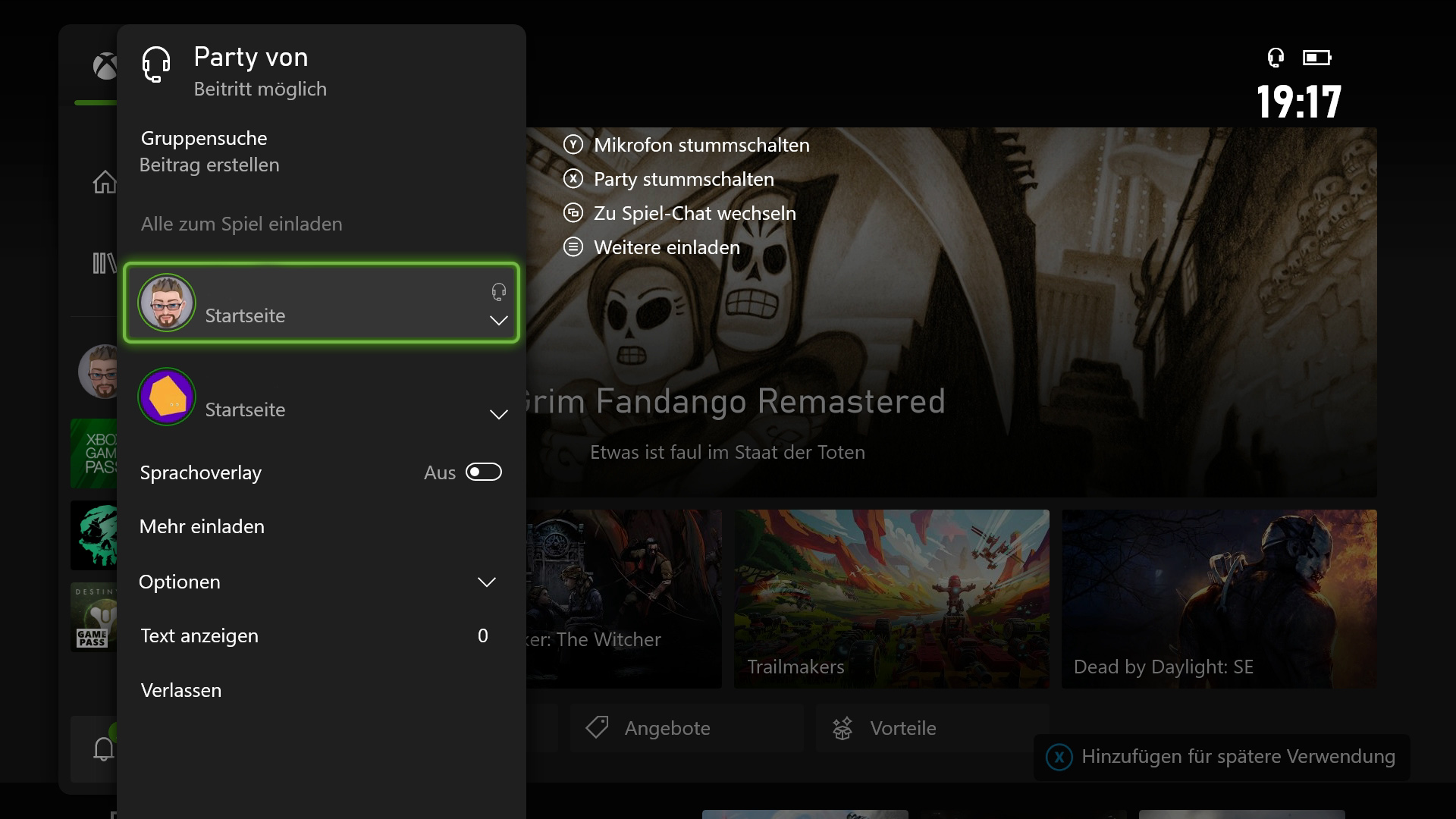
This is what the voice chat does really well: I know this from PC, when I sit with my friends in Teamspeak and suddenly the phone rings or my dog barks. I want to quickly mute my microphone. The same is true for group chats on Xbox. Being able to quickly intervene here and mute either the microphone or the sound is extremely important to me. And the Xbox Series X and Series S convince me in this regard. You can’t make muting any easier. Quickly press the guide button, select the party, and then press the mute button, in this case “Y”.

How good is the voice quality? The quality of the connection depends entirely on which microphone you and your conversation partners are using. That’s why I don’t want to make a blanket judgment here. In the test on the Xbox Series X and Series S, I spoke via voice chat with colleague Tobias Veltin from GamePro, who also tested the Xbox Series X and S.
I used my smartphone headset for this and could understand Tobias well – he used an Xbox headset that connects to the controller. He understood me clearly with my smartphone headset as well.
The connection was accompanied by a slight noise and was not as clear as a phone call. The background noise probably comes from my mobile headphones – I need to get a new headset here. However, when gaming, it’s essential to understand the other person, be able to chat, or call out tactics in heated shooter battles. And for that, the party chat is already strong.
If you are dissatisfied with the volume, you can adjust in the mixer how loud the voices from the chat should be compared to the games. Perfect if you want to mute the conversation partners during games with cutscenes without muting the entire chat.
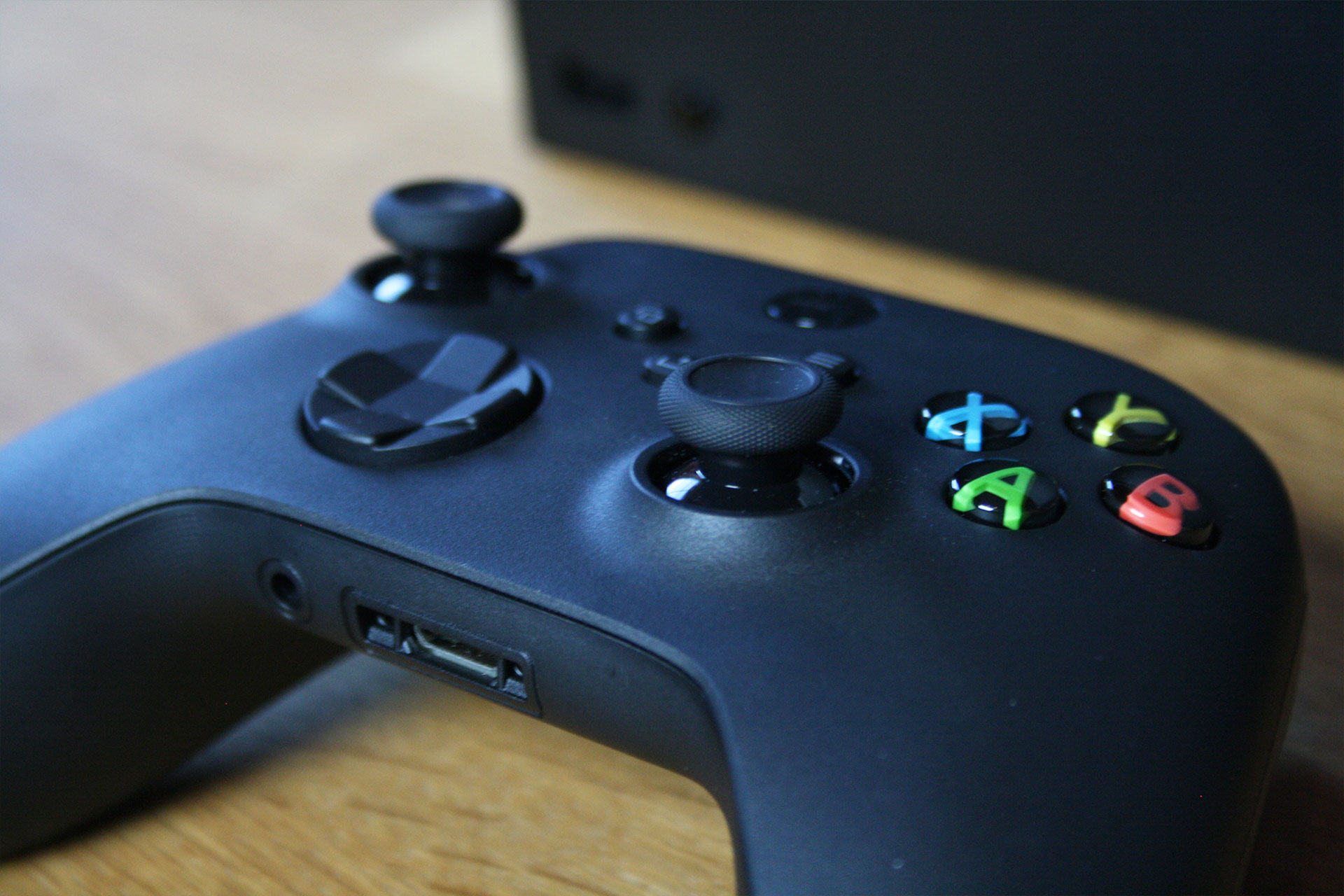
How easy is it to connect a headset? Connecting a headset is incredibly simple. I just tried it and plugged in the in-ear headphones with a built-in microphone that I also use for my phone. The wireless controller has a 3.5mm jack connection. Just plug it in, and you’ll have the sound in your ears or can speak through the microphone attached to the headphone cable, if available.
If you want, you can then regulate in the Xbox settings whether the sound should also continue to be transmitted to the TV or whether only the headset should be used for sound playback.
Using a suitable adapter, you can connect “normal” headsets to the controller. Alternatively, you could look for specialized Xbox headsets. An overview of the best gaming headsets in 2020 can be found here.
Do groups remain intact? Together with Tobias, I tested whether groups automatically rejoin after restarting. So in the scenario: you are chatting with a friend via voice chat, and he has to restart the console briefly. Unfortunately, he does not automatically rejoin the group after restarting but needs to be invited by you or create a new one.
It would be a cool optional function for groups that would immediately rejoin when they go online.
Can I talk with buddies on last-gen and PC? Yes, this works without any problems and just like between the new consoles. On PC, you can simply join or create a party with the Xbox app. This works with text and voice chat. There is also the option between Xbox One X and Xbox Series S|X. I tested both for you and had no issues.
How user-friendly is the interface?
While testing the interface, I paid attention to how easy it is to navigate. Is everything where you expect it to be and can you find the important function quickly?
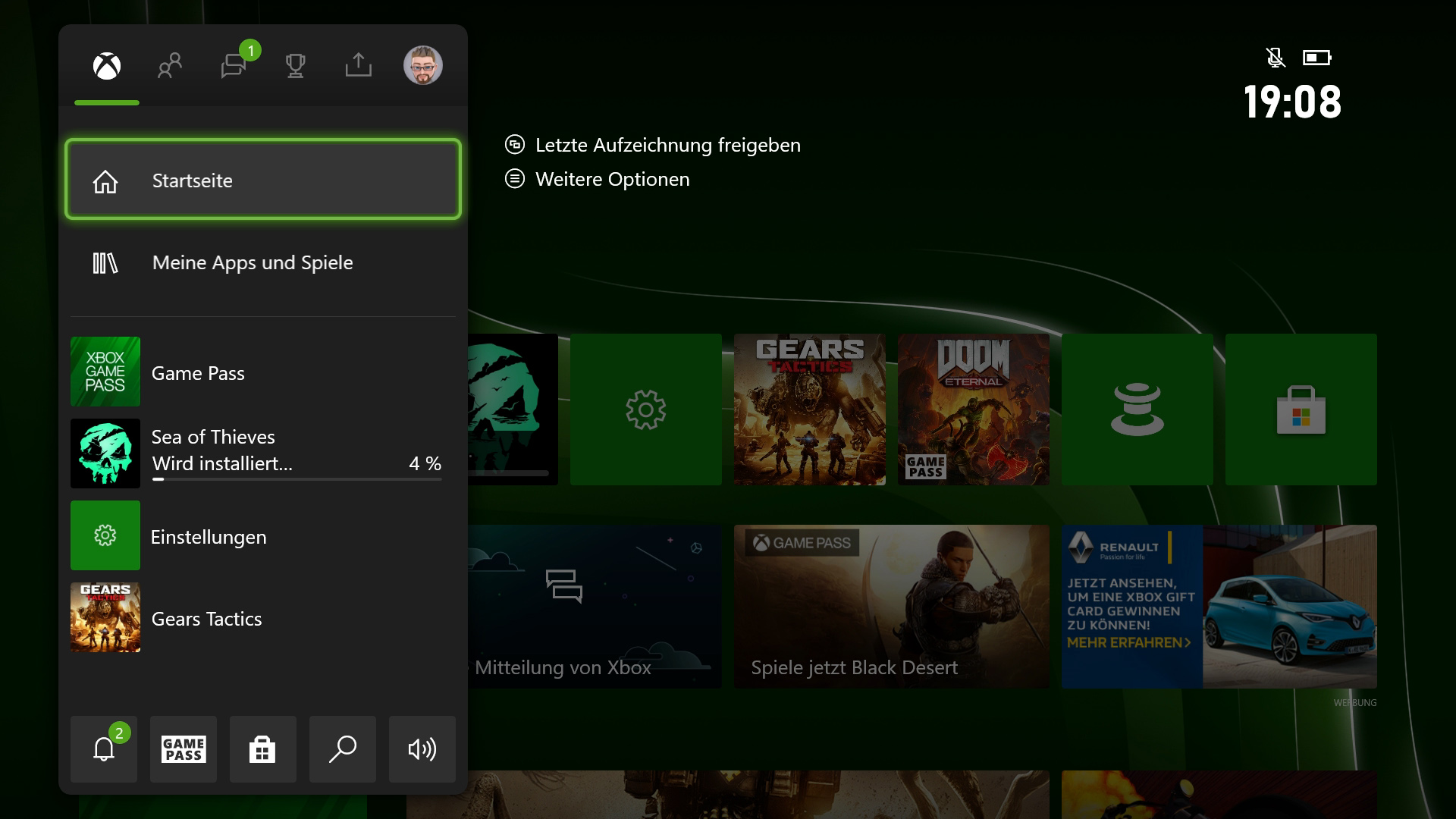
How easy is it to navigate? The search for obvious things is super easy. On the homepage, right after the first setup of the console, you see the clear menu with its colorful tiles.
- “Quick Tips” opens a menu with the most important questions like sharing screenshots or cloud gaming
- “Xbox Game Pass” takes you directly to the overview of the games that are available in the “Netflix for Gamers”
- “My Games and Apps” shows you which titles you have already purchased or installed and which you can play on your console
- “Settings” leads directly to options that affect your account, the system, or connected devices. Also, easier access features like screen magnifier, subtitles, or text-to-speech can be found here
- In addition, overviews of friends’ activities, the Microsoft Store for further game purchases, top apps, and additional tabs
Special settings such as selecting a manual IP or testing the internet connection are found deeper within the settings. You have to click through a few menus to get there.
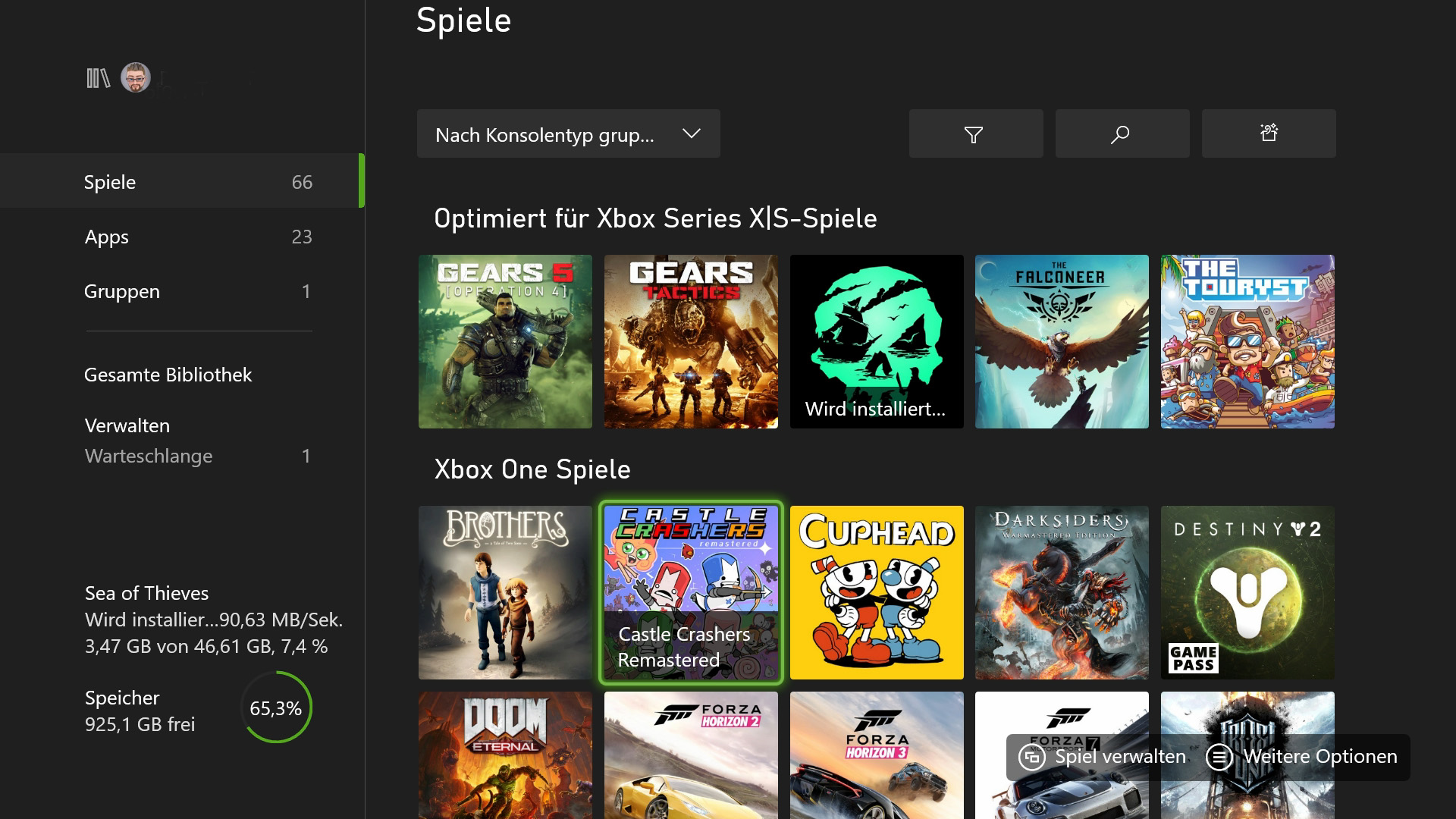
What makes it ideal for MMO players: Through the guide button, which is easily accessible on the controller, all the functions I want are presented to me directly. In the people overview, you can search for player names directly, add them, or invite them. So if I just rocked a map in Call of Duty with an unknown player, I can easily add them to my friends list through the quick menu. That way, I can easily build valuable contacts without having to deal with many menus or searches.
Even the achievements that I am currently hunting, have already achieved, or that lie ahead of me can be found in just 4 clicks.
What I also find important: If I am right in the middle of a session in PUBG or CoD, I sometimes need a quick, clear menu for social interaction. And the guide button of the Xbox controller delivers that immediately. If a friend invites me to a voice chat while I’m in a match, I can join the chat with just a handful of clicks and continue playing.
This doesn’t really pull me out of the match, and with another click on the guide button, I’m right back in the game if something important happens. The overlay takes up only about a third of the screen. So I can still see what’s happening on the rest of the screen, recognize enemies or other action while I’m in the console’s quick menu. If the interface were made even more transparent, even less would escape you while playing.
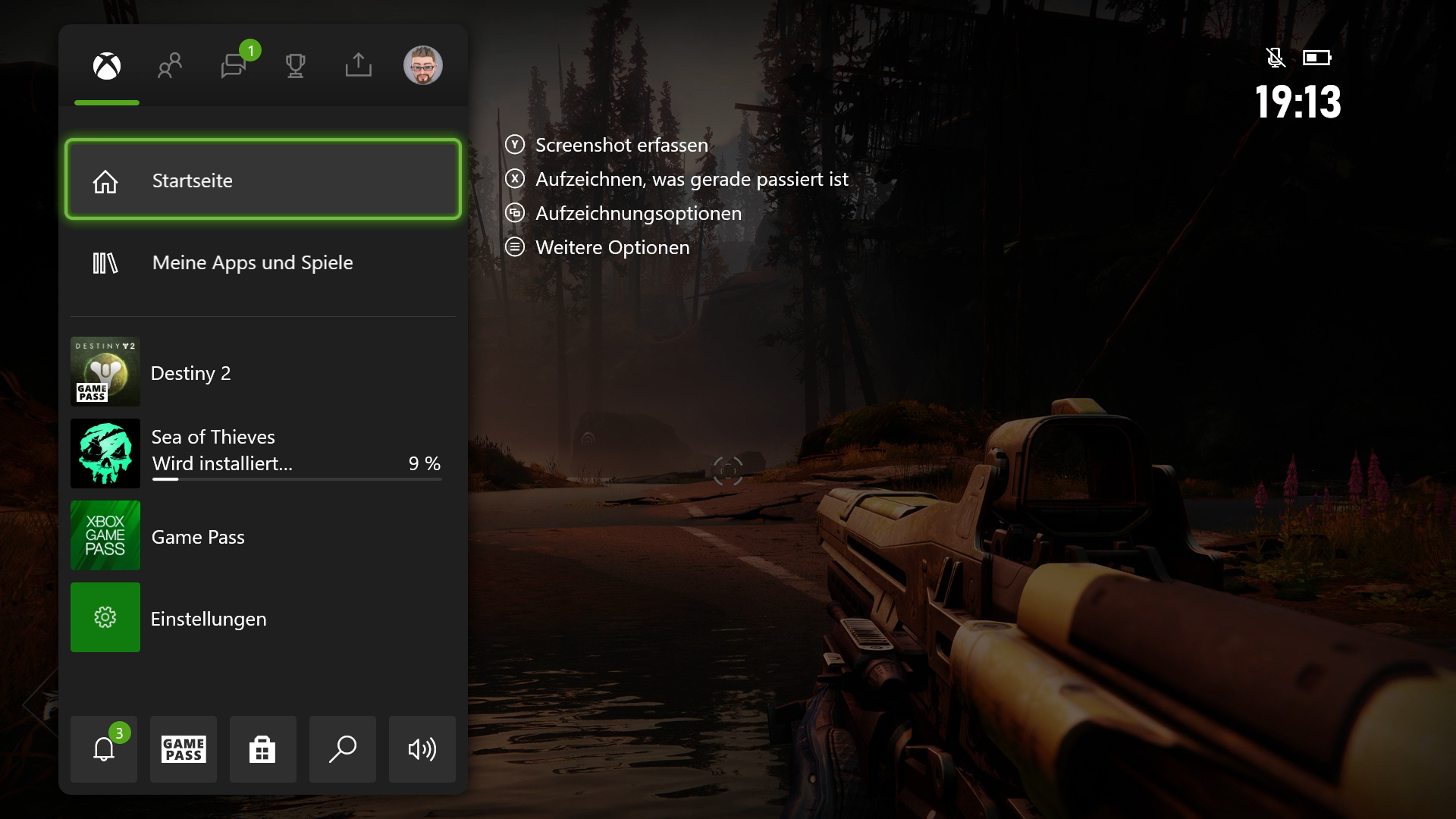
What stands out about the interface: Everything feels super fast. After clicking on features, there are no noticeable wait times. The new SSDs of the console really deliver good performance here. When you click something, it happens immediately. And this is exactly what I expect from a console that is part of the “next-gen”.
My little highlight – The Share button
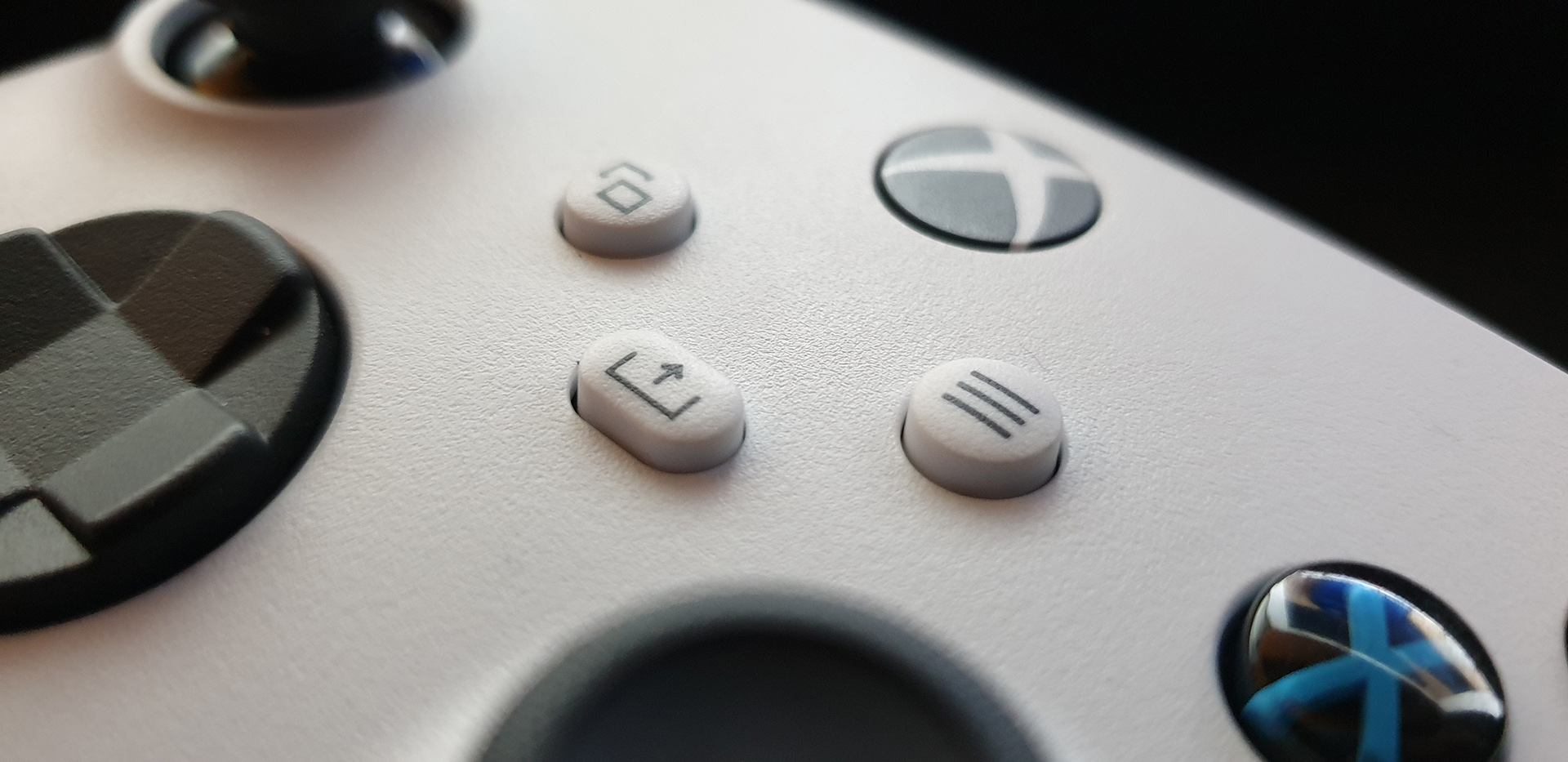
The Share button is a little highlight that stood out to me while testing. The “old” Xbox controller didn’t have this feature. When I press the button, I take a screenshot, which is then uploaded. If I hold down the button, I record a video. It has never been easier for me on the console to capture important achievements, loot, or victories through screenshots or videos and share them with friends.
What makes it even better: I can immediately view, save, delete, and share pictures and videos on the Xbox app on my phone.
How is the speed when loading multiplayer?
While testing the speed and loading times, I primarily focused on how quickly I can actually get into the game. The scenario: the console is off, and I want to play a multiplayer title or MMORPG – how long does it take until I’m really in?
And here, I can tell you that everything runs really fast. Sometimes I didn’t need even a minute to go from the off state to being in the player search.
How are the loading times for the interface, multiplayer, and booting? Here in my apartment, I am struggling with a relatively slow internet connection. So initially, I could only take two games for direct comparison between the Series X and Series S regarding loading times. These are PUBG and Fortnite.
I used a stopwatch to time how long it took from starting the console to entering the player search for the respective titles. Because that’s what matters to me as an MMO/multiplayer player: I want to play NOW – how long does it take until I land in the action?
Here are the loading times from pressing the guide button on the controller (to start the console) to lining up in the player search:
- PUBG on Xbox Series S 1 minute and 5.16 seconds
- PUBG on Xbox Series X 1 minute and 1.02 seconds
- Fortnite on Xbox Series S 50.12 seconds
- Fortnite on Xbox Series X 47.16 seconds
The console was fully powered down before each start.
We will provide comparative tests for additional games in the coming weeks. Due to the limited testing time and the internet connection, we focused here on just two titles.
Accessories
When you take your Xbox Series X or Series S out of the box, everything essential is included right away.
- The console
- One controller
- A power cable
- An HDMI cable to connect to the TV or monitor
- Batteries for the controller
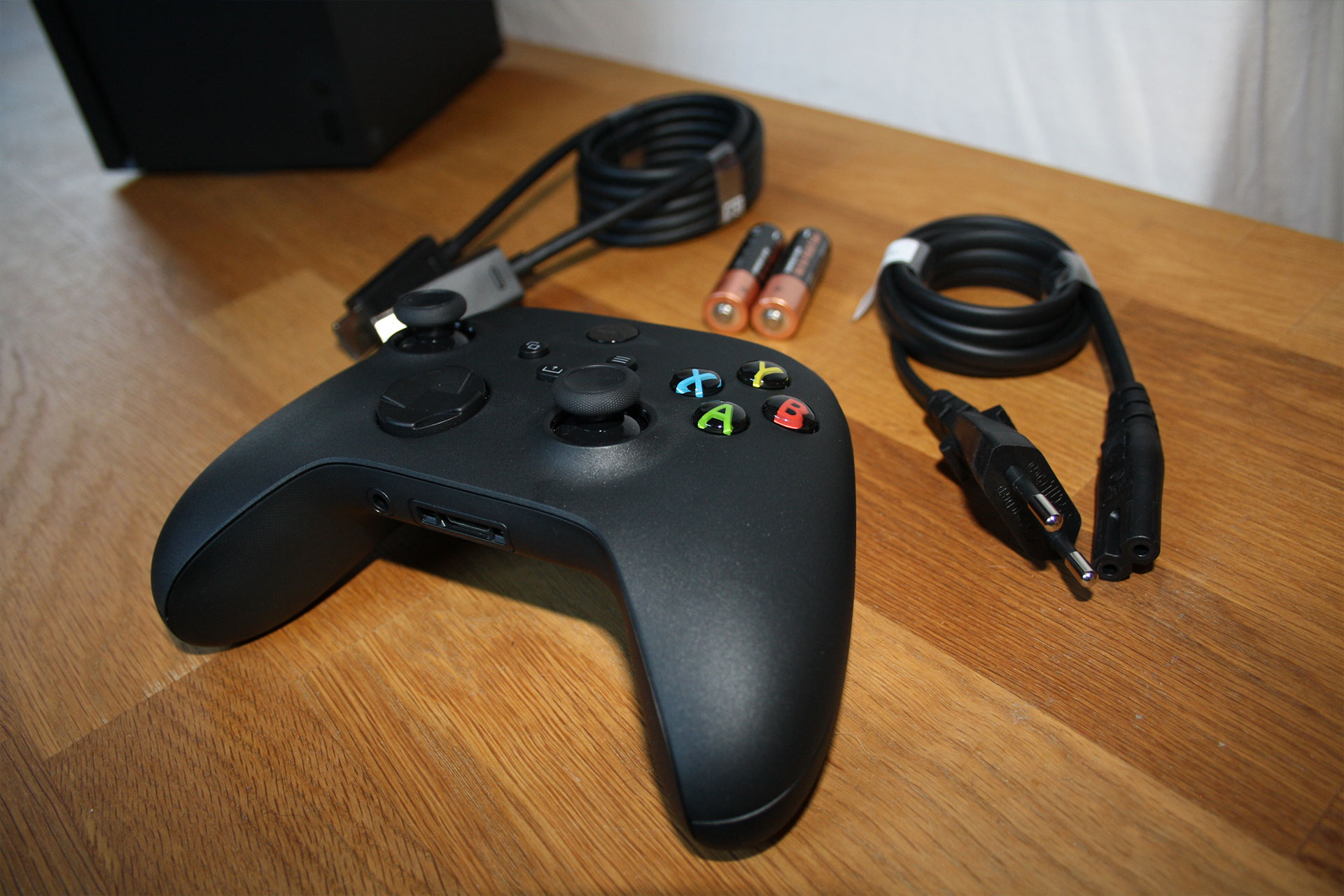
But what about additional accessories and how do you connect them?
How easy is it to connect? For the review, I connected a keyboard and mouse to the USB port of the Xbox Series X and S.
Both consoles immediately recognized the keyboard (a Logitech G15). I could navigate through the menu with it. However, the mouse was not recognized.
I didn’t notice any case where I absolutely needed a keyboard. Good, users with really long passwords might be able to make use of it when logging in.
In games themselves, it’s up to the developers whether you can connect regular devices like PC keyboards and mice. Some games like Call of Duty: Modern Warfare support input on the console with keyboard and mouse, but then you can only compete against other players who are also using a keyboard and mouse. In the shooter Apex Legends, no mouse and keyboard are allowed on the consoles.
Which “old” accessories can be connected? Microsoft explains:
“Any officially licensed Xbox One accessory that is connected to your console via USB, either wired or wirelessly, will work on the Xbox Series X. Moreover, all headsets that connect through the 3.5mm jack of your Xbox Wireless Controller are also supported.”
Some headsets using an optical cable may require a firmware update to support game and chat audio over USB on the Xbox Series X.
If you are big MMO fans, then a storage expansion for the Xbox Series X might be right for you.
What advantages and disadvantages does next-gen bring for MP titles?
In discussing the pros and cons, I refer to what is essential for me as a multiplayer player. How long do I have to wait for vast worlds to load, and how good do they actually look? What performance can I expect if I buy the new console?
What advantages does next-gen bring for MMOs and multiplayer titles?
- More FPS – important for shooter players where high FPS values matter, also important for MMORPGs
- Higher resolution matching the currently popular 4K TVs that are present in gamers’ living rooms
- The quick resume feature gets players back into their games even faster – back to where they last left off
- Great convenience factor – coming from a box that is significantly smaller than my gaming PC, achieving 4K resolution at 60 FPS
What disadvantages does next-gen bring for MMOs and multiplayer titles?
- Limited storage space – On Series S, 364 GB for games, on Series X, 802 GB for games
- Games rendered in 4K sometimes have longer loading times for textures
Note: On the Series S, shorter loading times occur because they load smaller resolutions instead of the 4K textures in some games.
If you are considering entering the Xbox ecosystem but are unsure which console to get, we show you who the small Xbox Series S is worth it for.
What can I actually play as a multiplayer fan right at launch? Microsoft made all their games from the last generation backward compatible so that you can play them on the Xbox Series X and S, with the exception of a few Kinect games. Through the Xbox Game Pass, an additional selection of over 100 titles is available. Some highlights for multiplayer fans include:
- Watch Dogs: Legion
- FIFA 21
- Fortnite
- Destiny 2
- Sea of Thieves
- Gears 5
What cool multiplayer games and other launch titles can you expect on Xbox Series X and S? We highlight them here.
Now you want to know how well the games run on the Xbox Series X and S? You can find out more about the performance of the consoles in the tests of our colleagues at GameStar and GamePro.
- Alexander Köpf assesses next-gen for PC gamers at GameStar – How is next-gen in comparison to a gaming PC?
- Tobias Veltin writes in the GamePro test: “Microsoft has created a genuine and technically impressive gaming machine with the Xbox Series X”
Patrick’s Conclusion
As an MMO and multiplayer fan, I am already convinced by the Xbox Series X and S. During my tests, it often took less than a minute for me to land in my game after starting the console. It takes about 3 clicks longer to find a friend in my game and voice chat to start multiplayer together. The noticeably long wait times were a significant issue for me in last-gen, which was still powered by HDDs. As a confessed PC gamer, I see a huge advantage here: convenience. I sit down on the sofa, turn on the Xbox Series X or S via my controller, and within seconds, I’m in the game.
Moreover, both consoles are barely audible in operation and do not stand out disturbingly. Setting up and navigating through the next-gen is a breeze and intuitive – even people who have never owned a console can find their way quickly.
It is just amazing to be able to play games in 4K and at 60 FPS on such a small, convenient box. Soon you will learn from us on MeinMMO how the large MMORPGs and MMOs play on next-gen.
Patrick Freese
Editor at MeinMMO
How do you like Microsoft’s next-gen? Will you get a Series X or S to play, or do you prefer another platform? Is there still that one feature you’re missing that could convince you, or is your heart just committed to PlayStation or PC? Let us know here in the comments on MeinMMO.

Your opinion is important to us!
Do you like the article? Then let us know!