
The new interface causes problems for many players of World of Warcraft. We reveal how you can mostly get the old look back.

With Patch 10.0, many new features have arrived in World of Warcraft, and not all of them are well received by the players. Especially the new interface causes problems, as it pulls long-time veterans out of their familiar routine and forces them to engage with it more intensely. Some features are also a bit hidden and result in more frustration than fun. We reveal how you can largely restore the “old” interface – and also adjust the chat.
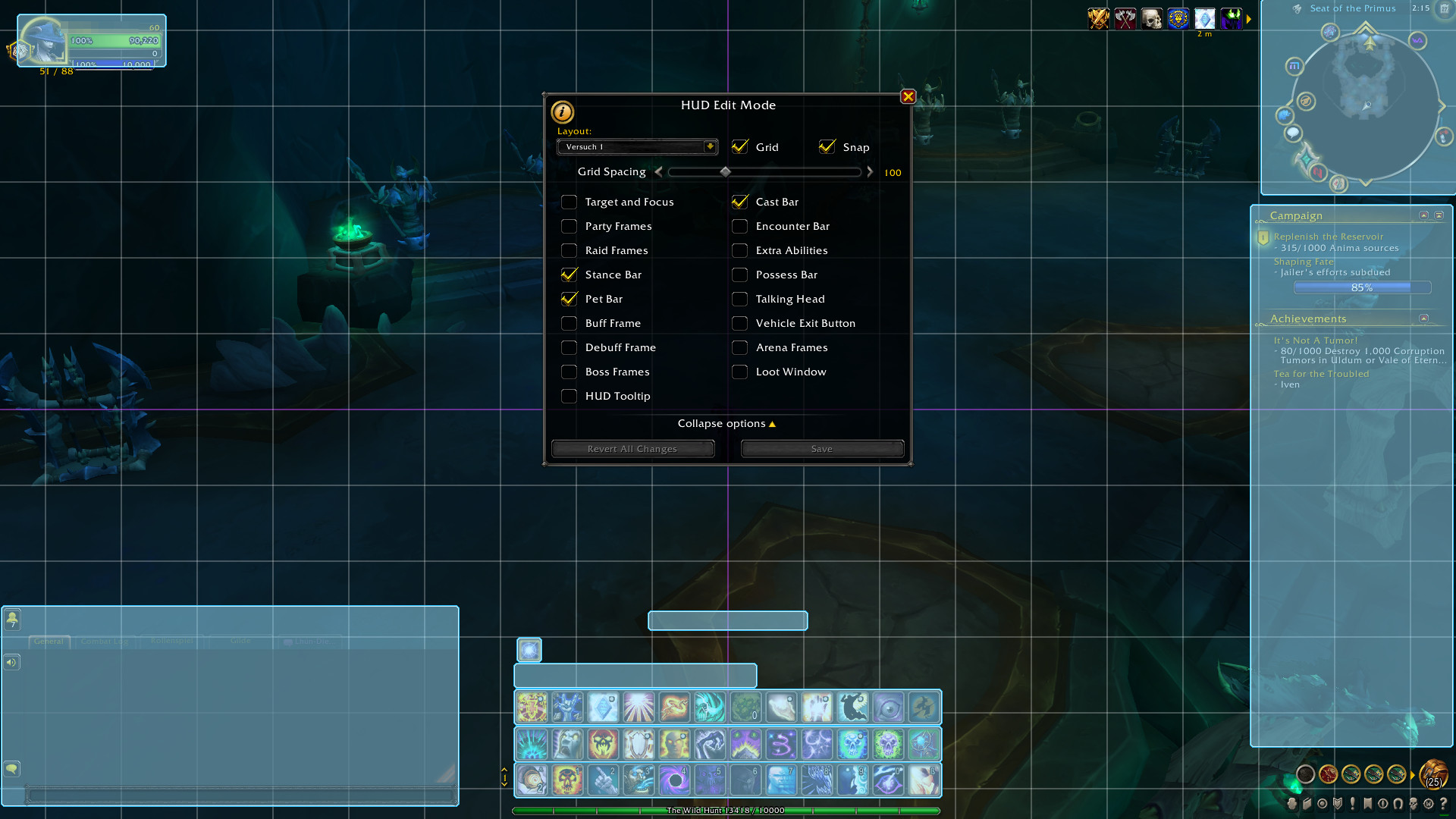
The “Edit Mode” allows for more customization, but also presents new problems.
How to restore the “classic” WoW interface
The modern design of the interface is what many other newer MMORPGs use, but it is not what WoW veterans have been accustomed to for over 18 years. Fortunately, the old look can largely be restored without the need for many fine adjustments.
- Simply press the Escape key and select “Edit Mode”.
- In the top left, you will now see a drop-down menu named “Layout”.
- Select “Classic (Default)” here.
This may not completely correspond to the classic look, but most objects are now back in the positions you knew them in. The character portrait is back in the top left, just like the display of your current target. Of course, the design can also be further adjusted to restore even more of the “old” interface…
The colleagues from wowhead have meanwhile tried to bring back even more of the classic design and created a custom interface for that. Fortunately, you can simply copy a code for this and paste it into World of Warcraft, so you have hardly any work to do.
To do this, simply reopen the “Edit Mode” and select the “Import” option from the drop-down menu. A large input window will then appear, in which you simply enter this code from wowhead:
Code for the Classic Interface
0 30 0 0 0 7 7 UIParent -265.0 53.3 -1 ##$$%/&(‘%)$+# 0 1 0 3 5 MainMenuBar 4.0 0.0 -1 ##$$%/&(‘%(#,$ 0 2 0 7 1 MainMenuBar 1.7 4.0 -1 ##$$%/&(‘%(#,$ 0 3 1 5 5 UIParent -5.0 -77.0 -1 #$$$%/&(‘%(#,$ 0 4 1 2 0 MultiBarRight -5.0 0.0 -1 #$$$%/&(‘%(#,$ 0 5 0 7 1 MultiBarBottomLeft 2.3 4.0 -1 ##$$%/&(‘%(#,$ 0 6 1 1 7 MultiBar5 0.0 0.0 -1 ##$$%/&(‘%(#,$ 0 7 1 1 7 MultiBar6 0.0 0.0 -1 ##$$%/&(‘%(#,$ 0 10 0 7 1 MultiBarBottomRight -121.7 4.0 -1 ##$$&(‘% 0 11 0 7 1 MultiBar5 -356.6 4.0 -1 ##$$&(‘%,# 0 12 1 6 0 MainMenuBar 0.0 5.0 -1 ##$$&(‘% 1 -1 0 7 7 UIParent 31.7 258.0 -1 ##$$ 2 -1 1 2 2 UIParent 0.0 0.0 -1 ##$# 3 0 1 0 0 UIParent 4.0 -4.0 -1 $$3# 3 1 0 0 0 UIParent 268.3 -5.7 -1 %$3# 3 2 0 1 1 UIParent -461.4 -9.0 -1 %## 3 3 0 0 0 UIParent 19.7 -165.3 -1 ‘#(#)#-#.#/#1$3# 3 4 0 5 3 LootFrame -4.0 125.7 -1 ,#-#.#/#0#1#2( 3 5 1 5 5 UIParent 0.0 0.0 -1 &#*$3# 3 6 1 5 5 UIParent 0.0 0.0 -1 3# 4 -1 0 4 4 UIParent 298.3 -223.3 -1 # 5 -1 1 6 0 MainMenuBar 0.0 5.0 -1 # 6 0 1 2 0 MinimapCluster -10.0 -10.0 -1 ##$#%#&.(()(*# 6 1 1 2 8 BuffFrame -13.0 -15.0 -1 ##$#%#’+(()(*# 7 -1 1 6 0 MainMenuBar 0.0 5.0 -1 # 8 -1 1 6 6 UIParent 35.0 50.0 -1 #’$A%$&7 9 -1 0 7 1 MultiBar5 266.0 4.0 -1 # 10 -1 0 3 3 UIParent 167.7 209.0 -1 # 11 -1 1 8 8 UIParent -9.0 85.0 -1 # 12 -1 1 2 2 UIParent -110.0 -275.0 -1 #K
Small fine-tunings that are adjusted to your resolution or screen size can be made by you afterwards.
How to enlarge the chat window
The chat window in World of Warcraft is something that many fans use quite flexibly. While it is often kept small in dungeons or raids, you can enlarge the chat in capitals or during RP to have more space for text. However, this can no longer be done directly at the chat window and must also be done through “Edit Mode”.
After that, hover your mouse over your chat window. There you can see a shaded triangle symbol at the bottom right, which is unfortunately difficult to recognize due to its coloring. However, with a click on it, you can easily change the size of the chat window.
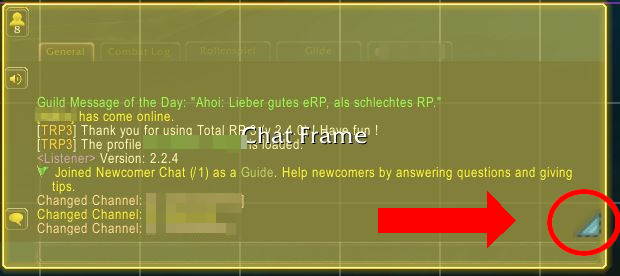
This is now a bit more cumbersome, as you always have to switch to edit mode first. However, once you know how that works, it only takes a quick action that takes about 5 seconds.
What do you think of the new interface and the customization options? Good and sensible innovations? Or is it all cumbersome and not as nice as “back then”?
How the new talent trees work we have shown you here.

Your opinion is important to us!
Do you like the article? Then let us know!