

Despite all the fun in the Wild West, some actions in Red Dead Redemption 2 feel clumsy and sluggish. If you’re tired of your character’s cumbersome movement or the confusing aim assist, you can try these tips for the settings.
In Red Dead Redemption 2, there is plenty to do and experience. However, sometimes the controls can be stubborn.
If you also have your problems with Arthur’s movement or are dissatisfied with the HUD, you can try these tips for the settings.
Toggle Run
Running in Red Dead Redemption 2 can feel a bit cumbersome at times, especially in critical situations.
With the default setting, the A or X button must be held down to run. If you want it to be a bit more comfortable, you just need to change a small detail in the settings under Controls and Accessibility.
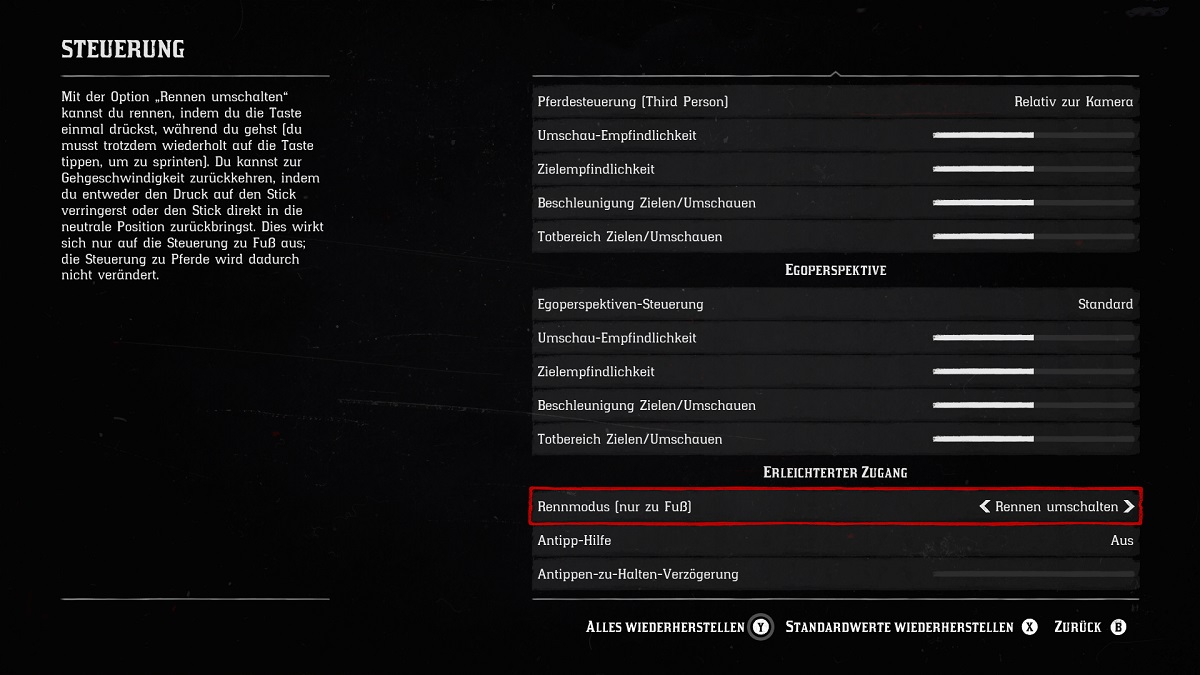
Change “Run Mode (on foot)” from “Hold to run” to “Toggle run”. This way, you only need to tap the button once, and Arthur will run until you stop.
However, this option only changes Arthur’s normal running. There is no change regarding:
- Trot with horses: You still need to hold A/X to move faster on your horse.
- You still need to repeatedly press the button if you want to sprint with Arthur or gallop with your horse.
Switch to Standard FPS Controls
If changing the run feature in RDR 2 is not enough for you, you can try one of the other control schemes. If you often play first-person shooters, like Destiny 2, you might prefer the standard FPS controls.
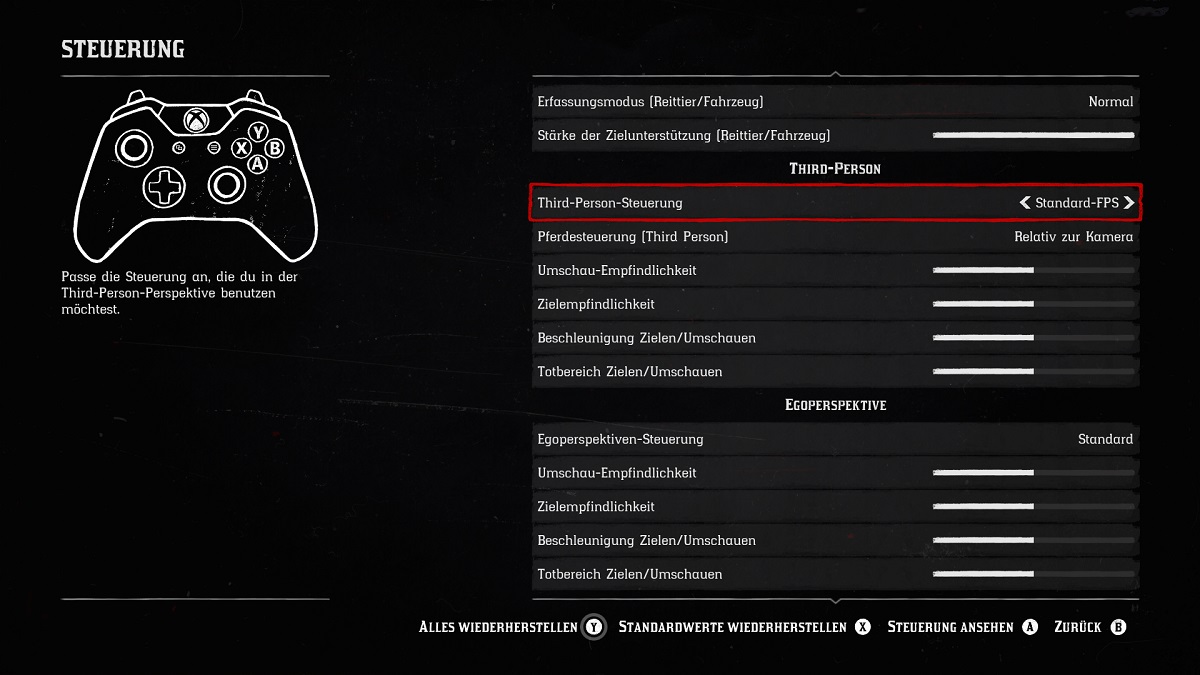
You can find the option under Settings, Controls, Third-Person or First-Person and then “Third-Person Controls” or “First-Person Controls”.
The controls for this scheme are almost identical to the default controls. However, running in Standard FPS is not triggered by pressing A or X but by pressing the left control stick. The run and crouch options are simply swapped.
Free Aiming on Foot
Red Dead Redemption 2 features quite a hefty aim assist. You can experiment with the parameters of aim assist on foot and while mounted or in vehicles under Settings, Controls, and Aim Assist.
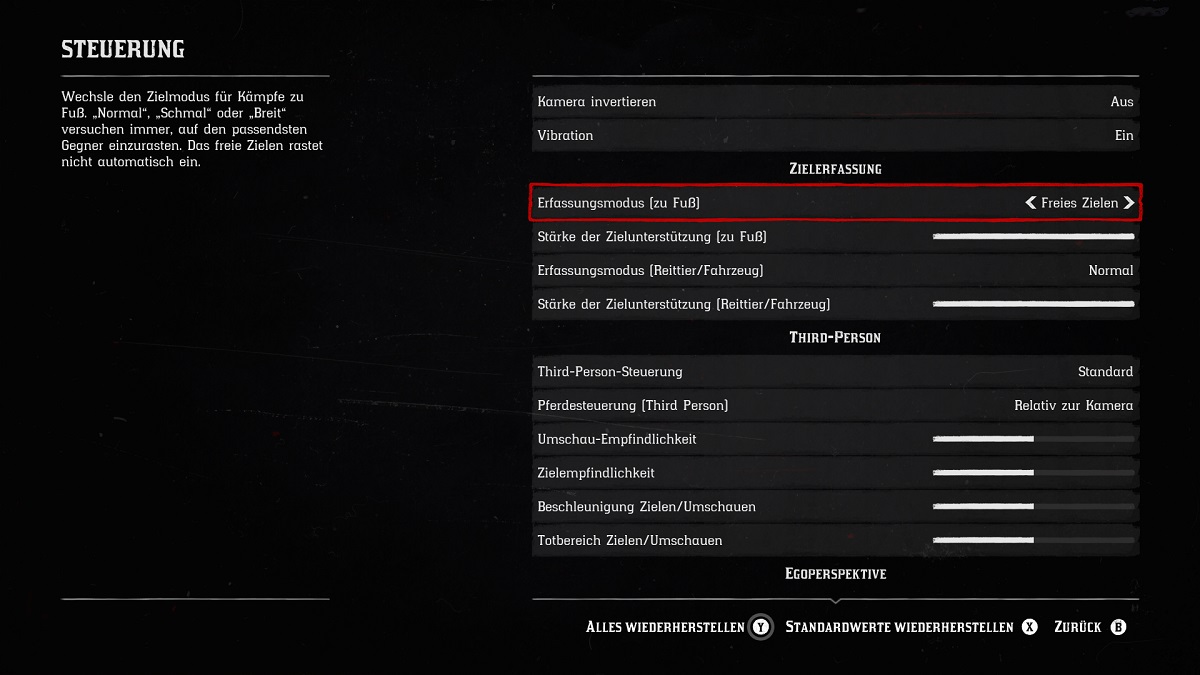
If you want to aim more freely and not be guided by the aim assist, you can simply change the “Aim Mode (on foot)” from “Normal” to “Free Aim”.
This gives you more freedom when aiming with your weapons and you won’t have to worry that the game suddenly decides that you should shoot the opponent 50 meters to the left instead of the one you’ve been desperately aiming at for 15 minutes.
But Keep Aim Assist for Shooting on Horseback
As much fun as it is to shoot freely with your revolver, the aim assist has its place when on horseback. You will probably struggle to get a straight shot when aiming freely on horseback, especially when things get intense.
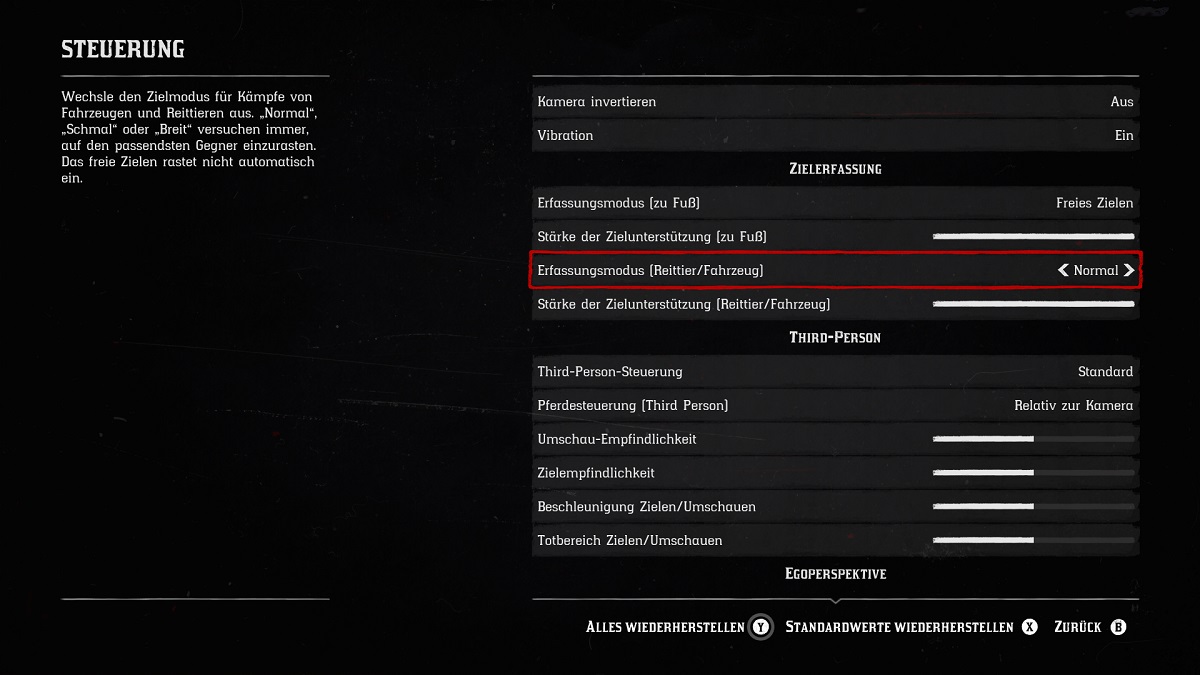
So, it’s best to leave the setting in the controls under Aim Assist and then “Aim Mode (mount/vehicle)” on “Normal”. Within the setting, you can still experiment with the strength of the aim assist.
Camera Auto-Centering on Horseback
This tip is for cowboys who enjoy the adventure of Arthur Morgan and the gang from the first-person perspective. If you enable camera auto-centering on the horse, it greatly facilitates aiming for you.
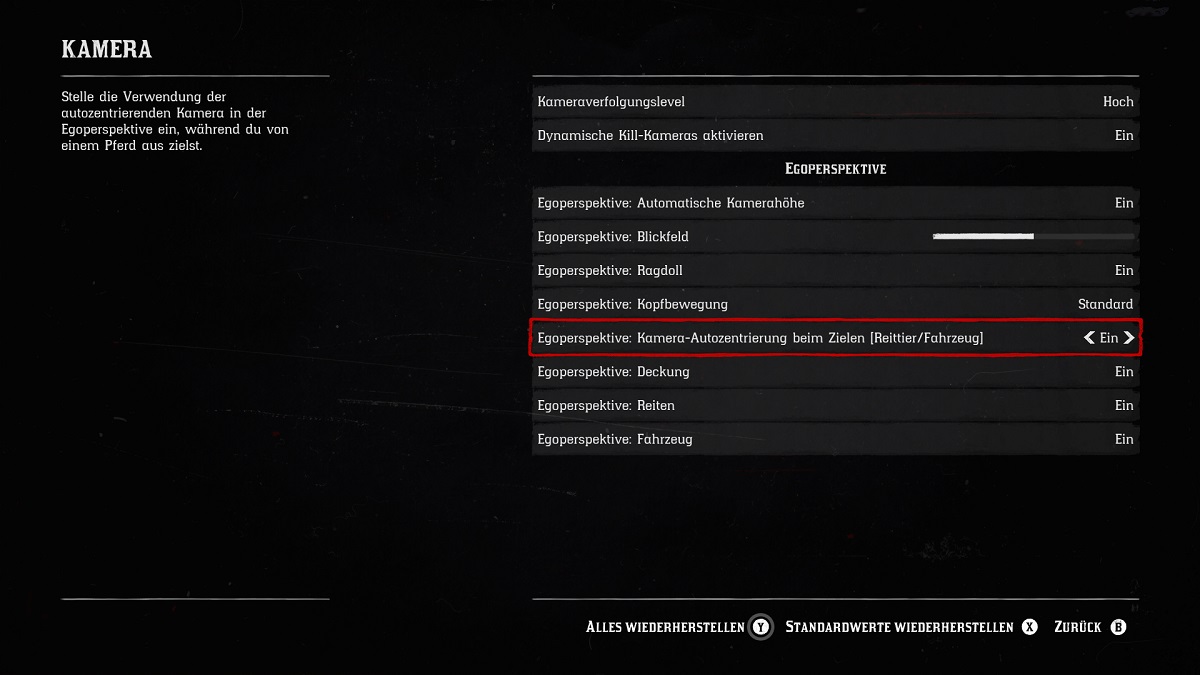
You can find the setting under Camera, First-Person Perspective and “First-Person: Camera Auto-Centering When Aiming (mount/vehicle)”. As the name suggests, this automatically centers the camera while aiming in first-person perspective.
Tap Assistance
In the Wild West of Red Dead Redemption 2, there is plenty of button-mashing: Quick-Time Events and mini-games often require you to repeatedly press specific buttons.
For those who find constant button pressing a burden, Rockstar has built a little relief into the settings.
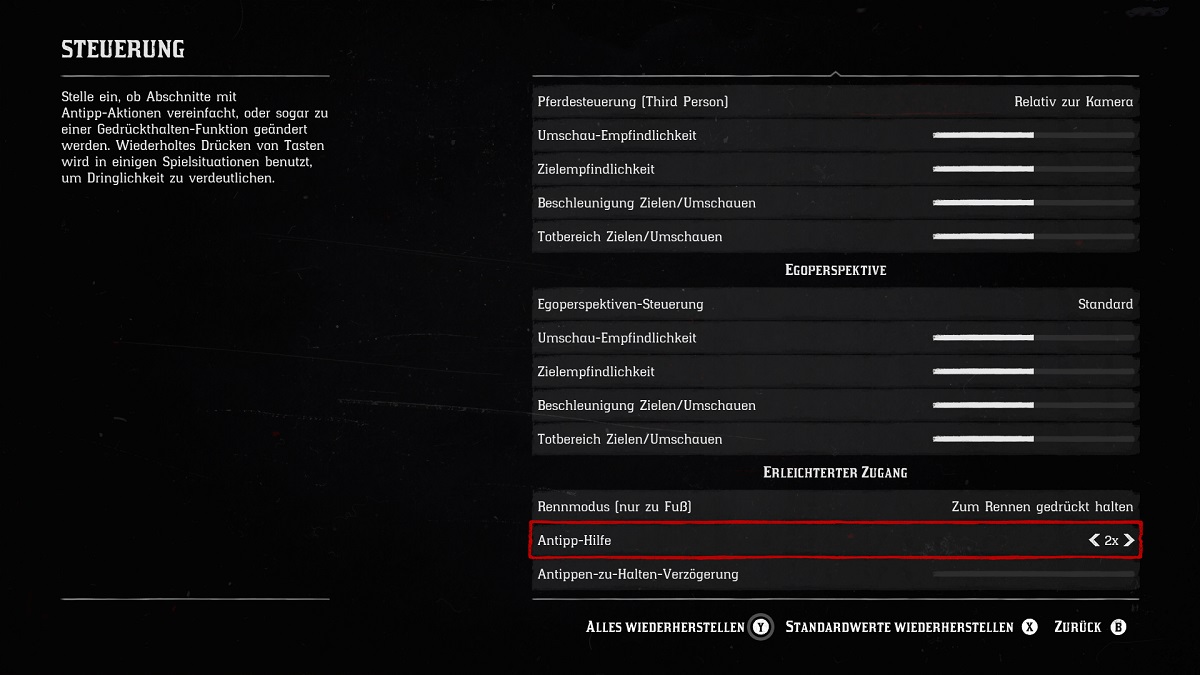
Under Controls and Accessibility, you will find the point “Tap Assistance”. Here you can try some settings for simplification, such as “2x” or “3x”, or set it up so that you only need to hold the button instead of repeatedly pressing it.
Customize Your HUD
In Red Dead Redemption 2, there are countless settings to customize the HUD in the game. In the settings under Display, you will find the menu item “HUD”, where many settings can be made.
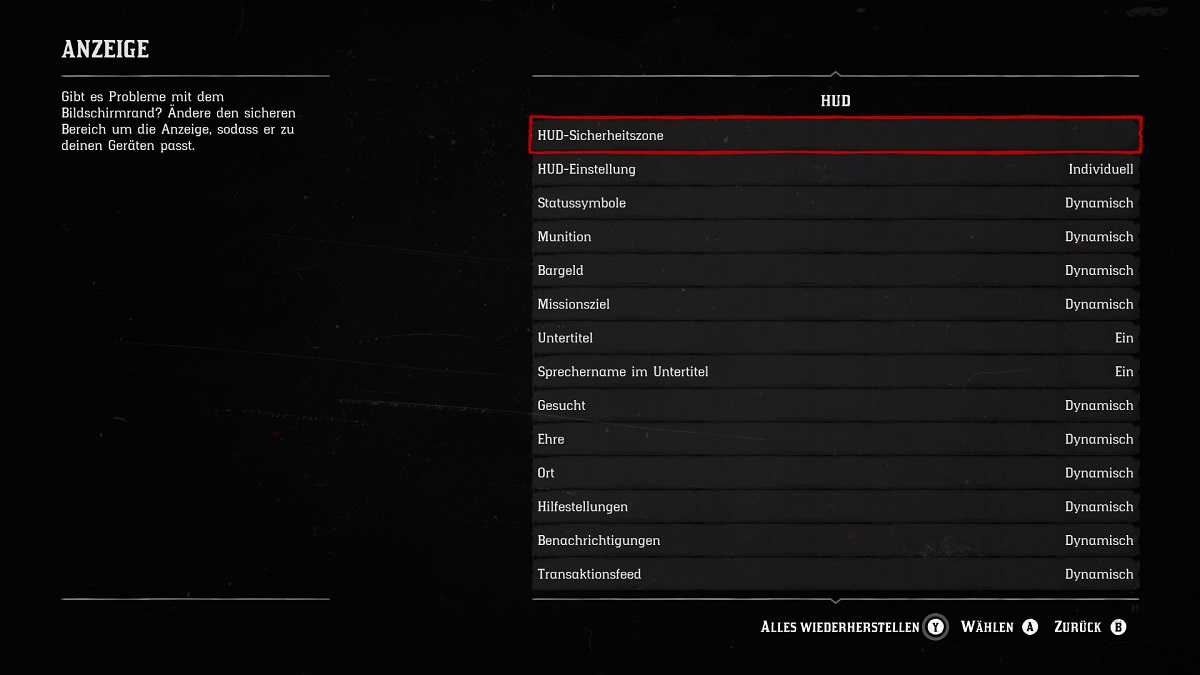
Additionally, you can scroll through some radar options directly in the game. To do this, press the D-Pad down in-game and select the setting you like best. You can even completely hide the map if you want to fully immerse yourself in the game world. Pressing the D-Pad down brings the map back up.

Your opinion is important to us!
Do you like the article? Then let us know!