

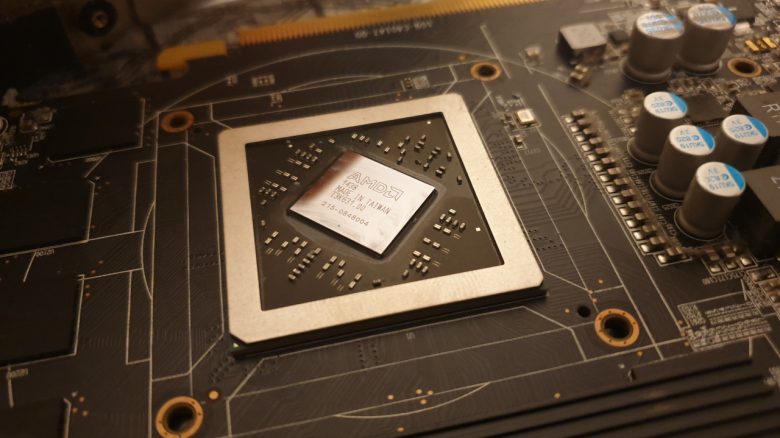
You purchased a graphics card from AMD or Nvidia and want to use the GPU for as long as possible? Then make a small adjustment: It will only take you a few seconds, but it can give your hardware many months.
Anyone who buys a graphics card often invests a lot of money and wants to game with it for the next few years. With a simple setting, you can conserve your graphics card without having to compromise on performance. MeinMMO explains how it works.
Limit your FPS to conserve your expensive hardware
You probably know the situation: You’re sitting in the main menu waiting to connect to the game server. While you wait, your hardware is already working at full speed. Suddenly, in the main menu, you have thousands of frames per second (FPS).
In practice, you can start here since you can’t do much in the main menu. Some games might even show you more than 1000 FPS in-game. However, in practice, you won’t notice much of this if your monitor can’t display more than 240 Hz.
What is the problem? The higher the FPS in-game, the more stress is put on the hardware. Your graphics card has to calculate the FPS. Hardware under stress becomes loud and hot quickly.
If you let your hardware run under such stress all the time, it theoretically has negative effects. In reality, you gain nothing from these absurdly high FPS values since you won’t notice a difference when exceeding 300 FPS.
Moreover, you can only utilize high FPS numbers if you have a monitor with a refresh rate of 240 or 360 Hz. If you only have a screen with 144 Hz or even 60 Hz, you won’t benefit from your hardware running hot under stress.
In the worst case, your hardware could even be damaged, as the discussion of damaged graphics cards in the MMO New World shows. Here, Amazon Games implemented an FPS limiter as a solution.
How to limit your FPS with an AMD or Nvidia graphics card
How much should I limit my FPS? A good decision-making aid is your gaming monitor. If you have a display with a refresh rate of 144 Hz, you should set that as the limit for your FPS. Ideally, test various settings until you find one that suits your play style best.
Limiting FPS with an Nvidia graphics card: If you own an Nvidia graphics card, proceed as follows:
- Select the NVIDIA Control Panel in Windows. Alternatively, you can right-click and choose “Nvidia Control Center.”
- In the left menu, navigate to 3D settings and click on “Manage 3D settings.” In the new window, select “Global Settings.”
- There you will find the option “Max. Frame Rate.” This is usually disabled. You should enable it and select your desired maximum frame rate.
Limiting FPS with an AMD graphics card: If you want to limit your FPS with an AMD graphics card, proceed as follows:
- Open the AMD Radeon Software, either through the Windows search or by clicking on it in the taskbar on the bottom right.
- In the software, select the small gear icon at the top right and then choose “Graphics” from the submenu.
- Scroll down to the bottom and select “Advanced.”
- Enable “Target Frame Rate Control.” Here you can adjust your desired maximum frame rate using a slider.
More tips regarding graphics cards: There are also other ways to give your graphics card new life. For one trick, you only need a screwdriver and some basic DIY skills. You can read how it works in the following article:
5 Euro and a screwdriver solved my biggest problem in my gaming PC

Your opinion is important to us!
Do you like the article? Then let us know!