Windows 11 is now the latest edition of Microsoft’s popular operating system. However, users are annoyed that Microsoft insists on an upgrade. Here’s how to completely disable the pop-ups.
Windows 11 has been on the market for a few months now, and you can upgrade to the latest version for free. Many gamers have already installed Windows 11, but not everyone is eager to make the switch.
Now there are some users who complain that the upgrade to Windows 11 installs automatically. However, there is a solution if you wish to remain on Windows 10.

Windows 10 downloads the upgrade to Windows 11 without your consent
What exactly is the problem? Microsoft wants many users to switch to Windows 11. Now, some users report that the system automatically downloads the upgrade to Windows 11 and subsequently wants to install it. This is explained by an author at PCGamer as well as several users in the Microsoft Community. There are also users on reddit who frequently complain about a sudden upgrade (via reddit.com or reddit.com).
If your system is compatible with Windows 11, a pop-up regularly appears with the message “We recommend Windows 11 for your device.” Here you can either choose to install or remind yourself later.
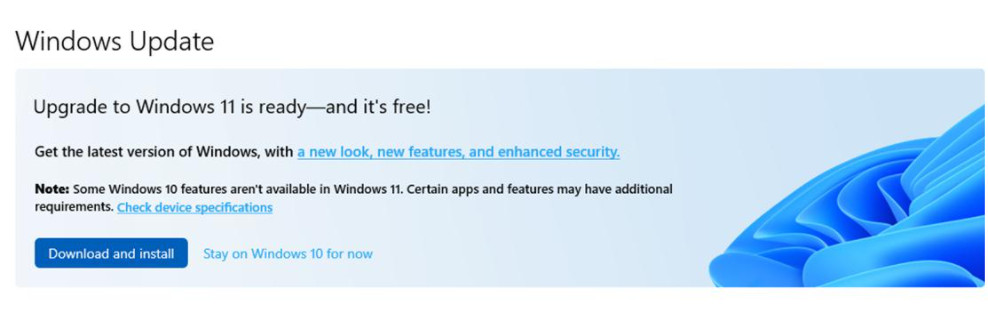
When can Windows 11 install itself? The prerequisite is that your computer supports Windows 11. You can find the system requirements on the official Microsoft page. If your system is not compatible, you are normally spared from upgrade prompts.
Can the upgrade install without consent? Normally not, because you must first confirm the terms and conditions and the EULA for using Windows 11.
How do I prevent an upgrade? If you’re satisfied with Windows 10 and find the constant upgrade reminder annoying, just dismissing the pop-up notice is not enough. Because it will keep popping up until you eventually upgrade to Windows 11.
If you want to permanently get rid of the annoying reminder, you either need to create a group policy or create a registry entry. We explain how this works here.
Disable Windows 11 Upgrade under Windows 10 – Here’s how
If you are using Windows 10 Home: If you are using Windows 10 Home, you need to go through the registry editor:
- Press the Windows+R key combination and then type regedit. This will take you to the editor. Confirm the User Account Control prompt with Yes.
- Navigate in the registry editor here: ComputerHKEY_LOCAL_MACHINESOFTWAREPoliciesMicrosoftWindowsWindowsUpdate. This can be done directly via the bar at the top.
- If the WindowsUpdate directory does not exist, right-click on the Windows directory on the left, select “New,” then “Key,” and add WindowsUpdate, then press the Enter key.
- Now you need to find the file TargetReleaseVersion in the right window area and double-click on it. If the file does not exist, right-click, select “New,” DWORD (32-bit) Value, and enter TargetReleaseVersion there.
- Double-click on the file and enter the value 1 in the data field.
- Next, create TargetReleaseVersionInfo in the same directory and select “String.” If the file already exists, skip this step.
- Then edit the string and enter as value the Windows 10 version you want to use. You can always find the current Windows version in the official Microsoft documentation.
- Now close the registry editor and restart your computer.

If you are using Windows 10 Pro:
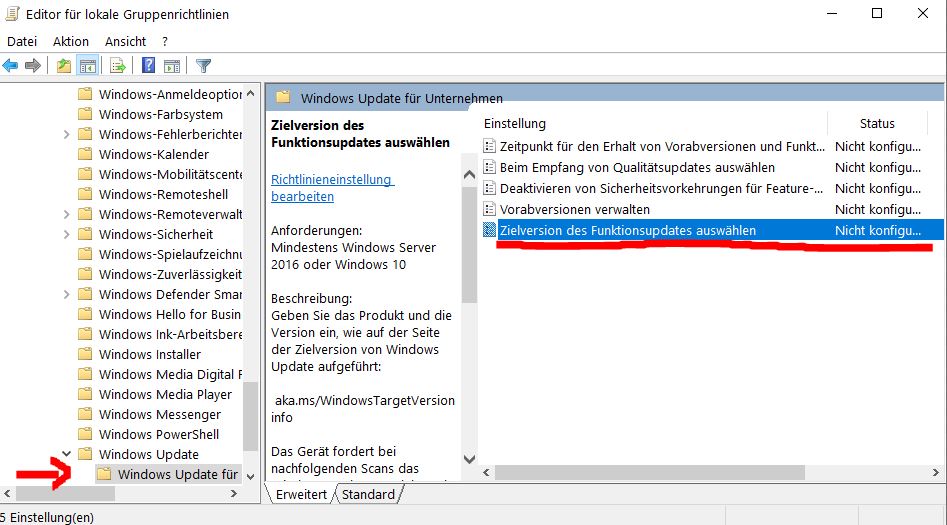
- Press the Windows+R key combination and enter gpedit.msc. This will take you to the “Local Group Policy Editor” window.
- Here you need to navigate through the menu: Computer Configuration > Administrative Templates > Windows Components > Windows Update > Windows Update for Business.
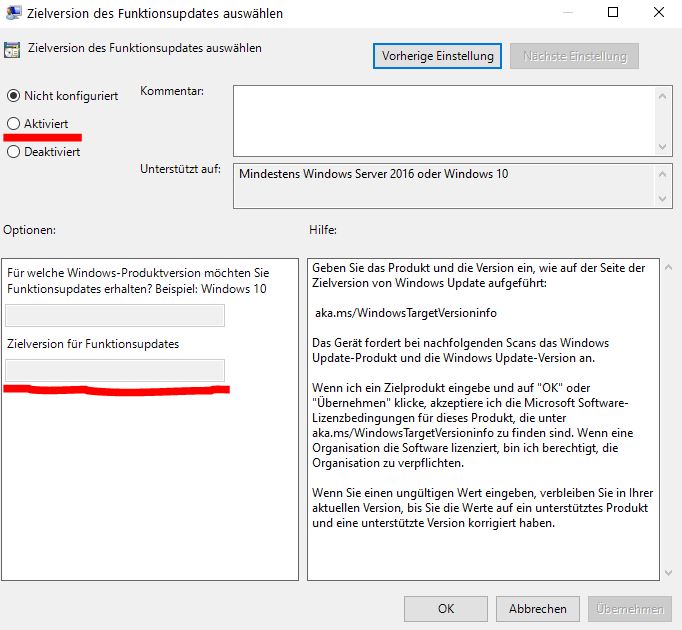
- Here, double-click on “Select the target version of the feature update.” Now choose the Windows version you want to use. You can always find the current Windows version in the official Microsoft documentation.
More tips and tricks about Windows: Are you uncertain whether you want to install Windows 11 or have not yet considered it? MyMMO presents a handful of things you should know about Windows 11: