

In Battlefield 2042 you can modify your weapons by selecting weapon attachments. However, the method for doing so differs between game modes. MeinMMO tells you how to customize your weapons everywhere.

What do I need weapon attachments for? Weapon attachments help you customize your weapon to suit your needs. Especially scopes are important for facilitating aiming – particularly at distance.
Other attachments such as grenade launchers, laser pointers, or suppressors are also available. They often come with advantages and disadvantages that you need to weigh. The underbarrel flashlight, for example, can blind enemies in a firefight, but mainly reveals your position in darkness.
How many weapon attachments can I use? Weapon attachments are divided into four categories: Sight, Ammo, Underbarrel, and Barrel. You can use one attachment per each of these categories. This means you can have a maximum of 4 attachments on your weapons at the same time. However, you can bring 3 attachments from each category into a match for selection.

Unlocking Weapon Attachments
How do I unlock weapon attachments in All-Out Warfare? Most weapon attachments are unlocked through kills with the respective weapon. You need 360 kills to unlock most weapon attachments for each weapon.
In only a few exceptions do you need to get specific kills to unlock an attachment. One example is the LCMG underbarrel 40-MM-AP. To unlock this, you need to get 50 kills with the LCMG’s underbarrel grenade launcher.

You can check which weapon attachments are available and how to unlock them in the Collection menu. You can access this in the main menu of any game mode.
However, note that you only unlock weapon attachments for the weapons with which you gather these kills. For example, kills with the currently best weapon, the DM7, only unlock weapon attachments for the DM7, not for other weapons.
How do I unlock weapon attachments in Battlefield Portal? For weapons from Battlefield 2042, it applies: All attachments that you have unlocked in All-Out Warfare are available in Battlefield Portal – and vice versa.
55 of the 77 weapons in Battlefield Portal are from older Battlefield games. These games are Battlefield 3, Battlefield: Bad Company 2, and Battlefield 1942. All available weapon attachments in Battlefield Portal are unlocked from the start for these weapons.
However, note that not all weapons from the old games can be modified with weapon attachments. The weapons also do not guarantee a selection for each weapon attachment category.
How to Modify Your Weapons in All-Out Warfare
Where do I adjust my weapon attachments in All-Out Warfare? For the weapon attachments in All-Out Warfare, you need to keep in mind two things:
- You have a choice of a maximum of 3 weapon attachments per category that you can swap out at any time in a game. This is called the “Plus Menu.”
- You can customize which weapon attachments are available to you in the Plus Menu in another menu.
We explain how both work and how you can customize it in the game.
What is the Plus Menu? The Plus Menu is a new feature in Battlefield 2042. It is functionally similar to the weapon attachment options from the Crysis games.
Players can modify their weapon attachments at any time during a match. Changing weapon attachments takes a few seconds – when changing the ammo type, a reload animation is also included. This allows you a lot of flexibility in a game. You can respond quickly to new game situations.
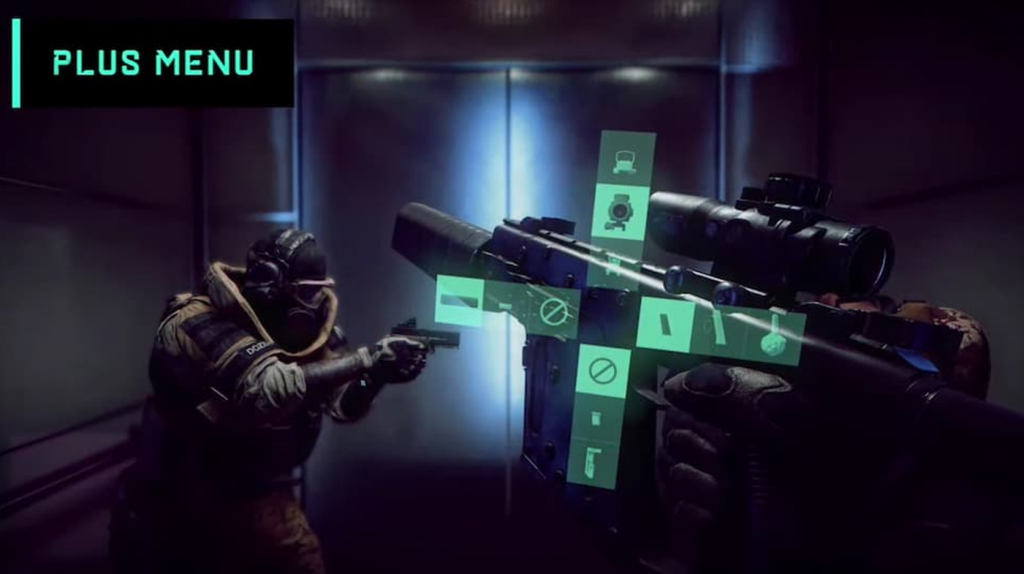
An example of this is that you equip your weapon for close combat in a moment to storm a building. You choose in the Plus Menu a sight with 1x zoom, a suppressor, and a magazine with a lot of ammo. Once the building is captured, you want to shoot enemies in the distance from the roof: you then select a sight with high zoom level, high-caliber ammo, and a grip for less recoil.
The Plus Menu is therefore a very important element of the game that you should use frequently.
How does the Plus Menu work? As long as you are alive and not in a vehicle, you can use the Plus Menu. Here’s how it works:
- PC: Hold down the T key. Change the attachment with a left click. You can also press 1, 2, 3, or 4 on the keyboard.
- Playstation: Hold L1 down. Change the attachment with X, Square, Circle, or Triangle.
- Xbox: Hold LB down. Change the appropriate attachment with A, X, B, or Y.
How do I change my selection in the Plus Menu? You change your weapon attachment selection for each weapon outside of a match in the ‘Collection’ menu. You can find this at the top of the screen in the main menu of All-Out Warfare.
Also, during a match, you can adjust this selection in a menu. However, this can only be done at the beginning of each match and before a respawn. You have access to this menu in the map screen, where you select your spawn point. Here’s how it works:
- Select the category that contains the weapon you want to adjust.
- PC: Click the left mouse button on the weapon category at the bottom of the screen.
- Playstation: Press Square, then move the selection to the weapon category. Then press X.
- Xbox: Press X, then move the selection to the weapon category. Then press A.

- Select the weapon you want to adjust and go into the customization menu. Press:
- PC: Right-click on the desired weapon.
- Playstation: Move the selection to the desired weapon. Then press Square.
- Xbox: Move the selection to the desired weapon. Then press X.
- Select the weapon attachment category you want to adjust.
- PC: Click the left mouse button on the weapon attachment category.
- Playstation: Move the selection to the weapon attachment category. Then press X.
- Xbox: Move the selection to the weapon attachment category. Then press A.
- Select a position on the cross where you want to place your new weapon attachment. The position closest to the center of the cross is the default configuration for this attachment category.
- Activate “Add” if the position is empty, or “Replace” if you want to swap an attachment.
- PC: Left-click on the desired position on the cross.
- Playstation: Move the selection to the desired position on the cross. Then press X.
- Xbox: Move the selection to the desired position on the cross. Then press A.
- Equip the desired weapon attachment. Select a new attachment from the list at the bottom of the screen.

- Confirm your selection.
You have now adjusted the Plus Menu and can leave the customization menu.
How to Modify Your Weapons in Battlefield Portal
Where do I adjust my weapon attachments in Battlefield Portal? In Battlefield Portal, you can also equip and remove weapon attachments. However, the method for doing this is not obvious or intuitive.
Unlike in the main game, you do not have the so-called Plus Menu available in Battlefield Portal. Instead of being able to customize weapons in the middle of the game, as in All-Out Warfare, you need to do it in a different menu in Battlefield Portal.
The customization menu in Battlefield Portal is available at the start of each match and before each respawn. In this menu, you can also select your class, weapons, and equipment. This corresponds to the method used in the older Battlefield games.
How do I adjust my weapon attachments in Battlefield Portal? To customize your weapon attachments in Battlefield Portal, you need to be in the map view. You see this at the beginning of the match and before each respawn. To adjust your weapon attachments, follow these steps:
- Select the category that contains the weapon you want to adjust.
- PC: Click the left mouse button on the weapon category at the bottom of the screen.
- Playstation: Press Square, then move the selection to the weapon category. Then press X.
- Xbox: Press X, then move the selection to the weapon category. Then press A.

2. Select the weapon you want to adjust and go into the customization menu. Press:
- PC: Right-click on the desired weapon.
- Playstation: Move the selection to the desired weapon. Then press Square.
- Xbox: Move the selection to the desired weapon. Then press X.
3. Select the weapon attachment category you want to adjust.
- PC: Click the left mouse button on the weapon attachment category.
- Playstation: Move the selection to the weapon attachment category. Then press X.
- Xbox: Move the selection to the weapon attachment category. Then press A.
4. Activate “Edit Position.”
- PC: Right-click on the desired weapon attachment.
- Playstation: Move the selection to the desired weapon attachment. Then press Square.
- Xbox: Move the selection to the desired weapon attachment. Then press X.
5. Move the weapon attachment you want to equip into the first position on the cross (the position closest to the center of the cross).

6. Confirm your selection.
You have now equipped the weapon attachment and can leave the customization menu.
This cumbersome method is currently the only way to customize your weapons in Battlefield Portal. If this changes in the future, we will update this article.
If you want to know which settings can improve your performance and gameplay in Battlefield 2042, we recommend the article:
5 settings for Battlefield 2042 that improve your performance and gameplay

Your opinion is important to us!
Do you like the article? Then let us know!