

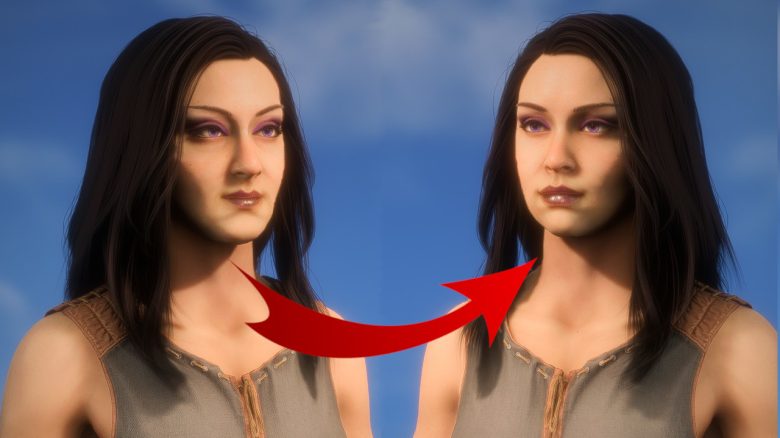
The new Dragon Age: The Veilguard attracts tens of thousands of players, many of whom are willing to invest time to create a perfect character. However, this is not so easy with the Character Creator in the game. MeinMMO provides tips if you find your character too angular.

This is how the new Dragon Age comes across:
- On October 31, Dragon Age: The Veilguard will be released on Steam, PS5, and Xbox. On Steam alone, the game had over 70,000 players at release and positive reviews.
- The game has already received much praise from the press, although there are various criticisms.
- Some of the biggest points of criticism include lack of options to shape your character and especially the appearance: The Veilguard is simply too angular.
This is the problem with the characters: BioWare seems to have decided to change the graphic style with the latest Dragon Age. All characters have distinctive faces, which critics often liken to Disney movies or even directly to Shrek.
Even players who praise The Veilguard have noticed this: in numerous reviews, complaints can be found about the impossibility of creating somewhat softer-shaped or feminine-looking characters.
MeinMMO has taken a close look at the Character Creator and has some tips for you on how to manage to remove the angles from the faces – at least to a large extent.
The most important options in the Character Creator
To begin with: completely round, soft faces are not possible in The Veilguard. There is a certain comic style underlying, which you cannot change from the game itself. However, there are a few options you can keep in mind when creating your character.
Your most important tools for a softer appearance are the head shape and head width. The head shape is, however, quite confusing, as you have to choose three out of 30 different templates and then merge them. Our tip:
- Heads 12, 7, and 9 combined provide a relatively soft, round basic structure.
- Particularly a tendency towards shape 7 also results in a rounder shape with other heads.
- Alternatives could be heads 1, 17, and 29 – here the chin is slightly more pronounced.
The setting for head width is hidden in the sub-menu “Forehead and Brow.” The top slider determines how “full” your face looks. The further you go towards 100%, the rounder the face becomes.
Next, you will want to edit the complexion. This determines, regardless of skin color, how strongly the details of the face are emphasized. One of the “soft” complexions works best, even better than the “youthful” ones.
You should now have a good and significantly less angular foundation. In the options for cheeks and jaw as well as for the chin, you will find the important settings to ensure more softness. In the cheek options, you should especially look at the slider for “Slimness,” which even covers some bone options.
By the way: You can adjust your character at any time in the game. Just travel to the lighthouse and stand in front of the mirror.


Tip: Change the lighting, the default background is not good
If you still feel that something isn’t right, your lighting is probably simply not right. In the Character Creator, you will find a selection of four different backgrounds at the bottom right.
By default, you will stand in a purple room with the Veilguard logo. However, that does not reflect the game world. If you select the beach as your lighting, you will see that the missing shadows make your face appear significantly rounder. The same applies to the foggy village.
Use these two lightings to adjust details. This will give you a better impression of how your character looks in cutscenes.
Finally, you should not underestimate how important details like makeup and hairstyles are. Blush is often a bit exaggerated, but especially eyeshadow, eyeliner, and mascara can help cover up unwanted details on your face.
This also applies to male characters. You can adjust the colors to match the skin tone and only enhance contours, rather than looking like makeup directly. However, there are no universal tips here; you have to experiment to see what works best. You can find more assistance for the game here: Dragon Age: The Veilguard: 10 tips I wish I had known beforehand

Your opinion is important to us!
Do you like the article? Then let us know!