

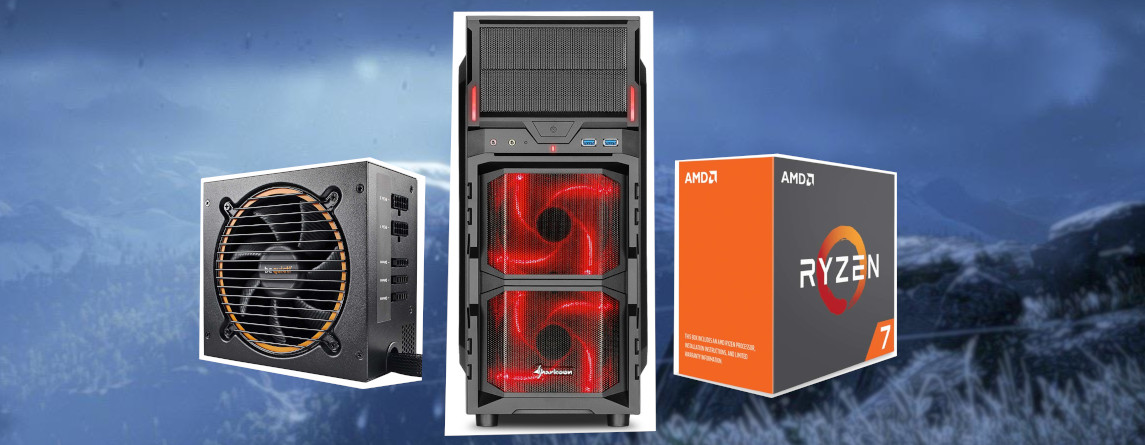
Costs, components, and what do you actually need for a PC? These are questions that one must ask when wanting to build a PC oneself. However, there are things that instruction manuals won’t tell you. We provide you with important tips for the year 2020.
Actually, building a PC is not that complicated. You need the right parts, a nice case, and by the end of the day, you have a self-built computer under your desk. In theory, this may be true, but in practice, many things can go wrong, as I have experienced myself.
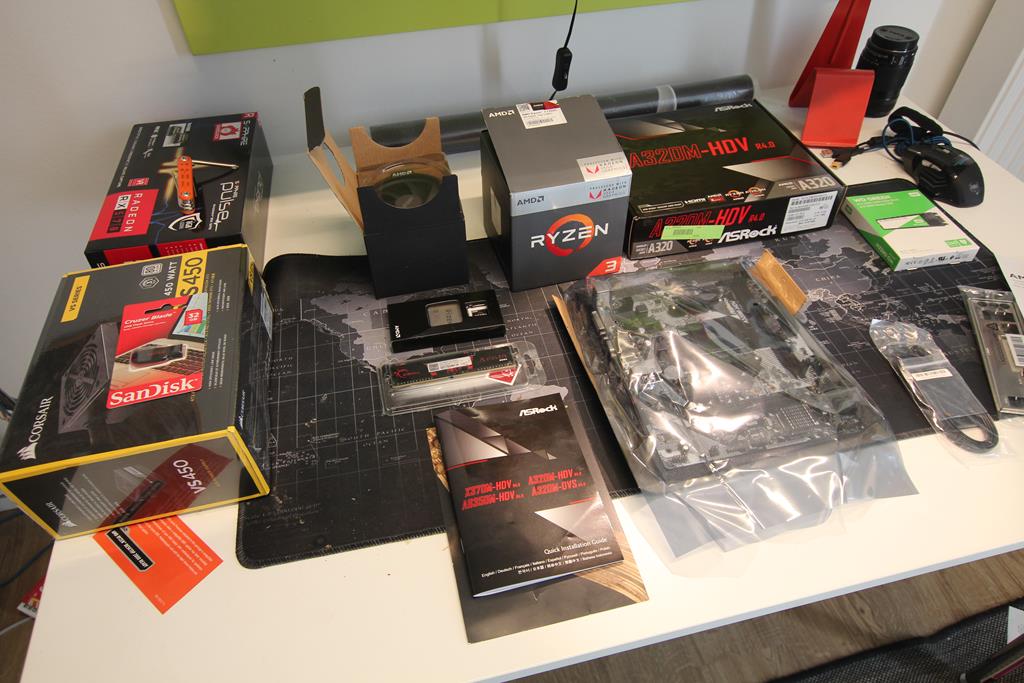
Where do the experiences come from? The tips presented are personal experiences from PC building. Anyone who has ever assembled a PC will surely recognize some of these experiences.
I would like to introduce you to a few things that I encountered while building my PC. If you have had the same or even completely different experiences, feel free to write them in the comments.
Beware of Amazon Warehouse Deals

What are Amazon Warehouse Deals? As warehouse deals, Amazon sells items that have previously been purchased by a customer. The customer returns the goods to Amazon. Amazon then lists these returned items cheaper than the original. At Amazon, these items are marked with the green label “Warehouse”.
How good are Warehouse Deals? You can’t look a gift horse in the mouth, as they say. But sometimes there are problems: Missing parts, screws broken during assembly, lack of mounting material. The packaging itself rarely reveals anything about the contents – the unfortunate one is usually the buyer.
Therefore, caution is advised with such “bargains”. Amazon Warehouse Deals can indeed be real bargains, but you can also end up with significant issues. And usually, you only realize it when the processor or RAM has already been installed. Then it gets really frustrating.
Tip: If you do go for a Warehouse Deal, you should pay attention to the following:
- Especially for processors and graphics cards, check if the manufacturer seals are damaged. This can be an indication of damage. If a seal is damaged, you should rather return the product.
- Check if all accessories are included. It’s rare to reorder missing accessories if they are manufacturer-specific components.
- Is the warranty certificate available? Every hardware manufacturer offers a multi-year warranty, but only with the certificate. This is where the serial number of your product is noted.
Why you shouldn’t skimp on the power supply
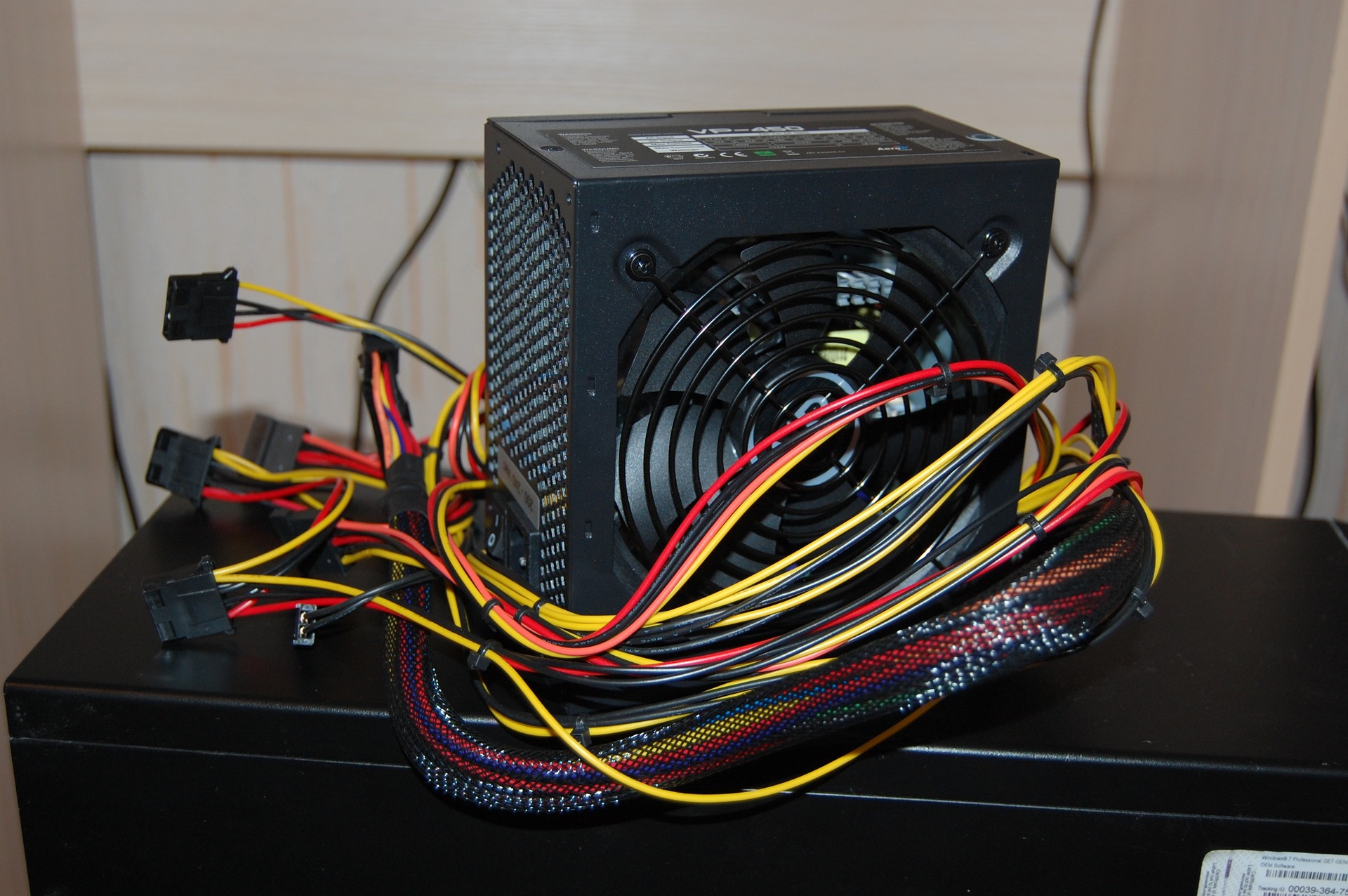
Building a PC should be as cheap and easy as possible. However, you shouldn’t skimp everywhere and should invest a few more euros instead.
Why should I opt for more expensive power supplies? Expensive power supplies offer high safety and quality standards. Modern power supplies are often equipped with protection mechanisms. The three most important fuses are:
- Short circuit protection (SCP): This should prevent the power supply or other components from being damaged in the event of a short circuit.
- Over power protection (OPP): If the power supply is heavily loaded, it aims to cause the power supply to shut down on its own.
- Over current protection (OCP): This should protect the power supply and components from excessive voltage drops.
What is the disadvantage of cheap power supplies? Cheap power supplies for around 20 euros often promise 600 watts, but the promised performance is rarely sustained:
The promised maximum performance is not a continuous performance but a possible peak performance that is achieved only rarely. If you buy a cheap power supply with a maximum output of 650 watts, you might expect it to deliver a continuous performance of 450 watts.
With a cheap no-name power supply, there’s also a risk that the protection mechanisms are poorly implemented. Often, in the cheap range, savings are made on protective circuits, and only one internal fuse, such as a thermal fuse, is installed.
If the power supply fails, other components may also be damaged. With modern power supplies, this should no longer be the case today.
Therefore, especially with the power supply, you should opt for reputable manufacturers such as Corsair, Seasonic, Coolermaster, or be quiet!
PC won’t start, what to do? Speaker and null method
If you’ve spent a lot of time assembling a PC only to find that it won’t start, the frustration is significant. Then you have to take everything apart again and troubleshoot: Perhaps I just forgot a power cable? Or is one of the parts broken?
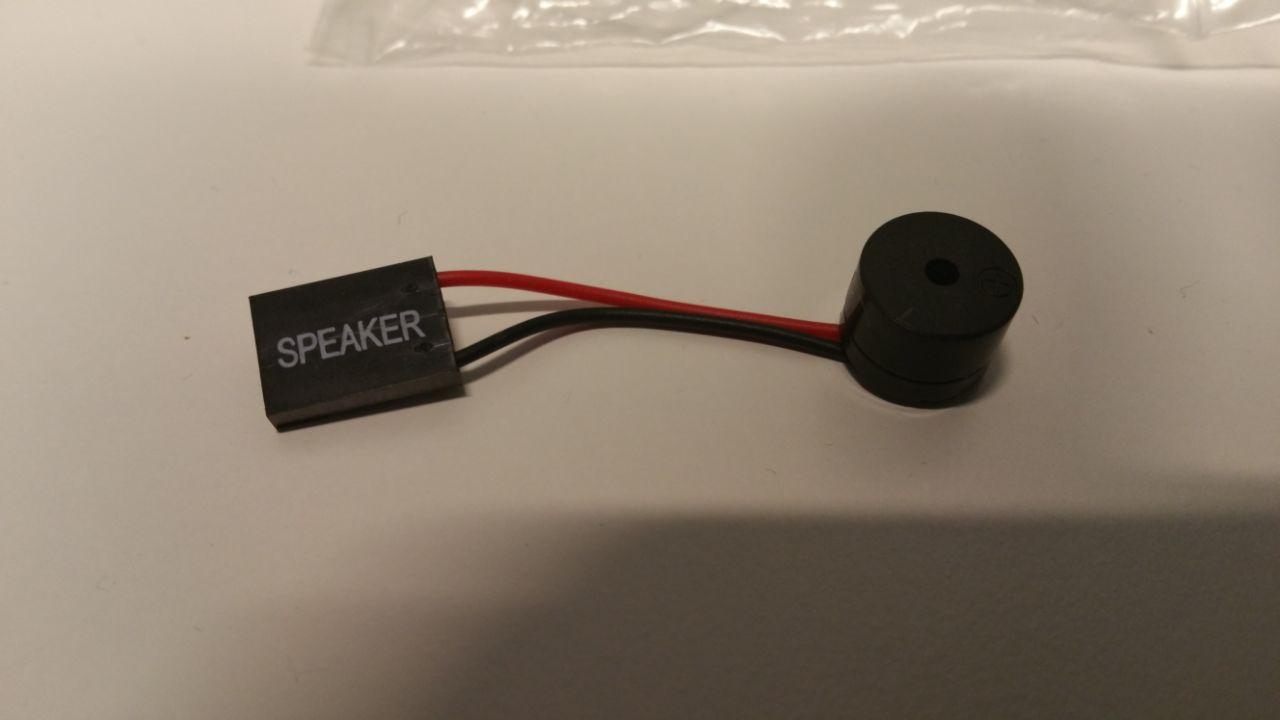
What is a speaker? A beeper/speaker can save time and nerves here. A beeper or officially a speaker is a mini loudspeaker that transmits sounds from the motherboard. The devices are about the size of a thumb and can be connected to a speaker socket of the power supply.
Where does the beep come from? Each BIOS of a motherboard has a “beep code”. A specific sequence of tones signifies an error or explains what is missing from the computer. A very comprehensive list of BIOS tones can be found, for example, on Wikipedia.org. You can also find it in the motherboard manual.
Each time you start the computer, the BIOS will signal via the speaker whether everything is working fine or if something is missing. For example, if I connect a part to my motherboard and then start the motherboard, a loud tone may sound. This means in my case: “Everything is okay, I am functioning perfectly.”
This way, I can check every other connected part, and you can quickly find a broken part without having to take everything apart again.
The PC won’t boot – The null method in detail
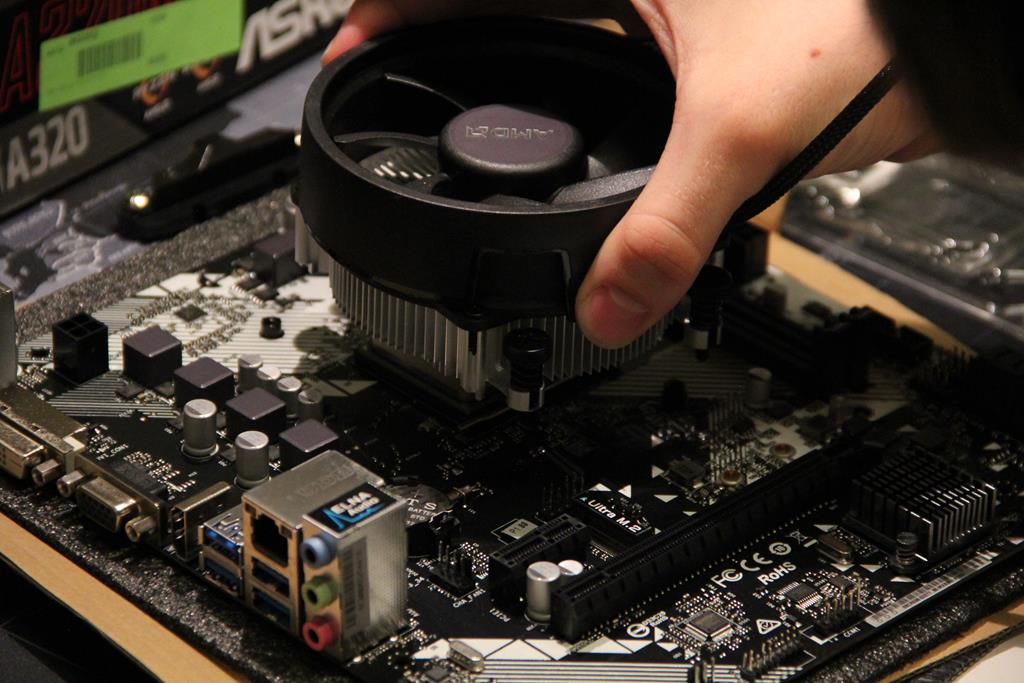
How does the null method work? The null method is a simple method to quickly and precisely identify the problem during self-building. Below, we present the most important steps:
- Connect the speaker to the motherboard and only connect the CPU, CPU cooler, and power supply.
- Start the motherboard and wait for the beep. If there is no sound, the power supply or CPU is likely defective.
- If it beeps, turn off the PC and install the RAM, then restart and wait for the beep. If there is no beep, the RAM is likely defective.
- If there is a sound with RAM, turn off the PC and install the graphics card.
Tip: Modern motherboards also provide built-in speakers or LEDs that indicate errors. It is definitely worth investing a few extra euros for this. It significantly reduces stress (and troubleshooting) later on!
Some manufacturers are also kind enough to include a speaker in the newly packaged case. Alternatively, a speaker can also be ordered for two or three euros.
Have patience and take your time
This may sound trivial, but it is helpful. Never try to assemble a computer between two appointments or in a hurry. This won’t work, and something will definitely go wrong. Especially the processor is very sensitive.
Why is the processor particularly sensitive? The CPU is the central processing unit of the PC, bluntly put, the heart of the computer. If even a single pin on the back of the processor breaks, it can mean the death of the processor.
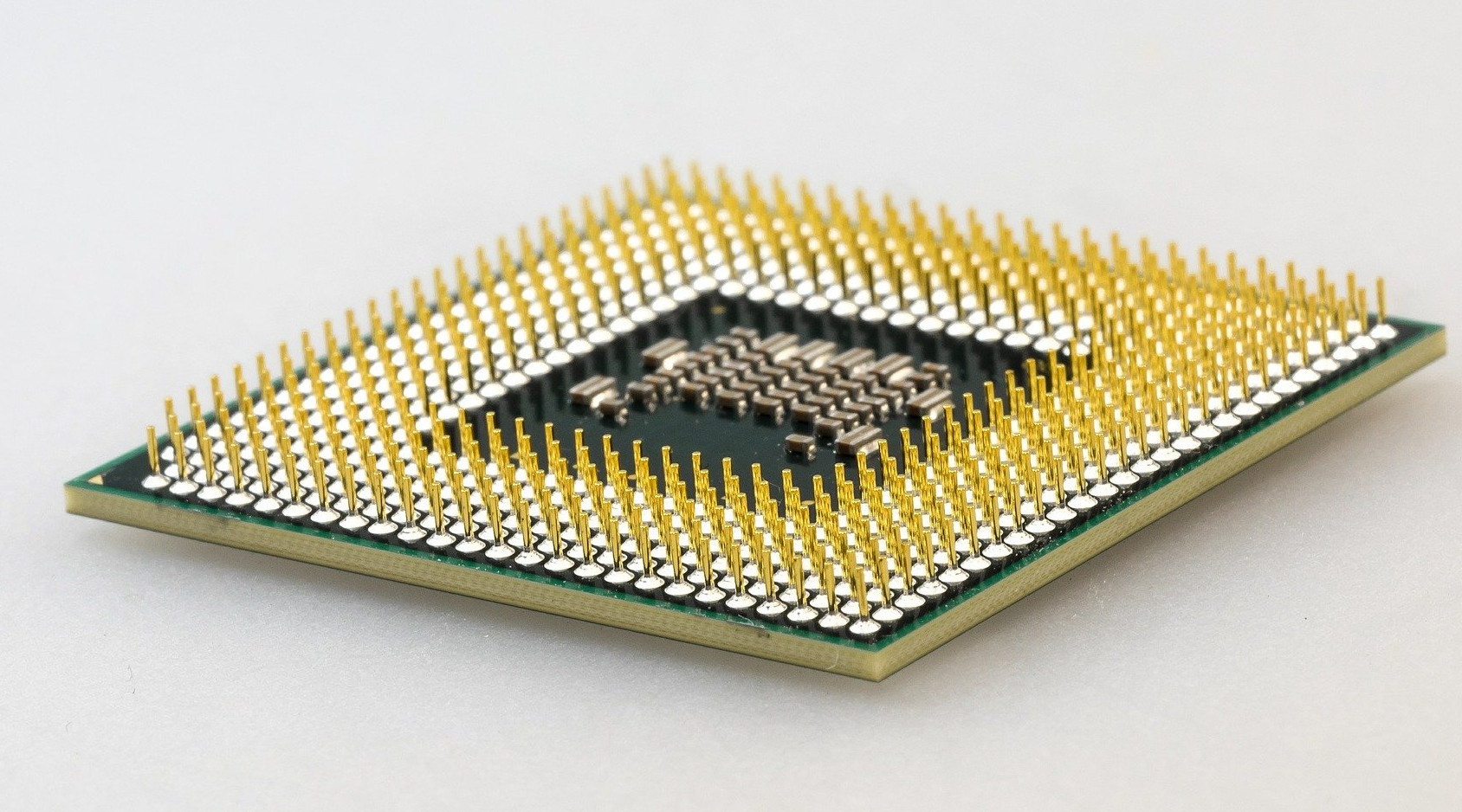
Can damaged CPU pins be bent back? The pins, also known as pin grid array (PGA) in English, are needed by the processor for data and power from the motherboard. Among the pins, there are also some that have no function, called “not connected” pins. If such a relatively unimportant pin gets damaged, the processor could still function.
However, if pins are damaged upon opening the packaging, the safest way is to return the processor: Because a damaged processor could also irreparably damage other parts.
Why should you take your time? A lot can happen in a hurry. You might screw the screws too tight and ruin the processor mount, or you may forget to discharge yourself statically beforehand. It’s better to take a whole weekend and do it peacefully; then you will be on the safe side.
Tip: A tidy desk is also helpful. No liquids or magnetic objects should be nearby, nor crumbs or fatty foods that could damage the electrical components.
PC Self-Build – Have a box with enough parts at home
It is particularly annoying when you think you have found an error but cannot test it because you don’t have a suitable spare part at hand.
Especially then, it is difficult to find spare parts spontaneously. In the local electronics store that I trust, I was kindly told, “We don’t sell crafting materials.” And “crafting materials” include things like RAM. Then you might as well order spare parts online and wait another two days.
No picture during PC self-build – graphics card or motherboard?
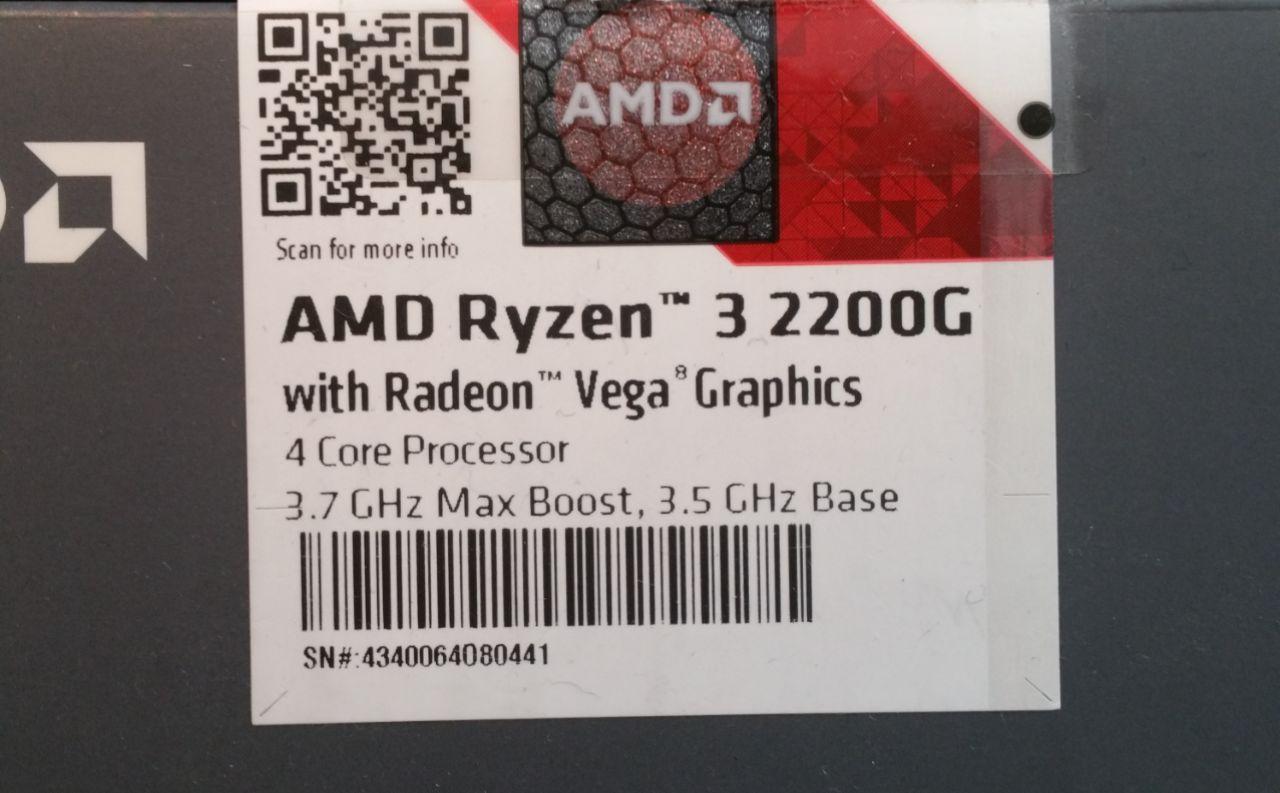
Tip: Especially practical at this point are processors with integrated graphics chips. Because even if the graphics card doesn’t work either due to incorrect connection or failure, you will still receive an image thanks to the graphics chip.
If there is still no picture, then in the best case, it is only a broken HDMI or DisplayPort cable.
Choose a big tower – What should I pay attention to with the case?
The power supply, motherboard, and especially the graphics card require space. If your case is too small, you will have a lot of fun later when you not only have to install all the parts into the case but also cable everything up. If you don’t want to encounter any difficulties during installation later, pay attention to the following:
- The case offers cable management. This allows cables to be hidden, and installation becomes easier. Additionally, cables cannot get into the processor or graphics card during operation.
- Modular cases or towers are helpful here, as you can easily access any spot. This greatly facilitates the installation of very large components, such as the motherboard.
- Integrated fans: They ensure a constant airflow, meaning that hot air is quickly transported outside the case.
Tip: The airflow inside your PC is important for consistent performance. Graphics cards and processors need air to cool down. Hot air must then exit; otherwise, a heat buildup occurs, causing performance to drop.
Graphics cards and processors throttle once they get too hot. If enough fresh air reaches the components, the performance remains at the same level instead.
Build your own PC or buy one?
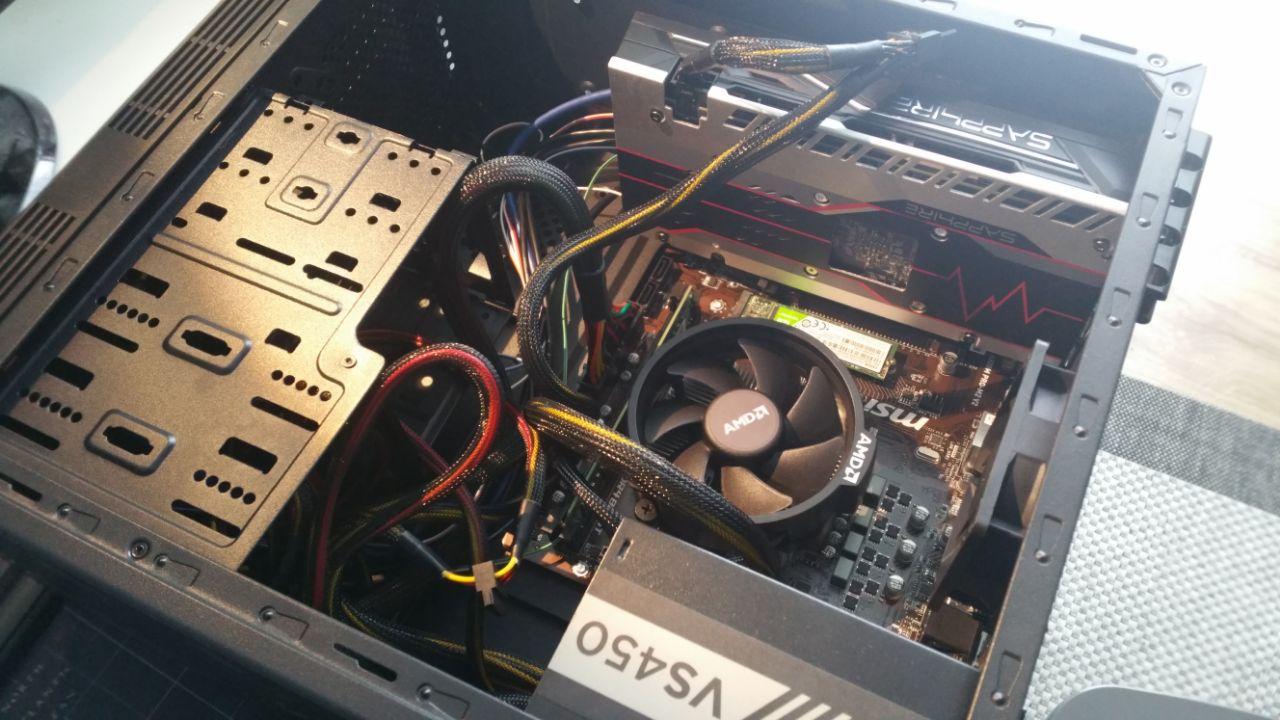
Do you know the feeling of having accomplished something? And the feeling is indescribable when the PC finally starts, and you see the BIOS lighting up on the screen.
For me, the relief was enormous when the PC finally started. It’s a great feeling when after days everything finally works as it should.
It’s also great to play on your own PC later and think, “I built that myself over the last few days and didn’t just buy it ready-made like many others,” and that makes all the effort and work worthwhile.
What advantages does building a PC offer me? Those who take the time and effort to assemble a PC themselves also gain several advantages:
- When you build a PC yourself, you save real money that you can use to invest in higher-quality components.
- The good feeling of having built a PC yourself and being able to game on it. This is, of course, very subjective and will vary from person to person. However, everyone will probably feel some pride.
- The learning effect of having dealt with hardware and every individual part once.
- The awareness that next time everything will go much faster and you can also help friends.
What experiences have you had with building a PC? Did everything go smoothly, or did you encounter difficulties before everything worked? Perhaps you had similar experiences – feel free to write them in the comments.


Your opinion is important to us!
Do you like the article? Then let us know!