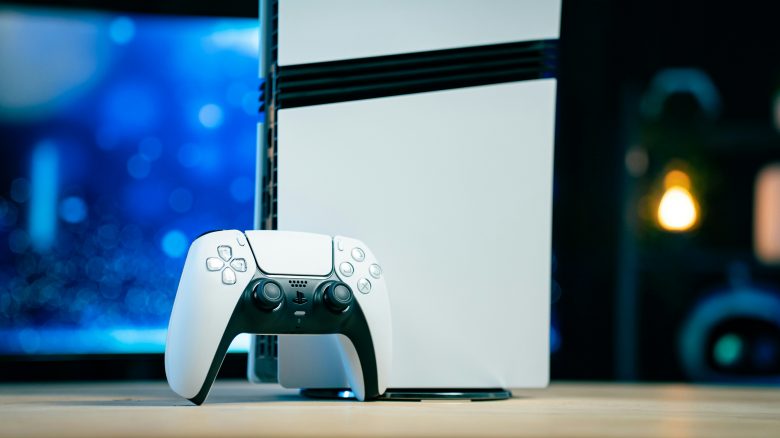
Some of the most useful features of the PS5 are disabled by default. These bring out the best in your console. You can find out which settings they are in this article.
Sonys next-gen console comes with a wealth of practical and innovative features. However, some of these settings are disabled by default, even though they bring out the best in your PS5. In this article, you will learn what those settings are and how to activate them.
How can I adjust my settings? To access the settings for the PS5, simply press the triangle button on your PS5 DualSense on the dashboard and then move the cursor to the gear icon on the right.
Mute the Microphone
Every time you boot up your PS5, the microphone in your DualSense controller starts by default. This means, for example, that your voice can also be recorded during screen captures. You will also need to mute your microphone manually every time you are in a game’s lobby but don’t feel like talking.
If this bothers you, it can be useful to set your microphone to mute by default.
Settings > Sound > Microphone > Microphone Status when Logged In – Mute
Other settings that you should also disable on your PS5 and Xbox can be found in the following article:
6 settings on the Xbox, PS4, and PS5 that you absolutely should disable

Activate Remote Play
The Remote Play feature of your PS5 allows you to play games outside your console – for example, on your smartphone or PC. To make this possible, you first need to activate the feature in your console’s settings.
Once you have done that, you simply need to download the Remote Play app for Android, iOS, or Windows, and you can start playing with your next-gen console on the go. With the same app, you can conveniently connect your PS4 as well.
Settings > System > Remote Play

Get the Most Out of the PS5 Surround Sound
One of the biggest innovations of the PS5 is the support for 3D audio. This feature makes your gaming experience even more immersive – especially on headphones, such as the official PULSE 3D headset from Sony for the PS5. The 3D audio output sounds pretty good on your 5.1 or 7.1 speaker systems as well.
You need to activate this feature manually. Afterwards, you can adjust the surround sound output to your personal setup.
Settings > Sound > 3D Audio for TV Speakers
Activate the Difficulty Preset for Games
If you are someone who always plays games on the same difficulty level, this setting may save you a lot of time. You can choose a preset in the PS5 settings that always sets the difficulty of each game to the same level.
On the same settings page, you can also make similar settings for playing in first or third person, subtitle and audio language, or whether you prefer to play your games in performance or graphics mode.
Settings > Saved Data and Game/App Settings > Presets
You can also set spoiler warnings that inform you of possible spoilers before viewing certain content.
Settings > Saved Data and Game/App Settings > Spoiler Warnings
You can now pre-order Sony’s first own pro controller, the DualSense Edge. This article has all the important information for you:

Protect Your Privacy
When you set up your PS5 for the first time, you will be asked a series of questions about your privacy preferences. If you happen to not remember what you provided back then, you can check these preferences at any time.
For the best possible data protection, you should limit or disable all options under “This is where you specify how your data is collected and used”.
It is also worth taking a look at “View and adjust your privacy settings” to check what is publicly shared on your PSN profile.
Settings > Users and Accounts > Privacy
Configure Your Energy Saving Settings
The topic of energy saving is currently on everyone’s lips for good reason. Your PS5 also has a number of settings to minimize power consumption. For example, you can disable your PlayStation 5 from providing power to the USB ports during standby mode or set when your console or controller will switch to that mode.
Settings > System > Energy Saving
If you want to know what playing with your PS5 costs in electricity, take a look at this article:

Automatic Login
If you are the only person who plays with the PS5, you can set it to automatically log in your profile every time the console starts. This saves you a little time each time you boot up the PlayStation 5.
Settings > Users and Accounts > Login Settings
More tips and settings around the PS5: Recently, there have been early indications that Discord voice chat could soon come to the PS5. You can read about the signs in this article. Here we summarize all the important information about Discord for you:
Discord is finally testing an important feature on the PS5 – Is voice chat coming soon?