Overwatch 2 is playable for just over a week and enjoys despite various launch issues great popularity. Therefore, we will tell you what the best settings for PS5 and PS4 are for Blizzard’s latest game.
Compared to the PC, where performance is tied to your hardware specifications, Overwatch 2 is generally quite optimized for PS5. The game runs on the same engine as the popular predecessor, and the graphical improvements are not really a challenge for the power of the next-gen console.
Nevertheless, it is essential to adjust your settings perfectly – especially so that you can aim precisely during the intense gameplay of Overwatch 2. This is particularly crucial as you will be fighting against PC players through crossplay. These players are known to have a certain advantage over controller players in first-person shooters due to their mouse and keyboard.
Therefore, we have listed the best settings for Overwatch 2 on PS5. All of these settings also work seamlessly on PS4.
Where do our sources come from? We have watched several guides and YouTube videos for you and tried out the settings on PS5. In our article, you will find what we believe are the best settings for PS4 and PS5.
How can I adjust my settings? To access the settings for Overwatch 2 on PS5, press the “Options button” (the small button on the right next to the touchpad) during the game and logically navigate to “Options” in the now opened menu.

The best video and accessibility settings
Why should I adjust my video settings? As with other games, the basic rule also applies to Overwatch 2: the lower the graphics settings, the better the performance. Therefore, if you want to improve this, it’s definitely worth taking a look at the settings.
Recommendations for the best monitors for PS5 and Xbox can also be found here on MeinMMO. Also, a guide around the perfect 4K TV for your PS5.
Video
In general, much of the video settings depend on your output device – that is, your TV or monitor. Accordingly, you can adjust the contrast and brightness to your liking. However, we would recommend increasing the brightness a bit to better recognize opponents.
It is similar with the HDR settings. If you have a compatible output device, you can activate it for more color depth and calibrate it to your needs.
What you should definitely do is set the “Preferred Mode” under the display settings in the video tab from the default setting “Resolution” to “Framerate”. This allows you to achieve up to 120 FPS in matches, provided your screen has the corresponding Hertz rating.
Additionally, you need to enable 120 Hz output in the PS5 system settings. You can see how to do this in this video.
Accessibility
To help you aim more easily, you should also go to the “Accessibility” tab of the settings and set camera shake to “Reduced”. We also recommend that you turn off both HUD shake and menu movement.
The best control settings
What should I consider regarding control settings? The following settings are especially designed for new players to make it easier for them to get into the game. Therefore, it is quite possible that you will readjust the settings according to your needs as you gain more playing experience.
Wireless Controller
In addition to individual preferences and approaches of the player, each hero in Overwatch 2 plays differently. Accordingly, it may be that for a sniper hero, you need to set your sensitivity a bit lower.
However, we can definitely recommend these settings as a good starting point.
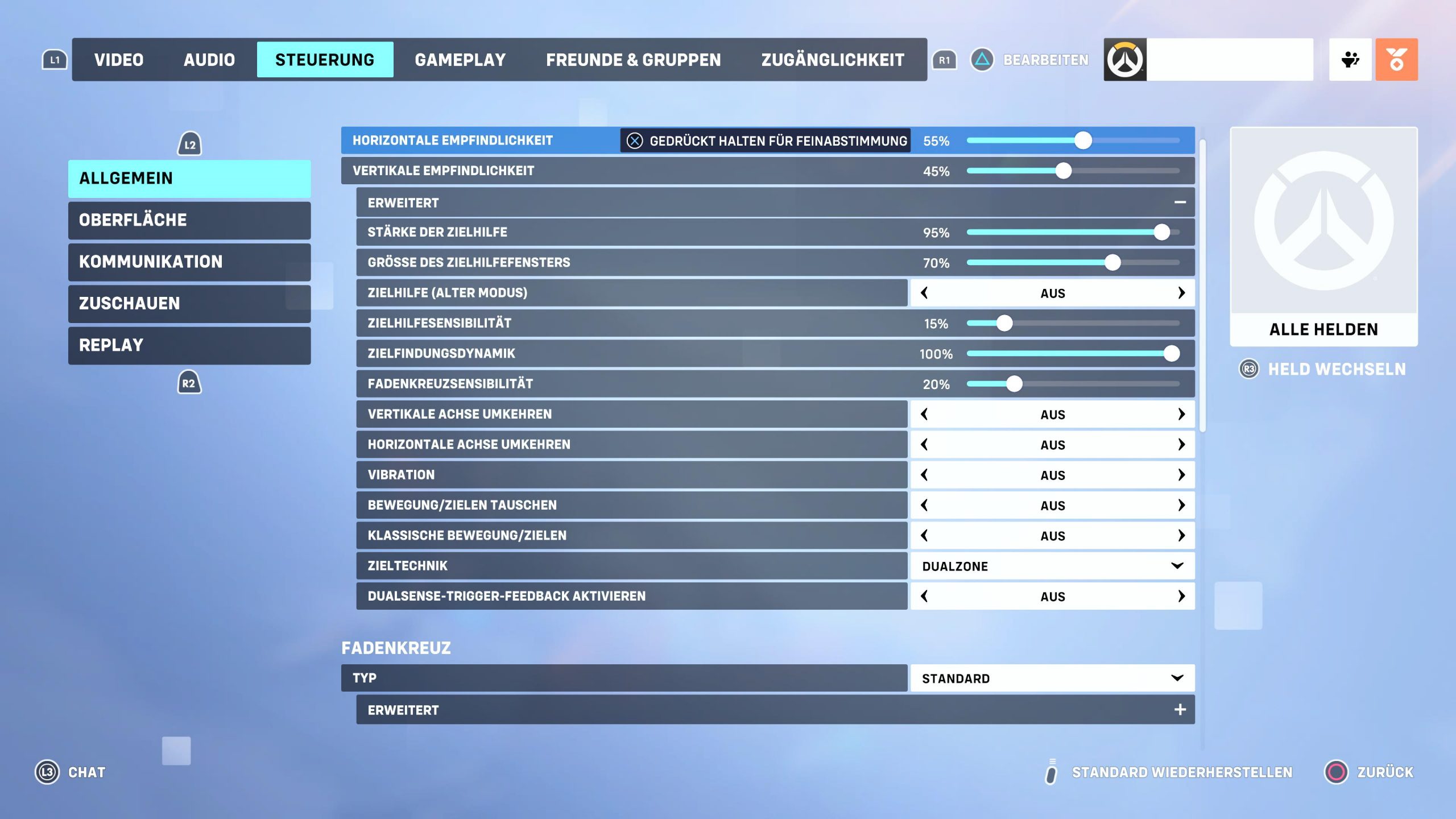
- Horizontal sensitivity: 45-55 %
- Vertical sensitivity: 45 %
Advanced controller settings:
- Strength of aim assist: 95 %
- Size of aim assist window: 70 %
- Aim assist (old mode): Off
- Aim assist sensitivity: 15 %
- Target acquisition dynamics: 100 %
- Crosshair sensitivity: 20 %
- Invert vertical axis: Off
- Invert horizontal axis: Off
- Vibration: Off
- Swap movement/aiming: Off
- Classic movement/aiming: Off
- Aim technique: Dual zone
- DualSense trigger feedback enabled: Off
Crosshair
The settings you use for your crosshair are very individual and depend a lot on your personal preferences. Nevertheless, these settings should work quite well for most of you.
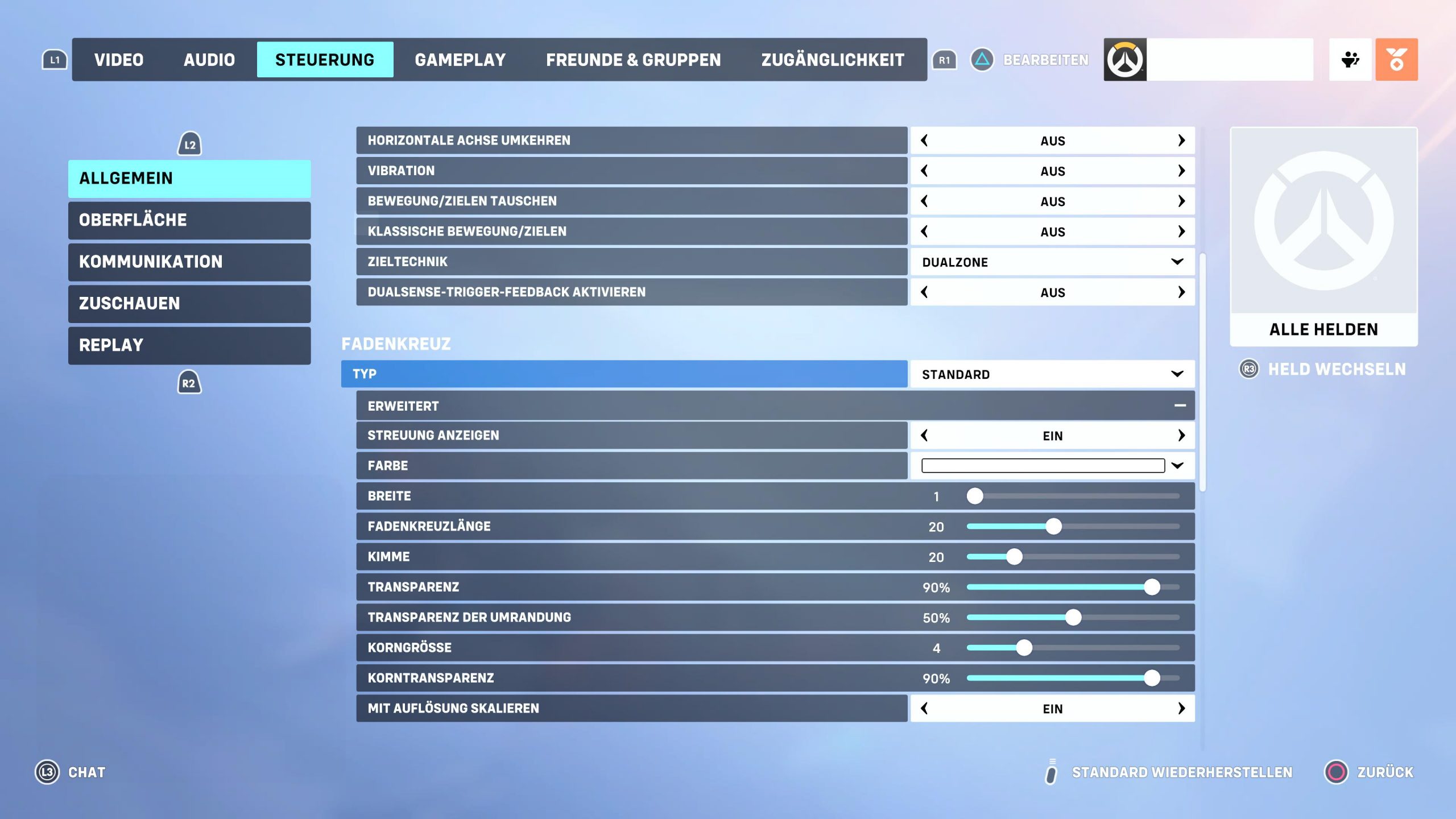
- Type: Standard
Advanced crosshair settings:
- Show spread: On
- Color: White
- Width: 1
- Crosshair length: 20
- Noscope: 20
- Transparency: 90 %
- Border transparency: 50 %
- Grain size: 4
- Grain transparency: 90 %
- Scale with resolution: On

With these settings, you should be well prepared for your next lightning-fast battles.
Furthermore, you can customize your HUD even more to your personal wishes by, for example, turning off tips or skipping the killcam.
Don’t have a PS5 yet? If you don’t have a PS5 yet, be sure to check out our ticker. Here we keep you up to date and explain how to get a PS5 best and show drops around the coveted console.
There are regularly PS5 offers from various retailers. If you keep an eye on our live ticker, the chances of missing out on the popular console decrease.