

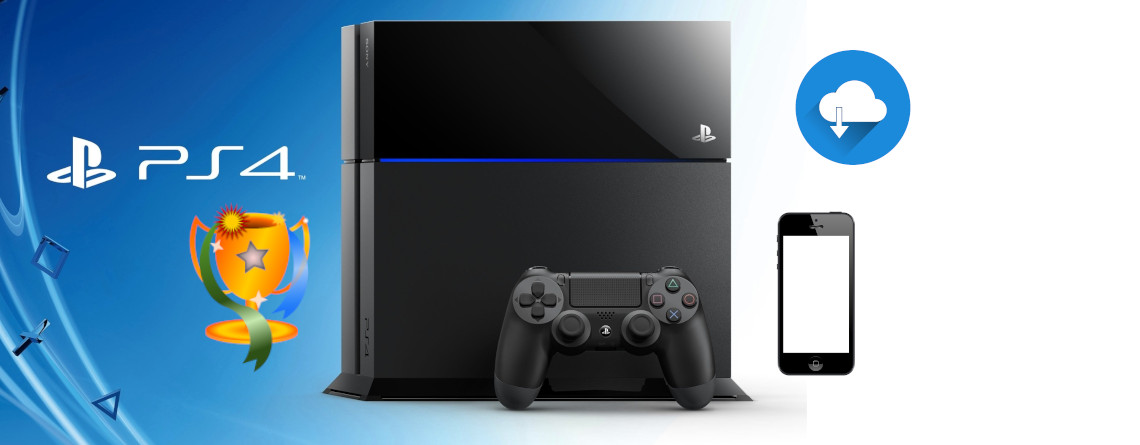
How can I download faster or write more easily? With these 10 tips, you can get more out of your PS4 headset, controller, and games. And for most tips, you won’t need much more than your PlayStation 4 and the controller.
Behind the menus and settings of the PlayStation 4, there are usually many interesting functions that not everyone knows about. Want to download faster or are you annoyed by notifications from friends ingame?
In this article, we present the 10 best tips for the PlayStation 4.
1. Increase PS4 download speed
Many are annoyed by slow download speeds, especially when games can be huge and take a long time to download. With the following settings, you can speed up your downloads:
- Go to “Network” settings on your PS4
- Select “Set Up Internet Connection”
- Then select Wi-Fi or Ethernet and the correct network you want to connect to
- Then select Custom
- Leave the IP Address on automatic
- For the DHCP hostname, select “not specified”
- For DNS settings, select “manual”
- Enter 1.1.1.1 for primary DNS and 1.0.0.1 for secondary DNS.
This allows the PlayStation 4 to establish a direct connection with the network, and downloads should run significantly faster.
2. Make secret trophies visible on PS4
What are secret trophies? For many games on the PlayStation 4, there are trophies to collect that you can display on your profile. Some of them are called secret trophies, which are only revealed once they are unlocked.
Here’s how to make secret trophies visible: With a trick, you can also make the trophy visible, so you can see what you need to do:
- Go to the menu and select the secret trophy on any game
- Then press the square button on the controller
- The requirements for the trophy will then be displayed
3. Control the TV and PS4 simultaneously with the controller
If you are looking for a way to start the TV and PS4 at the same time, here’s how you can do it:
- Go to System and select “Enable HDMI Device Link”
- The TV will then start along with the console
The prerequisite for this function is that the TV or monitor must also support this feature. Modern TVs that are connected via HDMI often support the function. A look in the manual is usually helpful here.
4. Display PS4 game on smartphone
With the PS4 Second Screen app, there is the possibility to display the game on both the TV and the smartphone. To set this up, follow these steps:
- First, install the app from the PlayStore (for Android via Playstore or for iOS via Appstore)
- Then start the app on the smartphone and go to settings on the PS4
- In the settings, select “Connection via Mobile App” and then “Add Device”
- The PlayStation 4 will then provide an eight-digit code, which you will enter in the app.
The requirement for the app to work is that both devices must be on the same network.
5. Connect headset to PS4 controller
If your headset is not supported by the PS4 via Bluetooth or you have an outdated monitor that does not support digital audio like HDMI, there is the option to control the audio output via the controller:
- First, connect your headset to the headphone jack of the controller
- Then select “Devices” in the settings and then “Audio Devices”.
- Finally, select “Output to Headphones” here
- Sound will now only be heard in one ear. To fix this issue, you need to change the audio output from “Chat Audio” to “All Audio”. Now the sound will be heard in both ear cups.
6. Increase PS4 controller battery life
Those who regularly need to charge their PS4 controller are adversely affecting the lifespan of the battery and thus the controller in the long term. With a simple trick, you can significantly increase battery life:
- Go to “Devices” in the settings and select “Controllers”
- In this menu, select “Brightness of DualShock 4 Light Bar” and set it from Bright to Dim. Bright is the default of the PlayStation 4.
7. Reset PS4 controller
If the PS4 controller no longer connects properly to the console or causes other issues, the controller might not be broken. The controller can be easily reset, many errors will then disappear by themselves:
- Take the controller in hand and turn it over. On the right side, near the L2 button, there is a small hole
- With a needle or toothpick, press into this hole for 2 seconds, which resets the controller to factory settings
- Then you need to connect the controller to the console via USB cable for it to reconnect.
8. Disable friend list notifications
Are you annoyed by constant notifications from your friends list, especially when they pop up in the middle of an exciting sequence ingame? Almost all popup notifications can be easily turned off:
- In the PlayStation menu, select “Notifications”
- Then select “Popup Notifications”
- In this menu, you can now disable all notifications by removing the check at the top. Alternatively, you can also disable notifications individually so that, for example, you are notified about unlocked achievements
9. Take screenshots faster with PS4
If you want to quickly take an important screenshot in a game on the PlayStation 4, there is a simple way:
- Select “Share and Broadcast” from the menu
- Then select “Share Button Function” and set it from Standard to Simple Screenshots.
Now you can take a screenshot with a single press of the Share button and no longer have to press it for a long time.
10. Use smartphone as virtual keyboard on PS4
If you like to write a lot and communicate with people in an MMO on the PS4, a keyboard is particularly convenient. Instead of a proper keyboard, you can also use your smartphone.
- To do this, install the PlayStation app on your smartphone
- Then you can write to friends via your smartphone and are not dependent on a keyboard at the PS4.
There are also people who try to get more out of their PlayStation 4 with other tricks:
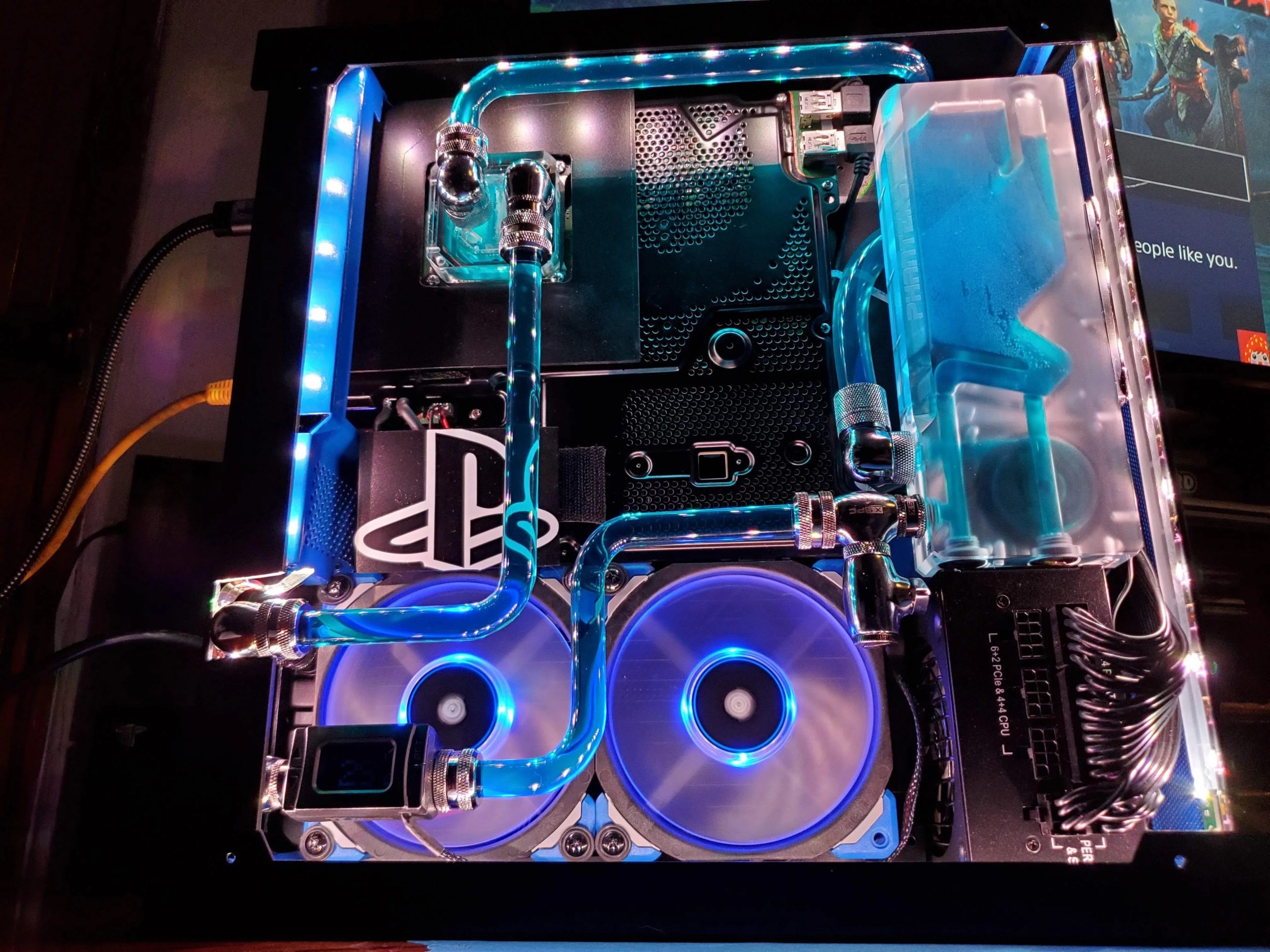
- A user on reddit has installed a water cooler in his PlayStation 4 Pro and it looks impressive.
- Other people prefer to wait for the PlayStation 5: But that might be delayed to 2021 due to the Corona crisis.

Your opinion is important to us!
Do you like the article? Then let us know!