


Steam has introduced a new feature called “Steam Family.” MeinMMO gives you an overview of the function and what you can do with it.
What is Steam Family? With the “Steam Family,” Valve has introduced a new feature for the Steam client. The developer is replacing the previous family library and family view with a new function.
- Install and try Steam Family
- Create and leave Steam Family
- Steam Family: Family Library and Parental Controls in Detail
Install and try Steam Family
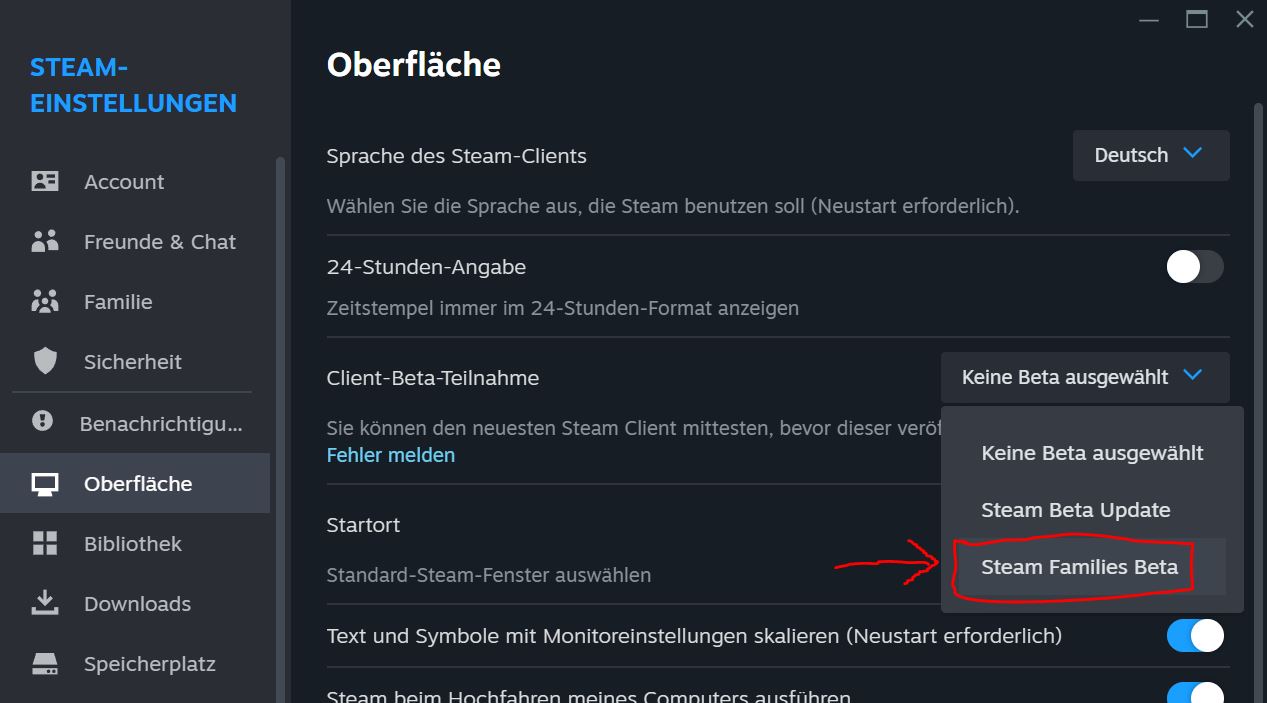
How to test Steam Family: If you want to try the feature, you need to sign up for the beta. Once the update is “migrated” to the official client, this point will no longer be necessary in the future.
- Click on “Steam” in the top left corner of the Steam client and select “Settings” from the menu.
- In the “Interface” tab, click on the dropdown menu under the option “Client Beta Participation.”
- Select the option “Steam Family Beta” from the list. Then restart Steam, and the update will be applied.
Create and leave Steam Family
How to create a Steam Family: The most important requirement is that you have already installed the beta update and thus have access to “Steam Family.” Otherwise, you will still see the old settings:
- Open Steam, click on Steam in the top left corner, and then select “Settings.”
- In the new window, switch to the “Family” tab.
- Here you can activate the Steam Family and add more members.
How many people can participate? A total of up to 6 people can participate in a Steam Family. However, Valve explained in a post that they want to continue monitoring the feature and will “change the rules for membership in a Steam Family over time.”
Can you leave the Steam Family? Yes, an adult can leave the Steam Family at any time. Children can only do so with the confirmation of an adult. If a person leaves a Steam Family, there is a waiting period of one year before a new member can take the vacant spot.
Steam Family: Family Library and Parental Controls
What is the Family Library? All players in a Steam Family share all games of their accounts. Until now, there was a limitation: if you lent a game via “Family Sharing,” you could only use your account in a limited way.
The new Family Library allows you to play a game from a family member’s collection even when that person is online and playing another title. If multiple copies of a game are available in the Family Library, it can be played by multiple family members simultaneously.
Which games can I share? You share all games that are owned by all family members and that can be shared. Game developers can restrict the Family Library and prohibit the sharing of a game. You cannot share individual games; you always share everything.
What are Parental Controls? With Parental Controls, all adults within the Steam Family can set how long children are allowed to play which games. This way, you can set the playtime for children on Steam at any time.
Using Parental Controls, adults can…
- allow access to appropriate games.
- restrict access to the Steam shop, community, and chat with friends.
- set hourly/daily playtime limits.
- monitor playtime.
- approve or deny requests for additional playtime or access to selected features (temporarily or permanently).
- as well as restore a child’s account if the password has been lost.



More about Steam: Steam is bringing a new feature that allows you to hide your games. This is useful if not everyone should see what you’re playing. There are also some useful improvements, especially for your shopping cart on Steam:
Steam brings a feature so you no longer have to be ashamed of your games

Your opinion is important to us!
Do you like the article? Then let us know!