

You want to test your graphics card or check for errors? MeinMMO explains how you should best proceed.
You believe your graphics card is broken, or you simply want to test whether your newly installed graphics card works perfectly? There are various options that MeinMMO would like to introduce you to.
How do I know that my graphics card might have errors?
- Graphical bugs and glitches that get worse over time.
- Strange sounds from your fans.
- Crashes and blue screens occurring more frequently while you are gaming.
- Significantly lower frame rates and sharp frame drops.
- Your graphics card is overheating.
- Your computer doesn’t detect any installed graphics card.
A comprehensive list of signs indicating whether your graphics card is broken or about to fail can be found right here on MeinMMO.
Test and check for errors on your graphics card:
- Start DirectX diagnostic tool
- Check device manager
- Conduct a stress test with the graphics card
- Tips and tricks for graphics card errors
Start DirectX diagnostic tool
Requirements: No special tools needed | Time required: 5 minutes | Cost: none | Difficulty: Easy
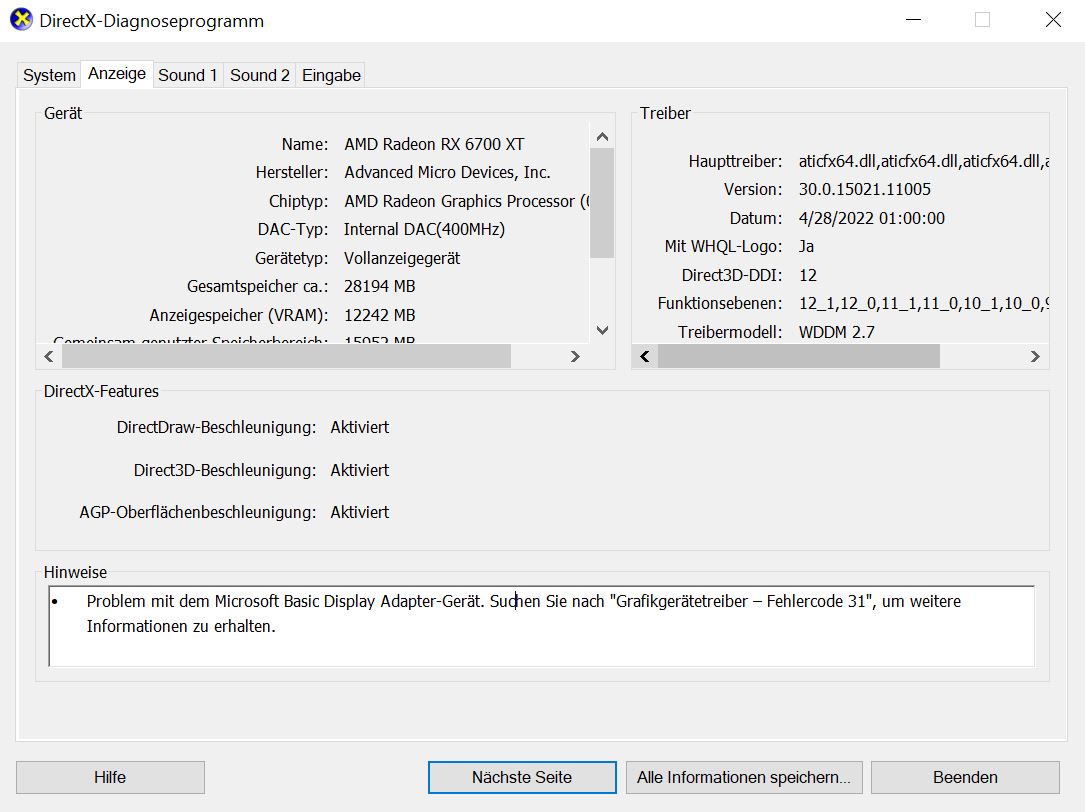
What is it? The easiest and fastest way to check your graphics card is through the integrated DirectX diagnostic tool in Windows. DirectX is a collection of application programming interfaces and is built into Windows.
You enter “dxdiag” in the Windows search and open the specified program. Alternatively, you can press [Windows key] + [R] to open the Run window, then enter “dxdiag” and confirm by pressing Enter.
This will open a new window. Switch to the “Display” tab, and you will find all the important data and information you need about your graphics card.
Where can I find possible issues? In the “Notes” window, you will find issues that you can or should resolve.
Check device manager
Requirements: No special tools needed | Time required: 5 – 10 minutes | Cost: none | Difficulty: Easy
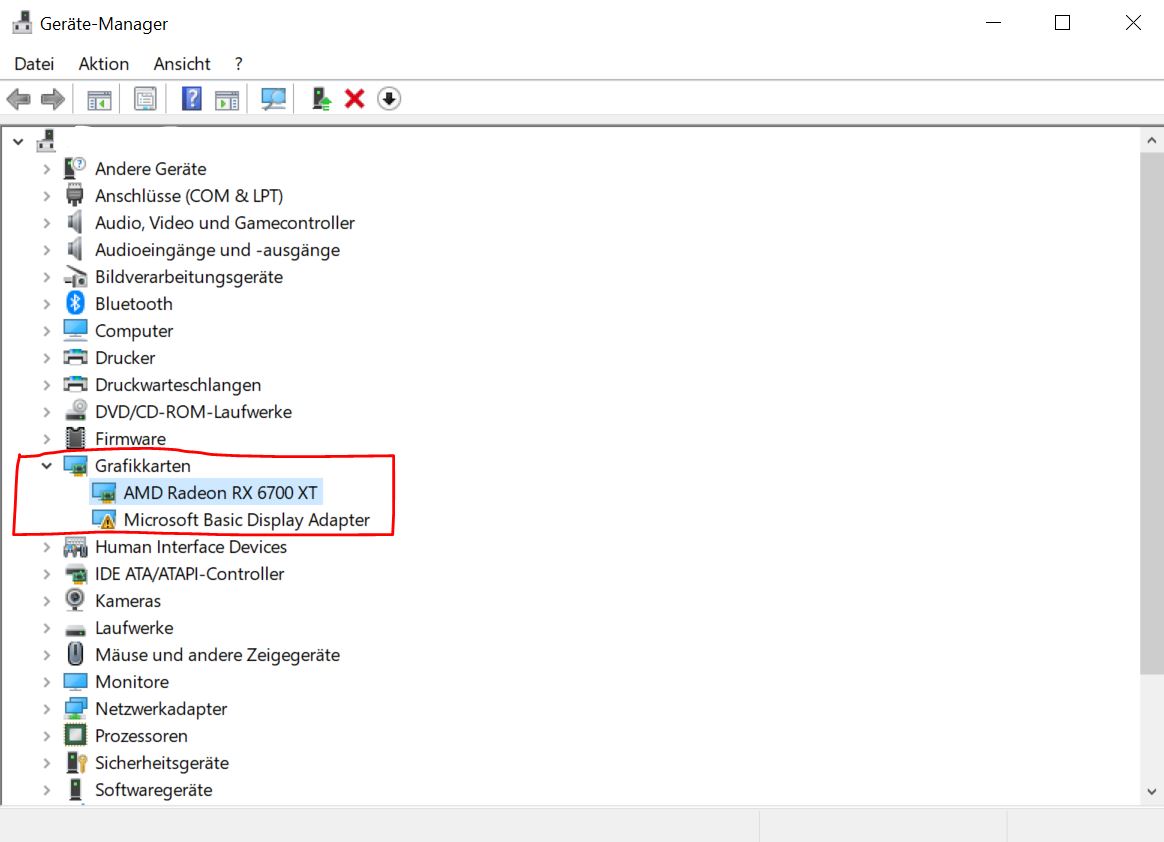
What is it? The device manager is another quick way to look for the source of an error. The easiest way to do this is to search for “Device Manager” in Windows and open the program. The device manager then presents you with data about all devices connected to your computer. Under the “Graphics Cards” tab, you will find all connected graphics cards and so-called display adapters.
Where can I find possible issues?
- By right-clicking on the name of the graphics card and then clicking on “Properties”, you will see more information and under Device Status whether your graphics card is functioning. Errors and issues will be listed here.
- If your graphics card is marked with a yellow warning triangle in Device Manager, that is also an indication of an error.
- If your graphics card does not appear in the manager at all, that is also an indication of a problem.
Conduct a stress test with the graphics card
Requirements: No special tools needed | Time required: 30 – 60 minutes | Cost: none | Difficulty: Medium
What is it? If your graphics card is recognized but there are still issues, then a stress test may be worthwhile. This puts the GPU under heavy load and pushes it to its limits.
Recommended benchmarking software for GPUs:
- OCCT: Mainly used for checking errors and stability issues. You can use it to stress test various components of your system. It is useful that you can also set safety settings, such as the critical temperature that must not be exceeded (External link to the manufacturer).
- Furmark: A free benchmark and stress test tool to check the stability of graphics cards. It significantly stresses the GPU (External link to the manufacturer).
- Heaven UNIGINE: Developed to perform very large and lengthy stress tests for the graphics card, particularly regarding rasterization and tessellation (External link to the manufacturer).
All three mentioned programs are free. OCCT is free for one hour; for longer tests, you will need to pay something. We mention certain types that we can recommend here as examples.
There are more benchmarking tools available, such as PresentMon, which is very comprehensive but unable to display results graphically in a meaningful way.
Another tip: GPU-Z or HWiNFO64 are not necessary for a GPU test, but they are small, practical helpers that we always recommend. While GPU-Z primarily displays data about your graphics card, HWiNFO64 shows you information about all installed components. You can find more recommendations for your PC in the following article:
Tips and Tricks for Graphics Card Errors
Here’s what you can do if you experience problems:
- Test the monitor cable and connections: In some cases, a poorly seated HDMI cable is the problem. In that case, you typically also shouldn’t have an image.
- Check the power connection: Are all the power cables seated correctly and properly latched onto the graphics card?
- Ensure the graphics card is mounted correctly: Check that your graphics card is securely mounted and properly latched into the slot on the motherboard. The graphics card should be noticeably and audibly clicked into place on your motherboard.
- Update or reinstall graphics card drivers: A reinstall is advisable when you have installed a new graphics card and have remained loyal to the manufacturer.
- Check the games: In some cases, the problem can also be an incompatible game or a bug in the game.
- Clean the hardware: If your graphics card is heavily dusted or dirty, it may be worth thoroughly cleaning the hardware so that the fans can function properly again.
- Replace thermal paste: If your GPU is several years old, changing the thermal paste might also be beneficial. This can significantly lower the temperature in some cases.


More about graphics cards: If you’re looking for a new graphics card or want to know which GPUs are currently recommended, take a look at our overview on MeinMMO. Here we present all recommended and current graphics cards:

Your opinion is important to us!
Do you like the article? Then let us know!