

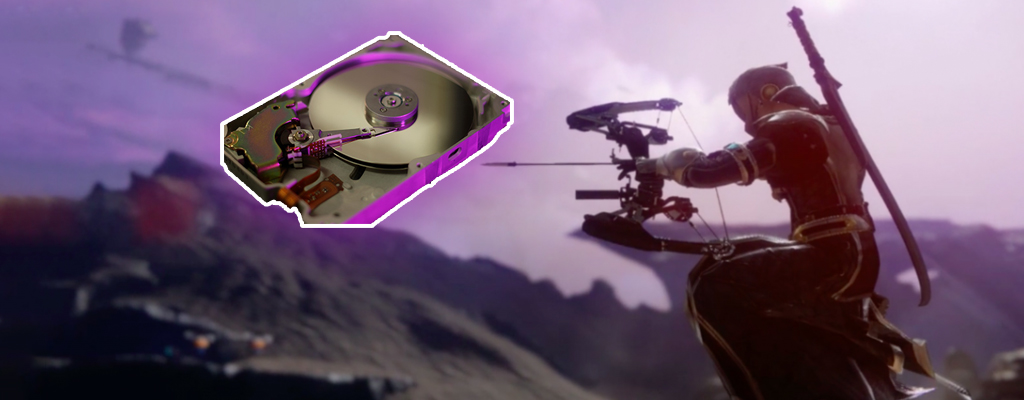
In Destiny 2 there are often long wait times. You can shorten these on PS4 and Xbox One by connecting an SSD. We show you which drives you can use and how to install them.

Destiny 2 requires a great deal of patience from its players in many situations. Often you wait over a minute for the game to process something. The wait from orbit to the Tower can take nearly 2 minutes before it continues. Very few players enjoy waiting. Destiny 2 is lagging on PS4 and Xbox One, and players are complaining.
Relief through a new drive: The drives of your consoles have a significant impact on loading times.
If you replace these from the old HDD system (or hybrid system) to pure SSDs, you can save up to 50% of wait times when games are installed on the SSD. And it’s quite easy – even without modification.
This is how much a SSD improves Destiny 2 – Impact
On Reddit, user LootStuff presents a comparison of loading times in different scenarios from Destiny 2 Forsaken. He compares the loading time between the original HDD drive installed in his PS4 and an external SSD.
This is how the SSD impacts: The table shows that these times are extremely shortened by using an SSD. This is because the design of an SSD is aimed at achieving fast read and write speeds.
| Which scenario | Original HDD | External SSD |
| PS4 Dashboard > Start Screen | 19 seconds | 16 seconds |
| Press X > Character Selection | 90 seconds | 39 seconds |
| Character Selection > Orbit | 21 seconds | 12 seconds |
| Orbit > Tower | 119 seconds | 55 seconds |
| Tower > Orbit | 17 seconds | 14 seconds |
| Tower > Dreaming City | 102 seconds | 53 seconds |
| Dreaming City > Orbit | 78 seconds | 13 seconds |
| Character Loadout | 5.4 seconds | 2.6 seconds |
Convinced? Then you just need to choose an SSD. We compile the most popular ones in the following overview. How much storage you need, you have to estimate yourself. However, the drive must be at least 250 GB. If you want more storage, take 500GB or grab 2TB right away. Storage space killer – Destiny 2 requires up to 104 GB of storage with Forsaken. With the upcoming Shadowkeep expansion, it’s even more. In total, 165 GB will then be necessary.
Internal SSDs – Can be built into the console or connected externally via USB
External Drives – No installation required
Drive Enclosures: With a drive enclosure, you can easily connect standard “internal” SSDs via USB to PC, PS4, or Xbox One. This means you can take a drive from the first list, buy an enclosure with USB 3.0, and insert the drive there. Afterwards, it simply works via your USB slot on the console.
Suitable enclosures include, for example, the following:
Internal or external SSD?
If you want to avoid installing a new internal drive in your PS4 or Xbox One, then you should opt for an external drive. This will be located outside the console and connected via USB.
Is it slower then? Due to the USB 3.0 connection of a console, fast data transfers are possible. It is not as fast as with an internal drive, but the differences are minor. Keep in mind that the Destiny loading times shown in the table were achieved with an external SSD as well.
SSD Installation for PS4 and Xbox One
Can you even install the drives? While you can easily remove the original drive and install a new one in a PS4, switching drives on the Xbox One voids the warranty.
With the Xbox One, it is better to go for an external solution if you want to retain your warranty on the console.
Installation and Re-installation on the PS4
In order for a new internal drive to work correctly on a console after installation, an operating system must be installed for it.
- Sony provides a detailed explanation on the official website.
- If you want to install your drive internally, you can refer to this guide from Gaijin Hunter on YouTube.
You can easily connect external drives to the PS4:
After connecting, the drive must first be formatted. Go to Settings>Devices>USB Storage Devices, select your external drive, and choose “format as extended storage.” InsidePlayStation shows how to do this in the following video:
Installation on the Xbox One
If you connect an external drive to the Xbox One to install games on it, you first need to format the drive. This is simple; just connect the drive to the console and then choose what you will use the drive for in the menu. The video by 649danijelo can help you with that.
Thanks to our reader “DerFrek” for pointing out the Reddit article referenced in this article.
Still missing the right sound? The best PS4 headsets can be found here

Your opinion is important to us!
Do you like the article? Then let us know!