You want to change the language in Red Dead Redemption 2 and play in German, English, or other languages? No problem, it can be adjusted. We will show you how.
Which language can be changed? If you follow this guide to change the language of Red Dead Redemption 2, you will notice this in the subtitles and in the menu. The game itself does not have a German voiceover, only the English one. Arthur will not suddenly speak German.
How to change the language? Players have already noticed that there is an option to change the language missing in the game. You won’t find anything in the options. Now, gamers didn’t want to settle for that and have researched further on how to change the subtitle language.
Some simply do not want to read in German or prefer a different language than the selected one.
If you would like to change the language but the game doesn’t start? Here are solutions to fix the issues with starting Red Dead Redemption 2 on PC.
1. Change Language in the Rockstar Games Launcher
Some players report that a small change in the Rockstar Games Launcher already solved the issue.
Here you find the setting: Close RDR 2, start the Rockstar Games Launcher, and select “Settings” in the top right corner of the main window. At the very top, you will find the “Language” option and a drop-down menu where you can select your preferred language.

If you now click on the desired language, it will change throughout the launcher. It’s best to restart the program now.
When you now open Red Dead Redemption 2, the subtitles and menu items should be in your selected language. If not, then try step 2 from this article.
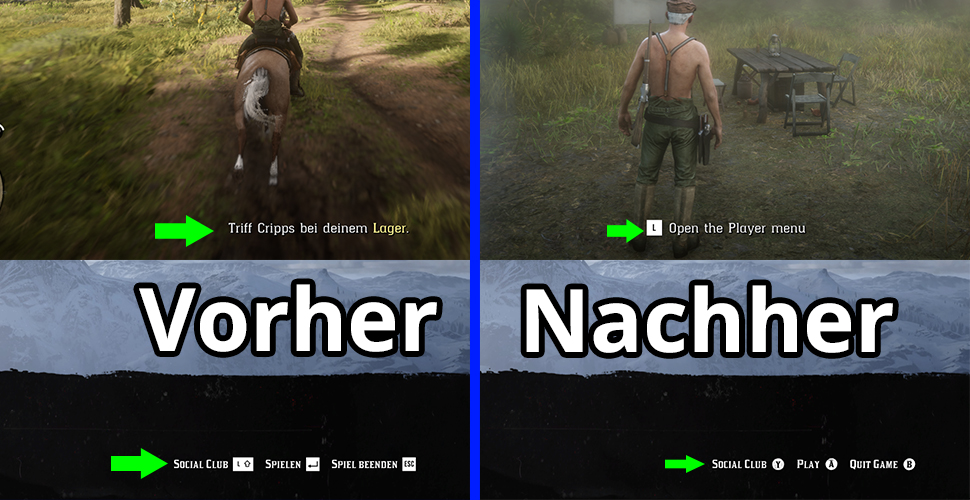
2. Change System Language
This is what players report: In some systems, the language of the Rockstar Games Launcher seems to have no effect on Red Dead Redemption 2. Changing the Windows language helps here.
How to change the language in Windows 10:
- Click on the Windows icon and select Settings (the gear icon)
- Select “Time & Language” and then on the left under “Region” choose the desired country with your preferred language
- Then select the preferred language on the left under “Language”
- The language pack will be downloaded, and you can select it under “Windows display language”
- It is best to set the new language as the default among the preferred ones and then restart the system.
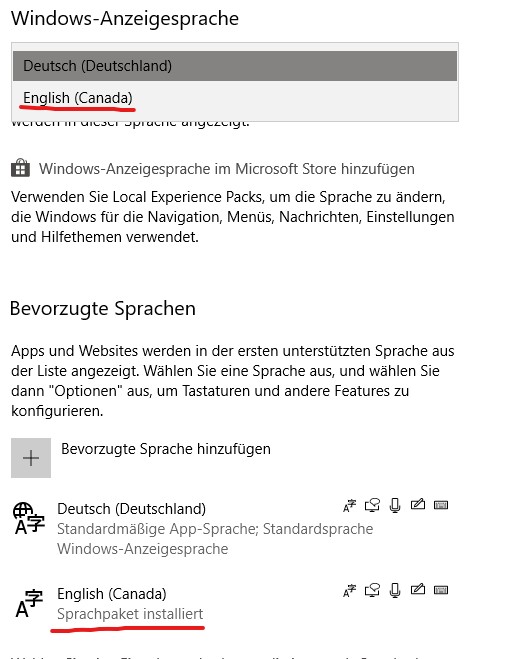
With the new system language, start your Rockstar Games Launcher, ensure that the desired language has also been set as in step 1, and then start Red Dead Redemption 2.
Now, your menu and subtitles should appear in the new language.
If you now have the game in your desired language, feel free to use these tips to ensure nothing goes wrong in the game.