

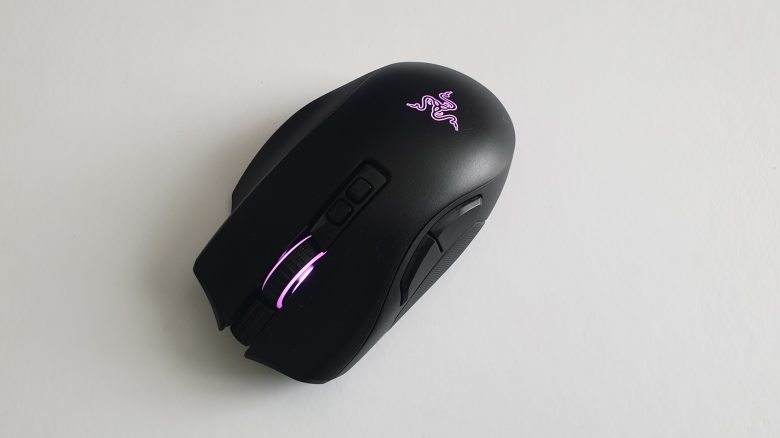
The Razer Naga Pro relies on Wireless and interchangeable side panels. MeinMMO introduces you to what the Razer mouse can do and how it performs in testing.
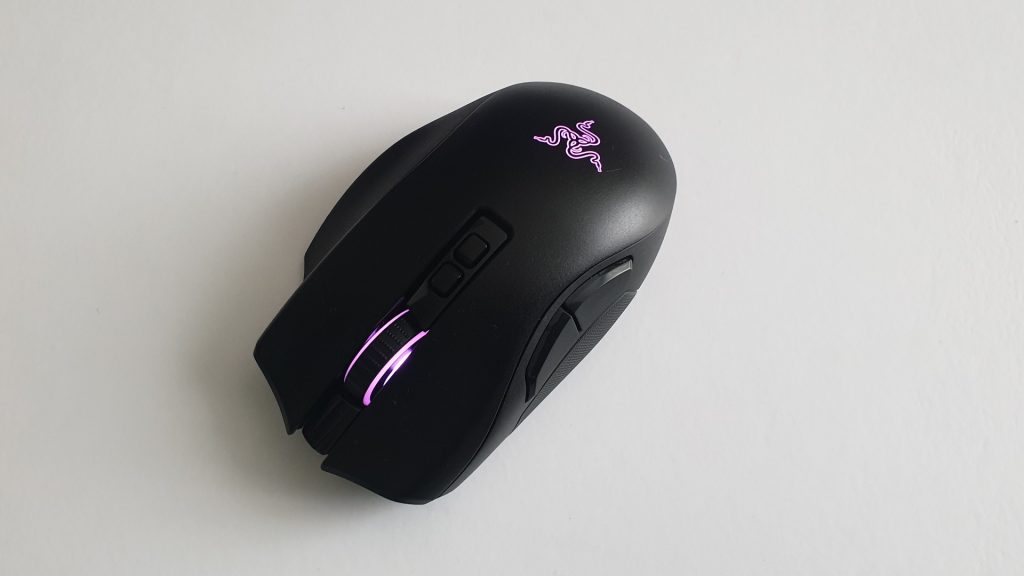
Which mouse are we talking about? The Razer Naga Pro is a modular and wireless gaming mouse. The mouse features three interchangeable side panels with different numbers of buttons and is therefore, according to Razer, suitable for various genres such as MMOs, Battle Royale, and FPS games. The mouse follows in the footsteps of the successful Naga Trinity or the Naga Hex V2, which some of you may still remember.
Why is the mouse particularly suitable for MMOs? The Razer Naga Pro offers the possibility to swap out the side panels. Among them is a 12-button side panel, which is especially suitable for complex MMORPGs if you want to assign many abilities or combos to your mouse.
MeinMMO took a closer look at the latest modular gaming mouse and reveals what we like about it and what we like less.
Razer Naga Pro Review: How Did We Test?
How long was the mouse tested? We were allowed to test the mouse extensively and took a closer look:
- The mouse was in use for 14 days and an average of 4 – 5 hours.
- In total, we worked, surfed, and gamed for about 60 hours with the mouse and also tried out the different side panels.
Razer Naga Pro in Detail
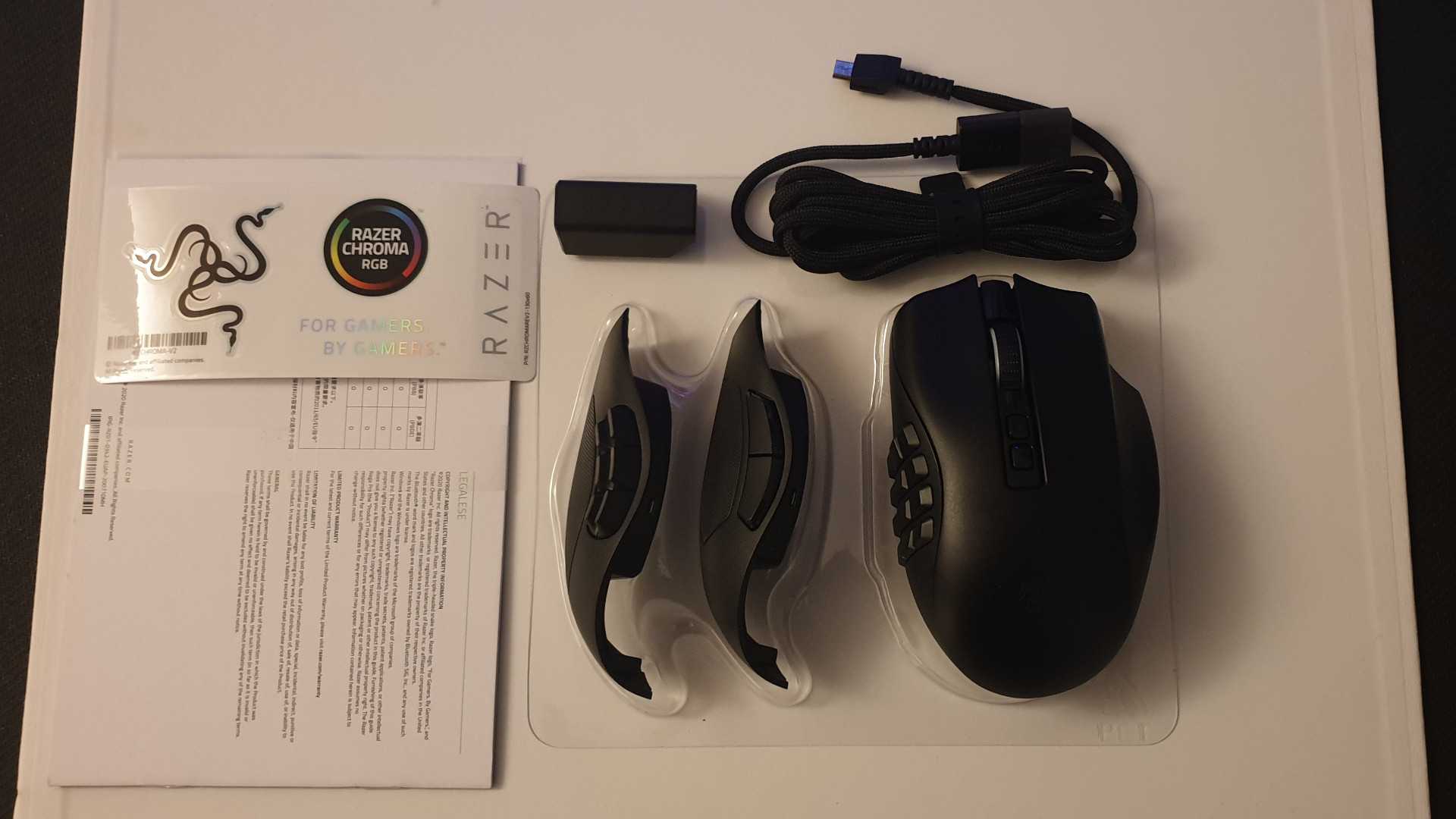
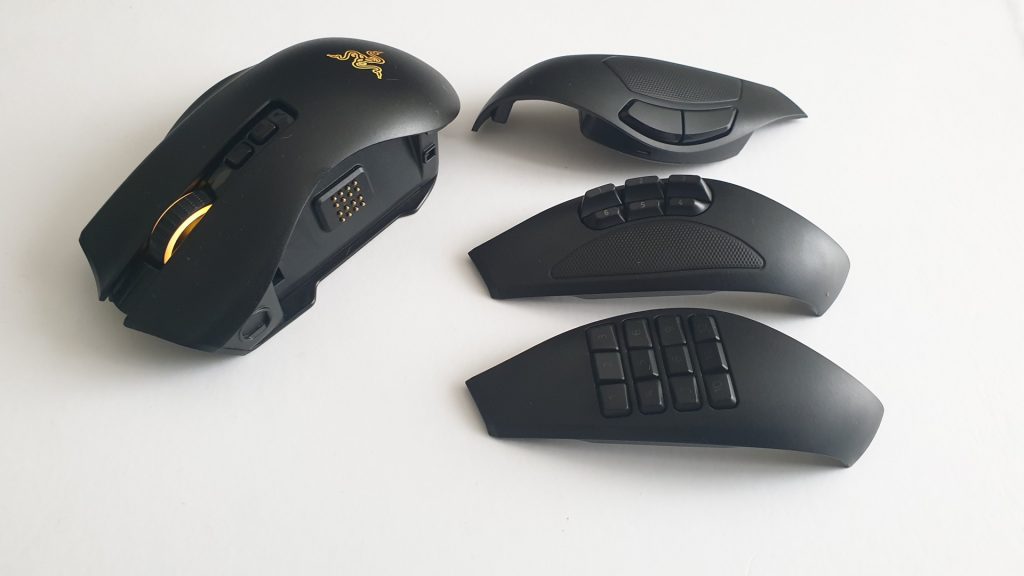
What is special about the mouse? The Naga Pro is a modular gaming mouse. Unlike other mice, this mouse allows certain parts to be removed and exchanged. While you can almost completely disassemble the R.A.T Pro X3, the Naga Pro allows you to remove the side panel and swap it for another. The mouse comes with three different side panels.
- A side panel with 2 buttons, which is supposed to be suitable for FPS games.
- Another side panel offers 6 side buttons, making it suitable for “Battle Royale” games like Fortnite or Apex Legends.
- The third side panel offers 12 buttons and is especially designed for MMO players who want to assign many quick access buttons to their mouse.
In addition to the interchangeable side panels, the mouse also offers three different connection options: You can connect the mouse via USB cable, Bluetooth, or via Razer’s own Hyperspeed technology.
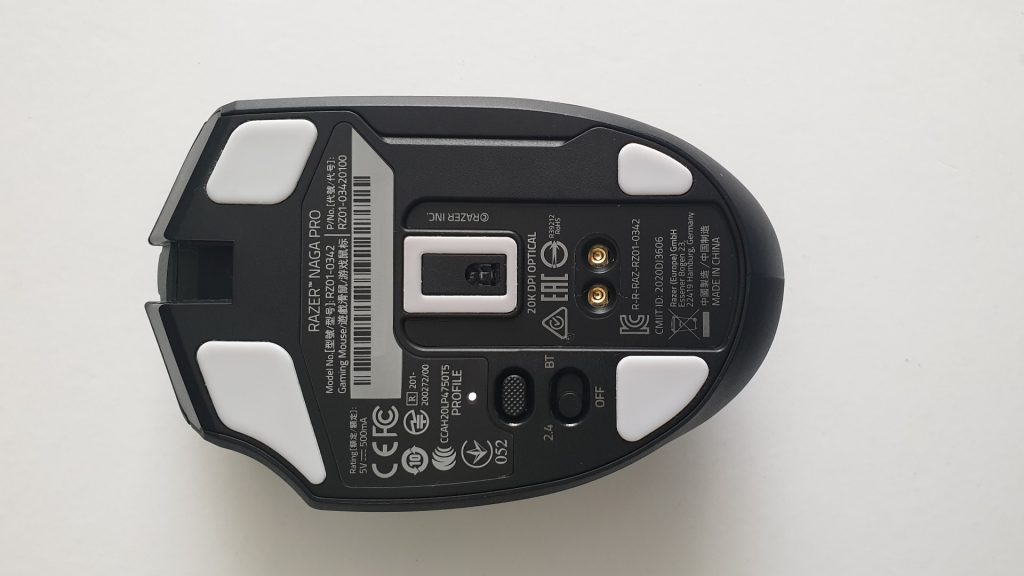
The Naga Pro can also be charged with the “Razer Mouse Dock.” The appropriate connection and recess is located on the underside of the mouse.
Weight: With 117 grams, the Razer mouse is in the mid-range compared to its competitors. When comparing the mice directly, this becomes quite apparent.
Razer Naga Pro: Weight Comparison:
| Logitech G Pro Wireless | 81 grams |
| Razer Lancehead | 111 grams |
| Razer Naga Pro | 116 grams |
| Logitech G 502 Hero | 121 grams |
| Roccat Kone Aimo Remastered | 130 grams |
Gliding Feet: Razer uses gliding feet made of PTFE plastic for the gliding feet. This is supposed to have particularly good gliding properties on surfaces. The Naga Pro has a total of 4 gliding feet and they are not interchangeable.
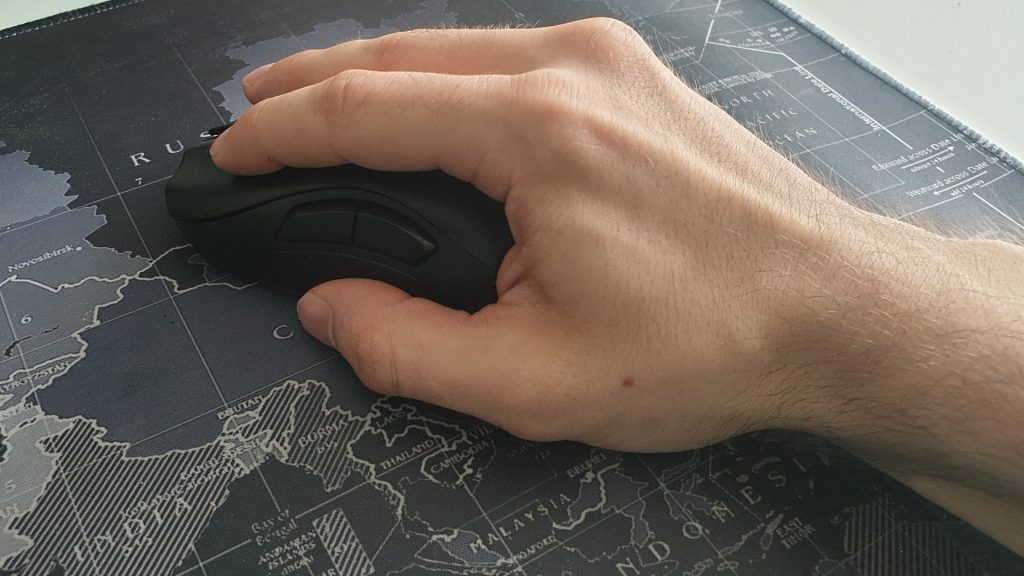
Grip Type: The mouse is generally suitable for all three grip types: palm, claw, and fingertip grip. In the test, we used the mouse in both palm and claw grip.
Claw Grip: Fingertips, thumb, and part of the palm rest on the mouse. The rest of the hand does not touch the mouse.
Fingertip Grip: Only thumb and fingertips rest on the mouse. The rest of the hand is free.
Which sensor does the mouse use? The Naga Pro uses the “Razer Focus+” sensor. This relies on the PixArt sensor PMW-3399 and is currently the best available sensor you can find in a mouse. Razer also uses the same sensor in its Basilisk Ultimate and Viper Ultimate.
However, there is little practical benefit to high DPI values of 20,000, as hardly any player actually uses these speeds.
Features and Technical Details
Here are the technical details about the Naga Pro, concise and clear.
| Sensor | Pixart PMW3399 (Razer Focus+) |
| Resolution | Up to 20,000 DPI |
| Switches | Razer switches, 70 million clicks |
| Buttons | 10 / 14 / 20 |
| Design | Black mouse with adjustable RGB lighting (16.8 million colors, Razer Chroma RGB) |
| Connectivity | Razer HyperSpeed Wireless Wired over USB Bluetooth |
| Gliding Feet | 4 gliding feet made of PTFE plastic |
| Cable | Razer Speedflex cable, 1.8 m |
| Dimensions | 119 mm x 74.5 mm x 43 mm |
| Weight | 117 g |
| Price | €169.99 (RRP) |
| Price Trend (according to Geizhals.de) | €169.90 – 229.98 |
Razer Naga Pro vs Trinity
The Naga Trinity was released in 2018 and looks externally like the Naga Pro from Razer. A closer comparison of the two devices reveals that the differences mainly lie in the details.
Where are the differences? While the Trinity is wired, the Naga Pro also offers wireless connectivity. The Naga Pro features a newer sensor, the feet are better constructed, and the Naga Pro is also compatible with Razer’s new mouse dock. All differences are summarized in the table below:
| Razer Naga Trinity (2018) | Razer Naga Pro (2020) |
|---|---|
| Wired | Wireless and Wired |
| Standard cable | Speedflex cable |
| Standard feet | Feet made of PTFE plastic |
| optical 5G sensor, up to 16,000 DPI | “Razer Focus+” sensor, up to 20,000 DPI |
Can the old side panels be used with the new Naga Pro? According to Razer, the old side panels from the Trinity are not compatible with the Naga Pro.
However, this is not a problem because the Naga Pro already comes with three side panels and no additional ones are needed.
Razer Naga Pro Software “Razer Synapse”
What we like about the software: Even during installation, we can choose which software packages to install. This is practical and allows us to reduce the scope of the software somewhat.
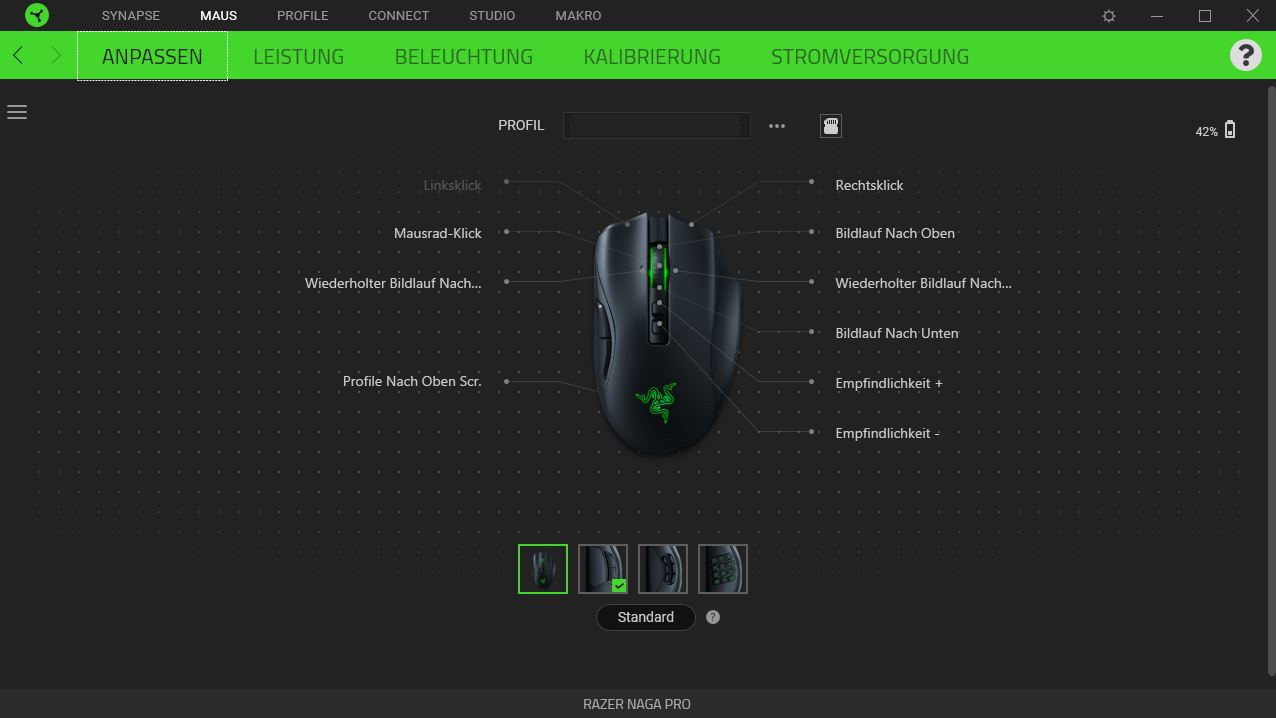
The software itself is clear and intuitive. Through the “Mouse” tab, we access our device directly, where we can configure each individual button. The software also allows for individual setup of each side panel of the mouse. In addition, profiles can be managed and directly saved on the mouse via drag & drop.
If you have other Razer devices, you can connect them via Connect, then lighting effects will be coordinated, as you may know from other manufacturers such as Corsair or Roccat.
Also commendable: Bluetooth and the 2.4 GHz wireless mode work without software.
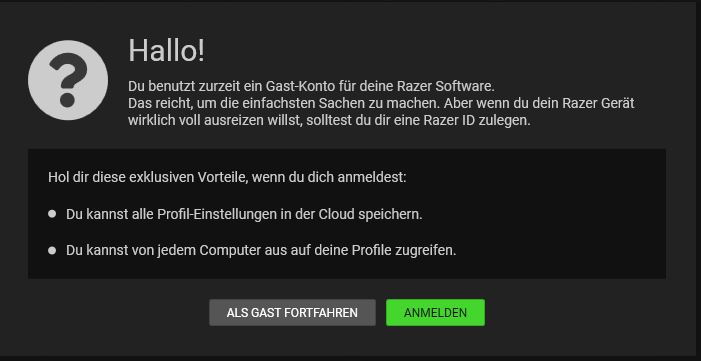
What we like less: The software is enormity large and comes with a lot of processes running in the background, Razer Central, Razer Synapse 3, GameManagerService, and Razer Chroma SDK Rest Server are just four examples of processes running in the background on Windows. In comparison: The Logitech Gaming Software only runs with two background services.
You essential need the software for many functions, which has a particular disadvantage. The software (so far) does not work on Linux and Macintosh, so you cannot use many functions here. The test shows that basic functions like wireless and side buttons work perfectly on Linux (we used Xubuntu 18.04 in our test) – although without direct assignment.
In Practice
In this section, we present how the mouse performs in practical tests. We will discuss the weight and speed, as well as which sensor is in the mouse and what options the mouse offers in practice.
Weight, Texture, and Handling
Design and Weight: With 116 grams, the Razer mouse is in the mid-range of gaming mice. The mouse buttons do not offer any special grip or rough surface; the entire mouse is designed in the same material. Only the left and right outer sides are rubberized to give the pinky and thumb more grip.
Gliding Feet: On the back of the mouse are four gliding feet that ensure that the mouse glides smoothly over various surfaces. The feet are made of PTFE plastic, providing low resistance. This allows the mouse to sit on the surfaces and ensures quick movements.
The interchangeable side panels sit tightly and stably on the mouse and do not affect the movement of the mouse in any way. Tendenziell, the side panels with 2 and 6 buttons offer more support for the thumb than the side panel with 12 buttons.
The Mouse Buttons and Wheel
The Scroll Wheel of the Naga Pro: Razer uses a 4-way scroll wheel in the mouse. Compared to the Trinity, Razer has made significant improvements to the scroll wheel of the Naga Pro. The scroll wheel sits better under the index finger and is altogether more comfortable and quieter to use than with the Trinity.
In direct comparison, we found the scroll wheel of the R.A.T Pro X3 by Mad Catz to be better overall than that of the Razer Naga Pro, as it was somewhat more precise and felt better in hand. In contrast to Logitech, Razer also does not offer the option to let the scroll wheel free spin (free run).
Speed of the Mouse Buttons: The click latency, or the feedback of mouse clicks, is around 5ms with the proprietary Hyperspeed receiver and is therefore very fast and reliable. Via Bluetooth, the latency is a bit more than twice as high, just over 10 ms. That is still acceptable for gaming.
Macro Functions
Changing the side panels is very easy and they click securely onto the mouse thanks to magnets. However, the processing of the side panels can be criticized: While small magnets are used for the closure, the individual side panels are made of hard plastic, and the magnets are also encased in plastic. We couldn’t definitively determine how often the parts can be swapped without issues in our test. However, we didn’t have any problems changing the parts during our approximately 14-day test phase.
With the software, all buttons of the mouse can be assigned and programmed. Whether it’s keyboard functions, launching specific programs, or starting music, Razer’s software offers a variety of options. In addition, it is no longer mandatory to register for the use of the software.
Thanks to Razer Hypershift (comparable, for example, to Roccat Easyshift), you can even assign every button twice. Although we hardly needed this function in practice, as you have enough configuration options with over 5 profiles.
The 12-button side panel is a bit of an adjustment at first. The buttons are comparatively smaller and arranged differently than on the 6-button side panel. However, this is purely a matter of getting used to it. The buttons can be easily programmed and assigned with macros, and eventually become second nature. Thanks to Hypershift, you can also assign each of the 12 buttons twice. Do you play an MMO and have two quick access bars that you constantly switch between? With the 12-button side panel and Hypershift, that’s no problem, as it works intuitively and very quickly.
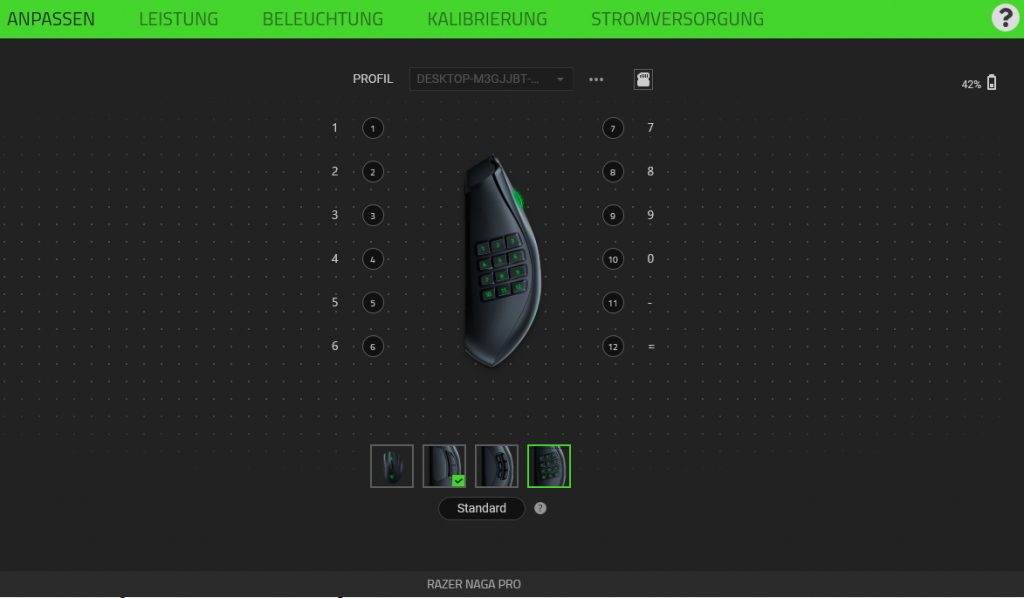
It is cumbersome that to switch profiles, you either have to turn the mouse over to press the switch or switch to the software. There is no button on the mouse surface itself. An alternative would of course be programming a macro.
The Sensor of the Razer Naga Pro
With Razer Focus+, the manufacturer installs the best current sensor in its gaming mouse. On paper, Razer’s sensor also outperforms Logitech’s top sensor “Hero 16K”.
In practice, however, there is no difference whether the sensor has 16,000 or 20,000 DPI. Although these high differences can be measured, they play no role for gaming. Four-digit or even five-digit sensor resolutions have no real relevance, as the mouse becomes too erratic and hardly controllable.
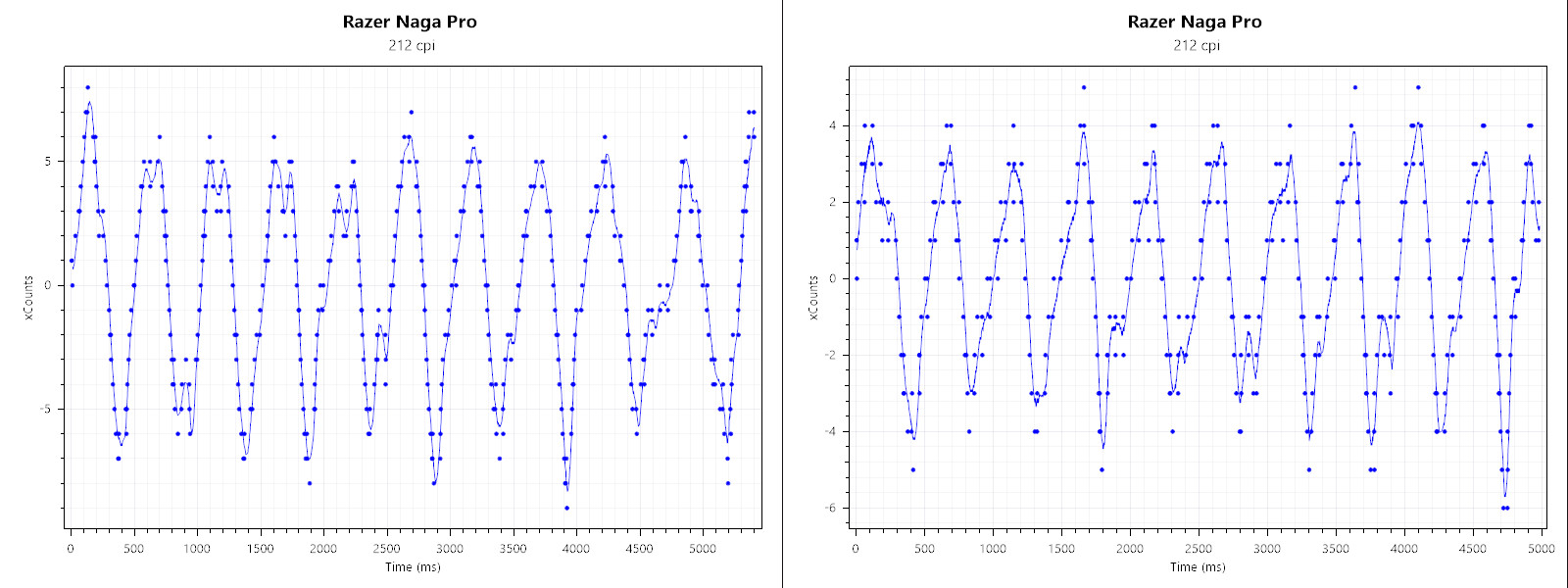
The sensor does not become less accurate at higher sampling rates; it just calls the raw data much more often.
In gaming, however, the strength of the high-end sensor shows. The sensor is very precise, reacts quickly, and has no problems with various surfaces. Even in conjunction with Razer’s wireless technology “Hyperspeed,” the sensor performs well: delays or even connection drops could not be observed during our sessions.
Conclusion
Who is the mouse suitable for? If you are a player who likes to switch between genres and needs many buttons, the Naga Pro could certainly be worth a look. With the three interchangeable side buttons, the mouse offers enough configuration options, especially for players who enjoy shooters or a round of Fortnite but always want to have the right mouse in hand. On the other hand, this variety is also reflected in the price. The Razer Naga Pro costs nearly €170, but offers the current best mouse sensor and good connectivity.

What alternatives are there? The alternative would be to grab the quasi-predecessor, the Razer Naga Trinity, which currently costs around €100 and is therefore about €70 cheaper. The functions are similarly extensive, but you will miss the wireless function, the better sensor, and the better built cable. Here we’d advise you to directly opt for the Naga Pro.
If you only need 2 or 6 buttons, there are more affordable alternatives. You could check out the Logitech G502 Lightspeed, which currently offers a strong sensor, plenty of buttons, and wireless support for around €100 (as of 28.10.2020). If you do not need wireless, you can also take a look at the Roccat Kone Aimo.
If you are a pure MMO player and need many buttons, then looking at Logitech could also be interesting, as the G604 Lightspeed also offers plenty of buttons and a wireless function, but does not have RGB. However, you also pay a bit less than €100. Or you can opt for the Corsair Scimitar RGB, which costs €90.
Benedikt’s Conclusion: Strong, precise mouse for MMOs and Shooters – But at a high price
Razer delivers the Razer Naga Pro, a mouse that outperforms the Naga Trinity in every aspect. The mouse feels better in hand, offers a better scroll wheel, wireless functions, and a better sensor, combined with a long battery life. The opto-mechanical switches provide high precision and the mouse feels pleasant in the hand. In practice, the swapping of side panels works very well, and the software works seamlessly with the change.
On the other hand, the software and the high price mar the overall picture. The software is bulky and consists of numerous system processes, but at least Razer has mitigated the registration requirement. However, at €170, the price is set too high, as a good alternative like the Logitech G502 Lightspeed costs around €60 less. This provides enough options for both MOBA and shooter players, including wireless function.
If you only need many buttons for your favorite MMO, you can also look at the Corsair Scimitar RGB, which offers a precise sensor (PixArt PMW3391) but does not have wireless functionality.
If you enjoy playing shooters and complex MMORPGs, there is no real alternative to the Razer Naga Pro.
Nevertheless, Razer also delivers a very high-quality mouse for a high price: The mouse is well made, offers good ergonomics and the best sensor currently available.

Benedikt Schlotmann
Author at MeinMMO
Here you will find the suitable gaming keyboard: Are you looking for a suitable gaming keyboard that matches your game and your gaming mouse? Then check out our MeinMMO best list, here you will find the best gaming keyboards that you can buy in 2020.

Your opinion is important to us!
Do you like the article? Then let us know!