

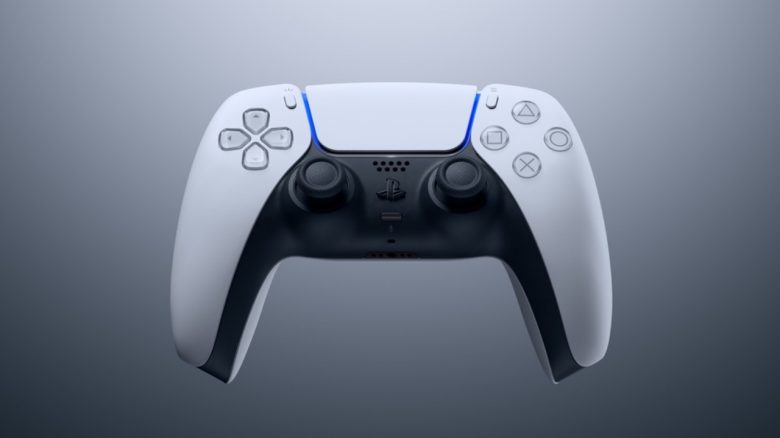
The PS5 has a whole range of shortcuts that can make your user experience significantly faster and more intuitive. However, not everyone may be familiar with these shortcuts. For this reason, here is a list of the most important shortcuts for the console.
What is a shortcut? A shortcut is a command that brings you to your desired goal faster. Most people are likely aware of a few shortcuts on the PC – e.g., common key combinations like Ctrl + C for Copy or F5 for Refresh.
The PS5 also has a number of such shortcuts that allow you to navigate the menus much faster.
Shortcuts for the DualSense Controller
The DualSense controller of the PS5 is one of the most innovative gamepads available. In addition to the highly advertised features such as haptic feedback, adaptive triggers, and HD rumble, the PlayStation 5 controller also has many shortcuts that can enhance your user experience.
Home / PS Button Shortcuts
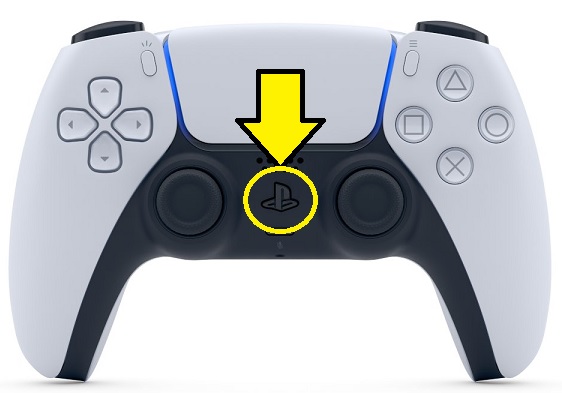
The button in the middle of the controller, easily recognizable by the PlayStation logo, has several useful functions:
- Pressing it once opens the immensely important Control Center
- If you hold the PS button, you will immediately return to the home screen. On the PS4, holding the PS button would instead take you to the quick menu of the console. This change may take a bit of getting used to.
- If you double-press the PS button quickly, different windows will open depending on the active game or media app – the so-called “Activity Cards”. These are tailored to your current activity and therefore always useful. Examples:
- In some games, for example, you can use the Activity Cards for fast travel or to get hints
- If you are listening to music, the Activity Card from Spotify will open, allowing you to quickly change the playback volume, stop the song, or skip to the next one.
Microphone Button Shortcuts
The microphone button, located directly under the home button, also has practical functions: Pressing it briefly mutes your microphone, and the button lights up continuously. If you hold the button down for a little longer, all audio will be muted, and the button will blink instead.
Not every PlayStation controller was as innovative as the DualSense. A selection of the most bizarre PS controllers can be found in this article:

Create Button Shortcuts
The Create button on the left side of the touchpad handles many tasks that the Share button of the DualShock 4 used to perform. Accordingly, the button again acts as a trigger for your camera, allowing you to capture screenshots and screen recordings.
The default setting is that when you press the button once, instead of directly taking a screenshot like on the PS4, it first opens the Create menu. This is quite unintuitive – especially if you already knew the function from the PS4.
Fortunately, this can be easily changed back: Settings > Recordings and Broadcasts > Recordings > Shortcuts for Create Button
In this menu, you can set additional configurations for the Create button, such as what happens when you hold the button down or tap it twice.
Some of the most useful features of the PS5 are disabled by default, even though they allow you to get the most out of your console. You can find out which settings those are in this article:

Software Shortcuts
Fortunately, the PS5 has a few simple tricks that can be used to navigate the menus and interface faster.
Shortcuts for the Home Screen and PS Store
When you are on the home screen of your PS5, it only takes a single press of the R1 button to switch from the Games tab to the Media tab. If you want to go back, you can simply press L1 again.
Pressing triangle once on the home screen, on the other hand, immediately switches the cursor to the search icon in the upper right corner of the screen, which is located right next to settings and your profile.
Similarly, the triangle button works in the PS Store and PS Plus – where you can directly switch to the menu located at the top right, thus saving yourself the effort of navigating manually with the thumbstick or D-Pad.
The PS5 offers various performance and resolution modes for games. You can read about what these entail here:
PS5: Should I play games in performance mode or resolution mode?
Shortcuts for the Control Center
You open the Control Center by pressing the PS button once. Through this quick menu, you can quickly select and utilize the most important actions of the PS5. Here you will find shortcuts for
- Spotify,
- the “Switcher,” allowing you to quickly switch between your apps and games,
- your party,
- various settings
- and also the option to put your console into rest mode or turn it off entirely.
What’s convenient here is that you can personalize and set up the quick menu to your liking. To do this, after opening the Control Center, simply press the Options button once.
After that, you can customize both the displayed icons and their order in the Control Center to fit your needs.
If you are someone who usually plays alone, it might make sense to remove the party icon from the list and thus make the quick menu more compact.

More interesting facts about the PS5: Recently, there have been first hints that Discord voice chat could soon come to the PS5. You can read about what these hints are in this article:
Discord is finally testing an important feature on the PS5 – Is voice chat coming soon?

Your opinion is important to us!
Do you like the article? Then let us know!