Despite the popularity of SSDs (Solid-State Drives), Hard Disk Drives (HDD) are still being purchased. This is mainly because more and more storage space is needed, and SSDs are too expensive for that. The term HDD derives from the floppy disk (FDD). These were removable data carriers known as disks. You can think of them like a USB stick.
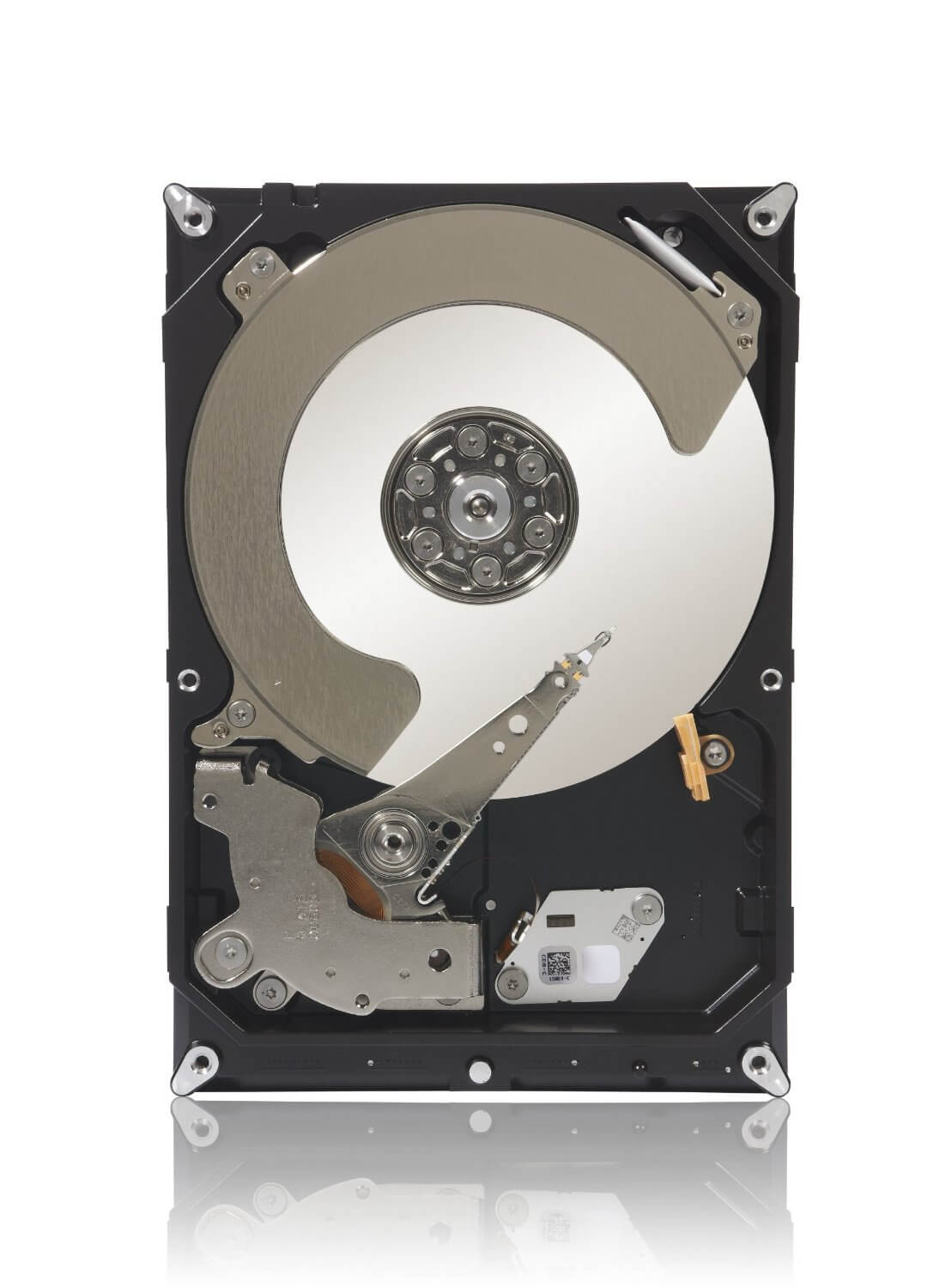
Structurally, an HDD is relatively simple. It has a motor for the write and read head, a magnetic platform, a rotary axis, and some electronics. The distance between the head and the write area is less than a hair. A contact is never established, as this would cause damage – a so-called head crash. This is hardly possible, as rotation creates an air gap that prevents contact.
Data can be stored in various ways. One method is Longitudinal Magnetic Recording (LMR), which uses a coil at the head. This is traversed by current and magnetizes it. This allows different areas of the magnetic disk to be magnetized and thus written. Reading behaves correspondingly in reverse. The magnetized area generates a magnetic field in the coil. There are other variants with different structures of the write and read head, but the basic principle does not change.
A magnet cannot erase the hard disk, at least not an ordinary one. Only in an active state can a magnet disturb the movement of the head and lead to data loss.
Things to Consider When Buying
Revolutions per minute: The RPM should be at least 7200 revolutions per minute. The more, the faster the HDD becomes. At the same time, it becomes louder, consumes more power, and generates more heat.
Continuous Transfer Rate: This value is relevant when transferring large amounts of data. It should be at least 50 megabytes per second. For comparison: an SSD achieves 500 Mbytes/s, and RAM can reach 5000 Mbytes/s.
Seek and Latency Time: Since the data is distributed across the entire disk, the head must constantly aim for different places. Therefore, this access time should be as low as possible; 8 milliseconds or less is already very fast. The value should not exceed 14 milliseconds. Ideally, the data to be read is stored consecutively so that there is no need to jump back and forth. This is achieved through defragmentation.
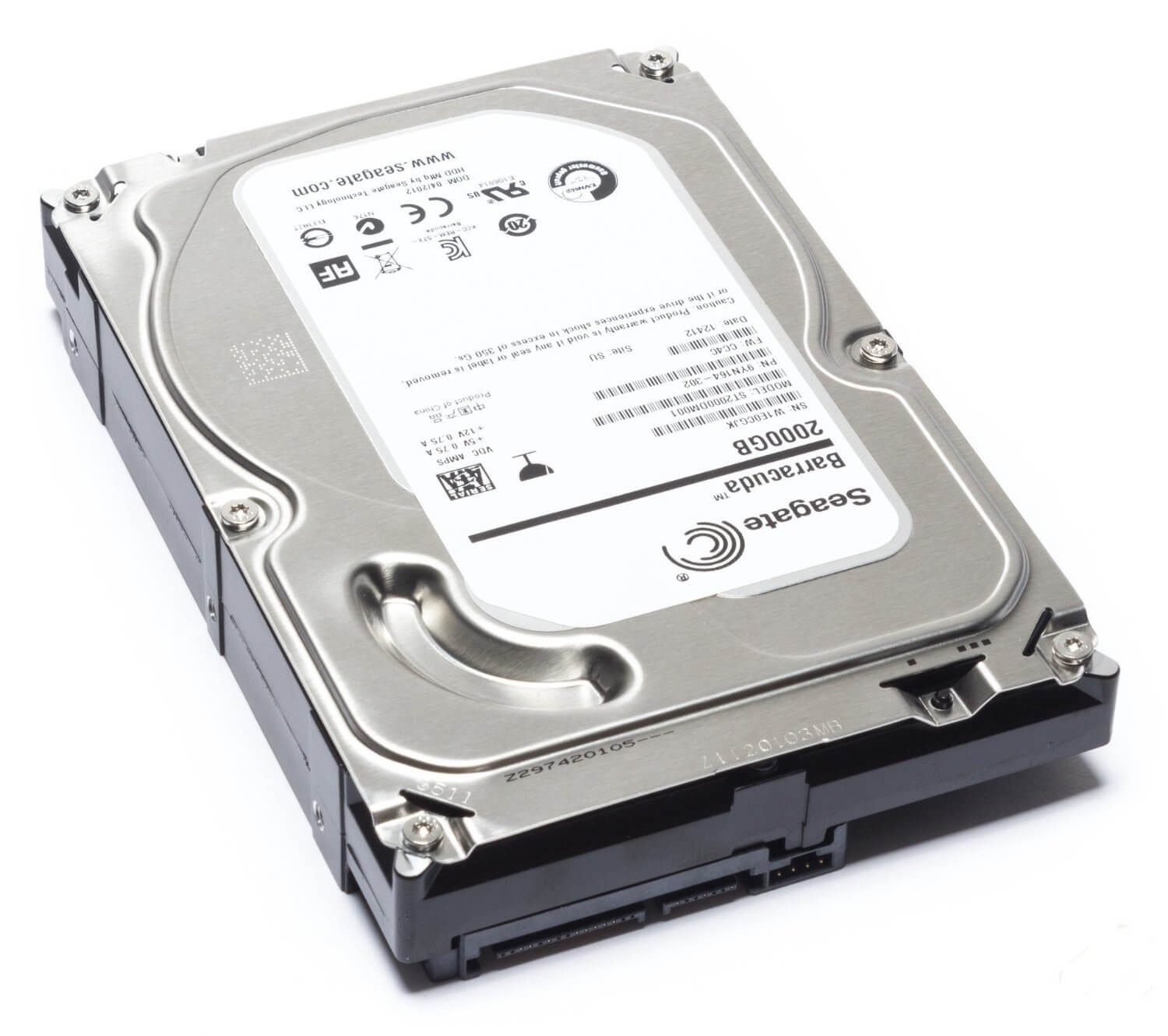
Size: 3.5 inches are the largest and offer the best price-performance ratio. Their main application is desktop PCs. Smaller and weaker 2.5-inch drives are used in laptops. Even smaller sizes can be found in smaller devices like iPods.
Capacity: The upper limit is continuously rising. However, if you want to purchase a hard drive with several terabytes, ensure that it is recognized. With current Windows, this is largely unproblematic. If you want to connect the storage to a TV, it can happen that the device does not recognize it. Some devices do not recognize anything over 2TB, while others set the limit at 500GB. It’s not tragic; you can partition a hard drive, e.g., from 3TB to six 500GB units.
Most PC users have likely already noticed that the storage capacity is generally smaller than stated. 1TB equals 931GB. This is due to a different understanding of the size of a megabyte. Actually, 8 bits make a byte, 1024 bytes make a kilobyte, and 1024 kilobytes make a megabyte. Therefore, the factor for the designation “kilo” is 1024, while in physics, it is 1000. When ordering a kilogram of meat from the butcher, one means 1000 grams and not 1024.
The manufacturer provides its specifications with the 1000 factor, while computers calculate with 1024 and therefore output a lower value. Thus, an effort was made to introduce a new designation for the 1024 factor: Kibibyte (KiB), Mebibyte (MiB), Gibibyte (GiB), etc. However, this is rarely used.
SSD and SSHD
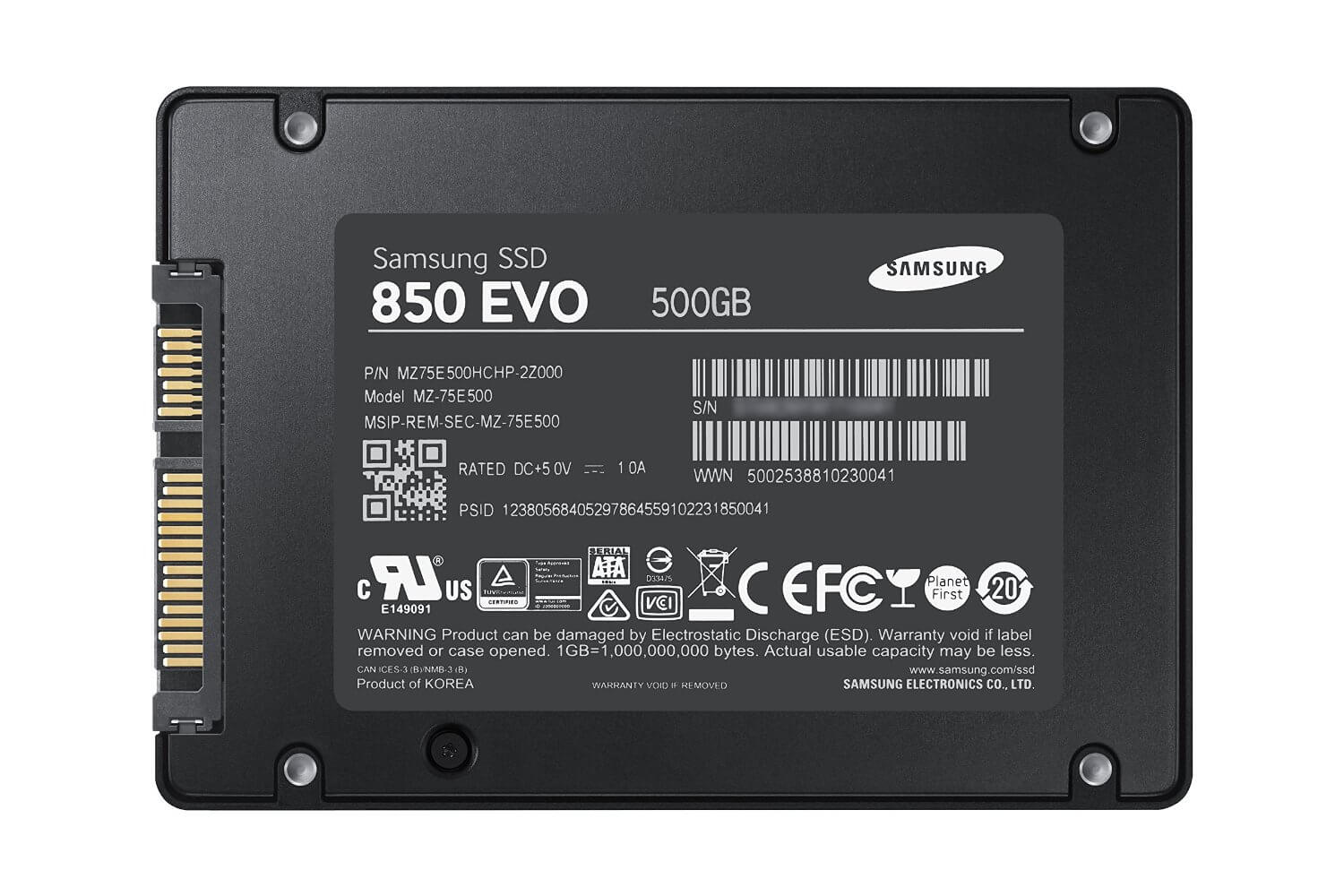
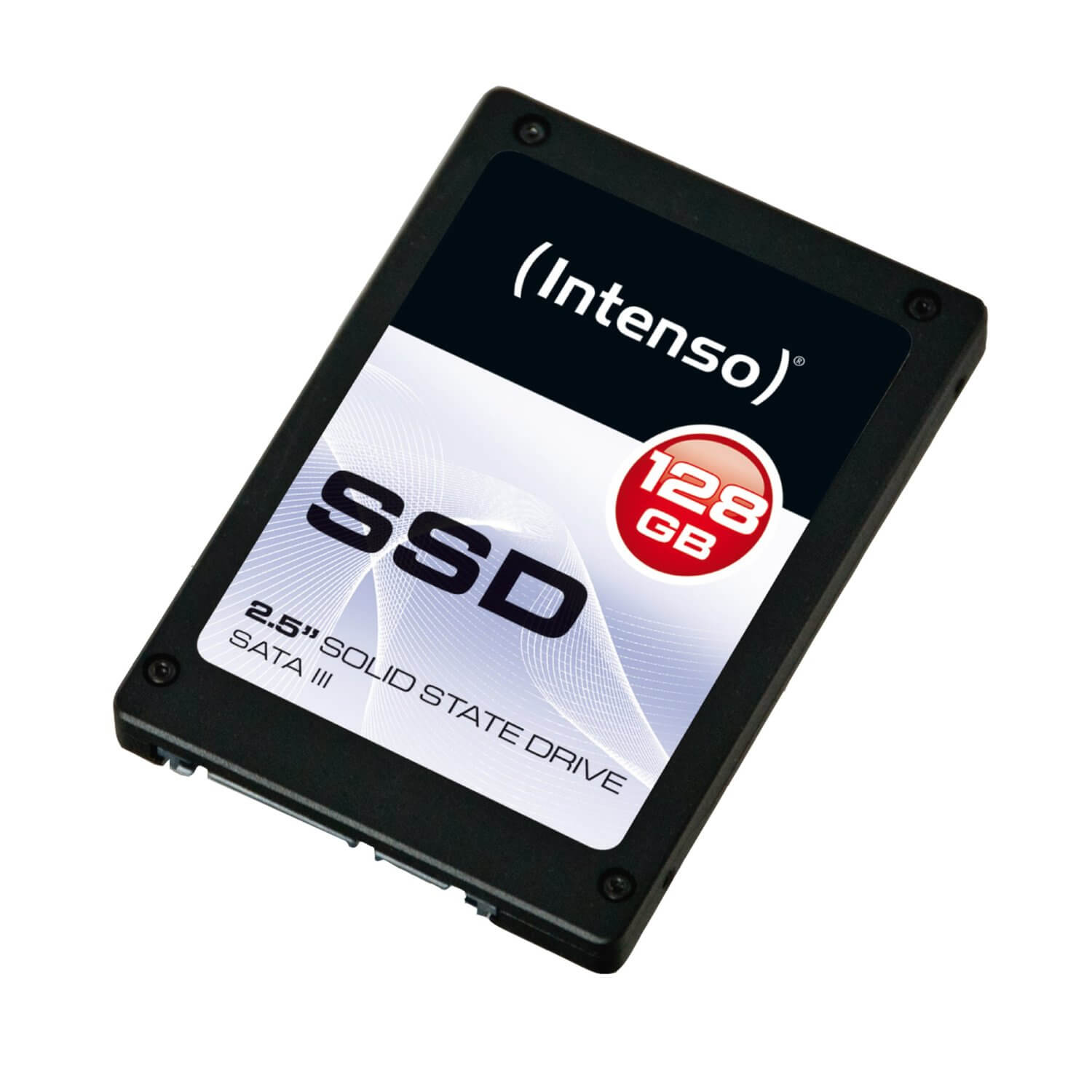
SSDs are faster, quieter, and more expensive. Ultimately, they offer many advantages and are therefore recommended alongside an HDD. The operating system and games, where you would like minimal loading times, can be installed on it. A criticism is their limited durability, as an SSD can only be written to a limited number of times. However, it is much more likely that errors in the firmware or other defects will lead to the SSD becoming unusable rather than too many write cycles. SSDs survive the 3-4 years it takes for mechanical wear issues to arise in an HDD.
For those who want to be cautious, the Solid-State Hybrid Drive is interesting. It represents a combination of SSD and HDD. The operating system and frequently used data should be installed on the SSD part. However, they are louder and slower. An alternative, therefore, is to install both an SSD and an HDD.
Proper Installation
The HDD is installed in the drive bay. Just inserting it and mounting it is enough; the electronic parts should point downwards, while the connection ports face inwards. On the outside, there is a cover. If only a SATA hard drive is installed, the connection on the motherboard labeled “SATA 1” should be used.
The process for SATA SSDs is largely identical. As the size is usually 2.5 inches, you may need an appropriate mounting frame. Some cases already have a bay for this size. Faster and better for the SSD is the PCIe connection. Here, the device is inserted into the appropriate slot. Light pressure needs to be applied until the golden contacts are barely visible.
The Graphics Card
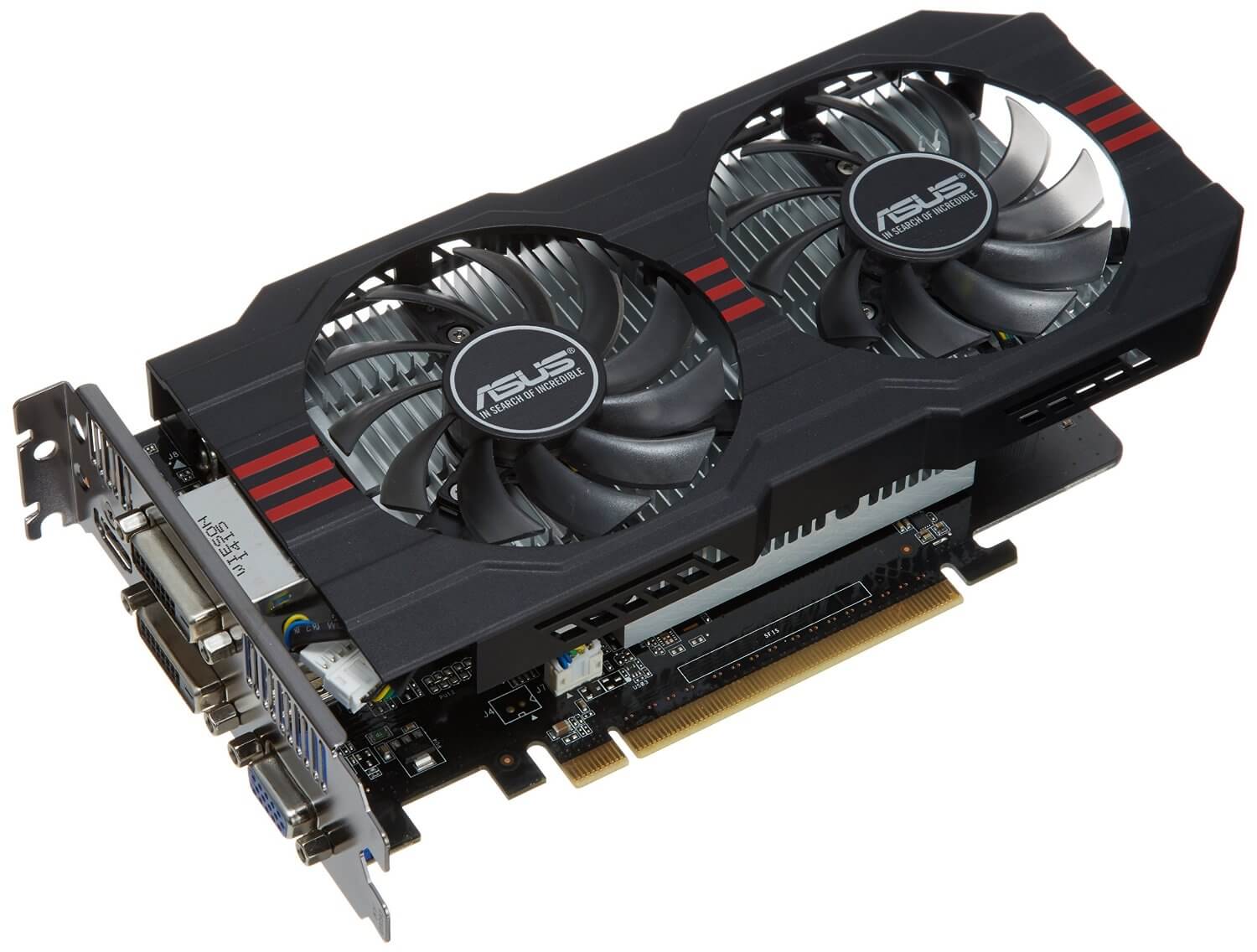
Today’s games are unthinkable without graphics cards. But what exactly do they do, and what should one pay attention to when buying? The first question will only be answered in basic terms, as it would otherwise extend this article. In summary, it can be said that the graphics card has similarities to a processor. Both calculate something, just something different.
A graphics card computes visual information, which is then output to a monitor. It thus works closely with the processor. For example, if the processor calculates the movement of an object, the graphics card is responsible for the correct lighting or physical properties of that object. For this reason, the processor is more important for video rendering or photo editing.
However, it is possible for the CPU to take over graphical calculations. A graphics card can be integrated into it. This is referred to as an integrated graphics processor (IGP). However, their performance is quite weak, making such a setup suitable only for office applications.
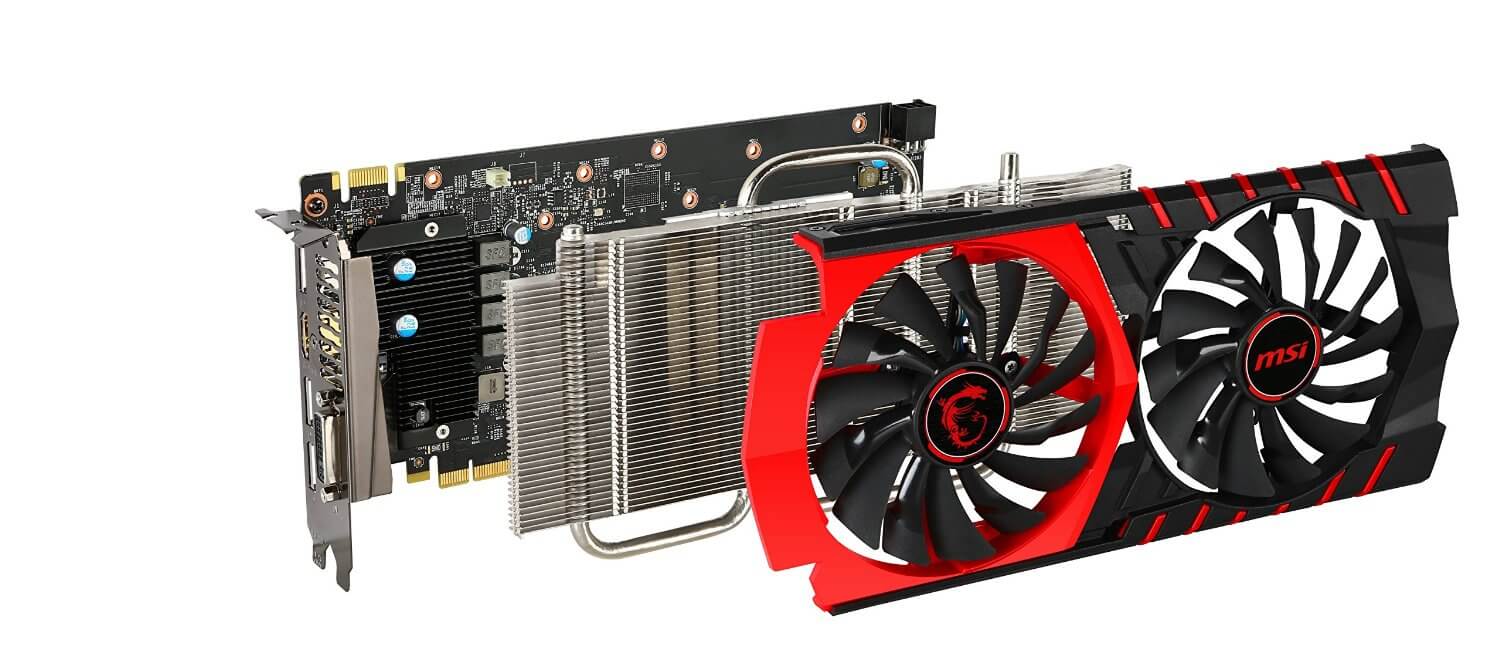
Conversely, there is also the opposite. Every graphics card has its own processor, known as a graphics processing unit (GPU). This is intended to relieve the CPU. It is possible to have more than one graphics processor, including some fans. However, the main processor is still needed. If its performance is too low, even the best graphics card won’t help much.
The representation of 3D images is done using polygons. These are triangular surfaces with which any possible object can be created. 2 polygons next to each other create a square. For complex structures, many are needed. Once the structure is created, a texture is overlaid. The alternative would be to color each polygon individually, which is too high a computational effort.
Connections
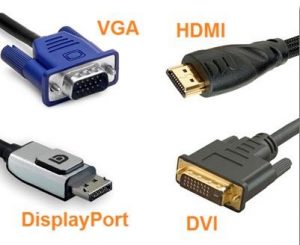
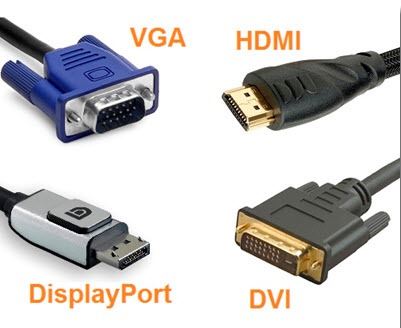
VGA is the analog connection and reduces image quality. The graphics card outputs a digital format, which must be converted into an analog due to VGA. The monitor then converts that analog signal back into digital. To avoid this conversion, DVI is more sensible, as it is a digital interface. This means that nothing needs to be converted.
HDMI can also be found on the devices. It is also a digital connection that additionally transmits audio signals, so these devices can have their own speakers. Consequently, you often find this connection on modern televisions. The downside of the connection is that it is very small and wears out more easily.
Another option is Display-Port. It offers the same functions as HDMI and additionally allows USB signals to be transmitted. The speed is higher, manufacturing is cheaper, and requires less electronics. Thus, flatter displays are needed. Apple’s Mini Display-Port allows for larger screens for laptops.
When considering all connections, it is important that the monitor has a compatible one. You should be able to avoid VGA by now.
The Correct Installation
Installing the graphics card is considerably easier than it was for the processor. You just need to insert the graphics card into the appropriate slot. There should be some space around the card, as a lot of heat is produced. Unfortunately, there is not much choice in position; usually, there are just a few possible spots.
There are only a few things to consider for installation. Besides grounding, be sure not to touch the golden contacts. Furthermore, once the card is installed, they should no longer be visible; otherwise, it is not inserted deep enough. Unlike the processor, it will not simply fall into its place, so light pressure can be applied. You should hear a slight click. Also note that the slots have a latch. Particularly during removal, remember it. Finally, the power supply for the graphics card must be connected.
This is an AI-powered translation. Some inaccuracies might exist.