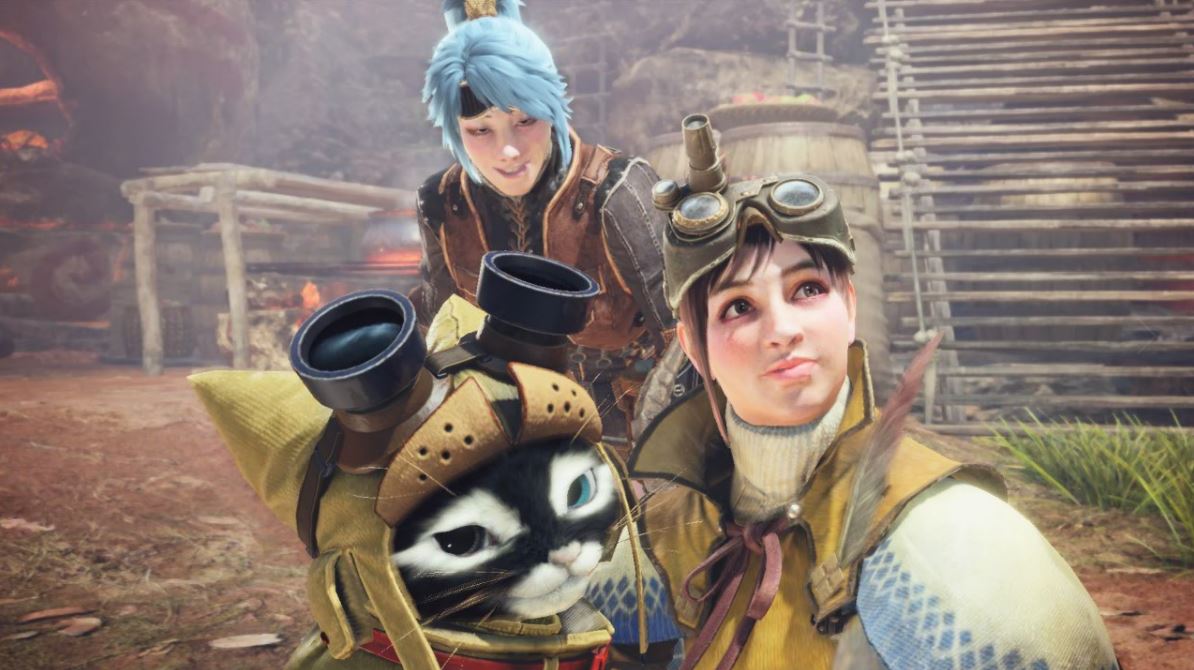
In Monster Hunter World you have several ways to form groups with other hunters in multiplayer. This guide shows you these options and covers creating squads and hunting groups, explaining how and which quests you can tackle together.
In total, you can go on a hunt with 3 other friends. The action RPG offers various features for this purpose. However, the multiplayer in Monster Hunter World is somewhat cumbersome. You must take several steps to be able to travel with a group. The guide includes:
- What to consider in multiplayer in Monster Hunter World.
- How to invite friends and join a session
- How to start a quest in multiplayer
- What hunting groups are, how to create them and join them
- The purpose of the gathering place
What to consider in multiplayer in Monster Hunter World
Generally, you can play all quests in Monster Hunter World together. However, there are a few prerequisites that you must meet as a group. This is why you sometimes receive error messages when trying to play together.
You must meet these prerequisites to participate together in a quest:
You can only join quests that have the same or lower hunter rank
The hunter rank symbolizes the experience and abilities of your hunter. The higher it is, the more quests are available to you. The hunter rank increases with the completion of assigned quests and expeditions. With a higher hunter rank, the difficulty of quests also increases, meaning the monsters become stronger.
You are allowed to play with a friend who has a higher hunter rank. However, note the following:
- You cannot join any quest that has a higher hunter rank. If your friend starts a quest that is at hunter rank 7, you CANNOT join if you are hunter rank 3.
- You can join quests from friends who have a lower hunter rank. If you start a quest with hunter rank 3, your friend with hunter rank 7 can join here. Or you must have the same hunter rank.
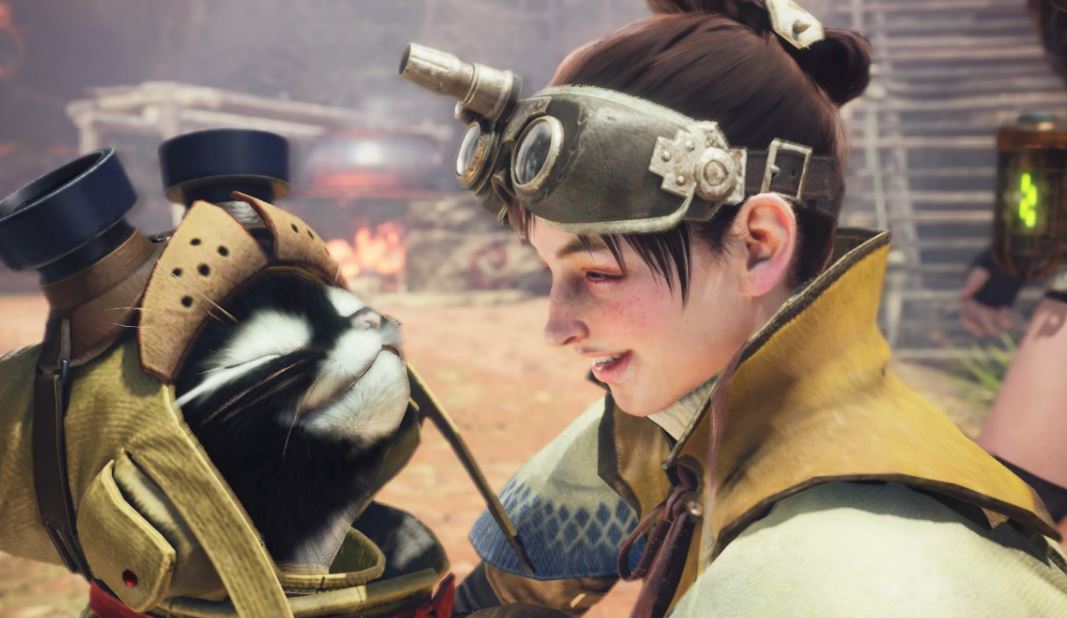
Story quests can only be played together if everyone has seen the cutscene
In the main quests of Monster Hunter World, there are various film scenes that usually introduce the new monsters or maps. The main quests are marked with a thick red symbol.
You can generally complete all story quests together. However, everyone in the group must have seen the corresponding film scenes in the quest to start it together. In these quests, you can only use an SOS signal with the emergency flare after you have seen the film scene.
The strength of the monsters does NOT scale with each additional player
In Monster Hunter World, the strength of the monsters scales in multiplayer. However, this does not apply to every additional player. Only the second player increases the monster’s strength! So if you are in a group with two players and their Palicos, the monsters are just as strong as in a group of three or four players. Four players are out and about without Palicos.
Players choose the best weapon in Monster Hunter World for solo and group
Loot stealing is impossible and everyone gets the same
In Monster Hunter World, you carve the animals and receive loot in the form of claws, teeth, or horns. You can all take the same parts from the monsters and receive the same rewards in the group. Players cannot steal loot by being the first to carve the monster.
Cross-play and split-screen in Monster Hunter World
Cross-play between the PS4 and Xbox One is NOT possible in Monster Hunter World. You also CANNOT use split-screen to play together. Co-op in Monster Hunter World works exclusively online.
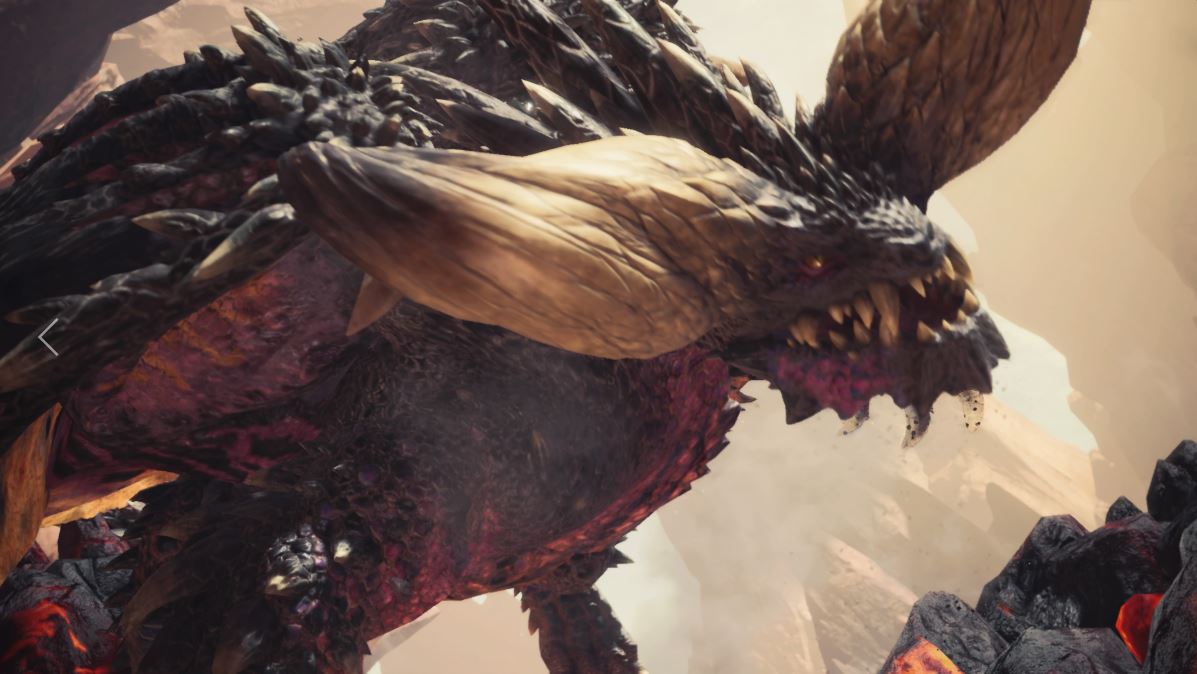
Playing expeditions in multiplayer
Expeditions are the only way to explore the maps without a time limit. There are two ways to start multiplayer expeditions:
Calling friends for help with the emergency flare
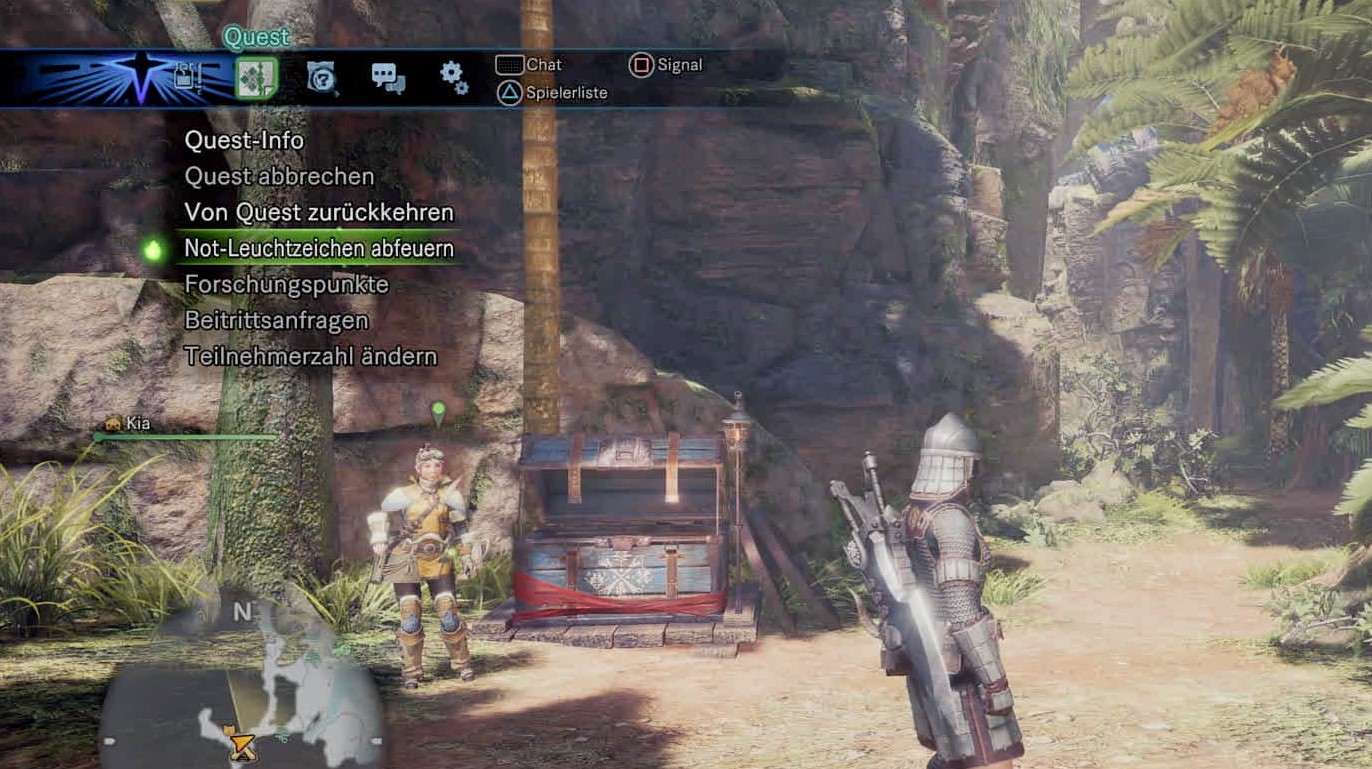
Invite friends and join an online session
Creating or joining an online session is cumbersome in Monster Hunter World. You have to take a few more steps to form a group online. In this section, you will learn how to invite friends, join online sessions. Additionally, useful online features such as finding friends are explained.
Inviting friends
- Press the options button and go to the start menu.
- From here proceed to communication.
- You can now invite friends via their PSN name.
- Invited friends always start in Astera.
Joining a friend’s online session
- You can join a friend’s online sessions directly with your PSN account. If you join an online session this way, you will end up in Astera.
- You can join a friend’s session as follows:
- Let a friend create an online session or join another player’s online session.
- From the PS4 home screen, go to “Current Game” in the friends menu and select “Join Session”.
Search via online session ID
- If you know someone’s online session ID, you can search for it directly to join the session.
- To search for an online session ID, select “Search via Session ID” when looking for online sessions.
- If you want to find out your online session ID, access Options Button > Start Menu > Communication > Player List to view the ID.
Finding players you recently played with
- You can search for the online session of a player you recently played with.
- You can search for these players as follows:
- Select “Search in game history” when searching for online sessions.
- Access Options Button > Start Menu > Communication > Recently Met .
- Note: The game history is cleared whenever you leave the game.
Playing alone: Create a private session
- You can activate the “Private Session” so that others can only join your online session through the “Invite a Friend” and “Search via Session ID” options.
- There are two ways to activate the “Private Session” option:
- When creating an online session, select “Yes” under “Private Session”.
- Access the Quest Board or the Quest Switch Menu > Online Session > Session Settings and select “Yes” under “Private Session” after creating an online session.
Friend requests and blocking
- You can see the online IDs of players in the online session or quest by selecting the Options Button >Start Menu > Communication > Player List .
- You can view a player’s profile in PSN (PlayStation Network) by selecting their name in the player list and then choosing “View Profile”.
- Sending friend requests:
Select “Friends” on the function screen, then a profile, and finally “Add to Friends”. - Blocking other players:
Select “Options” on the profile screen of the player you want to block, and then select “Block”.
Removing players from a quest or hunting group
- You can only remove people from the quest or hunting group if you are their leader.
- Removing quest members:
- Before departing on a quest, you can remove players by calling up the “Group Member Status” and pressing the “Remove Player” button. You can also remove a player by accessing Options Button > Start Menu > Communication > Player List .
- During a quest or expedition, you can remove another player by accessing Options Button Start Menu > Communication > Player List .
- Removing hunting group members:
- You can remove a hunting group member by accessing Options Button > Start Menu > Communication > Hunting Groups > Member List .
Start a Co-op quest with friends in multiplayer
Online sessions are like online rooms where players come together to play together.
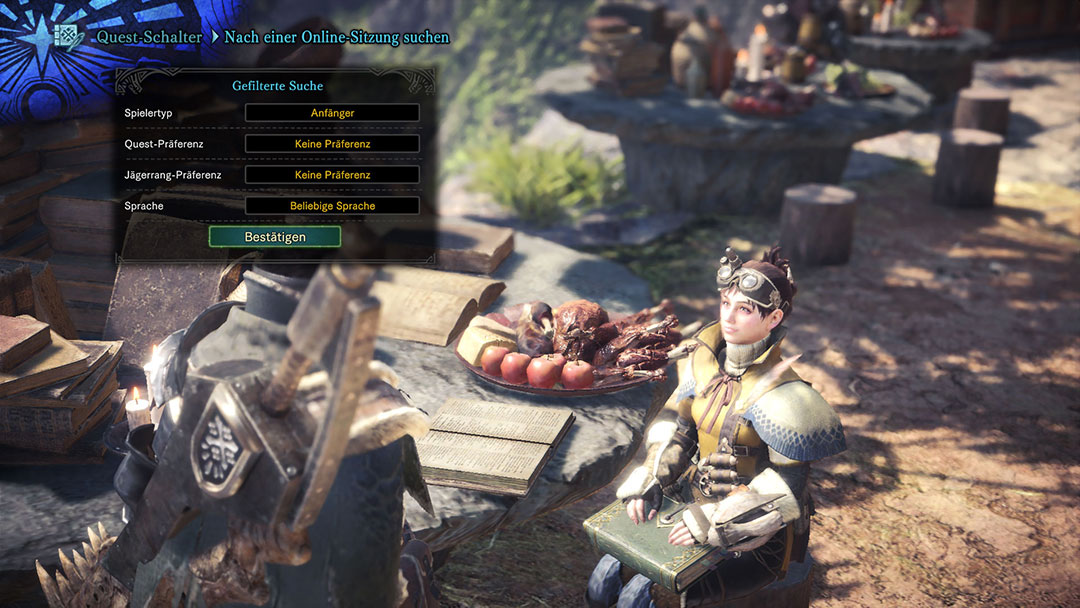
Before starting the game, you can adjust the corresponding multiplayer options in the save data selection screen. Here you have the choice between “searching for an online session”, “creating an online session”, or “searching for a hunting group”. Select one of these options to play online.
The easiest way to play together is to select “Create Online Session” and set “Private Session” here. This creates a lobby where you can basically play solo on your own server. However, you can still invite other players.
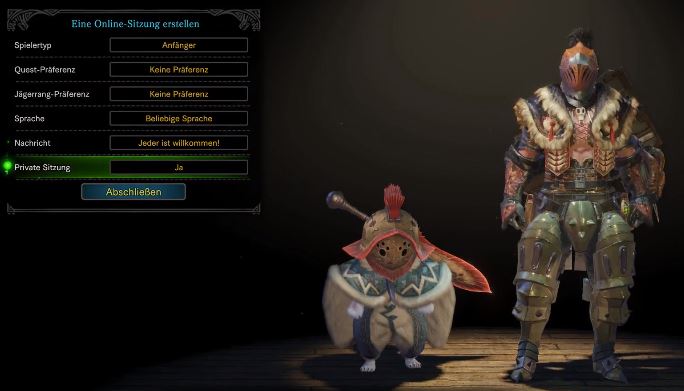
You can also create or join online sessions by talking to the wilderness expert, the place girl, or the arena girl, or by going to a quest board and selecting the “Online Session” option.
Create an online session with the wilderness expert:

Search for an online session with the wilderness expert:
How to start a joint quest:
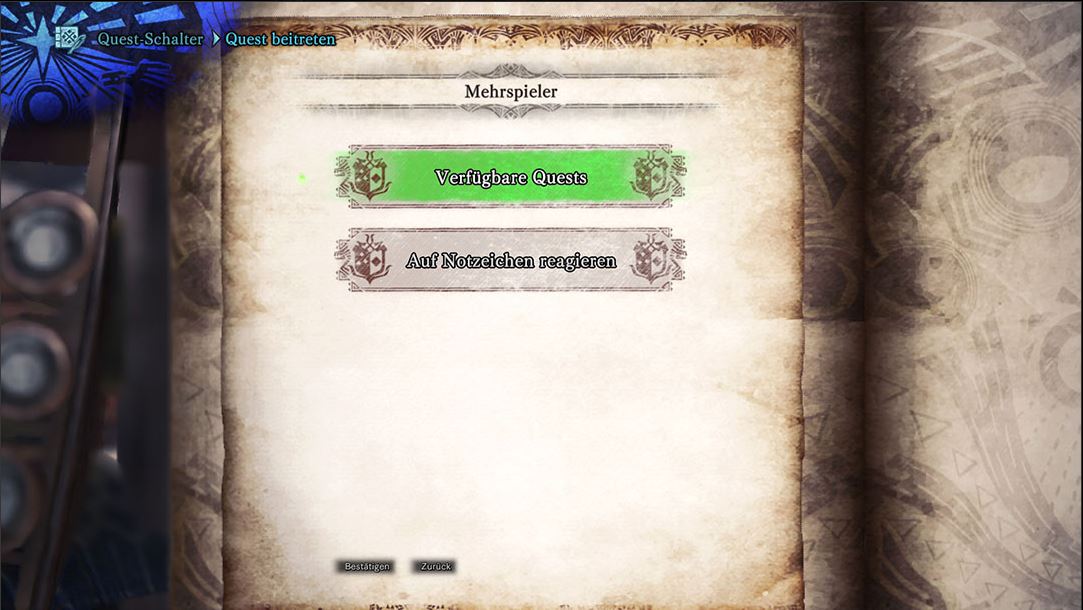
You can announce a quest or join one by talking to the wilderness expert, the place girl, or the arena girl, or by going to a quest board. If you want to be the leader of a quest and recruit other players, select “Announce New Quest” and choose a quest. If you want to join another player’s quest, select “Join Quest” and the quest you want to join.
Step by step to start a joint quest from the leader’s perspective:
- Invite other players. To invite a player, press the options button and go to the start menu. From here, proceed to communication. You can now invite a player via their PSN name.
- A joint session has been created. However, you can only see each other in the gathering place. This will be explained in more detail in the following section.
- Start a quest via the quest board or the wilderness expert. When starting a quest, you will receive the option to specify a maximum number of players and a password. This is only relevant if you have created a public session and do not want strangers to join the group.
- Prepare for the quest and indicate when you are ready. A notification will appear for the other group members that the leader has started the quest.
- The group members must now also go to the quest board or the wilderness expert! Instead of selecting “Announce Quest”, they must now choose to join a quest. Here they will see the quest prepared by the group leader and can join it. After that, they must also indicate when they are ready to leave.
To hunt together, the prerequisites listed at the beginning of the post must be met.
How to announce a quest in an online session
Select “Announce New Quest” at the quest switch, at the quest board, or with the wilderness expert. Select a quest, and it will automatically be announced and made accessible for other players to join.
Once you have announced a quest, it will load. When the quest is loaded, you can press to bring up the departure screen and set off as soon as you are ready.
Tips for departure:
- It’s best to wait until all group members have set their status to “Ready to Depart!” before setting off on the quest.
- If a quest member is still set to “Preparing…” when the quest leader departs, that member must join after the quest has started.

How to join quests in an online session
Select “Join Quest” at the quest switch or the quest board. You can join any quest that has been announced within your online session. If you respond to an SOS signal, you can also see quests outside your own online session.
Once you have joined a quest, you can press the touchpad on the PS4 controller to bring up the departure screen and signal your readiness to depart. If you set your status to “Ready to Depart!”, you will automatically set off as soon as the leader leaves.
Joining a quest:
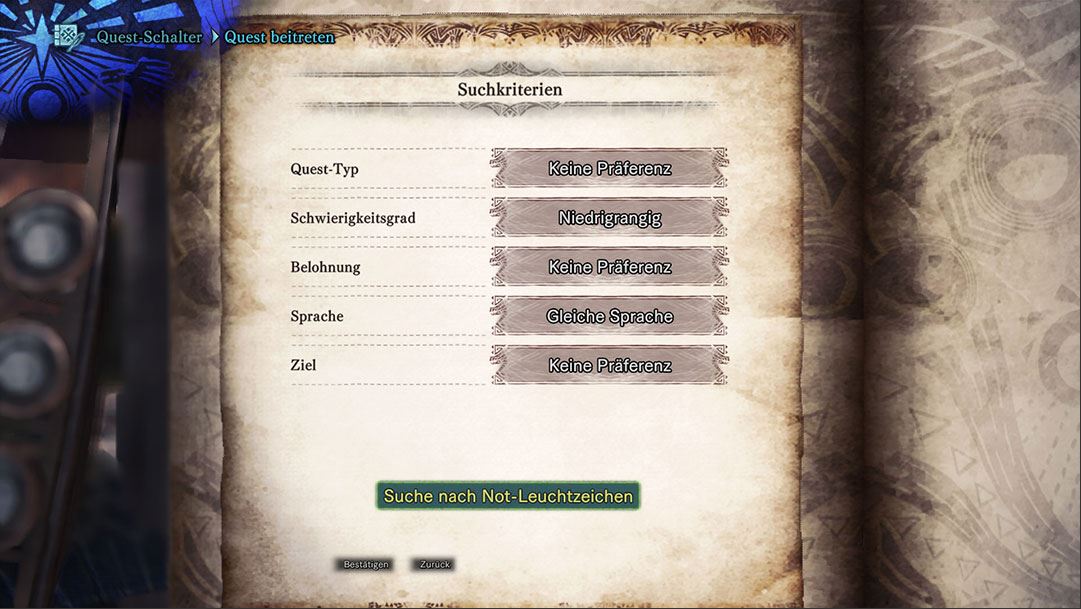
Setting search criteria for the quest:

Indicating readiness for quest departure:
Hunting groups are the guilds in Monster Hunter World
Hunting groups are equivalent to guilds in Monster Hunter World. So hunting groups are large in-game communities that you can join. In the hunting group, you can participate together in various activities.
When you join a hunting group:
- You gain access to an online session that is only open to members
- A hunting group symbol and name are displayed above your character name and on the guild card
- You can leave messages for hunting group members, even if they are not online.
How to create and join hunting groups:
- To join a hunting group, you can either create your own or get invited in the gathering place
- You can belong to up to 8 different hunting groups
- A hunting group can have up to 50 members
- Only hunting group leaders can invite or remove members from a hunting group
- Anyone who has received an invitation to a hunting group must press the options button, proceed to communication, select “Select Hunting Group” and then “Join Hunting Group”
The gathering place: Here you can see each other and create hunting groups
The Celestial Hall is a gathering place where up to 16 players can meet for hunts. The following facilities are located there:
- Arena switch: In arena quests, you complete challenges with others that must be accomplished with specific equipment. You will face certain bosses here. Those who successfully complete arena quests will receive rewards.
- Quest switch: Here you can view quests and set off to them
- Hunting group manager: Here you manage your hunting group and can also create one.
- Message board: Here you will find important information such as current event quests and log-in bonuses.
- A canteen: The dishes in the canteen provide you and your Palico with bonuses like additional HP and stamina. You should stop by the canteen and eat something before a hunt
- Your room
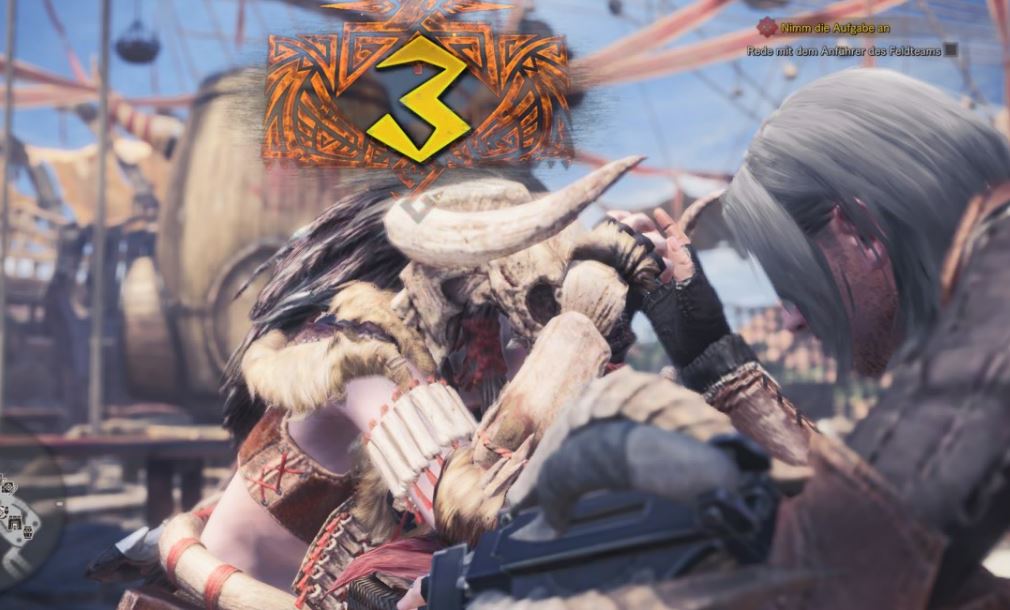
The gathering place is the only place outside of quests where you can see other players. Here, you can also challenge other hunters to an arm-wrestling match. Most mentioned facilities are also available in offline mode.
The multiplayer of Monster Hunter World in the German video guide
The German YouTuber Charles has created a video guide on multiplayer in Monster Hunter World. In the video, you can see step by step how to start a co-op quest.
We have created even more useful guides for Monster Hunter World: