
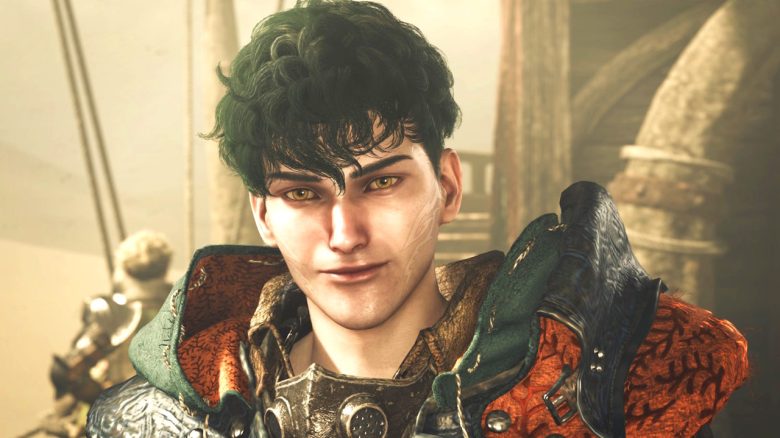
In Monster Hunter Wilds, you can customize a lot about your hunter and your Palico – even outside of the character editor. We show you what is possible within the game and where you can make the settings.
What can you change in the game? If you are already out hunting monsters with your hunter, you can still change some things if you are not satisfied with the appearance. You can change individual options for your hunter or Palico without needing a Character Edit Voucher.
You also do not have to live with the appearance of your current armor – at least after a certain point in the game. And if you’re annoyed that you can’t see your painstakingly created, pretty face of your hunter in the game and in the cutscenes, we have good news: You can hide the helmet at any time and even choose when it should be hidden.
How to do all of this and what is possible, you can read here at MeinMMO.
Here you can also watch a video on how to hide the helmet:
Hiding helmet & weapons – completely and in cutscenes
If you’re tired of your hunter’s face being constantly covered by a helmet, you can easily change that in two ways:
- Go to Settings → Game Settings → Page 2 → Headgear Visibility

Here you can choose whether your helmet should always be displayed, not at all, or only not in cutscenes.
Can I also hide my weapon? Similarly, you can hide your weapons if they bother you – but only in cutscenes. If they bother you in the game itself, unfortunately, you have to live with it for now. You can find the option one floor up on the same page.
If you don’t want to go to the settings every time you wear a cool helmet, there is another way because:
- Go into your tent at the camp and select
Equipment Appearance
. There you can choose which armor pieces you would like to show at the moment using the sliders. This option also works for your Palico via the buttonPalico Equipment Appearance
.
Changing armor appearance and color
Up to high-rank quests, you must live with the equipment you are currently wearing. If you have no problems with the monsters facing you, you can wear what you like for as long as you want.
Or you can get so-called cosmetic armor from the shop or from the deluxe edition, which you can put on. Cosmetic armors are something like skins that you can purely cosmetically put over your worn armor.
Once you reach high-rank quests, you can also use “normal” armor as so-called cosmetic armor (Layered Armor). This way, you can simply put any high-rank equipment piece you forge over your currently worn equipment. That way, you do not have to miss out on stats or appearance.
To customize the appearance of your equipment or your Palico’s, go into your tent and select Equipment Appearance
at the last tab. From this point onward, you can also dye your armor. Unfortunately, this is not possible in lower-rank quests.

Customizing the appearance of the hunter and the Palico
If you are not satisfied with your hunter or your cat-like companion, there is also a way to adjust some aspects in the game later on. The options are somewhat limited, but they still offer some possibilities to optimize your character.
You can see the possibilities you have here:


To access these options, simply go into your tent at the camp and select the option Change Appearance
at the last tab.
You do not need a Character or Palico Edit Voucher for these changes. However, if you want to adjust your appearance on a larger scale, that will be needed and you will have to start an adjustment in the character selection.

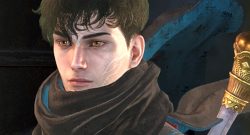

If you want a complete makeover for your hunter or your Palico, there is a lot of cool inspiration in the community. Some players also share so-called design codes for their designs, which you can then use as presets for your own characters. How this works, you can read here: Monster Hunter Wilds: How to use character and design codes for your own presets in the character editor

Your opinion is important to us!
Do you like the article? Then let us know!