

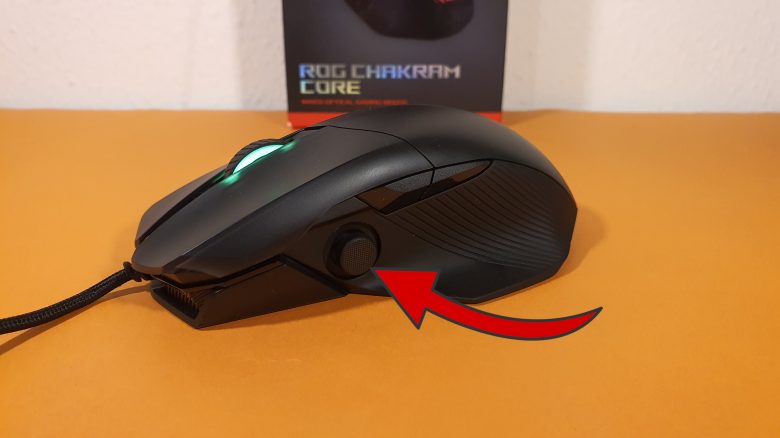
Weight and Ergonomics
The weight: The mouse weighs 95 grams and this can be increased by about 10 grams with a small weight. With its base weight, the mouse already feels nice in hand, and with the additional 10 grams, it feels a bit heavier.
However, the weight is more of a nice gimmick for me, which I actually use rather rarely in practice, as 95 grams are completely sufficient for me in everyday life. Since I also tend to play with high DPI values and move the mouse little, I hardly feel the weight of the mouse in my wrist.
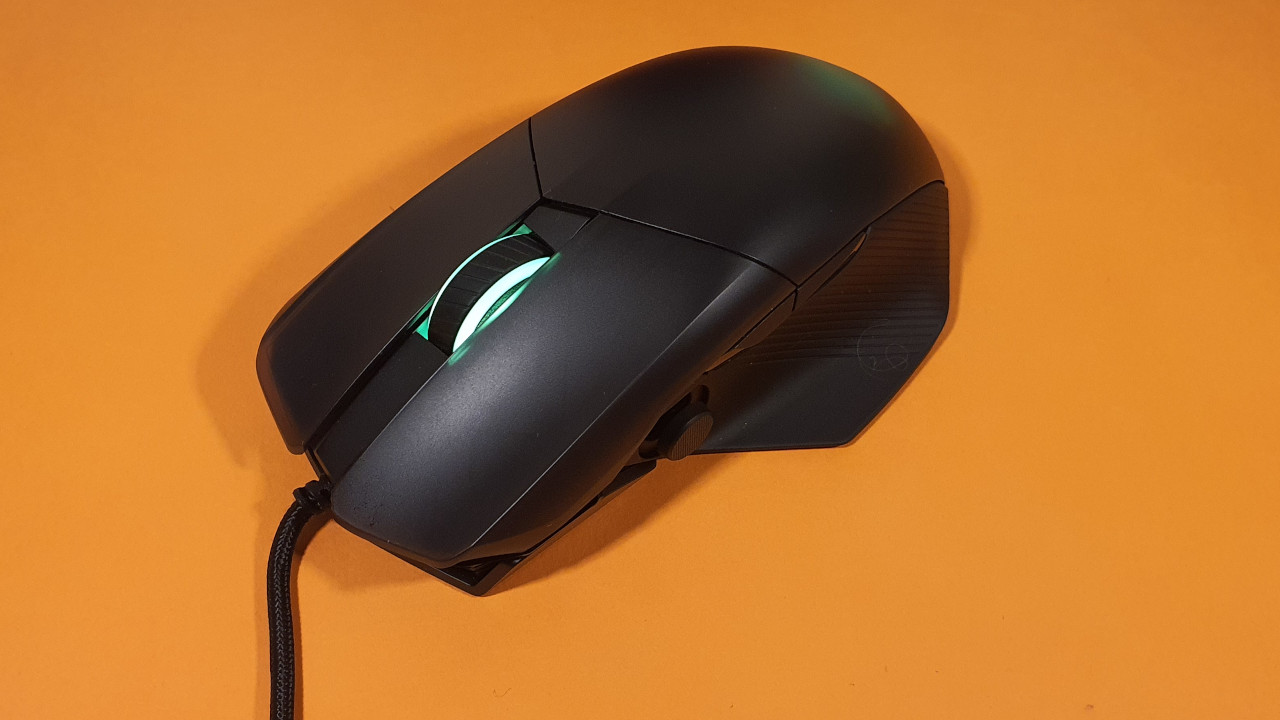
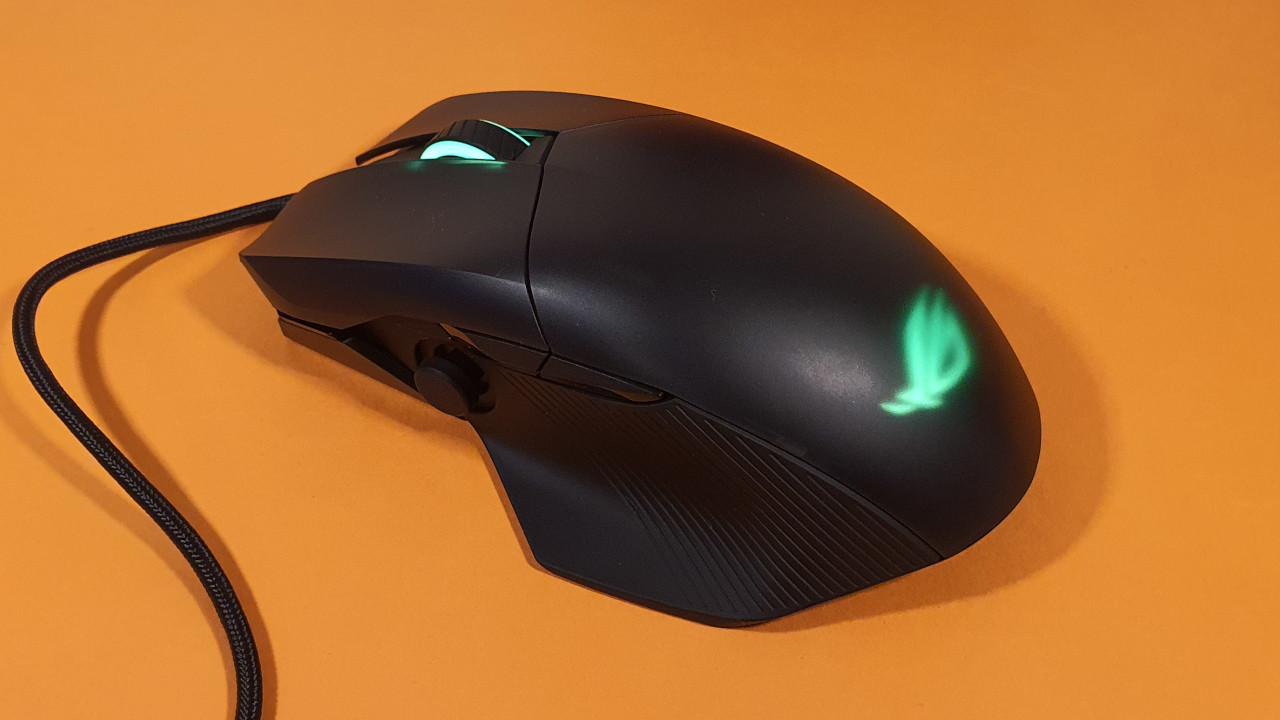
The ergonomics: I really like the ergonomics of the Chakram Core. The mouse fits well in my large hand (about 19 cm). The thumb rest on the edge of the mouse and the ribbed pattern in the thumb area emphasize that.
Additionally, the thumb buttons are easily reachable, but unfortunately, that is not the case for the thumbstick. Even with my large hands, I have slight difficulties using the thumbstick properly. For my girlfriend, who has significantly smaller hands, the thumbstick is unreachable.
One thing is also quite annoying, and that is the DPI button. On one hand, it is located on the underside of the mouse. For people like me who also like to switch between different DPI levels quickly during battles, it’s unacceptable. On the other hand, the shape of the button is so unusual that I have difficulties clicking the button properly. Every DPI change through the button turns into a test of patience.
What kind of thumbstick is this? The thumbstick is located in the front thumb area of the mouse and takes the place where a sniper button for quick DPI switching would be found on other mice.
The thumbstick itself is a fascinating idea. In everyday use, it can take on various tasks. You can use it to scroll through a page or as a replacement for the arrow keys on the keyboard. Additionally, I can program it and assign specific functions to the “button”.
This works surprisingly well. However, games feel strange with it. To move my character around in Apex, the stick feels overall too imprecise. You will never be able to replace a real controller with it. That would have been surprising.
Scroll Wheel and Buttons
How do the mouse buttons feel? The Omron switches under the buttons feel precise and accurate. Not necessarily comparable to the optical switches that Roccat, Razer, and Logitech currently use, but absolutely fine and sufficient for gaming. However, I cannot say anything about the durability of the switches. In the few months, I have had no problems with the buttons.
How is the scroll wheel? For the scroll wheel, ASUS uses a 2-way scroll wheel: I can scroll up and down and click the scroll wheel. There are no additional functions. For everyday use, that is completely sufficient, even if 4-way scroll wheels are somewhat more flexible. In daily use, the installed wheel feels precise enough, and I can scroll through text comfortably without any hitches or skips.
Sensor
Inside the mouse is a PixArt sensor, the PAW3335. While this is not a high-end model like the 3360 or 3389 sensor, in practice you won’t notice significant differences.
On certain surfaces like glass, the PAW3335 is not really usable. However, very few of you will actually play on that. On a fabric mousepad from Jialong, I had no problems.
On the last page, you can read the practical test of the mouse and the final conclusion.

Your opinion is important to us!
Do you like the article? Then let us know!