

Almost everyone has a mobile phone that accompanies them throughout the day. MeinMMO editor Benedikt Schlotmann activates a specific setting on every phone he buys: the power-saving function.
Your mobile phone or smartphone is surely one of your most loyal companions during the day. Because you always have the device with you, even if it just lies next to you all day long.
Whenever I buy a new phone, I immediately set a specific function. The advantage of this is significant, and the disadvantages are very minimal for me.

Thanks to a simple function, I save several hours of battery life a day
What is this function? The power-saving function is a feature that you can find on every Android device in the system settings. Therefore, it is not a feature exclusive to manufacturers. Normally, the function is automatically activated when your phone battery reaches a level of 15% charge. However, you can also permanently activate the mode yourself. And this actually has advantages for me and my daily life.
With each manufacturer, the settings and options look slightly different. Manufacturers like Samsung, Sony, Xiaomi, and Google use different user interfaces for their menus and overlays. Moreover, depending on which Android version you use, the options can vary significantly. My examples here mainly relate to different Samsung devices that I use in my daily life, where Android 10 and 11 are currently in use.
What does it bring? In power-saving mode, the processor performance and maximum screen brightness are reduced by 10%. Additionally, the resolution is lowered to FullHD+.
At first glance, this sounds like a disadvantage, but in daily life, I hardly feel anything from it. Most of the apps I use daily consume hardly any performance, and most of you will feel the same way. Moreover, apps that you regularly use remain active. Android only shuts down background apps that you haven’t used in a long time:
- You don’t need the full performance of your device for WhatsApp, Telegram, and similar apps.
- The same goes for utility apps like emails, music apps like Spotify, or health apps.
The result from the activated power-saving mode is all the more remarkable. On average, I can connect my smartphone to the charger around 4 hours later than if I didn’t use the power-saving mode. This is especially helpful when I am on the go and have no outlet nearby.
If you want to save battery, you can also read the following tips and tricks that we have collected for you on MeinMMO:
Charging the mobile battery correctly – 8 tips on how to preserve your battery
On both my Galaxy Note 9 (Android 10, One UI 2.5) and my Galaxy Note 10+ (Android 11, One UI 3.1), I receive all notifications. This includes Threema and Telegram, but also my email apps (GMX and Gmail). My health app (Samsung Health) also collects its data and notifies me via push. Google Maps works for me without any restrictions when I am out for a walk.
Starting with Android 11, you can also set whether background apps should be turned off. For me, the option is located under “Battery” > “Background usage limits”. Here it is also shown as an image:
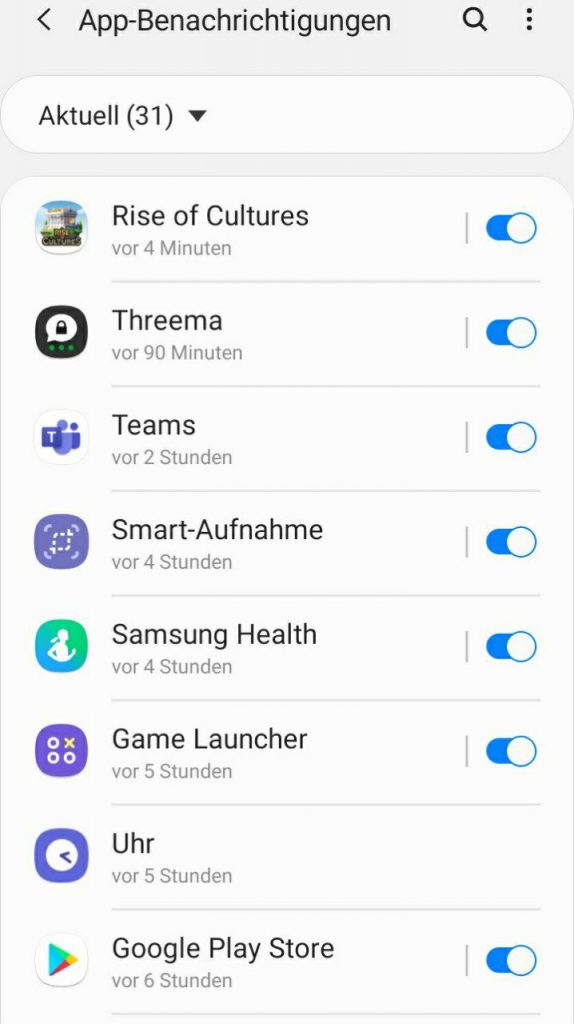
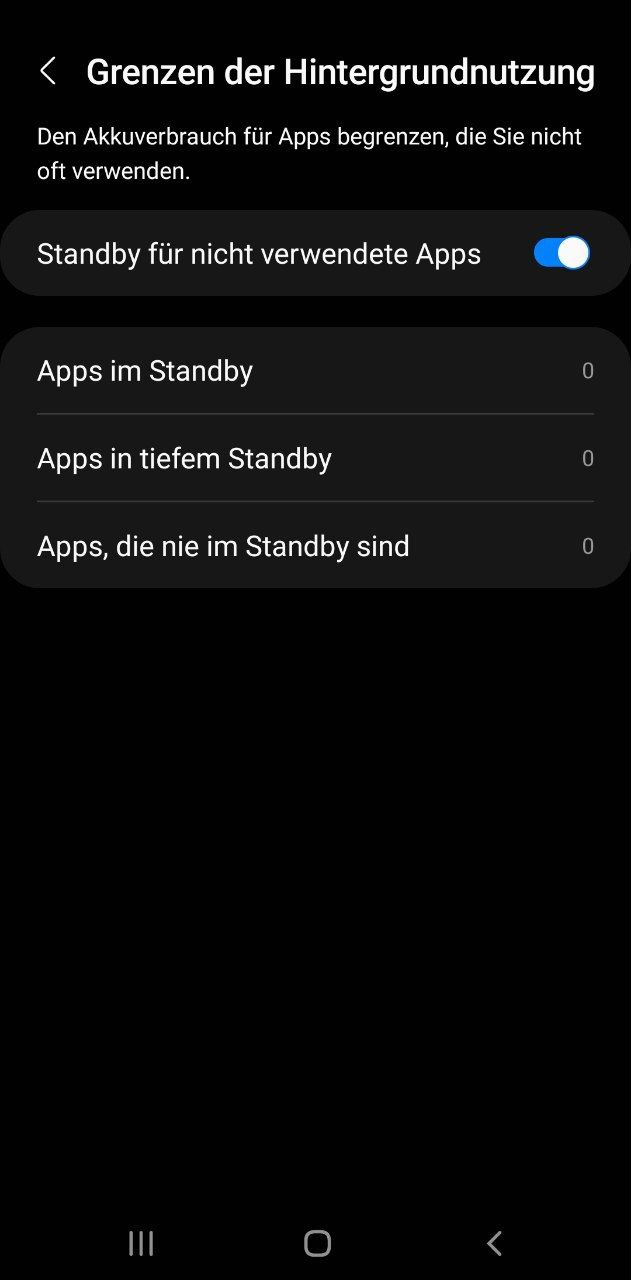
Can the function damage my phone? No. Firstly, animations that consume battery are terminated. As mentioned above, only background processes that you haven’t used in a long time or that you want to disable are shut down. Secondly, brightness and performance are reduced. This way, you cannot damage either the battery or your phone.
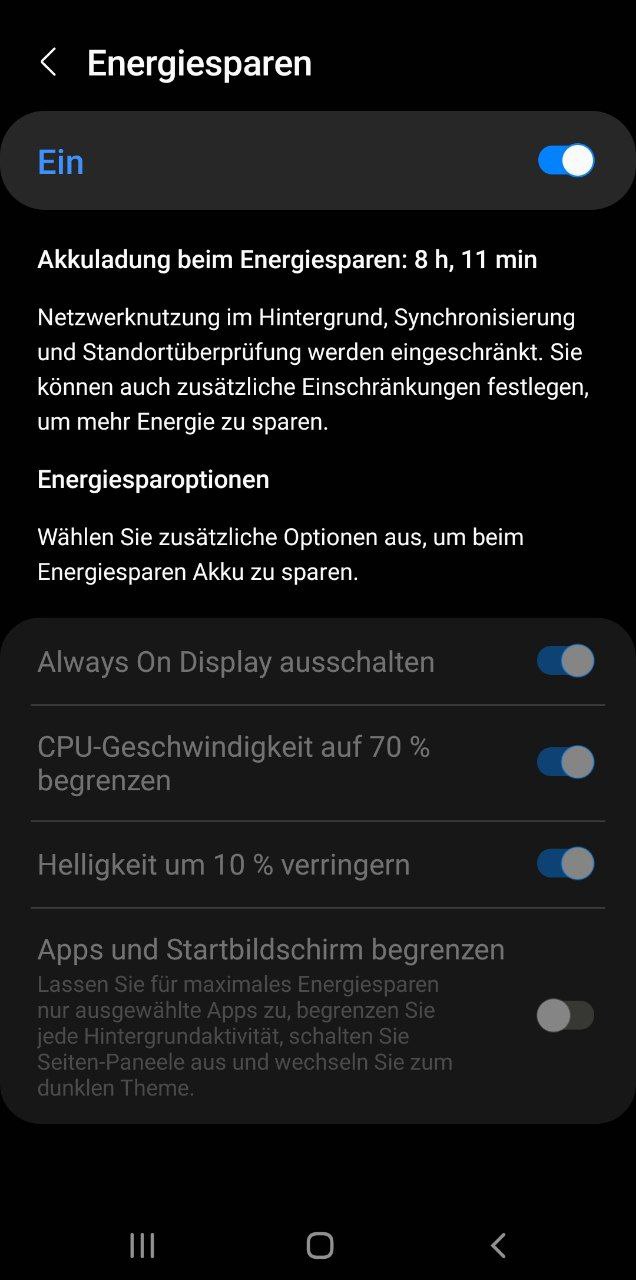
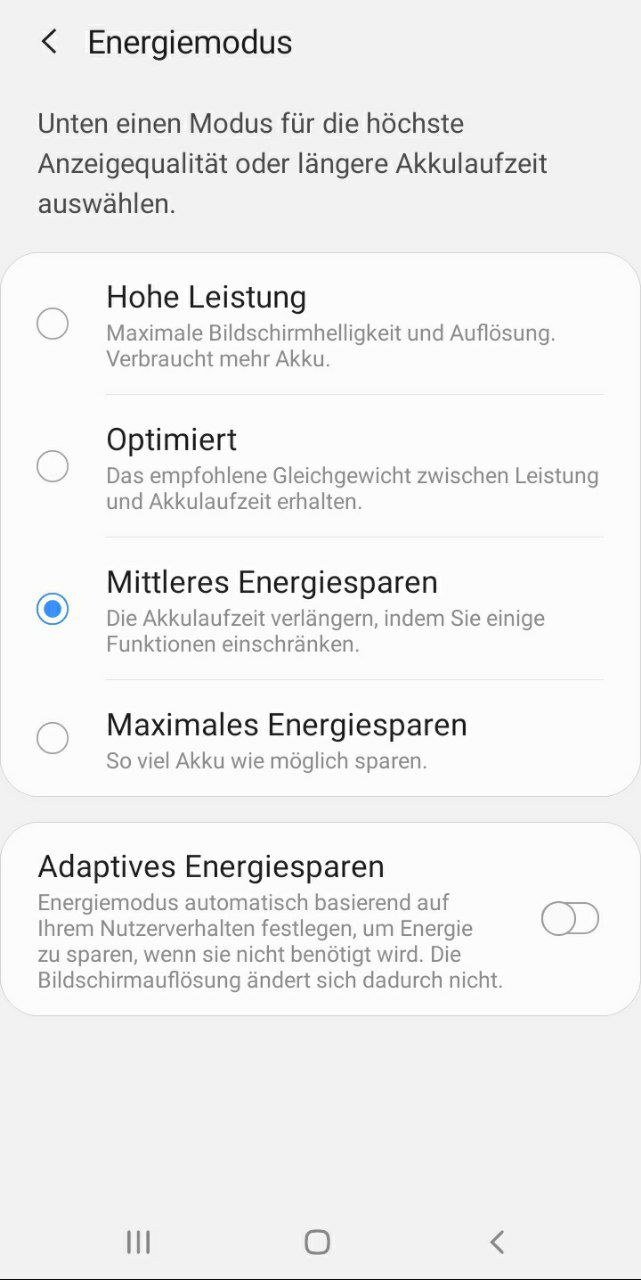
How to activate the function: The function is located under Settings and then under Device maintenance. Depending on the model and interface, this can vary slightly. Then select the sub-point “Battery”. Here you will find either the power-saving mode or the energy-saver mode. You can then choose whether you want to use full performance or save energy.
You can consciously decide to limit apps in their background activity. However, you should not do this if you want push notifications! So don’t check “Limit apps and home screen.”
Under Android 12, another possibility is added, namely adjusting the power-saving mode based on certain aspects. The phone can automatically activate the mode when it is unlikely to last until the next expected charge. You can find the setting under Battery > Power-saving mode > Set schedule:
- No activation by schedule: Manual activation of power-saving mode
- Based on my usual routines: The power-saving mode is activated when the battery is expected to run out before the next expected charge.
- Based on the battery level: The power-saving mode is activated when the battery reaches a certain level. For example, 15%.

For many apps, you don’t need the full performance of your phone
Can you play with the power-saving mode? I keep the power-saving mode constantly activated and do not turn it off when I play on my phone. So far, I have not noticed any disadvantages:
- Performance-hungry games like Diablo Immortal or Genshin Impact run absolutely smoothly without frame rate drops. Plus, I feel that the phone doesn’t get as hot as it used to. However, it could be that I’m just imagining this.
- If I use GeForce Now to stream games like Hollow Knight or other PC games, I also notice no negative aspects of the power-saving function. Because the games are not processed on my phone but in the cloud by Nvidia.
For me and in my daily life, this setting has proven to be extremely helpful, so I use it regularly. What do you think? Are you familiar with this function, or do you prefer to stay away from it?
There are additional tips that you should keep in mind when you are on the go with your phone. A popular method is to turn off inactive apps in the background, as it supposedly saves battery. We explain why you should rather avoid this:
That’s why you should not constantly turn off inactive apps on your mobile phone

Your opinion is important to us!
Do you like the article? Then let us know!