

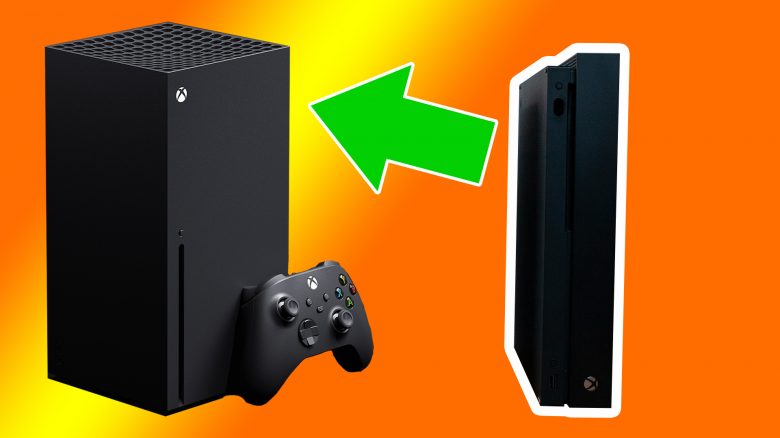
We show you how to easily transfer games like Red Dead Redemption 2 from your Xbox One (X) to the Xbox Series X or Series S without having to download them completely again.
Have you also been playing on Xbox One for a long time and downloaded some games? Getting the games from the One to the Xbox Series X or Series S is really easy.
In principle, there are four ways that you can use
- You install the game via disc
- You have a strong internet connection and use it
- You use your local network
- You have an external storage device
However, in this article, we consider you gamers who have a weak internet connection and cannot just download everything again.
With the disc drive
Admittedly, this method is obvious and straightforward, but we mention it in the article for the sake of completeness. If you purchased the games on disc, just insert them into the drive and install them as usual.
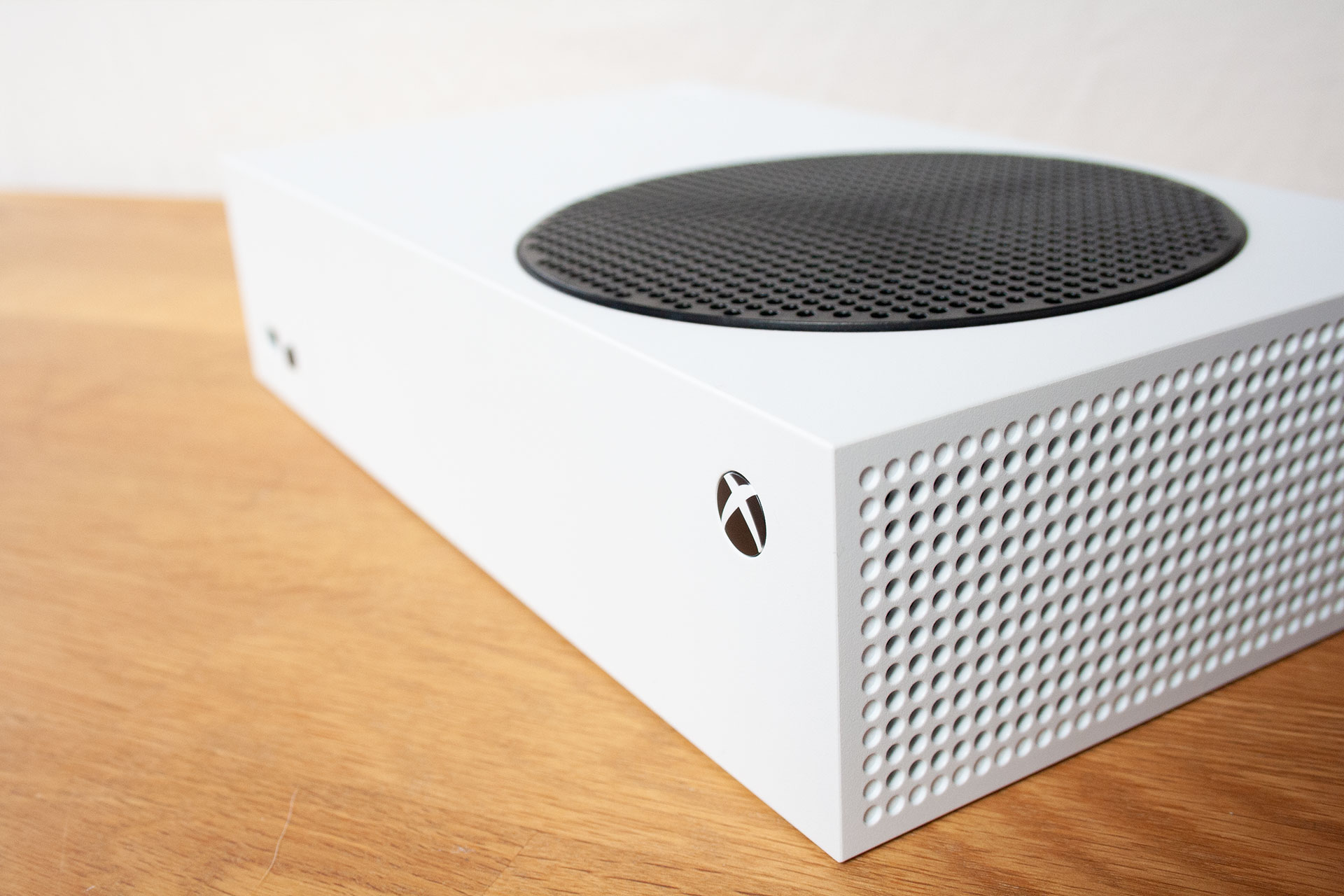
There is a twist though: You need the Xbox Series X for this. Because the Xbox Series S lacks a crucial detail for this method: the drive.
Via your internet connection
Who is this method for? Users with a fairly strong internet connection and no data cap, or players with a lot of patience.
Do these requirements apply to you? Then the next steps are quite simple.
How does it work? Log in with the Microsoft account on the console that you used to purchase the games or redeem the codes. Once that’s done, navigate to the home screen and proceed as follows:
- Open the “My Games & Apps” overview
- Now select “Full Library”
- Click on “All owned games”
- Now simply select the relevant games that you want to download and confirm the installation
Your save games should also be available on the Xbox Series X or Series S. They are automatically saved via Xbox Live.
Over your network
Who is this method for? Those who do not have discs or external hard drives for temporary storage and additionally do not want to download the games over the internet can copy the installed games from Xbox One over the network.
How does it work? First, make sure that both consoles are turned on and connected to the same network. Then go to the settings of both consoles one after the other and set the following:
- Select “System” under settings
- Then click on “Backup and transfer”
- Select “Network transfer” now
- Confirm the only checkable option “Allow network transfer” here
If the option is activated on both consoles, go back to the “Network transfer” menu of the Xbox Series X. On the right side, you will now find your Xbox One under “Local Consoles”.
Select the Xbox One here. Now you will see a list of games that can be transferred. Keep in mind that games that are not eligible for transfer will be hidden.
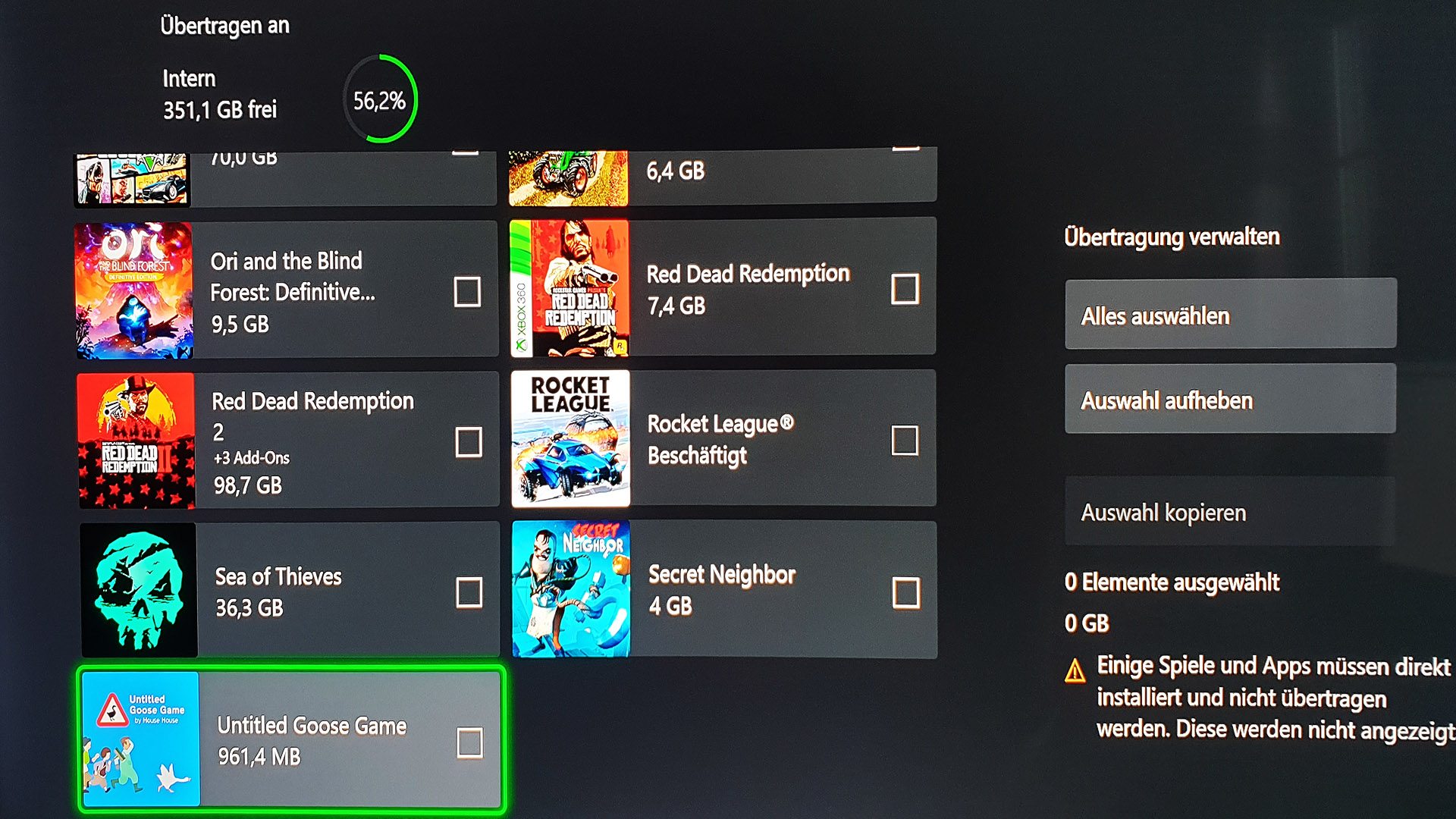
Select the games you want to transfer. Then select “Copy selection” on the right side. You will then see the installation process of the copied games, which obtain the installation data over your network.
Depending on the size of the game and the speed of the network, this may take a few minutes or even hours for large games.
With an external hard drive
If you connect an external hard drive with USB 3.0, it should be recognized immediately by the console. However, whether this applies to all models is unclear. We still have to test how this method works with USB sticks.
Who is this method for? For those who do not want to use their disc, the internet, or the network.
How does it work? When you connect the hard drive to the old console, you will first be prompted to format it. This is necessary to be able to store the games on it.
Once the storage device is formatted and you have entered a name for it, you are ready.
- Now go to settings
- Select System and then “Storage”
- There you will now find two options – Internal and External (for External, it is the name you gave the storage device)
- Select internal and then “move or copy”
- Now you will see a list of the games that you can move
- Select the games you want to copy as you did in the network step. Then confirm that you want to move the selected games (this will delete the games on the internal hard drive).
Select instead that you want to copy the selection to also keep the games on the internal hard drive
Once the copying or moving is complete, the games will be on the hard drive. Now connect it to the Xbox Series X or Series S.
Select “My Games & Apps” after starting the console. You should now see all the games that are on the internal and external hard drive.
Through the points mentioned above, you can now transfer the games from the external storage to the internal storage. However, if you want to save space on the internal drive, you can also start and play the games from the external storage.
Note: Old games on the external drive may have next-gen upgrades. If you want to use these, you need to install the games on the internal storage or use a €240 storage expansion from Microsoft for that.
Which method will you choose to transfer your old games and what treasures do you want to play on the new Xbox Series X or Series S? Let us know in the comments at MeinMMO.
If you are looking for recommendations, take a look at the 5 best MMORPGs that you can play on the Xbox Series X and Series S right at launch.

Your opinion is important to us!
Do you like the article? Then let us know!