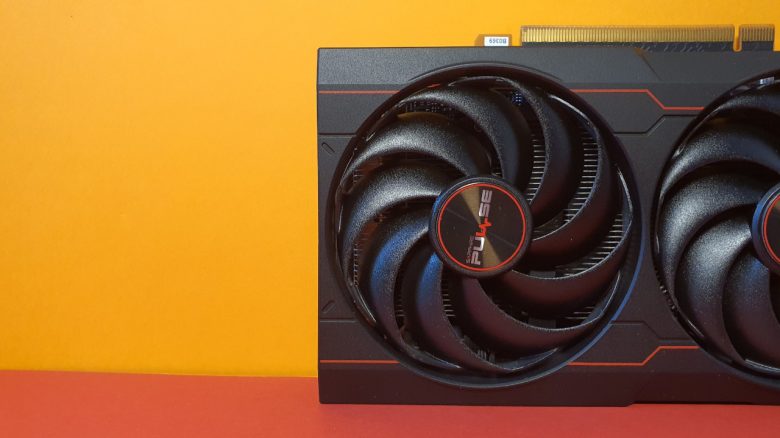
You want to know which graphics card is installed in your PC? MeinMMO explains how you can find this out in a few steps.
You have acquired a new PC or want to quickly find out your graphics card without opening the PC? MeinMMO explains how you can easily and with little effort find out your GPU.
In total, there are 4 ways to find out your graphics card.
What graphics card do I have?
In short:
- You can find out your graphics card through the Windows Device Manager.
- Open the Start menu and search for ‘Device Manager’.
- Scroll down to ‘Graphics Cards’ and open it.
- Right-click on the entry and select ‘Properties’ to see more details.
- If you can’t find your graphics card, there are three more options.
This is the easiest way: The easiest and fastest way is via the Windows Device Manager. Here, all your installed (and active) devices are displayed. To do this, open the Windows Start menu and type ‘Device Manager’ in the search box.
In the next step, a new window opens where you can see a lot of information about your system. Scroll down until you find the ‘Graphics Cards’ section and click on the arrow on the left to expand the display.
Now you see your graphics card. Right-click on the entry and click ‘Properties’ to get more details about your installed GPU.
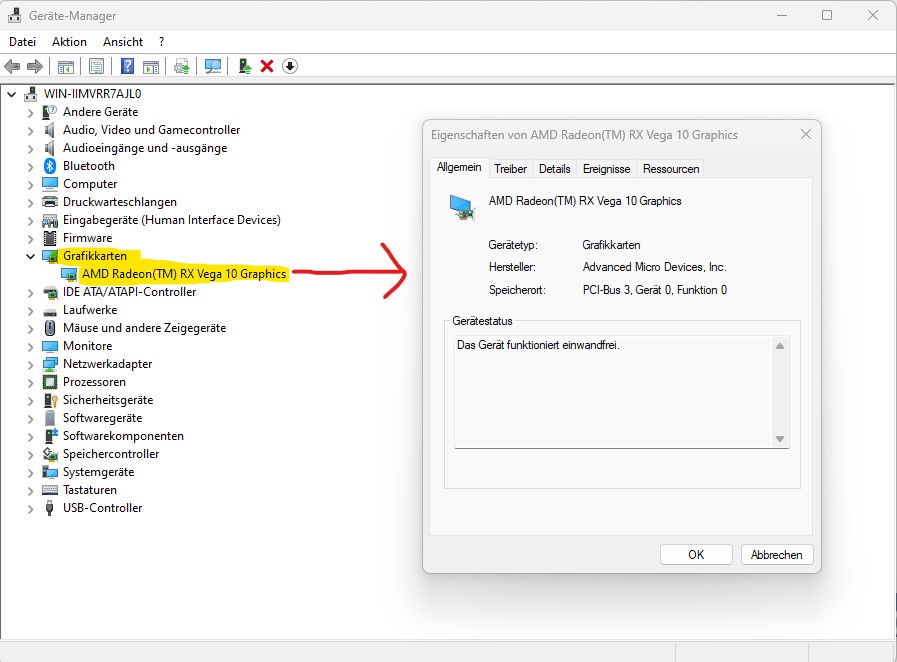
What if I can’t find my graphics card? There can be various reasons for this. For example, if your device is damaged or not functioning properly. Often, you will see a small yellow warning triangle with an exclamation mark indicating an error when the device is not recognized.

4 more ways to find out your graphics card
What other options are there? In total, there are three more ways to find out your graphics card.
- Display settings: You can enter “advanced display settings” in the Start menu. Here you will see detailed information about your display and the connected graphics card. The downside of this method: You won’t see more information than the name of your GPU.
- Task Manager: You can start the Task Manager and switch to the “GPU” tab. There you will also see the name of your graphics card in the top right corner. At the bottom, you can also get more details displayed.
- System information: You enter “System Information” in the Start menu and see a new window. Here you will find detailed information about your graphics card in both the general system overview as well as in the “Components” -> “Display” tab.
- GPU-Z: With the small, free software GPU-Z, you can also find out your graphics card. Also helpful: GPU-Z shows whether you have a real or a fake graphics card in your computer.
If you need a tip for a new graphics card, you can find it in the following article directly on MeinMMO: What should you consider when wanting a graphics card – Buy now or later?