


With the Apex Tracker, you can read various personal stats for Apex Legends on PS4, Xbox One, and PC. Where to find the tracker and how to set it up correctly, we will tell you here.

What is the Apex Tracker? The Apex Tracker is a tool on the website of the same name, which accesses the API of Apex Legends to read various data. This data is then summarized. You can find the Apex Tracker here.
If you set up the tracker correctly, you can read various stats that you would otherwise have to calculate painstakingly. After the initial setup, updating happens almost automatically and remains quite accurate.
The tracker also compares your performance with that of other players on a leaderboard. Recently, the first player with 100,000 kills has reached the top of the leaderboard for the most kills. Additionally, it offers group search capabilities and an overlay for streaming.
Levels and Stats for PS4, PC, and Xbox One
These stats you can read: Your level is displayed in the main profile. This has been possible for some time now beyond level 100. You will also find summaries of kills and wins for the various seasons there. The leaderboards can be filtered by:
- Level
- Rank
- Kills
- Damage
- Headshots
- Finishers
- Matches Played
- Revives and more
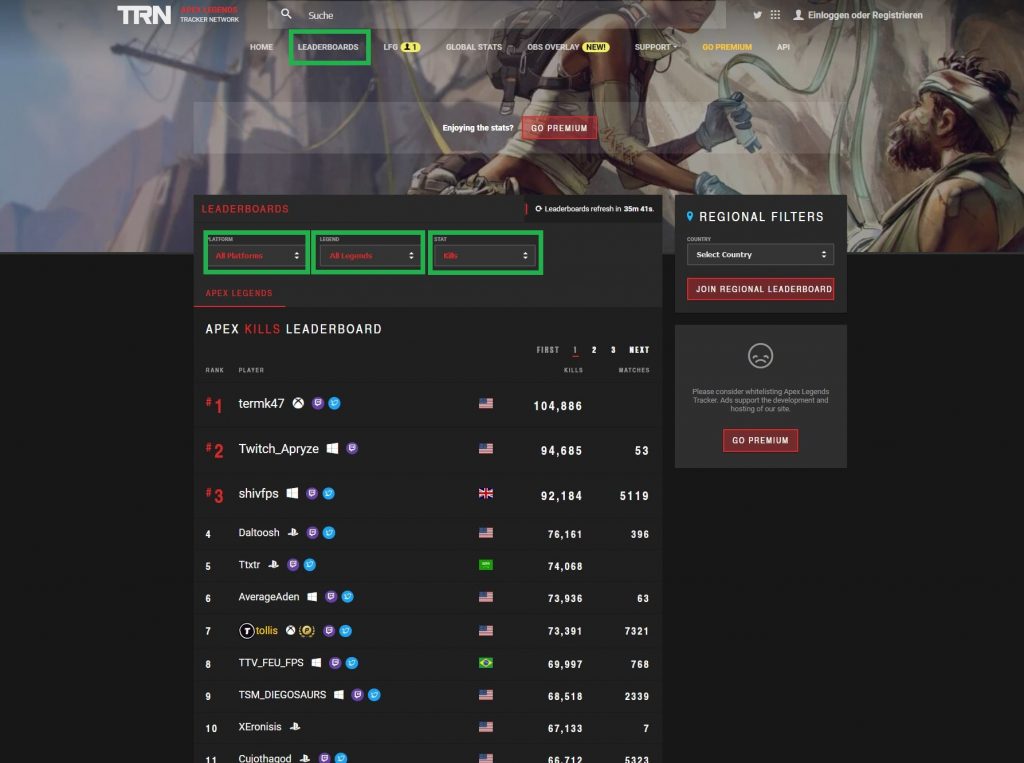
Statistics such as kills and damage can even be displayed in detail for the seasons, for example, for the latest Season 3 but also for the previous ones. Kills are even divided into kills in individual weapon types if you want to filter them.
This is how you set up the tracker: When you visit the Apex Tracker for the first time, not much may be displayed there. You must first feed it with the correct data. To do this, search for your player name for the correct platform at the top.
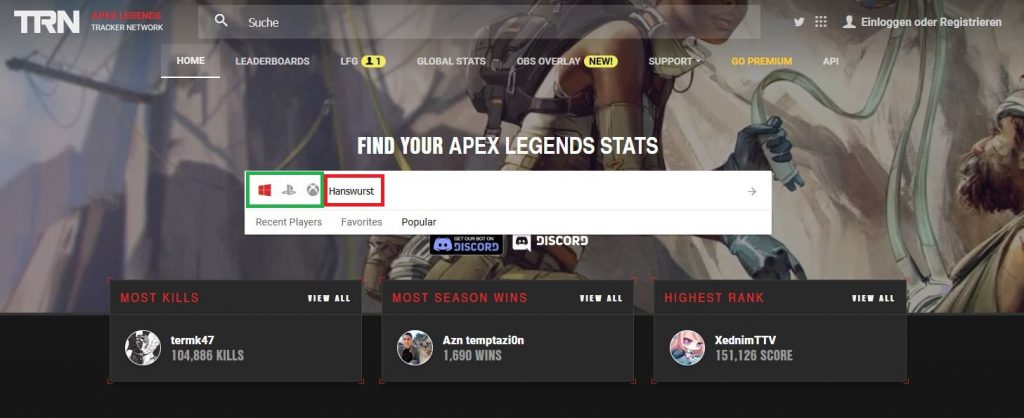
This will take you to your profile. There, you will already find an English guide. We have roughly summarized it for you here:
- Go into the game and select a legend as the default legend.
- Equip at least the “Level” badge and the “Kills” tracker.
- Return to the lobby.
- Click on “Add Legend” in the profile and then on “Force Update”.
- If the profile does not update, wait briefly. A timer runs on the right. Once it expires, the update should have occurred.
- Repeat this for each legend.
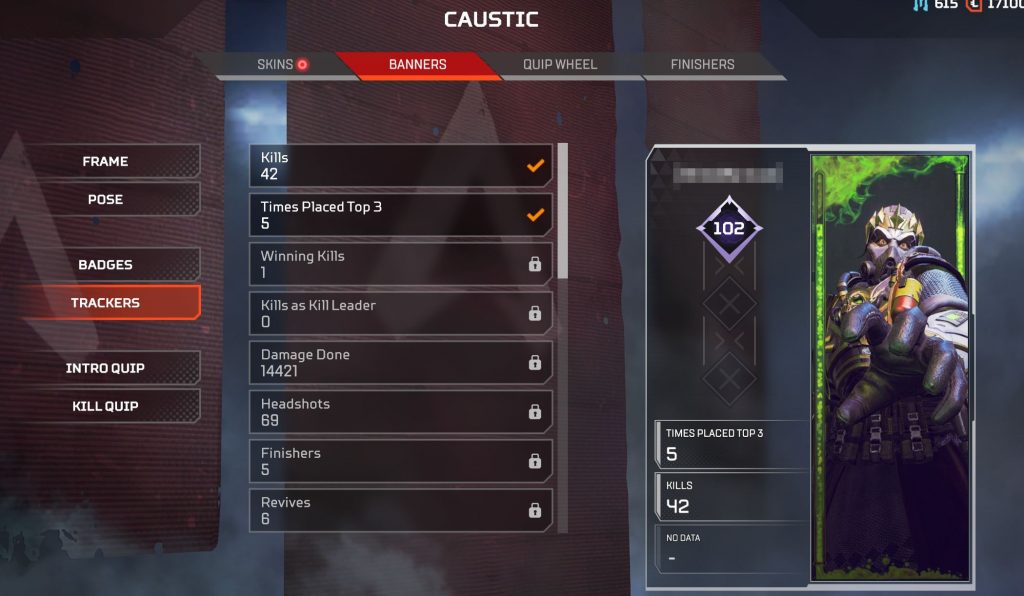
For every stat that you want to list separately, you need to set a tracker for the respective legend and update again. However, once all legends are set up, the updates will be shorter, as they are then normally updated after each game.
It is best to keep the level badge and the kill tracker for all legends so that the most important values always remain up-to-date. You will then need to update all others manually as necessary.


Your opinion is important to us!
Do you like the article? Then let us know!