

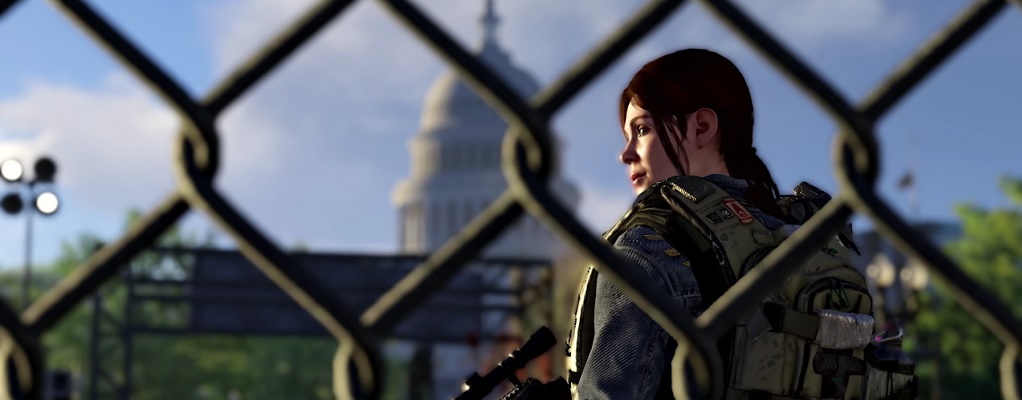
In The Division 2, Massive presented the graphics settings for PC in the video in detail. Additionally, you can see a comparison between Ultra and Low settings.

Many graphics settings in The Division 2: At the launch of The Division 2, you will find numerous options for customizing graphics. Especially on PC, you can push some settings to the limit, as long as your machine can handle it.
Graphic settings in the video: NGON has now released a video in which Massive’s Hamish Bode discusses all graphics settings together with Gregor Ehrenstein, a Senior Tech Programmer from The Division 2. In it, you will learn how they affect graphics and what influence they have on performance.
Graphics “Ultra” and “Low” in comparison
In the graphics menu, you can select preset graphics settings at the top that fit your PC. Ehrenstein recommends using these at the start if you do not want to spend a long time manually dealing with the settings.
Usually, one knows roughly whether they have a “Beast Machine” or a less powerful PC at home. You can choose between Low, Medium, High, or Ultra.
Some comparisons between the settings can be seen below.
Shadow settings
Shadow setting on Low:
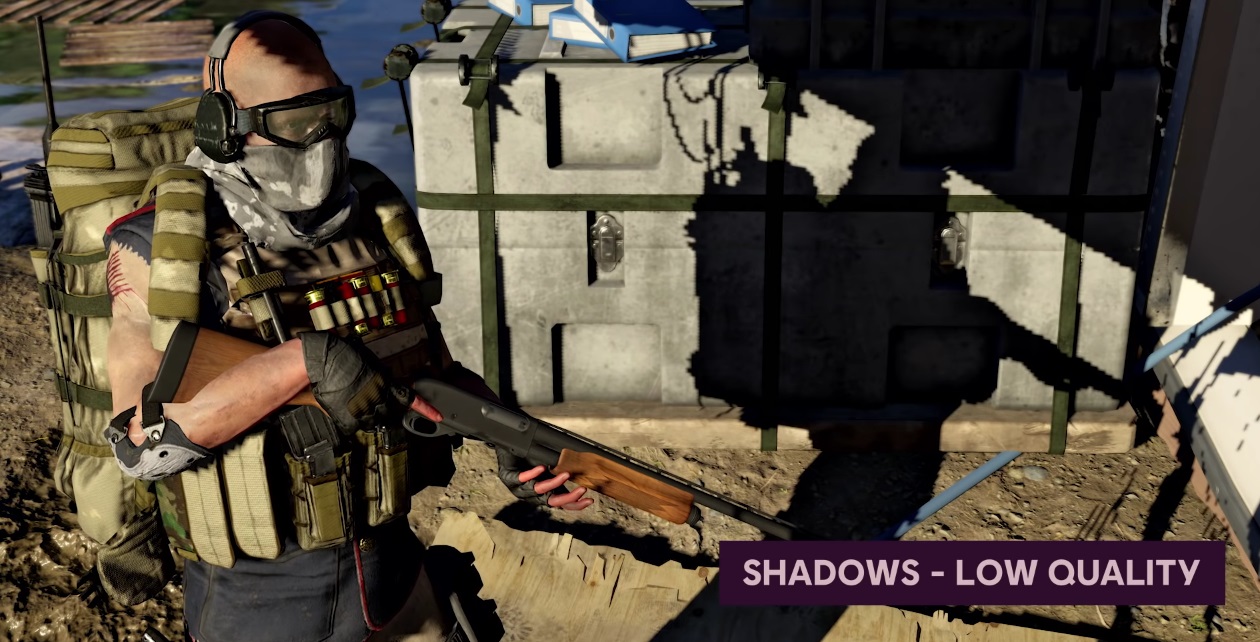
Shadow setting on High:

The normal shadow settings refer to the shadows whose light source is the sun. The spot shadows refer to the shadows of spotlights as the light source. The “Contact Shadows” option improves shadow quality near objects. The shadows are therefore more detailed as it is calculated whether a pixel is shadowed or not.
Particle details
Particle details on Low:
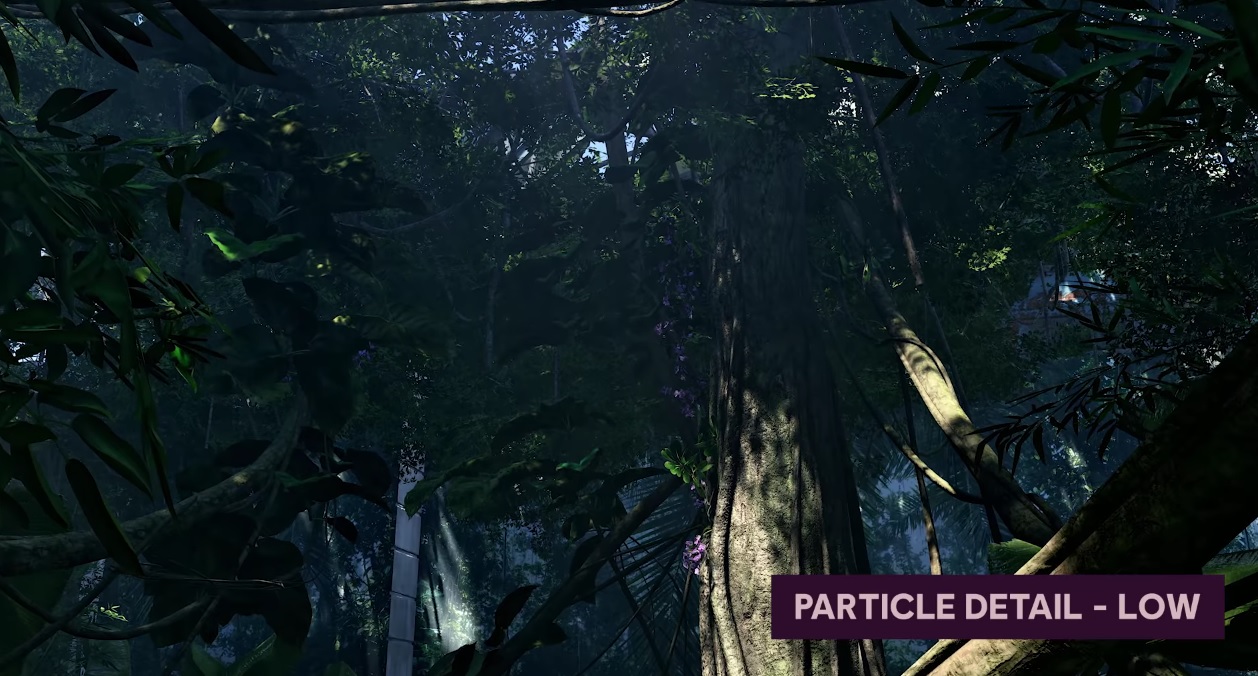
Particle details on Ultra:
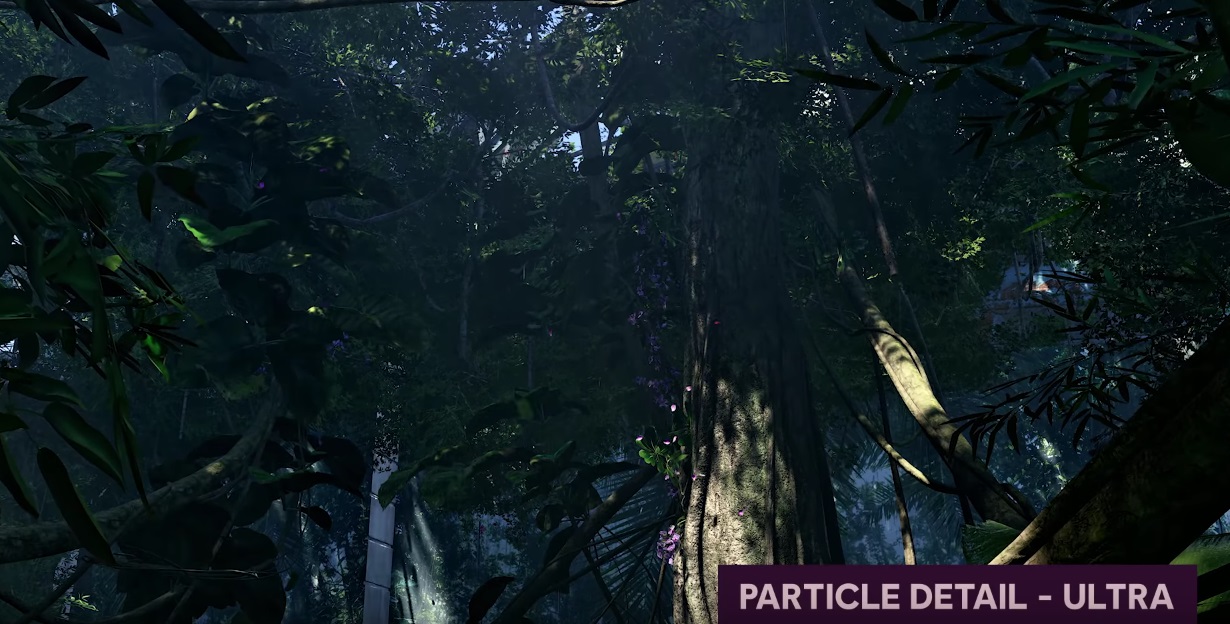
Particle details determine how many particles float through the air and how much they should interact with light and shadow. In the upper video, you can see the particles better than in the pictures.
Volumetric Fog
Volumetric Fog on Low:
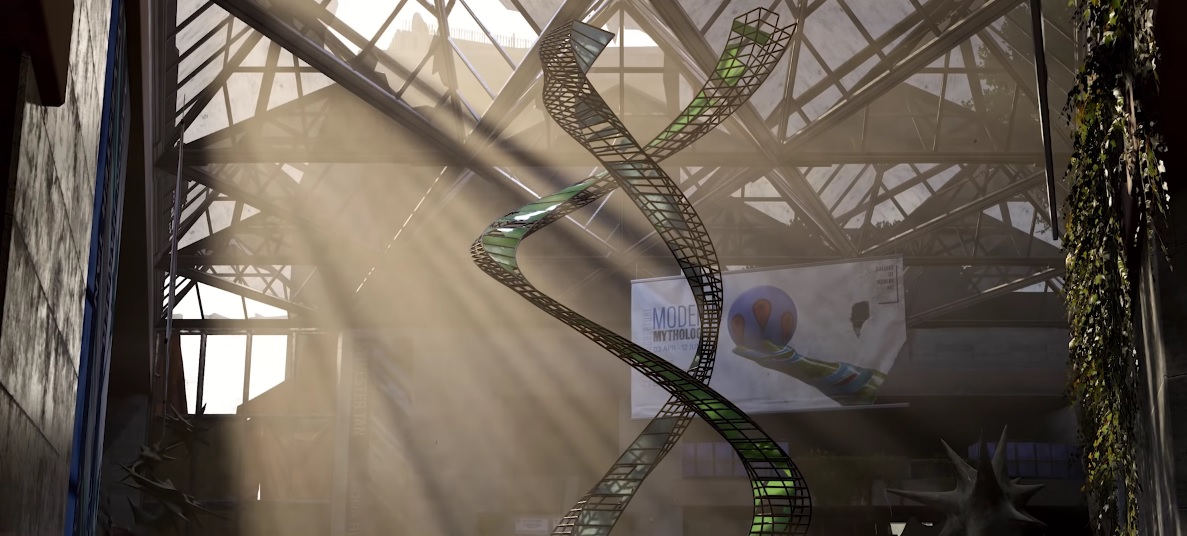
Volumetric Fog on High:

The higher the setting, the clearer the light and dark areas in the fog can be seen.
Note: In the video, in motion, you can see the difference more clearly.
Quality of reflections
Quality of reflections on Low:
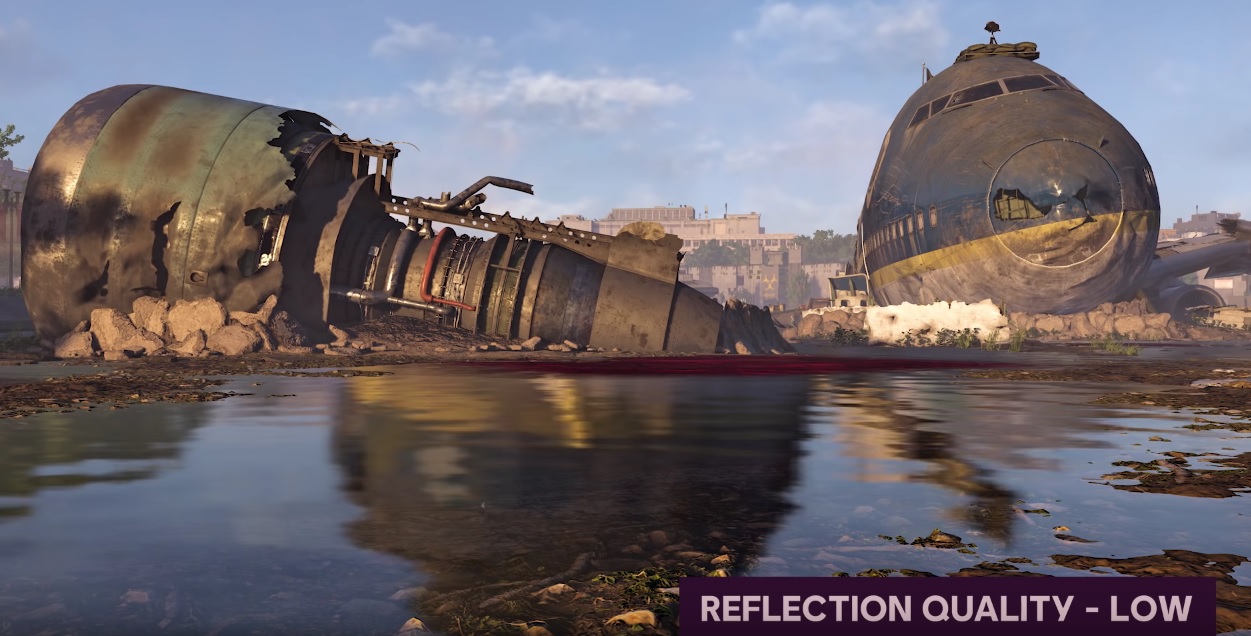
Quality of reflections on Ultra:

Depth of Field
Depth of Field on:
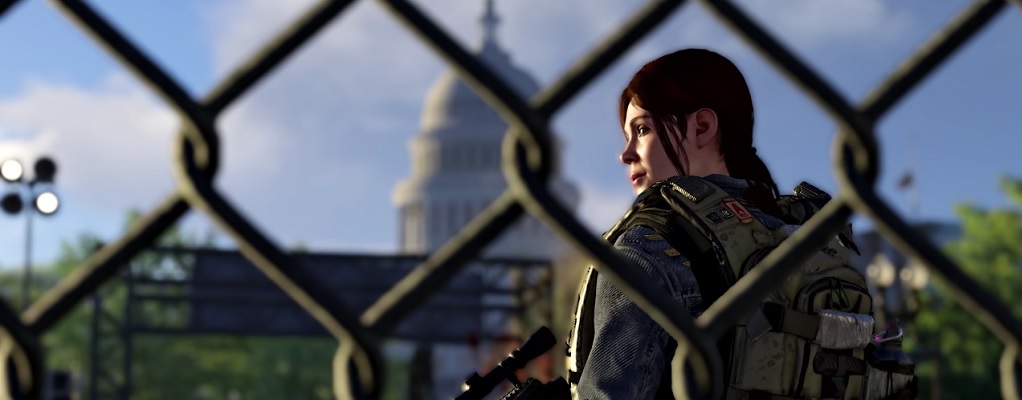
Depth of Field off:
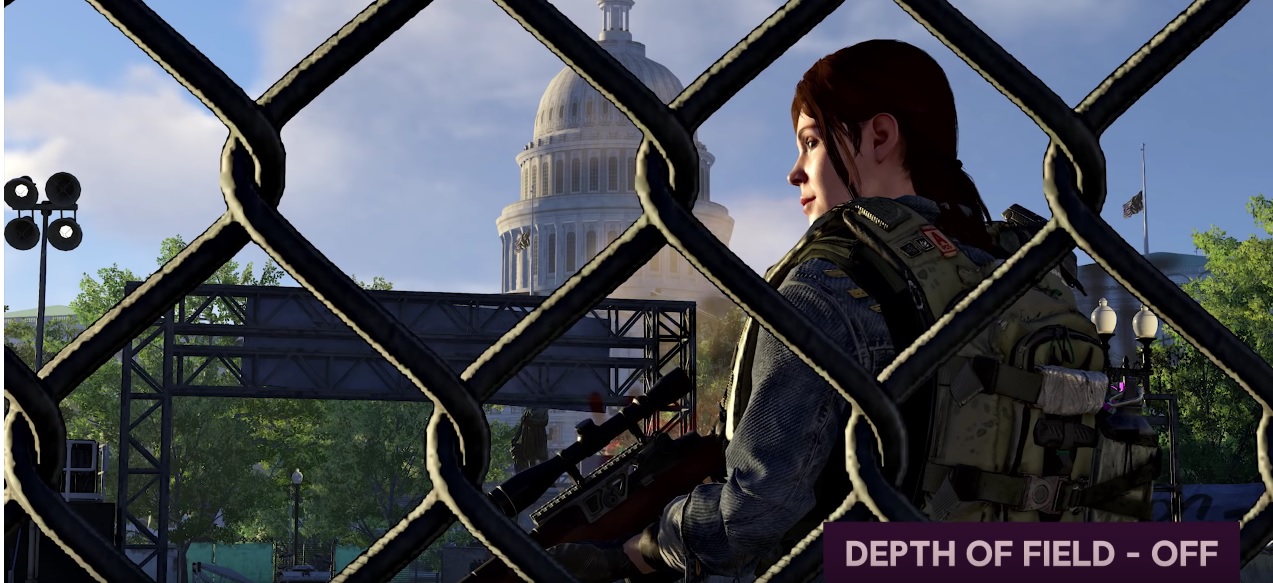
This allows you to set whether objects that are out of focus are displayed blurred or not. This is intended to mimic the effect of camera lenses.
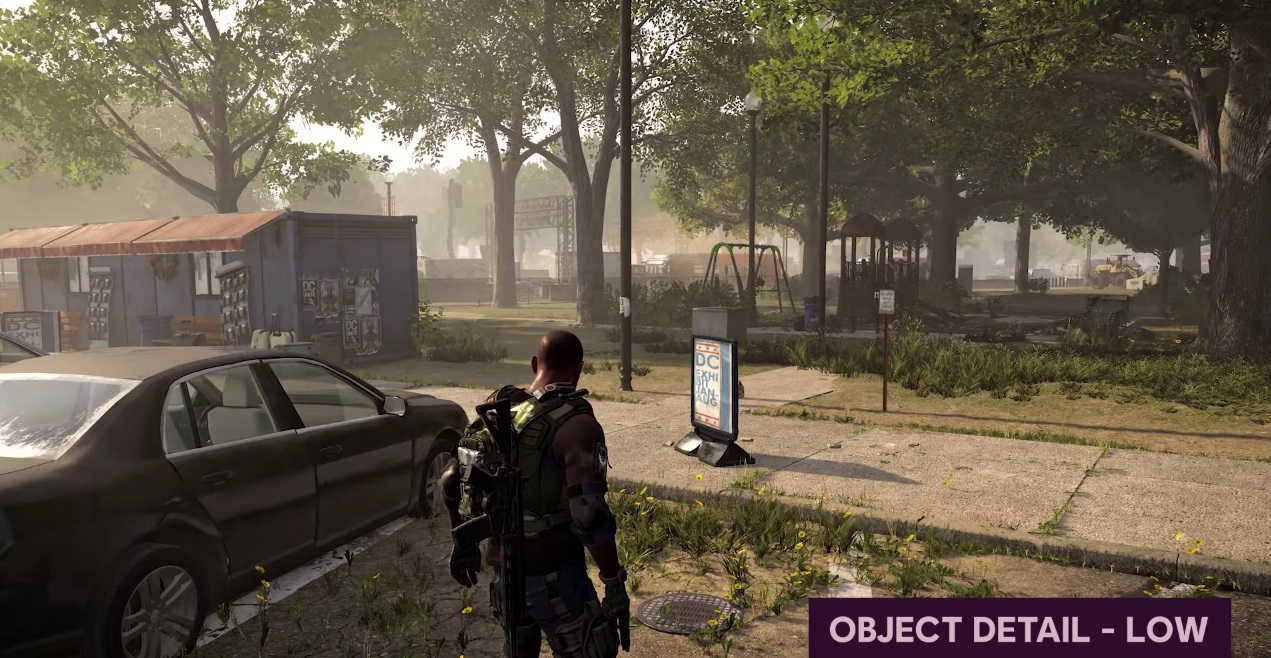
Object details
Object details Low:
Object details Ultra:
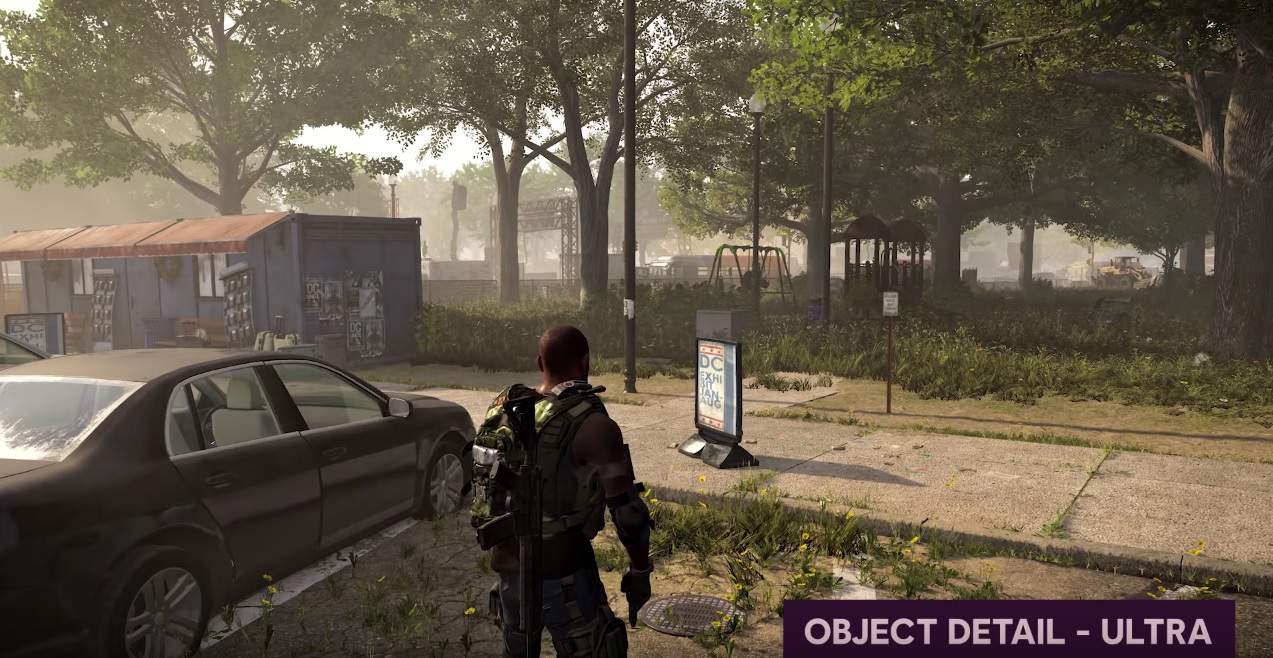
The higher this value, the more details you see at greater distances. The setting “Extra Streaming Distance” is also important, which determines at what distance objects are loaded in detail. A high setting requires a lot of processing power.
Quality of vegetation
This determines the density of the grass. It also affects the shadow quality of the grass. A comparison image was not shown.
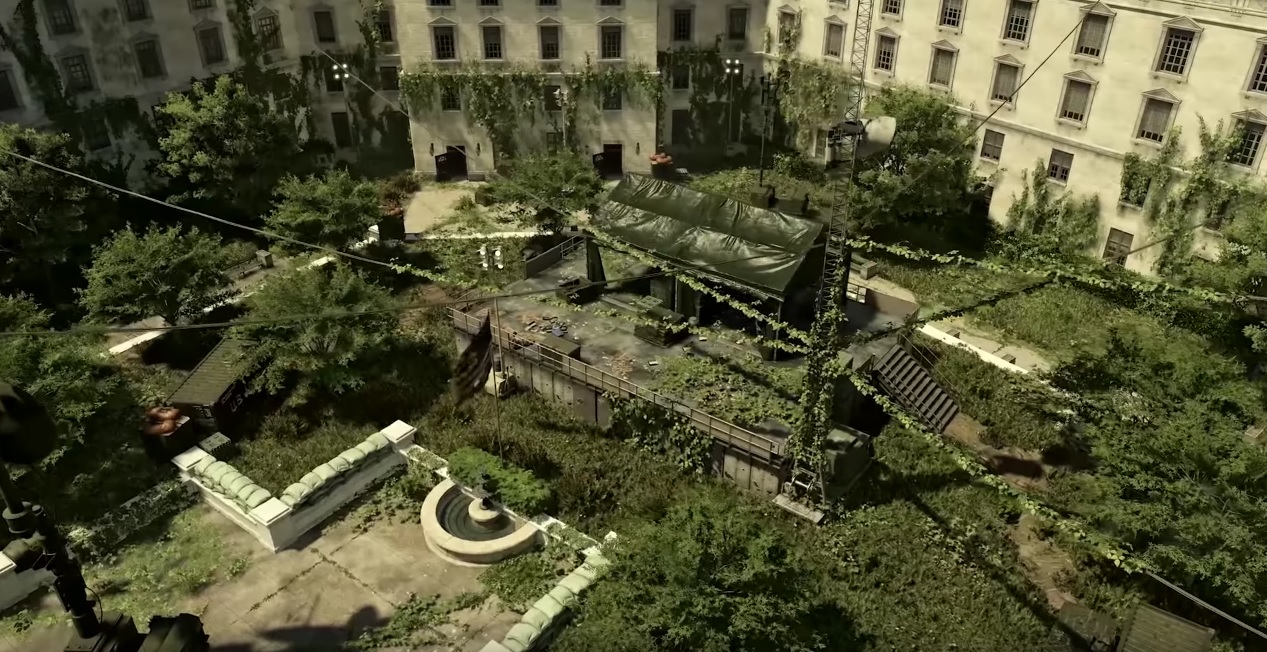
You can find the system requirements for The Division 2 here.
More information about graphics on PC
- In the “Video” settings, you can set Fullscreen, Windowed-Fullscreen, or Windowed Screen. If you have an HDR display, Ehrenstein recommends the Fullscreen mode and not the Windowed-Fullscreen. Both have performance advantages over the Windowed Screen.
- Native 4K support is possible.
- The Division 2 supports all resolution formats that your graphics card or your monitor supports. Including Ultra-Wide monitors.
- You can enable or disable a “reduced latency” option. This reduces input latency but may lead to FPS drops.
- You can turn a frame rate limit on and off. If it is off, only your PC’s performance sets the FPS limit.
You can see all graphics settings in the upper video.
If your PC can handle it, you can extract quite a bit of graphical splendor from The Division 2.

Your opinion is important to us!
Do you like the article? Then let us know!