

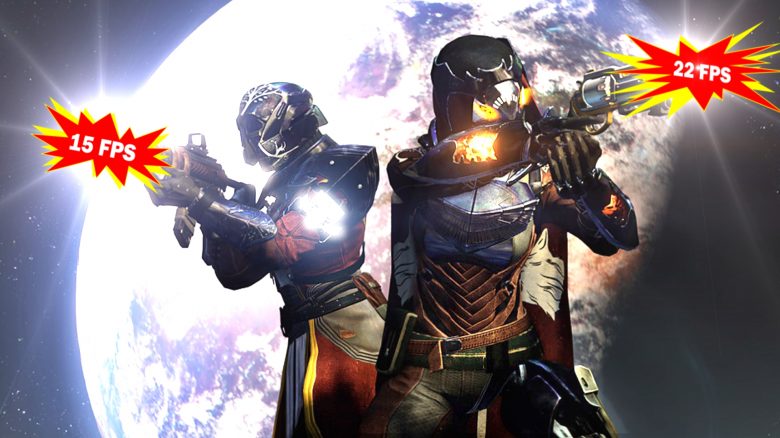
In Destiny 2 players have been reporting on PC for a few months now about unexplained frame drops and stuttering during gameplay. Even expensive, high-end GPUs cannot run the game anywhere with stable frame rates. Where do the problems come from and what can affected players do about it?

Bungie regularly makes changes “under the hood” of Destiny 2. This has included, for example, improved lighting in the European Dead Zone or on Nessus as well as more realistic fire effects during the mockery. But as good as these optimizations look, they seem to further worsen the FPS drop problem along with the introduction of BattleEye.
What problems are there? Players are increasingly reporting strange FPS drops. Even on top-of-the-line high-end PCs. While the frame rate remains consistently high in some areas, it drops noticeably sharply in others. And this, despite the fact that there really isn’t anything in these locations that could cause such poor performance. The VRAM usage remains constant and should actually still allow the game plenty of headroom.
Every single season in Destiny 2 has slowly caused the FPS to drop for some players. Most dropouts were reported by players in the season of the Splicer and most recently with the introduction of the anti-cheat system BattlEye.

Is the anti-cheat system BattlEye to blame? BattlEye apparently has not only extended the loading times of Destiny 2. It also seems that Bungie already knew that the introduction of BattlEye in August 2021 would also lead to FPS drops. In a security update prior to the release of BattlEye, Bungie explicitly pointed out this possibility and potential problems.
Locopoots, an affected player notes in a reddit thread:
I knew there would be a slight decline [in frames] because of Battleye, but I didn’t think it would be this bad.
BattlEye as an anti-cheat solution does indeed require some additional system resources. Those who used to run Destiny 2 with high priority had to forgo that after the update. Battleye seems to block these DLL files, among other things, to save process priorities.
What does Bungie say about it? At the moment, there is no further information from Bungie on whether a fix for this is planned or not. However, the developer seems to be aware of the problem. So it’s not out of the question that Bungie is already working with BattlEye to fix Destiny 2’s FPS drops. We will continue to monitor this and should Bungie release a fix, we will update this article for you.

3 Tips that can help against FPS drops in Destiny 2
What could help? Affected players can currently only try to optimize their system in other ways to prevent frame drops in Destiny 2 from continuing.
Method 1: Adjust your video settings
Affected players recommend checking the windowed mode option in the settings of Destiny 2. Running the game in windowed mode has its advantages, but fullscreen mode can help maximize frames. In addition, reducing shadow quality is also helpful and can lead to an improvement in frame rate.
Method 2: Delete your temporary files
To fix Destiny 2 PC frame drops, a simple shader cache update fix can also help. Here you clean up the temporary files stored by DirectX on your hard drive. Afterwards, a custom reinstall of the graphics card driver is recommended. This tip is not only helpful for Destiny 2, but also works in other games.
Freddtor Official Gaming has provided a good guide for Destiny 2 on YouTube that explains the individual steps in detail:
Method 3: Close unnecessary programs and optimize Windows performance options
If you have other programs running alongside Destiny 2, it is recommended to minimize them. Some programs, such as an open browser with 30 tabs or a system monitor, consume a lot of system resources. This also leads to frame drops, stuttering, and game delays in Destiny 2. Therefore, end all unnecessary programs that may be running in the background when playing Destiny 2.
Afterwards, players can also optimize the Windows performance options for better Destiny 2 performance. This removes unnecessary animations, window shadows, and ensures that window contents are no longer displayed when moving.
This is generally recommended for FPS drops
If you are using an HDD to store Destiny 2, that can also reduce game performance. HDDs are usually slower than SSDs. To increase the FPS of Destiny 2 and improve the gaming experience, it is recommended to install or move the game to an SSD. This is quite easy to do via the Steam settings, moving the game files of Destiny 2 to a new Steam library folder.
By the way, this is not the first FPS problem of Destiny 2: Caution! In Destiny 2 you have disadvantages if your hardware is too good
Have you also noticed the drop in frame rate more frequently in recent months? Do you perhaps have further tips that could help affected players minimize their frame drops? Do you think that the release of BattlEye has also worsened performance?

Your opinion is important to us!
Do you like the article? Then let us know!