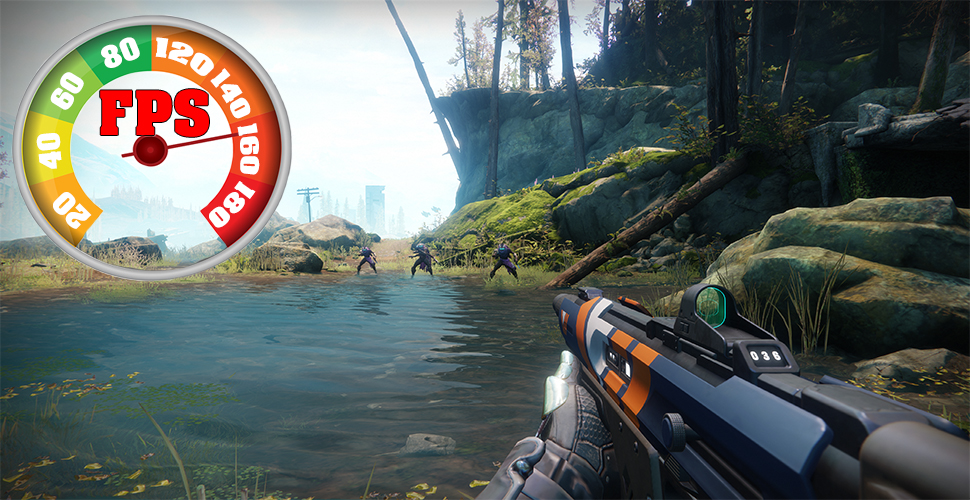
With these graphics settings for Destiny 2, you can increase FPS performance on PC. Image lags and stutters are dealt with, making way for smooth gameplay on weaker systems.
PC players are now getting a taste of the Destiny franchise with Destiny 2. For the PC version, the developers have come up with various ways to ensure Destiny 2 provides a satisfactory visual experience. Many graphic settings offer you options to perfectly adapt the game to your system.
Players with weaker PCs should also be offered a smooth gaming experience. Certain graphics settings can significantly increase your FPS.
Destiny 2 Graphics Options
From October 24, we can play Destiny 2 on PC. In addition to numerous PvE and PvP content, Destiny 2 should also impress technically on PC.
There are many graphics settings that allow you to adapt the game to your preferences and your systems. To achieve high FPS values, you can lower less important effects. These graphics options are available in the menu:
- Windowed Mode
- Resolution
- Vsync
- Field of View
- Image Size
- Brightness
- Anti-Aliasing
- Screen Space Ambient Occlusion
- Texture Anisotropy
- Texture Quality
- Shadow Quality
- Depth of Field
- Ambient Detail Distance
- Character Detail Distance
- Foliage Detail Distance
- Foliage Shadow Distance
- Light Shafts
- Motion Blur
- Wind Impulse
- Render Resolution
- HDR
- Chromatic Aberration
- Film Grain
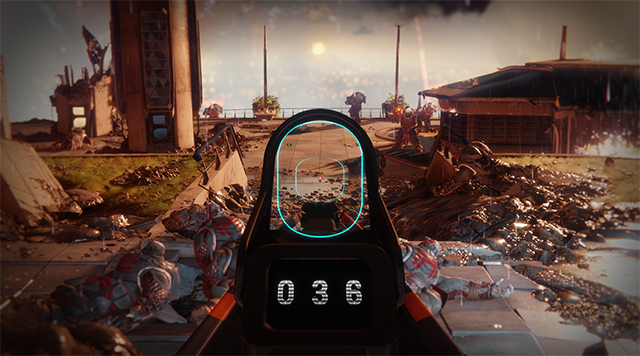
In a comprehensive guide, experts from Nvidia have analyzed each graphics setting and its impact in the game. Based on this analysis, we can now show you which settings you can reduce or change to make Destiny 2 run smoother. You don’t have to compromise on visuals.
Lag or Stutter? Graphics Settings for More FPS in Destiny 2
According to Nvidia, some options have a significant impact on your FPS and can boost the game’s performance. This is particularly helpful for systems that struggle with high graphics settings. In the test, a system with an Nvidia GTX 1060 graphics card (6 GB) and an Intel Core i7-6700K processor (4.6 GHz) at 1080p was used.
The following settings can improve your FPS while keeping Destiny 2 looking good:
- Depth of Field: If you turn off this option, there are 6 more FPS than “Highest”.
- Depth of field provides a significantly nicer image. However, it also requires a lot of power. If you want to save FPS, you can reduce the settings here.

- Depth of field provides a significantly nicer image. However, it also requires a lot of power. If you want to save FPS, you can reduce the settings here.
- Field of View: If you reduce the field of view from 105° to 95°, you get 2.4 more FPS.
- It’s not surprising that you achieve higher FPS when you see less stuff on the screen that your PC has to render. The lower the setting, the higher the FPS.
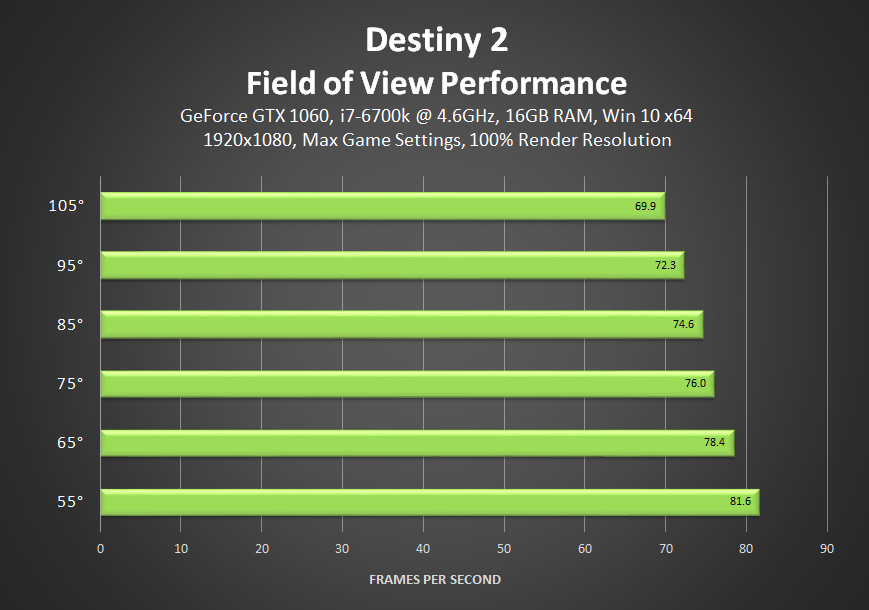
- It’s not surprising that you achieve higher FPS when you see less stuff on the screen that your PC has to render. The lower the setting, the higher the FPS.
- Foliage Detail Distance: If you set the slider from “High” to “Medium”, you immediately get 4.1 more FPS.
- The change from “High” to “Medium” is hardly noticeable with this graphics setting. However, you get 4 more FPS that let the game run smoother.
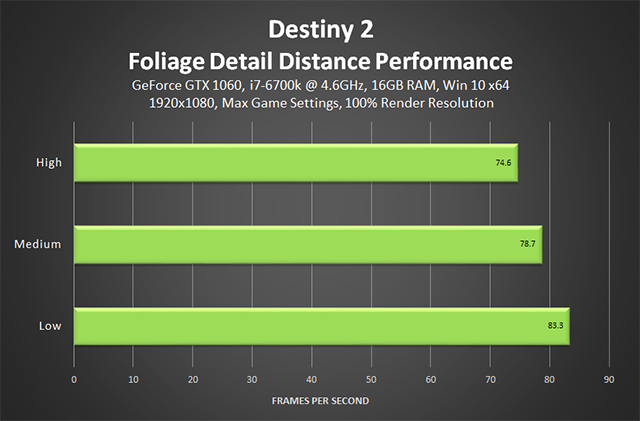
- The change from “High” to “Medium” is hardly noticeable with this graphics setting. However, you get 4 more FPS that let the game run smoother.
- Screen Space Ambient Occlusion: If you choose “HDAO” instead of “3D”, the system achieves 5.4 more FPS.
- Visually, it’s worth not completely turning off ambient occlusion. You’ll see many more details that beautify the game just with HDAO. And that costs you only 2 FPS compared to the off option.
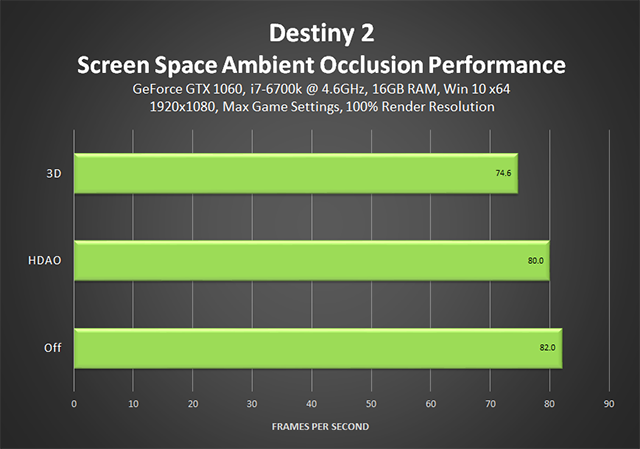
- Visually, it’s worth not completely turning off ambient occlusion. You’ll see many more details that beautify the game just with HDAO. And that costs you only 2 FPS compared to the off option.
- Shadow Quality: If you use the “High” instead of “Highest” setting, you get 4.1 more FPS. If shadows are not a priority for you, the “Medium” setting will also do. Compared to “Highest”, you get an additional 9.4 FPS here.
- For extra performance, you can reduce the shadows in Destiny 2. We recommend not setting them too low, as this becomes noticeable in the game from “Medium” onwards.
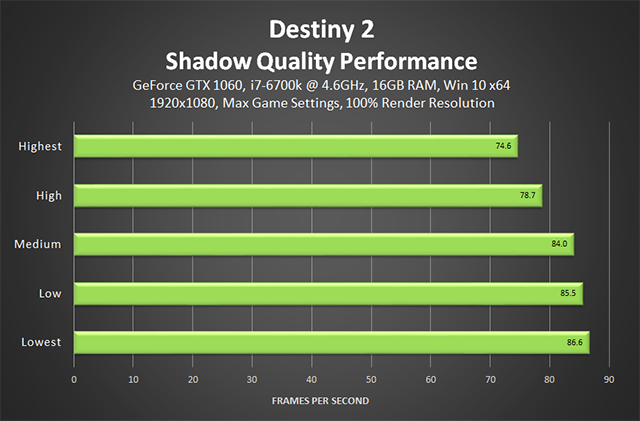
- For extra performance, you can reduce the shadows in Destiny 2. We recommend not setting them too low, as this becomes noticeable in the game from “Medium” onwards.
With these reduced graphics details, you can easily gain over 20 FPS. These 20 FPS make a significant difference between stutters and smooth gameplay.
We recommend graphic enthusiasts read the complete guide from Nvidia. There, you can even see how the individual graphics settings affect the game with comparison images. Here’s the Destiny 2 PC Graphics and Performance Guide on Geforce.com