Since August 2021, the individuality of the Guardians in Destiny 2 has suffered greatly. However, today Bungie has finally announced the profile customization that players have been eagerly waiting for over the past 6 months: the ability to change the display name. MeinMMO tells you when you no longer have to be a random “number-guardian” in the game.
Earlier, players could adjust their nickname in Destiny 2 at any time, just as they pleased. Accordingly, there were all kinds of creative names and complementary icons through which players expressed their own in-game individuality in their Guardian’s nickname. But for about 6 months, this has not been possible, causing a lot of frustration among players.
That is why the nicknames were adjusted: On August 24, 2021, in Season 15, Bungie introduced crossplay, allowing all players, whether on console, PC, or Stadia, to play together as one large community.
However, for this to be possible, it was also necessary to standardize the players’ names across all platforms. This meant that unofficial Destiny symbols in names were no longer allowed. The developer introduced the “Bungie Name” and announced this to players in the TWaB from July 29, 2021.
If players did not adjust their name beforehand, it happened automatically.
- Special characters and symbols that could not be entered in the player search box on console keyboards were removed.
- Offensive designations were detected by the filter and were also removed.
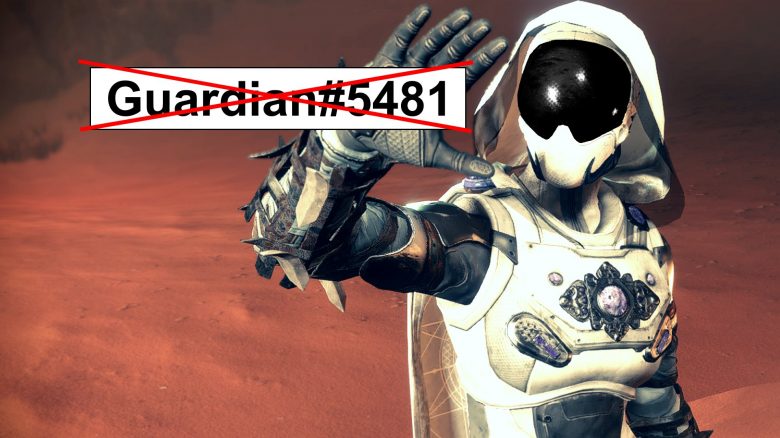
All players who had not adjusted their name before the change automatically received a default name from the system. This name, formatted as (“Guardian[random number]”), was not only meaningless and ugly but also could not be changed for the time being.
Bungie had therefore already pointed out in the announcement that they plan to reactivate this option for Winter 2021 and that name changes would then be possible again.
While there will be no name change feature at launch, we are working diligently to make it available to you this winter. We recommend that you think carefully about what name you want to use in Destiny 2 – we don’t want you to have to keep an unwanted nickname until the name change feature goes live.
Bungie in July 2021 about changing the Bungie name
But that is exactly what did not happen. Players who had not adjusted their name were still wandering around as one of many “number-guardians” in the game after December 2021. There is no personal identity.

Finally, you can change your name in Destiny 2 – But be careful!
After many affected Guardians hoped for information regarding the reactivation of the name change with each new update, last night Bungie finally delivered the long-awaited message.
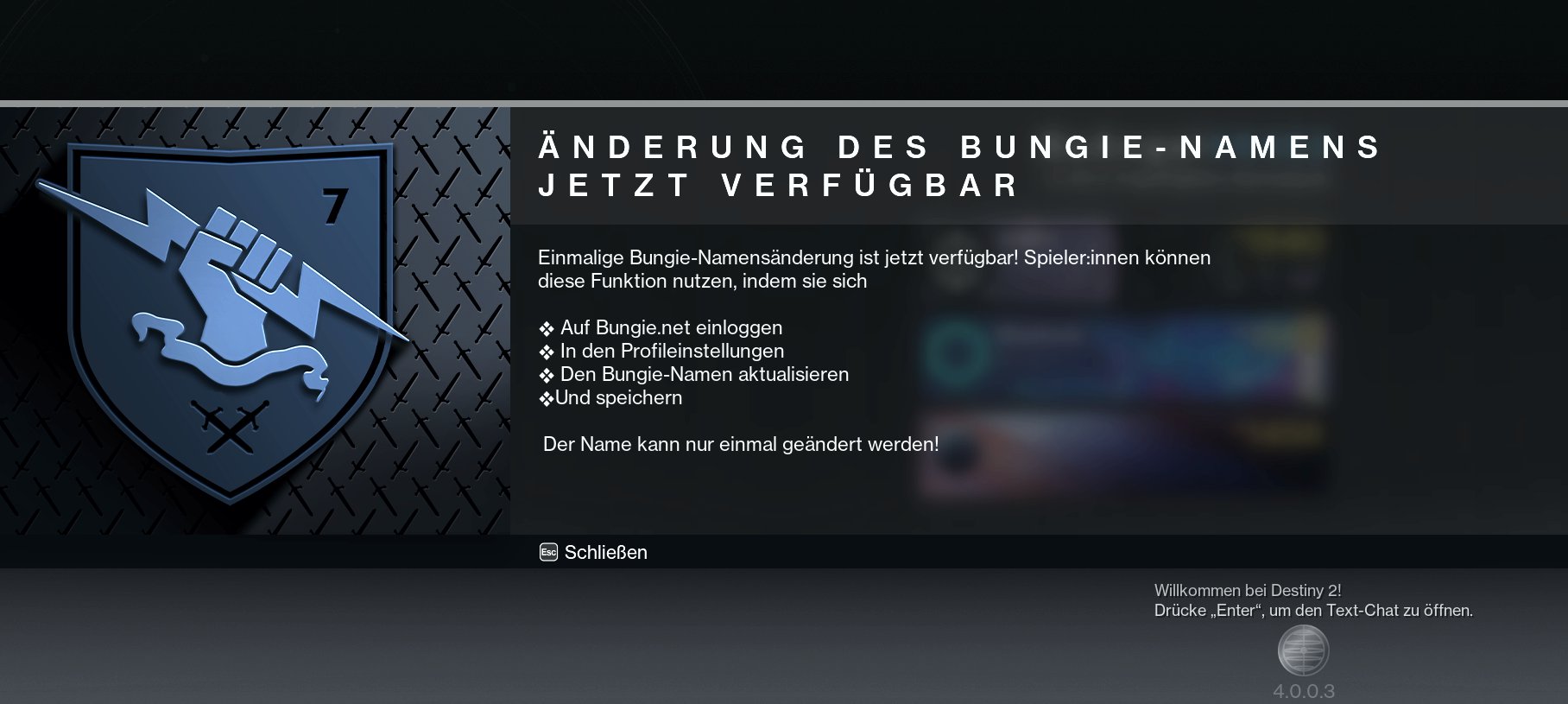
When can you adjust your name again? Bungie announced on Twitter that Guardians after the release of Hotfix 4.0.0.3 on March 10, when the servers are back online, will have the opportunity to get rid of their hated Bungie name. 3 months later than planned.
Bungie states in the tweet that this is a “one-time name change.” At first, players were somewhat puzzled as to why the developer mentioned this so explicitly. However, Bungie’s community manager “Hippy” quickly clarified and informed on Twitter that this option does not expire and will remain available.
However, you should definitely pay attention to this: The note “one-time” should be taken seriously. You actually only have one opportunity to change your name. So think carefully about what name your Guardian should bear and only save the settings once you are sure.
This is how you can change your Bungie name
“We are investigating an issue where some players receive the error message ‘No name changes available’ when they attempt to update their Bungie name for the first time. Stay tuned for updates.” (via Twitter)
We are on it for you.
Once Update 4.0.0.3 is online on March 10, 2022, you can adjust your Bungie name. You can then unleash your creativity in a maximum of 26 characters.
- Visit the Bungie website: www.bungie.net
- Then click on “My Account” in the top right corner, select your platform, and enter your username and password.
- After logging in, select the account icon in the top right corner and click on “Settings”.
- In the left menu column, you will find