

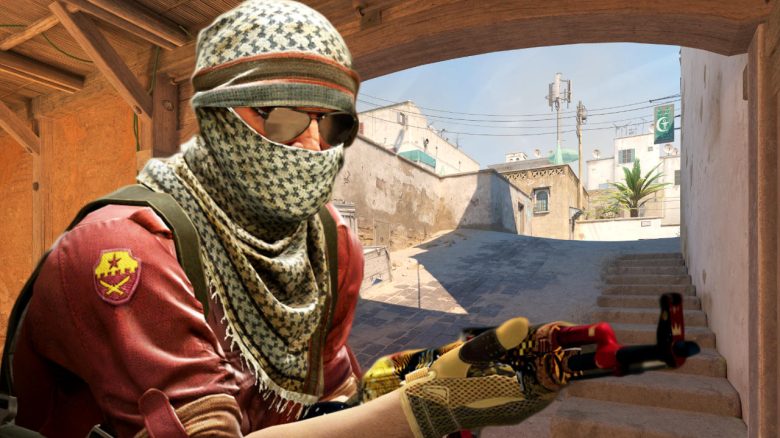
In Counter-Strike you can use console commands to obtain information about your FPS or latency as well as practice in training matches. We will show you which commands you should know.

What are console commands? In Counter-Strike, you can open a text window in which you can enter various commands. These commands can activate settings that improve your gaming experience.
Some console commands help you limit your FPS, while others are suitable for practicing grenade line-ups. We will show you the console commands available in CS2 and how to use them.
Activating CS2 Console Commands
How do I activate the commands? To activate the console commands in CS2, you must go to the game settings. There, under the “Game” tab, you will find the option “Enable Developer Console”.
Here are the individual steps:
- Open settings
- Select the “Game” tab
- Select “Yes” for the setting “Enable Developer Console”
When you have activated the developer console, you can open it with the grave accent key (`). Alternatively, you can set a new key binding for opening the developer console under “Settings>Keyboard/Mouse>UI>Open Console”.
Once you have set the activation for the developer console and successfully opened it with the corresponding key, you can now enter various commands.
CS2 Console Commands for FPS, Latency, and Screen Settings
With these commands, you can change various settings related to your FPS (frames per second) via the developer console:
- cl_showfps 1
- shows your FPS
- fps_max_x
- Sets a value to limit your FPS. Simply replace the “x” in the command with the value you desire.
- If you write a “0” instead of the “x”, you disable the FPS limit.
With these commands, you can change various settings related to your latency via the developer console:
- cq_netgraph 1
- Displays information about your latency in the upper right corner of the screen
- cq_netgraph 2
- Displays information about your latency in the upper right corner of the screen, using the graph from CS:GO instead of the new one from CS2
- cq_netgraph 0
- Disables the displayed netgraph again
With these commands, you can change various screen settings via the developer console:
- r_fullscreen_gamma 3
- Allows you to change the gamma setting, with the number indicating how bright your image becomes
- The “3” as a value for gamma setting is a recommendation from the editorial team. We also advise against entering a “0”!



CS2 Console Commands for Practice
In Counter-Strike, you have the option to use certain console commands for practice. We will list a few commands here that you can use in training lobbies. However, you must first enable the use of cheats.
How do I enable cheats? To activate some commands, you must first allow the use of cheats. Enter the following command:
- sv_cheats true
- The “true” specifies that you are allowing cheats.
- If you write “false” instead of “true”, you prohibit the use of cheats again.
Which commands are suitable for practice? Here we list some console commands with which you can practice better. The different commands give you infinite ammunition, the ability to buy weapons and gadgets at any time, or even allow you to fly.
- noclip
- lets you fly like a ghost and pass through walls
- god
- makes you immortal
- mp_roundtime_defuse 60
- sets the round timer of a bomb match to 60 minutes
- sv_infinite_ammo 1
- gives you unlimited ammunition
- mp_respawn_on_death_ct 1
- lets you respawn as a Counter-Terrorist after death
- mp_respawn_on_death_t 1
- lets you respawn as a Terrorist after death
- mp_restartgame 1
- restarts the match from the beginning
- mp_buytime 60000
- specifies that you can buy weapons and gadgets throughout the entire round
- mp_buy_anywhere 1
- specifies that you can buy weapons and gadgets anywhere on a map
- mp_maxmoney 20000
- specifies how much money you can have in total
- mp_startmoney 20000
- With this money, you start a match (the command may only work after restarting a match)
- mp_afterroundmoney 20000
- You receive this money at the end of a round
Note: You can also enter your own values for the commands regarding money and round length. Our amounts are just examples.
If you are looking for commands on a specific topic, you can also try typing keywords in the developer console. Sometimes commands that work and may achieve the desired goal will be suggested to you.
If you are already practicing, you can directly work on your mouse sensitivity. We will show you how to improve your sensitivity:
CS2: Mouse settings for perfect sensitivity

Your opinion is important to us!
Do you like the article? Then let us know!