

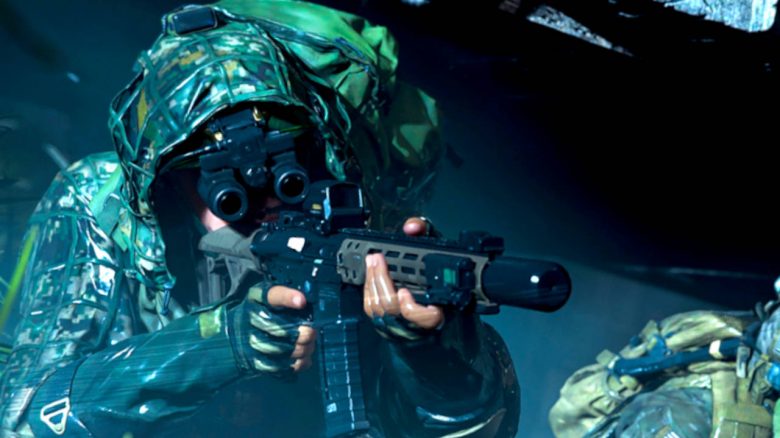
In multiplayer of Call of Duty: Modern Warfare 2, things can get hectic, so any help is always welcome. Two little arrows assist you in locating enemies, but they are often overlooked by players. MeinMMO explains what you need to look out for.

What are these arrows? The orange arrows are part of the HUD, the head-up display. At the top of your screen, you will find a compass that indicates your view direction. Sometimes the two orange arrows can appear to the left and right of it.
But what do the arrows mean? The arrows are indicators for enemies that are outside your field of vision. They appear whenever enemies fire their weapon.
How can the information be utilized? The arrows are easy to overlook, but the information they convey is invaluable. They can help you to locate enemies early on. This way, you can optimally prepare for the next firefight, for example by changing your position or reloading in time.
At the same time, you can use this information to easily avoid dangerous situations and reorganize yourself or to retreat tactically. In Call of Duty, you shouldn’t rely solely on your eyes. Often, you can hear enemies long before they become visible: With these audio settings, you can hear your opponents from afar.
In the trailer, you can see all the action that the Modern Warfare 2 multiplayer and Warzone 2.0 have to offer.
Increase FoV and detect enemies earlier
How can you detect enemies earlier? In general, the earlier you identify enemies, the faster you can react to dangers. Here, fractions of a second can be crucial.
The orange arrows can help you locate enemies that are outside your field of vision. But even before you enter a match, you can adjust your field of view settings to increase your reaction speed.
More about CoD: MW2 is available at MeinMMO:
How do you adjust the FoV? In the settings, you can make changes to your field of view. A larger FoV lets you perceive more of the action, but it also requires a bit more work from your graphics card. An optimal value for the field of view lies between 100 and 120, with a default value set to 80. Feel free to experiment a bit.
If your game stutters at a value of 120, simply lower the number a bit. Even the most powerful systems can occasionally experience crashes. Here are 11 tips on how to fix crashes in CoD MW2 on PC.
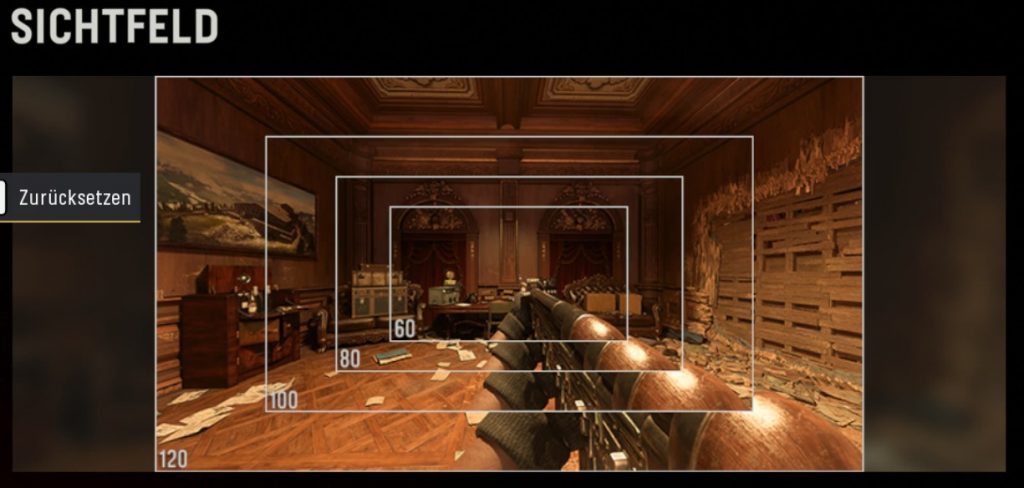
As can be seen in the image, the field of view becomes significantly larger with the appropriate settings. This way, you can much more easily spot enemies trying to flank you. Together with the orange arrows, you are well-prepared for your next battle.
Have you noticed the orange arrows? Do you find them helpful or do they just distract you? Do you constantly have a UAV in the air and always know the position of your enemies? Feel free to leave us a comment.
Are you eager to optimize all your settings in Call of Duty: Modern Warfare 2? Here are 10 settings that will make you better in CoD MW2 directly.

Your opinion is important to us!
Do you like the article? Then let us know!