If you play Call of Duty: Modern Warfare 2 with a controller, there is a setting called Deadzone that can help you aim. MeinMMO explains how to best use this setting for yourself.
What is the Deadzone? The dead zone refers to the area between the movement of the controller and the actual transmission.
This specifically means that a smaller dead zone transfers movement to the game earlier, while a larger dead zone means you have to move the analog stick of your controller further before a reaction appears in the game.
Why is the Deadzone important? This setting allows you to aim and hit more precisely. For this reason, it is worth taking a look at the dead zone settings to adjust them optimally for yourself.
More tips for your settings in CoD MW2 can be found here:
Aim better with the right Deadzone settings
How can you adjust your settings? To access the dead zone settings for CoD: Modern Warfare 2, you first need to navigate to the settings (the tab with the gear icon) and then select Controller. You can find the settings for the dead zone under the advanced controller options.
Conveniently, you can mark the two dead zone settings “Minimum Left Stick” and “Minimum Right Stick” with a star and copy them into your selected quick settings. This way, you can quickly adjust these settings during the game.
How to set the Deadzone correctly: Follow these steps if you want to adjust the settings for the dead zone precisely to you and your controller:
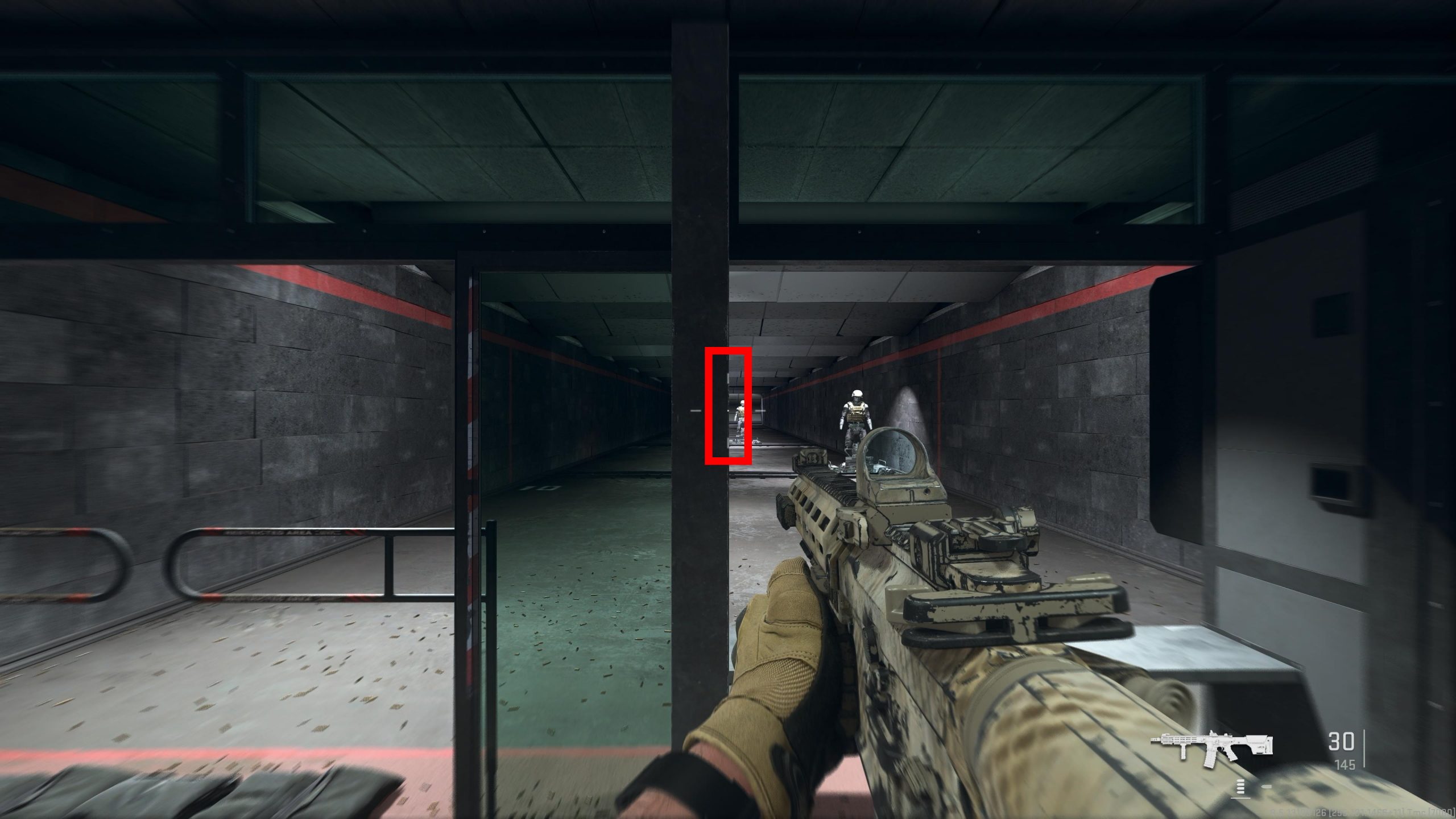
1. Go to the shooting range and find a suitable spot
In the weapon selection menu, you can go to the shooting range. Once you are there, find a vertical edge where you can align your crosshair.
2. Adjust Sticks
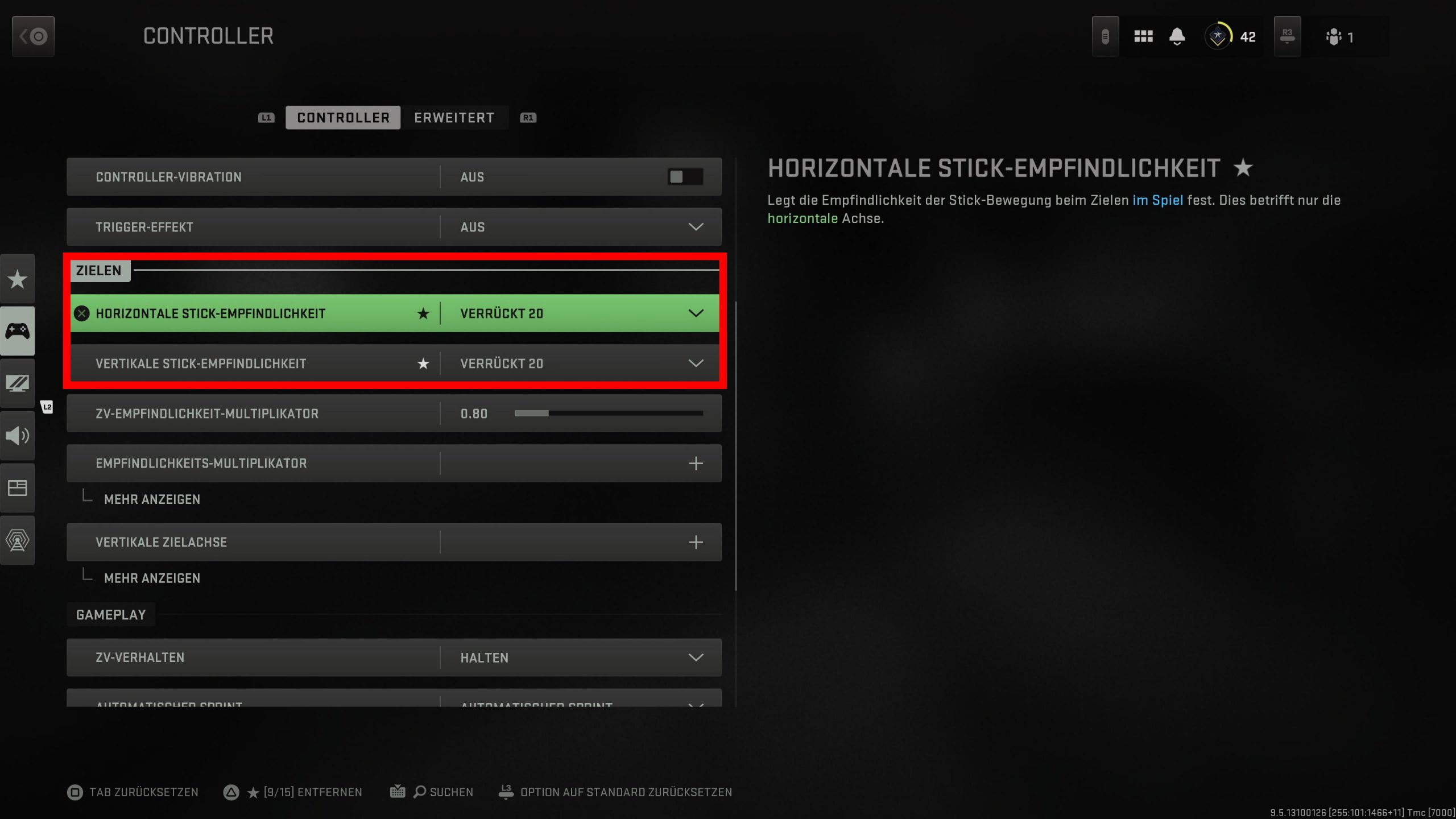
Set the “Horizontal” and “Vertical Stick Sensitivity” settings to the maximum of 20 (Insane).
3. Set Deadzone
Now under Deadzone, set the sliders for “Minimum Left Stick” and “Minimum Right Stick” to the minimum of 0.00.

4. Check Movement
Move the sticks and release them. Then watch your crosshair – does it move?
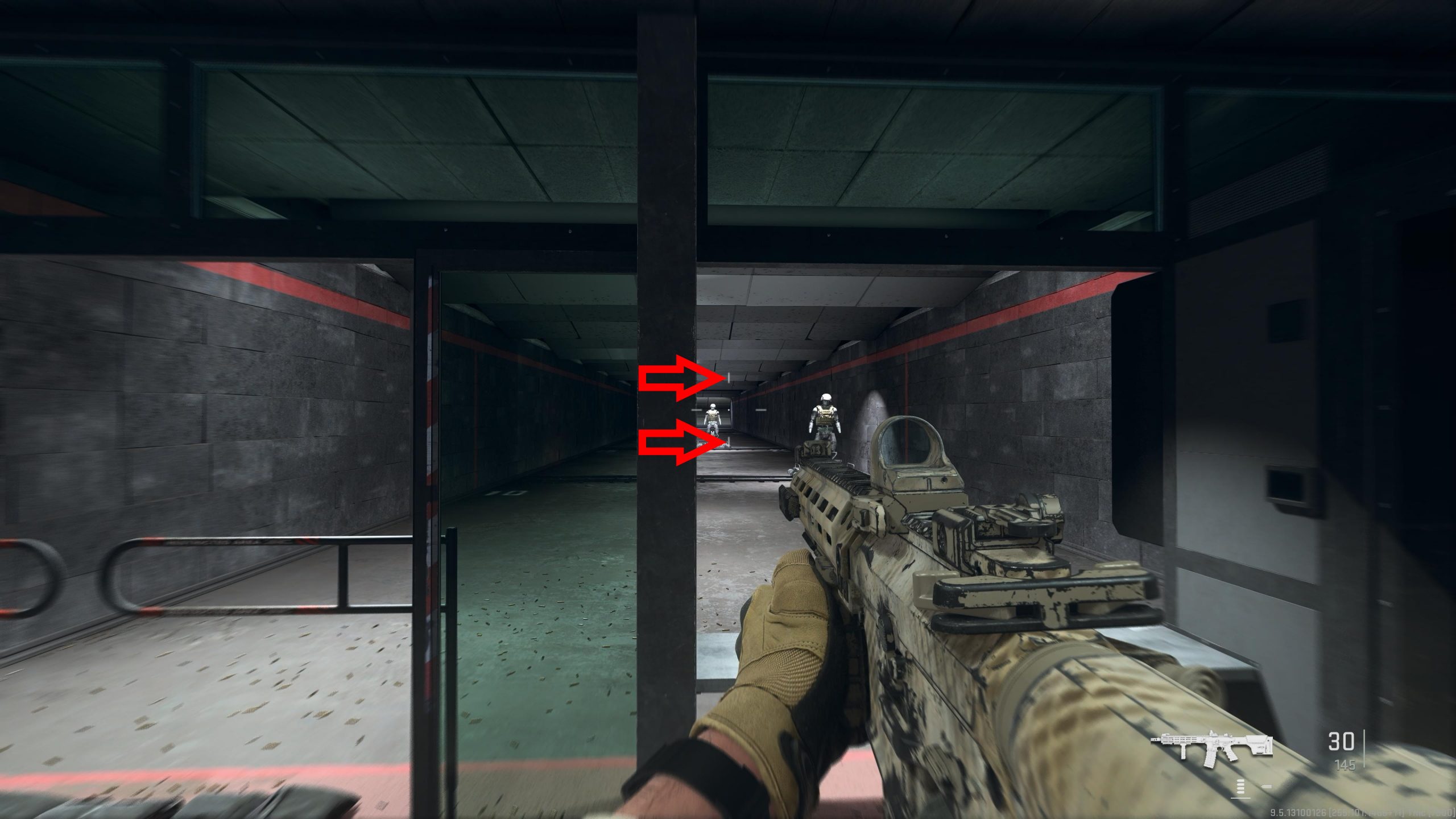
6. Adjust Deadzone
If the crosshair moves by itself, increase the dead zone by 0.01.
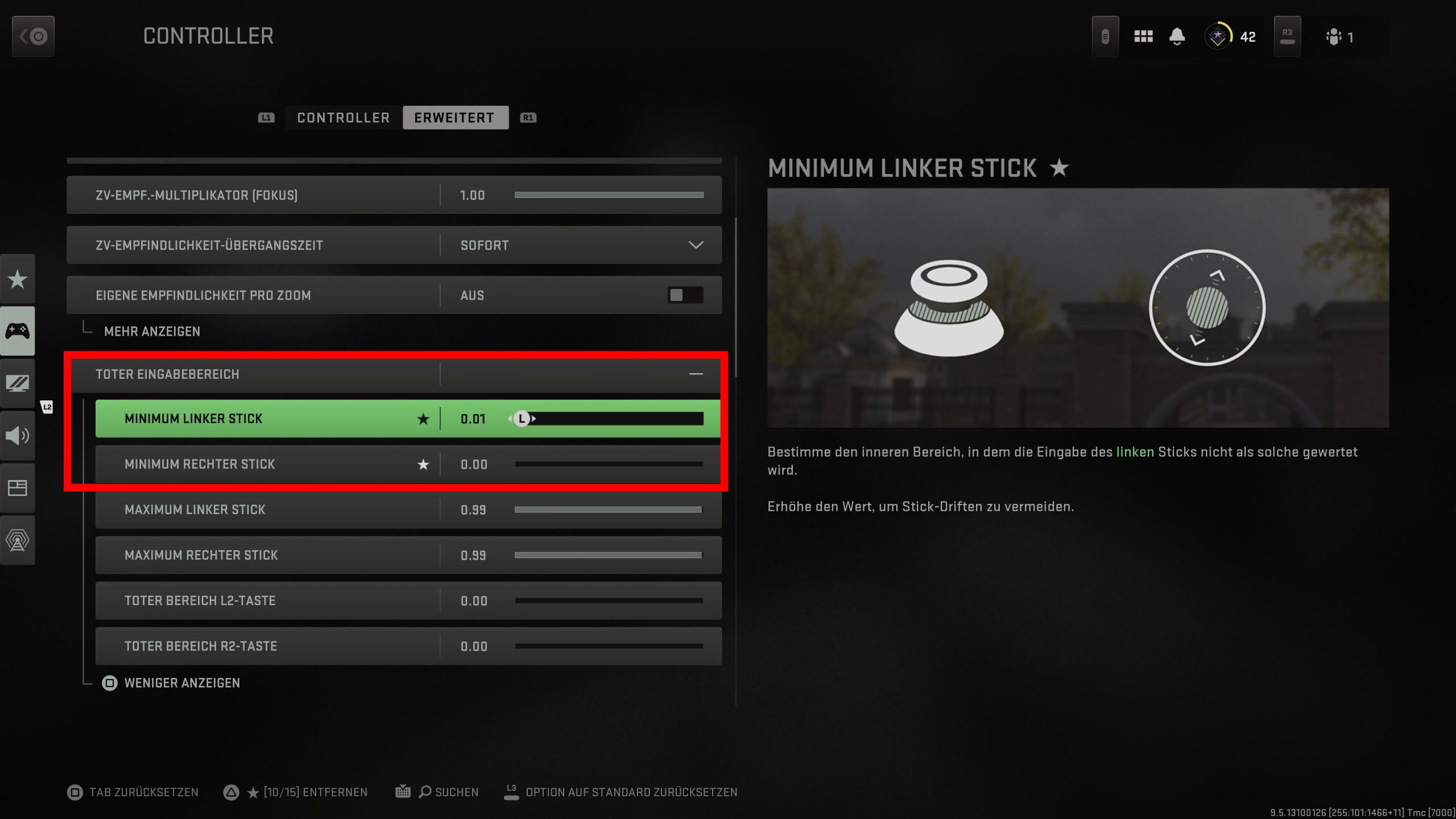
7. Check again and repeat
Repeat this until the crosshair no longer moves when you do not touch the sticks. Once you have found the ideal setting for the dead zone, set the remaining settings back to your preferences and keep the dead zone settings.
Voilà, you have calibrated the dead zone optimally for yourself.

The Deadzone helps you with controller drift
What is controller drift? For console gamers, there is hardly anything more annoying than controller drift. This problem occurs when the analog stick of your controller moves by itself, as the neutral position of the joystick is distorted. This happens even when you are not touching the stick.
The most straightforward solution to this inconvenience is to buy a new controller. However, with the current prices of gamepads, this is certainly not easy for everyone.
An example of the high prices of modern gamepads can be found in this article:

Fortunately, many games now offer dead zone settings that can counteract annoying controller drift; fortunately also CoD: Modern Warfare 2.
If you have controller drift, the same principle applies as in the guide above: increase the values for “Minimum Left Stick” and “Minimum Right Stick” a bit and adjust the sliders to your personal needs.
If you are also looking for a guide with tips for leveling weapons, check this out:
CoD MW2: Level weapons quickly – 3 tips for more weapon levels