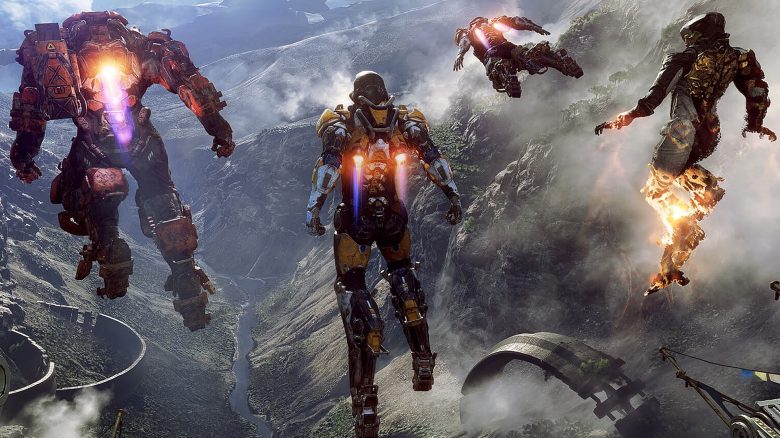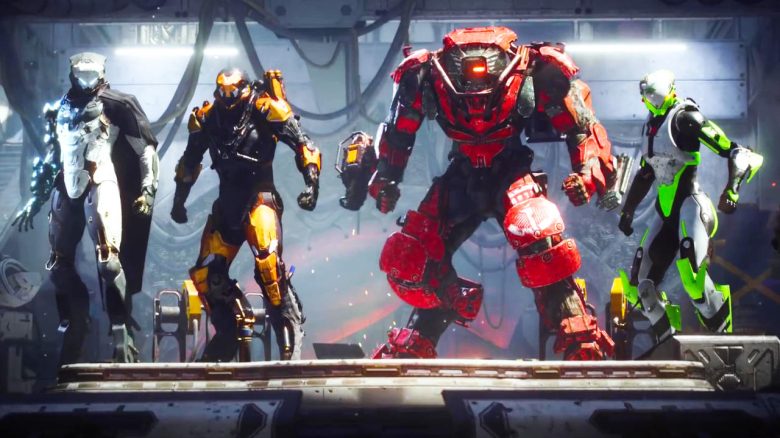
Long loading times are a problem in Anthem, which annoys many players. We will show you how to equip yourself against this. There are also tips for more FPS in Anthem.
In this overview, we show you how much SSD drives help your loading times. We also give you tips on graphics settings that can boost your FPS.
What is the problem? The numerous loading screens are a frequently mentioned point of criticism in Anthem. Players are annoyed by how much time they have to spend in loading screens. This is also shown by first user reviews of Anthem.
Especially annoying: When the rest of the team has faster systems than one player and then constantly has to wait for that person. Without prior agreement, this becomes complicated and frustrating.

An SSD can help you: An SSD is a hard drive that has many advantages over a regular (HDD) hard drive. The biggest advantage is significantly shorter access times due to its design.
So if you have an SSD in your system, it is advisable to install Anthem on it. Players rave about how much the loading times for Anthem are shortened as a result.
How much does an SSD improve loading times in Anthem? As Gamestar reports, an SSD has clear advantages over an HDD in several areas. They tested Anthem with SSD against Anthem with HDD and came to the following results:
- Starting the game takes about 50 seconds with an SSD, about 80 seconds with an HDD.
- Loading the first game area takes about 25 seconds with an SSD, about 125 seconds with an HDD.
- Loading a mission takes about 35 seconds with an SSD, about 150 seconds with an HDD.
In the test, a Crucial MX500 SSD faced a Toshiba DT01ACA HDD.
If you do not have an SSD yet, you can easily upgrade.

*Affiliate-Links. Wir erhalten bei einem Kauf eine kleine Provision von Amazon. Vielen Dank für Eure Unterstützung!
Also for consoles: If you want, you can upgrade your console with an SSD as well. We have described how to install SSDs in consoles by using Destiny as an example.

Patch to improve Anthem on HDDs: On Twitter, Michael Gamble, Lead Producer for Anthem, explains that the Day-1 Patch brings improvements for hard drives. They want to enhance Anthem for HDDs with 5400 RPM and 7200 RPM.
Adjusting Graphics Settings in Anthem
Players say that performance in Anthem can be slightly improved if you tweak the right knobs. In a discussion on Reddit, two settings stood out particularly that can provide a true FPS boost when disabled or reduced.
- Ambient Occlusion: You can disable this feature
- Postprocessing Quality: Set this option to low or turn it off completely
How to change the settings: Go to the menu (Escape), select “Video” and then “Advanced Graphics Settings.” Now you need to set the graphics quality to Custom to make individual adjustments to the settings.
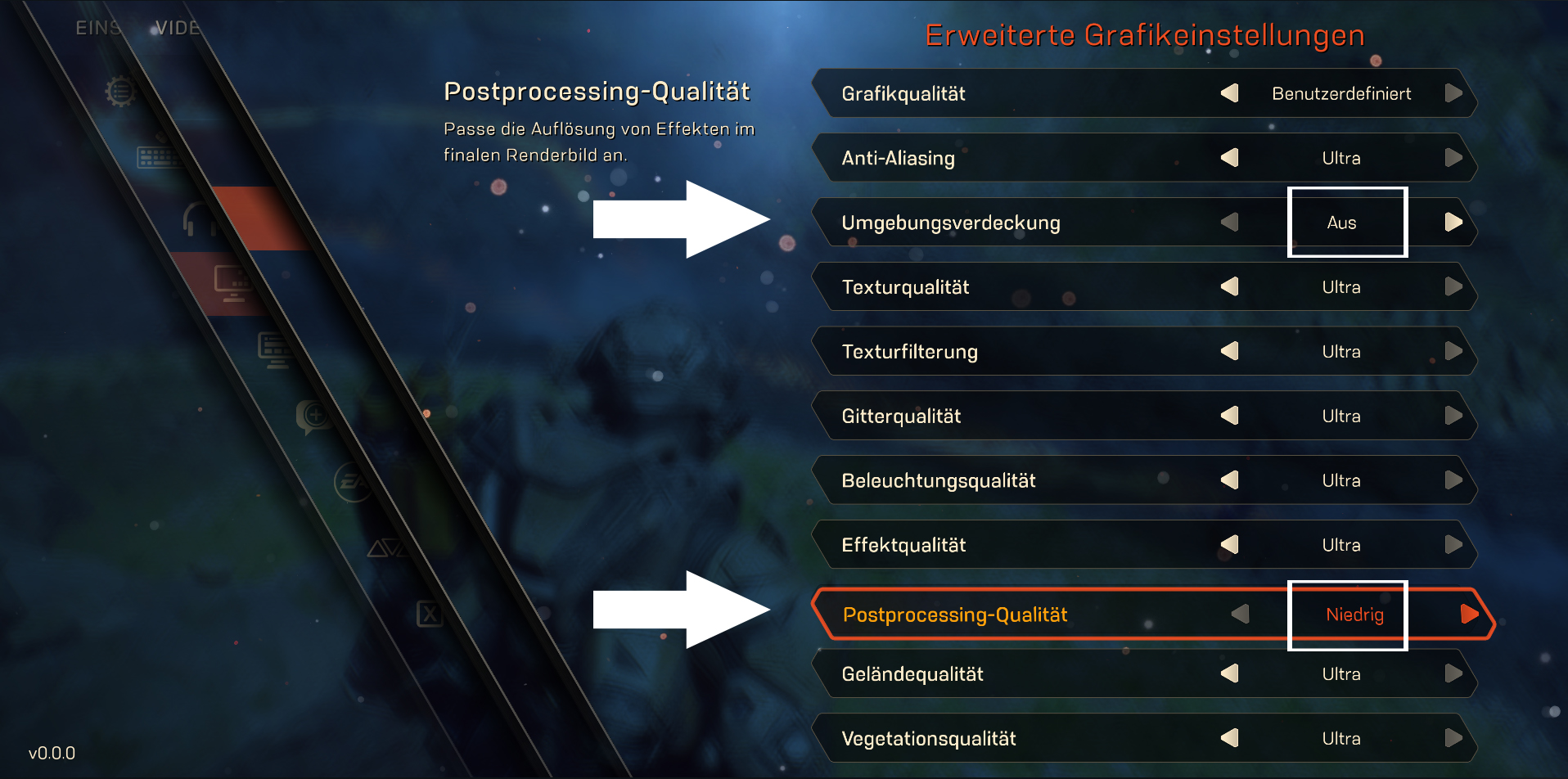
What does it bring? On Reddit, user OmniBlock writes that by turning off Ambient Occlusion and setting Postprocessing Quality to “low,” he played with 75 to 80 FPS, instead of 55 FPS afterwards.
The graphical differences from the settings are minimal and will hardly be noticeable in combat. However, your hardware will be less stressed and can deliver more FPS.
What does Ambient Occlusion do? The cracks or gaps on objects receive shadows depending on the lighting.
What does Postprocessing Quality do? This adjusts the resolution of the effects.
These Nvidia Drivers You Need for Anthem
If you game a lot on your computer, you should also regularly update your drivers. For Anthem, this is probably very important as well. As user JOIentertainment writes on Reddit, updating to Nvidia driver 418.91 drastically improved its performance.
Are you experiencing low FPS in Anthem on consoles? That’s understandable!

Newer versions of Nvidia drivers are good as well.
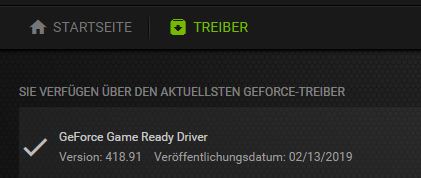
Note about version 418.91: Players report that installing this driver may cause issues with Apex Legends. If you play that battle royale game, you might want to wait for newer drivers that run without issues.
Are you experiencing low FPS in Anthem on consoles? That’s understandable!