

A gamer wanted to test his graphics card and activated a stress test. However, when he returned after 30 minutes, he was shocked. Because on his monitor, he saw severe artifacts.
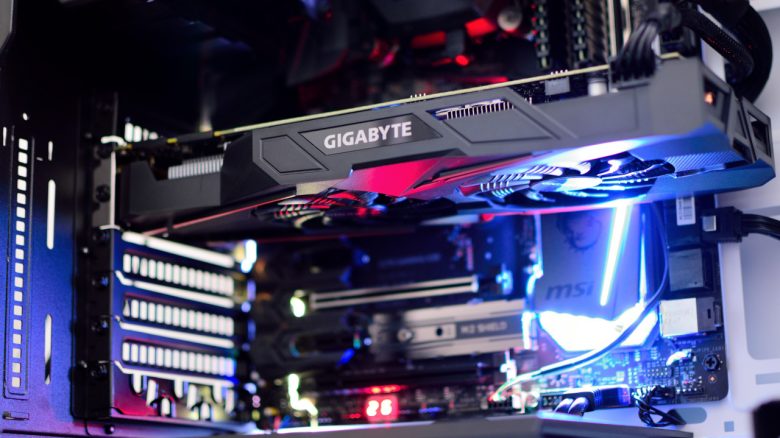
Our title image is a symbolic image.
A player wanted to perform a stress test on his Radeon RX 5700 XT. Such tests can determine how well one’s graphics card performs. Software like Furmark shows you the temperature, current frequencies, and performance of the graphics card and rates the reliability of your GPU at the end.
But the user was unlucky, because when he returned to his computer after 30 minutes, he saw strong artifacts on his display, which were caused by the graphics card. He explained that his graphics card was likely broken (via reddit.com).
If the user had stayed at the computer, he could have prevented the problems in the end. Because he would have seen that the temperatures of the memory had risen significantly and could have aborted the test.
Never leave your PC alone during a stress test: In general, you should not leave your hardware unattended when it is under full load. After all, you want to check during a stress test whether your graphics card is functioning normally. Many people in the comments also refer to this. Thus, someone warns clearly:
Never leave your computer alone during a stress test with a constant 100% virtual load! Always keep at least one eye on it, no matter how boring it is.
During the stress test, a memory module probably burned out
What exactly happened? The user himself writes that he already suspected that the memory temperatures of his graphics card were too high in everyday use.
His graphics card probably still starts after the test, but besides the artifacts on the display, the popular tool GPU-Z shows him no more information about the installed memory. In this state, he can at least no longer play. For many gamers, such a graphics card is considered “dead”.
He and others suspect that during the stress test, a memory module overheated and broke down.
What happens next? Some explain that his graphics card might still work properly in the end and that the GPU is “just” overheating. Some advise him to simply try replacing the thermal paste or thermal pads of his GPU. Someone writes:
If the OEM [manufacturer] does not want to replace it [the GPU], I would try it with an Ave Maria. Remove the GPU, replace the thermal paste, and cross your fingers. It looks like a memory module was destroyed, but it could just be overheating. Good luck! It’s best to also replace the thermal pads; one might have simply come loose.
There are enough signs that show you that your graphics card is broken
Graphical errors, glitches, or such artifacts as seen with this player’s graphics card are good indicators that a GPU is damaged or broken. But there are also further signs that your graphics card might soon die.
If your graphics card makes strange noises or you frequently experience crashes that cannot be explained by the game or an outdated driver, you should take a closer look at your graphics card.
Regular blue screens are also a warning sign that something might be wrong with your hardware.
However, before you panic and buy new hardware, check whether the problems might also be caused by other things:
- Outdated drivers
- A game that has bugs.
- A faulty Windows update that spoils your gaming fun.
- A loose cable inside your computer.
Most of these errors cost you little time, and you don’t have to invest any money.
Otherwise, you should handle certain hardware components with care. A gamer had a crazy idea with his power supply. However, that is anything but funny and can even be life-threatening:

Your opinion is important to us!
Do you like the article? Then let us know!