

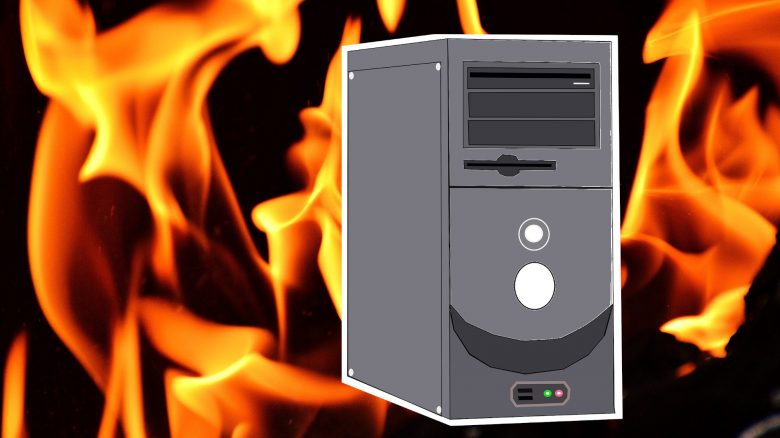
If it’s hot outside, your gaming PC will quickly start to sweat. MeinMMO presents you 8 tips to keep your PC cool.
When does a PC overheat? Your gaming PC is a collection of sensitive hardware. When your graphics card, processor, and others start to work hard, they emit a lot of heat. If your PC gets very hot, it will shut down.
Because: Modern components have fuses built in, which means: If they get too hot, the computer will shut down. For you, this might mean data loss and, in the worst case, damaged hardware.
How does this help my PC’s performance? If you cool your PC properly, you can extract a bit more performance from your hardware.
Because cooled hardware doesn’t heat up as quickly and offers more performance: The processor can work at high performance (boosting) and doesn’t have to throttle its speed. With a well-cooled PC, you can also do better overclocking, as excellent cooling is crucial in this case.
In the chips of the processor (CPU) and graphics card (GPU) are powerful transistors that generate heat as they work: Electricity flows through the copper wires of the computing units, and the low resistance in the wires causes heat.
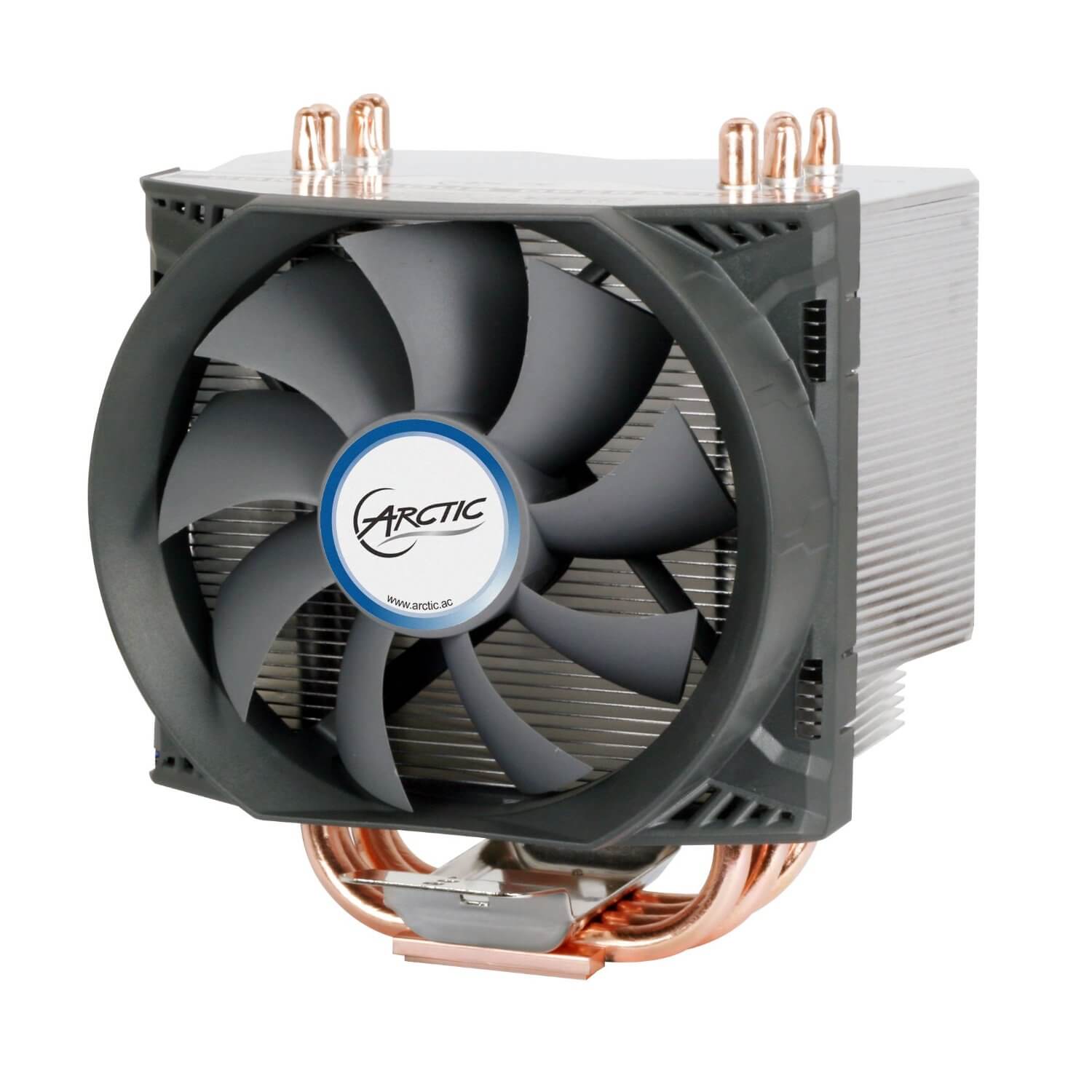
At high temperatures, the CPU reduces its working speed (clock), which is called “Thermal Throttling” in technical terms. This saves power but also reduces performance. If you have good cooling, performance will not decrease, and you can push a bit more out of it with appropriate software.
The importance of good cooling also shows in next-gen consoles: High performance also means a lot of heat, which is why the PS5 and Xbox Series X are so large.
Where do our tips come from? We have extensively researched for you, gathered the best tips against heat in the PC, and evaluated them ourselves. Our experiences with PCs and hardware components have influenced our list. Additionally, we have looked at reviews and tests of case fans to recommend you the best components.
If you also own a PlayStation 4, we have tips against a hot and loud PS4 for you.
1. Keep an eye on the temperature and hardware of your PC
Required: No special items needed | Time required: 10 minutes | Cost: none | Difficulty: Easy
The first and easiest step is to check your computer’s temperatures. Some motherboards offer the option to read temperatures via the BIOS. This is less helpful when you are gaming.
Small helper programs like HWMonitor serve as an alternative. This is a simple freeware tool that lets you monitor the temperatures of individual components and, for example, the speed of the installed fans.
2. PC overheated – reposition your computer
Required: No special items needed | Time required: Dependent on personal living conditions | Cost: none | Difficulty: Easy
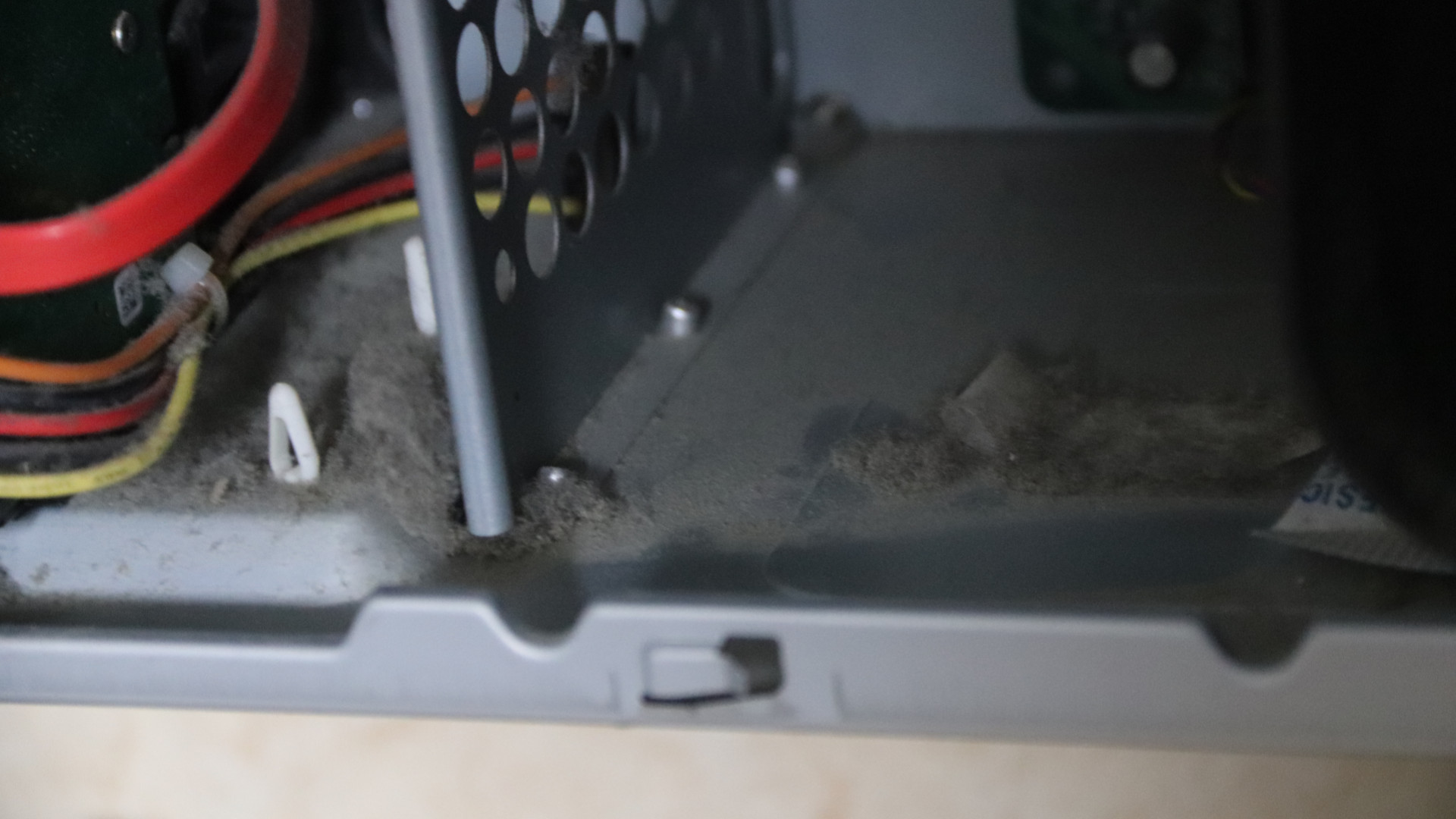
Check where your gaming PC is located in your apartment. The lower the computer is on the ground, the higher the likelihood that the computer will get dirty. If you have pets, their hair is another source of dirt for the PC.
Why dirt is a problem: Dirt like pet hair can clog the fans, and dust can form a thin layer on coolers, making it difficult for heat to be dissipated.
What you should keep in mind: The following things should be considered when placing your PC:
- Place the PC on a solid surface and not on a carpet. Carpet collects dust and is not optimal for your computer.
- Avoid placing the PC directly against the wall or in a corner, as heat cannot escape well there.
- Avoid places with significantly changing temperatures such as heaters and windows. Dry heat harms your PC just like the moisture from outside.

3. Remove dust and dirt from the computer and fans
Required: Compressed air spray, anti-static cleaning tools | Time required: 30 minutes | Cost: 10 – 20 Euros | Difficulty: Easy
What we advise against: Do not use a vacuum cleaner or your fingers to remove dust. The vacuum cleaner is too rough and may damage sensitive parts. Your fingers are always slightly greasy, which can also stress the parts.
What you should use for cleaning: It’s best to use compressed air spray or anti-static brushes and tools that do not build up static electricity while moving.
How you should proceed:
- Unplug the PC and then press the power button again. This will also dissipate any remaining potential charge.
- When cleaning, place your PC on a table or open surface and not on a carpet or other surfaces that can build up static.
- Discharge yourself by touching a radiator. Make sure to touch an unpainted spot, for example, under the radiator.
- Clean all the fans in your PC. This includes the CPU fans, external case fans, and the fans of your graphics card. Don’t forget the power supply fan either.
4. Check and configure BIOS settings
Required: No special items needed | Time required: 30 minutes | Cost: none | Difficulty: Difficult
The BIOS (English basic input/output system) is the firmware stored on your motherboard that allows you to control certain aspects of your PC, such as temperature or fan speed. The BIOS automatically controls the fan speed, but you can also adjust the settings manually.
Here’s how to proceed: Each BIOS usually looks a bit different, as each manufacturer can use their own firmware for their motherboards. However, the basic structure is similar.
- Start the BIOS by pressing the correct key on your keyboard. Check the manual for which key is correct. It is often F1, F2, or the Delete key.
- In the BIOS, navigate to the temperature settings.
- Here, you can usually set at what temperatures the PC shuts down or if your fans are causing issues.
- Typically, you can enter a fan value between 30 and 100 %. The higher you set, the faster the fans run.
- Case fans and CPU fans are managed separately in the BIOS.
- Always check your manual or the manufacturer’s page for any recommendations for your motherboard.
- After making changes, you’ll need to restart the computer for the changes to take effect.
However, keep in mind that these are also security settings. So, treat BIOS settings carefully or seek help from someone experienced.
Something went wrong, what to do? If you’ve done things you can’t reset, you have the following options:
- In the BIOS, there is an option for “Load Optimized Defaults”. This can solve many issues.
- Alternatively, you can reset the BIOS with a jumper. This goes on the motherboard’s “Clear CMOS” placement. This will also reset the system.
- The last option is to remove the motherboard battery. This will erase all settings. For this to work, you need to remove the battery and then leave the motherboard powered off for several minutes.

5. Is your PC too hot? Check the airflow in your PC case
Required: minimal BIOS knowledge, new case | Time required: 15 – 60 minutes | Cost: 0 – 100 Euros | Difficulty: Medium
A good airflow prevents your hardware from getting too hot. Airflow means that cool air reaches your hardware, warm air is expelled, and there are no heat accumulations inside your case. Therefore, you should check how good the airflow in your case is:
- Poor cable management or hanging components are always an indicator of insufficient airflow. Many cases even offer cable management that you should utilize.
- If your computer is active, you can also test the airflow: The best airflow occurs when cold, fresh air enters the case, and warm air can escape from the other side.
- Depending on the case, fans can be mounted at the front and back to ensure airflow: While front fans draw in cold air, rear fans blow out warm air.
- Fans on the top are also handy: Since warm air rises, these help with the normal expulsion of warm air.
Here are more hints: Also check your case’s manual: Some manufacturers provide tips and guidance for the best airflow for their cases. There is no standardization for this.
Cases with good airflow: Manufacturers such as Corsair or be Quiet! also offer specialized airflow cases. These are designed to allow plenty of air to reach your components, or you can install multiple fans yourself.
Good airflow cases, for example, use dual-chamber designs. These cases are quite large, as certain components and the cables are separated from each other. There is also plenty of space for water cooling.
6. Set higher fan speeds
Required: No special items needed | Time required: 15 minutes | Cost: none | Difficulty: Medium
Higher fan speeds also allow you to quickly expel warm air from the computer case. Faster-spinning fans pull warm air out of the case faster or bring fresh air in.
Using software or dedicated manufacturer programs, you can adjust and configure the fan speeds. The effort is low, but the result can positively affect the temperature.
What you should do afterwards: Observe your gaming PC after the adjustment and how the changes affect it. If you set the ventilation too high, you risk a higher noise level at worst. If set too low, components may overheat. Programs like HWMonitor are best for this verification.
7. Renew thermal paste
Required: Tools, thermal paste | Time required: 60 minutes | Cost: 10 Euros | Difficulty: Medium
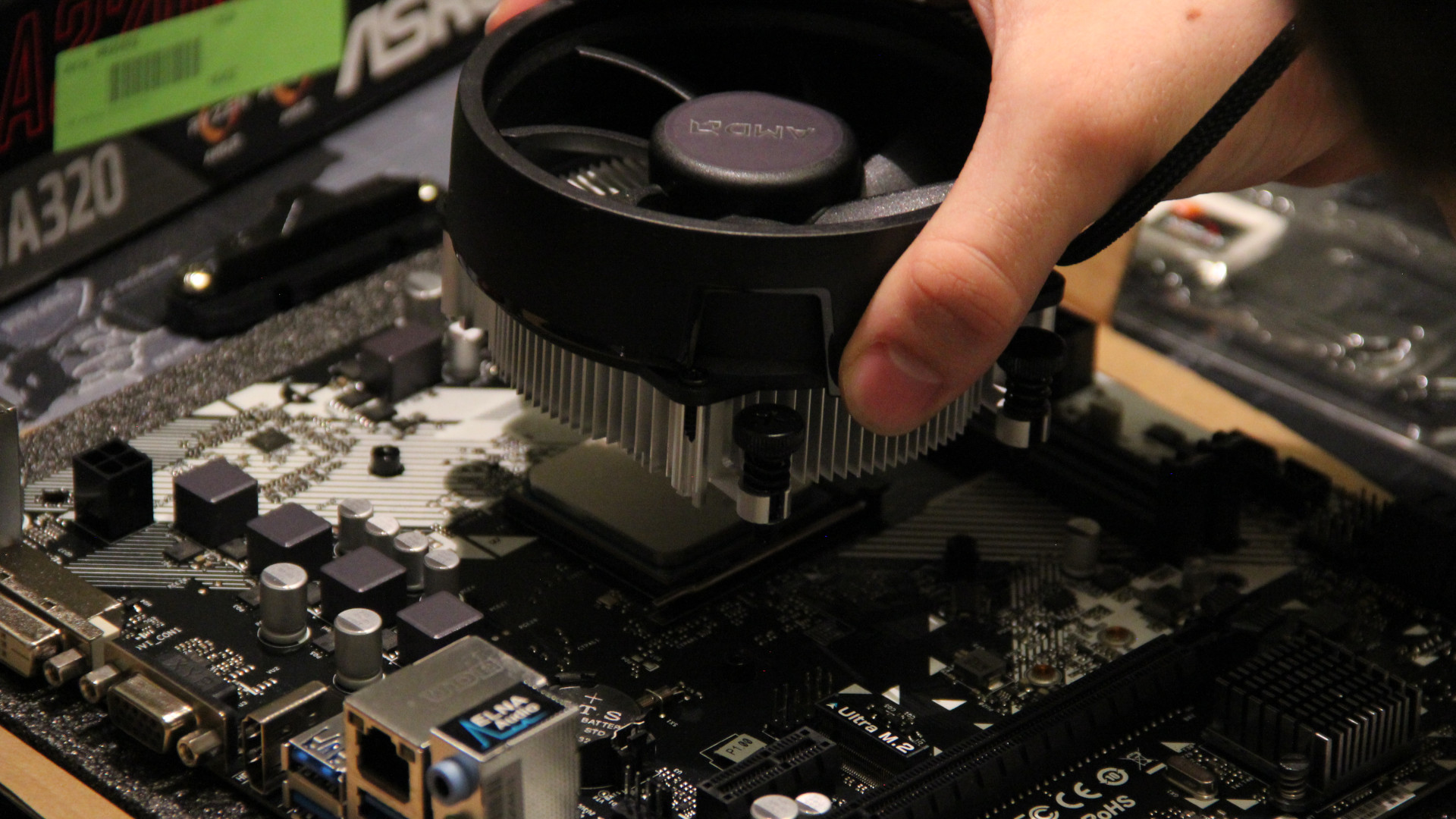
If your computer has been running for a few years, the thermal paste on your processor will dry out and wear out. It helps to renew the thermal paste on your processor.
Note that with thermal pastes, you should only put a drop on the processor and not use too much. Less is often better, as excess paste can spill out of the sides.
Here’s how to apply new thermal paste: If you want to know how to apply thermal paste correctly, the YouTube channel “Tech Tips” has made a well-done tutorial in German, which we embed here for you:
8. Install new fans
Required: Tools, fans (thermal paste) | Time required: 15 – 45 minutes | Cost: 25 – 50 Euros | Difficulty: Medium
Typically, cases already come with fans to ensure a certain airflow. Here you have the opportunity to replace the old fans with new, better fans. The costs are often manageable and the exchange is usually not very complicated.
However, make sure that you need to connect the individual fans to your motherboard so they can start and receive power. Some fans can also connect directly to your power supply, but then you can no longer control them with software.
For this, it’s best to check your motherboard’s manual. Here you’ll usually find hints on how many fans you can control and supply.
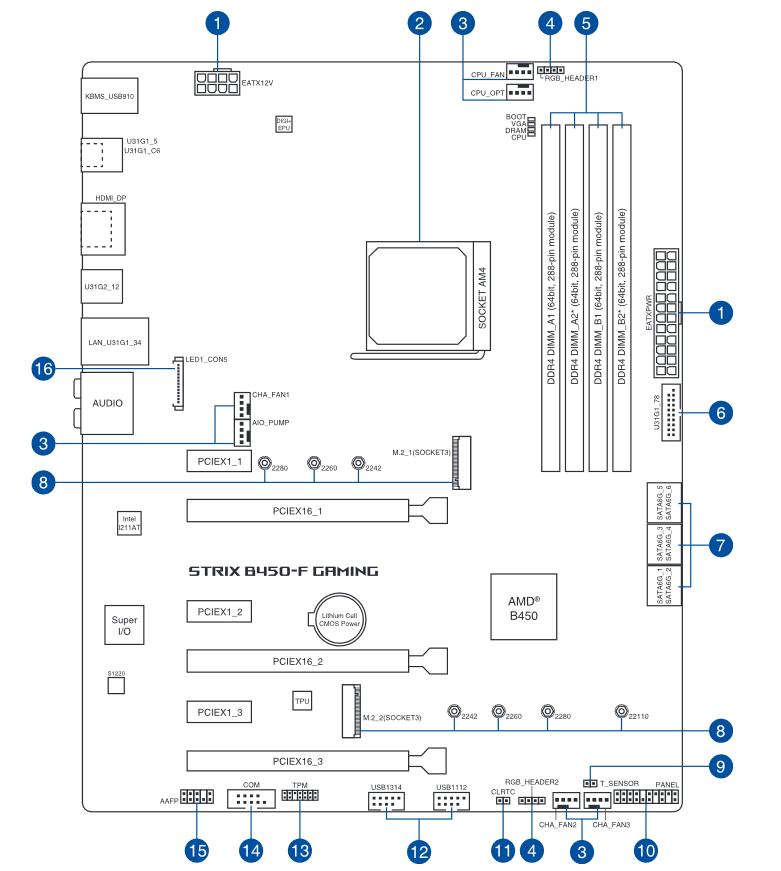
What to consider when buying fans: There are two important numbers when buying fans: size and speed:
- The most common variant is the 120 mm PC fan. The larger the fans, the more air they can transport.
- The speed is measured in RPM, revolutions per minute.
Which fan should I choose? When buying a new fan, consider what your goal is:
- A high RPM means more fresh air, but generally also a higher noise level.
- Larger fans are often more powerful but don’t have to be better than their smaller counterparts.
- Large fans typically run slower on average, while small fans usually run a bit faster.
How to install the fan: Installing a fan is usually not complicated.
- First, unplug the power cord from the PC and let the last electricity discharge.
- Then, check your case. Often, you can see where the fans belong by looking for slots or screw holes.
- When installing, pay attention to the arrows on the fans. These indicate the rotation and airflow direction. Ultimately, the fans should spin in the right direction.
- Finally, secure the fans with the appropriate screws and connect them to the motherboard (CHA_FAN, Fan always indicates a fan connection).
We have also embedded a short tutorial video for you here (German):
Improve PC cooling: Recommended case fans
The most common size for case fans for your gaming PC is 120 mm. With this size, you can be fairly certain that the fans will fit into your case. Below, we introduce you to 3 case fans that we can recommend.

Premium: 120mm Fan – Noctua NF-A12x25 PWM
This is what the fan offers: Priced at around 30 Euros, it’s one of the most expensive fans, but also in the upper class: According to Computerbase.de, it is one of the best case fans currently on the market. Additionally, there’s plenty of accessories available for the installation. The Noctua NF-A12x25 PWM is a model with a 4-pin power connector.
This is what the buyers say: The fan is rated 4.8 out of 5 stars based on 998 reviews. The noise level and especially the outstanding price-performance ratio are praised: Although the fans are somewhat more expensive than the competition, they are more than worth their price.

Mid-range: 120mm Fan – be Quiet! Silent Wings 3 PWM
This is what the fan offers: The Silent Wings coolers from be Quiet offer good cooling performance and a low noise level for around 20 Euros. The special feature: The corners of the fans can be removed, making them particularly flexible. If you don’t want to spend 30 Euros on a PC fan, the be Quiet fan is a great option.
This is what the buyers say: The be Quiet fan is rated 4.8 out of 5 stars based on 1078 reviews. The buyers especially praise the high quality and the pleasant volume of the fans.
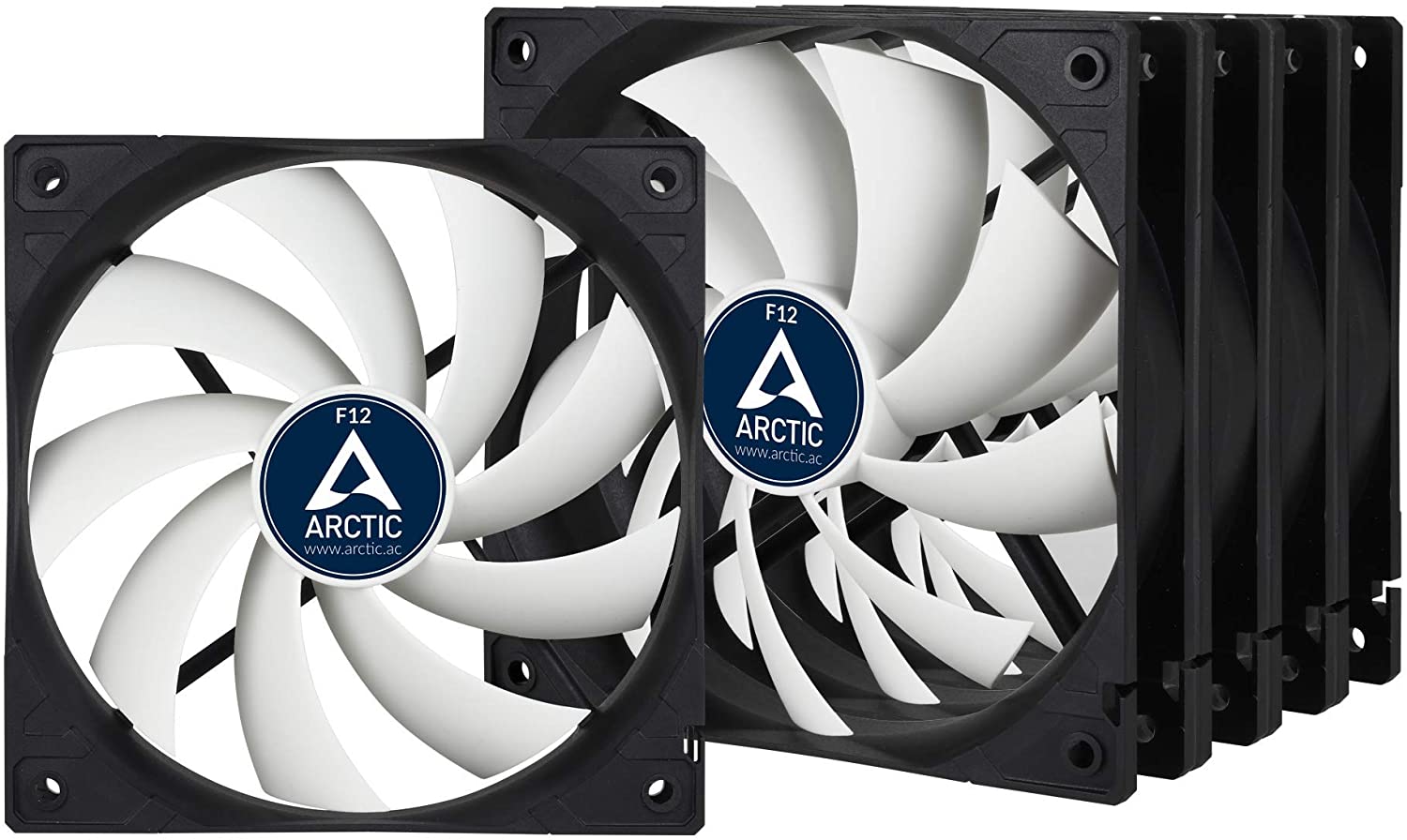
Budget: 120mm Fan – ARCTIC F12 (5-pack)
This is what the fan offers: The Arctic F12 is a fan from the lowest price range, and you can see that in the features: The fan offers no special technical features and comes without extras. However, for the low price, it is not silent and offers little accessories.
This is what the buyers say: The fan is rated 4.5 out of 5 stars based on 8175 reviews. Buyers praise the low price and high performance of the Arctic coolers. However, they criticize the comparatively high volume and the fact that the power cable is not insulated.
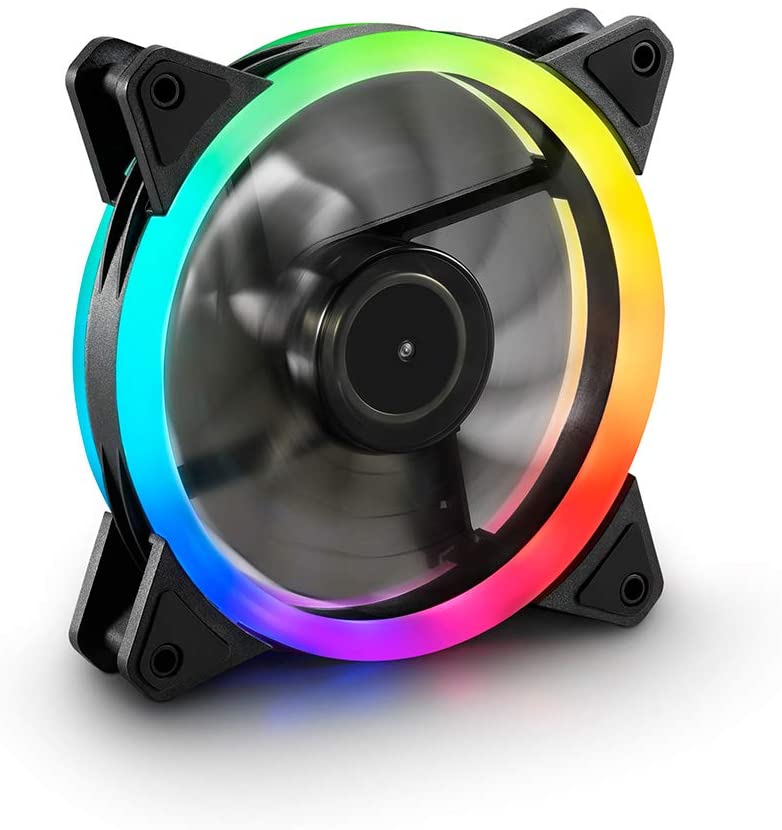
Affordable RGB: 120mm Fan – Sharkoon Shark Blades RGB Fan
This is what the fan offers: For the RGB enthusiasts among you, the Sharkoon Shark Blades is a fitting alternative. Reasonably priced at around 15 Euros. Additionally, the RGB fan supports most lighting systems such as Asus Aura Sync, MSI Mystic Light Sync, and Gigabyte Fusion. Thus, you shouldn’t have any trouble integrating the fan into an existing system.
This is what the buyers say: The fan is rated 4.3 out of 5 stars based on 178 reviews. It receives praise for good quality and performance, although at high fan settings, the Sharkoon fan can also be loud.
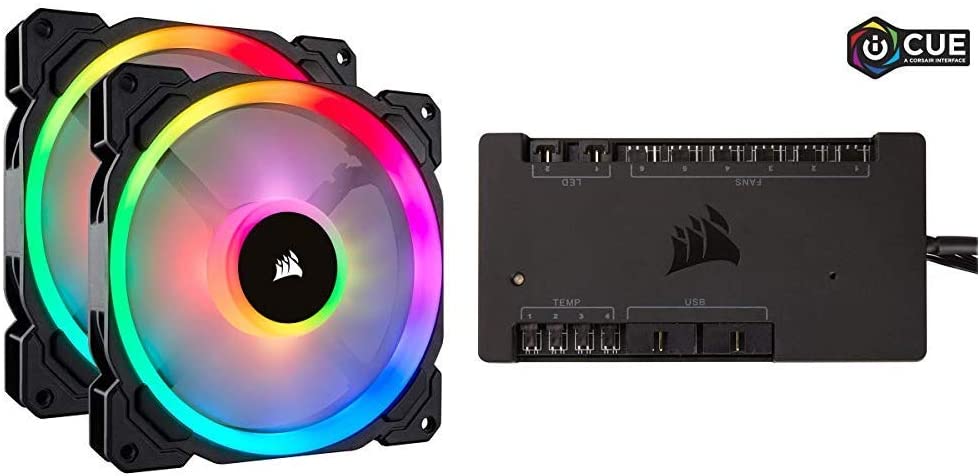
Alternative for RGB enthusiasts: Corsair LL140 RGB
This is what the fan offers: Corsair also offers an exciting RGB fan with the LL140 RGB for your case. The problem: If you want to benefit from the RGB lighting and all the advantages, you need the Commander Pro controller station. Corsair charges around 150 Euros for the total package, which is really a lot of money, especially since the cooling performance is not better than cheaper alternatives.
However, if you are looking for particularly striking RGB fans and want to configure them extensively with appropriate software, you will find what you are looking for with Corsair fans – also because the fans can be combined with other Corsair products thanks to the iCue software.
This is what the buyers say: The fan system is rated 4.5 out of 5 stars based on 2525 reviews. It is praised for its great construction, impressive optics, and low noise levels. Critics complain about the expensive Corsair hub, which is necessary to make full use of the fans.
If you are still looking for a good keyboard, we also have some recommendations for you: We present the best gaming keyboards of 2020.

Your opinion is important to us!
Do you like the article? Then let us know!