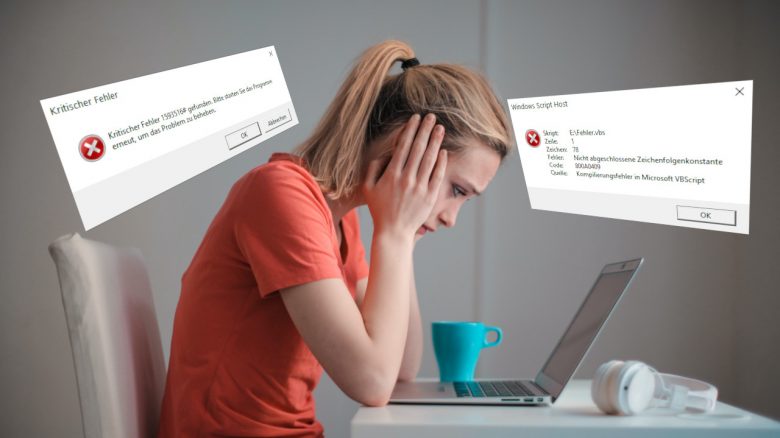
Your games keep crashing and you don’t know why? MeinMMO presents you with 8 reasons why your games may be crashing and what you can do about it.
The annoying problem is one everyone knows: You’re playing your favorite game and just before the boss fight, the game crashes – every time. Such a situation is really frustrating and has made keyboards or controllers fly against the wall more than once.
But what reasons are there for games to crash and what can be done about it? MeinMMO explains it to you.
If you’ve actually thrown your controller against the wall and are now looking for a new one: You can find the best controllers in our list:

Insufficient Hardware
What is the cause? If your hardware is too weak or not compatible with your new game, the game often crashes or doesn’t start properly at all.
Some games also require certain codecs or APIs that very old processors no longer support.
Other games may also not support an integrated graphics chip, like those provided by some processors from AMD and Intel. Check the system requirements for this.
What can be done about it? In general, you should always check the current system requirements before purchasing a game. For PC games, you can usually find this information on Steam and also on the back of the game packaging.
In the next step, you can try lowering the graphics settings. This way, you can at least reduce the load on your hardware and hope that game crashes occur less frequently.
If your hardware is so old that games won’t even start properly anymore, then you should consider an upgrade. At a certain age of your PC, you might even consider whether buying a new gaming PC could be worthwhile. Maybe your next gaming PC even stands on legs, as one manufacturer currently offers.
Overclocking or Undervolting is Set Incorrectly
What is the cause? With overclocking, you can squeeze a few more percentages or extra FPS out of your hardware. With small tools like MSI Afterburner, this is very easy and straightforward. However, some games may not like it if you overclock or if your settings are set too high.
The same goes for undervolting. This way, you can save power and performance, but in the worst case, it can also make your system and the game unstable.
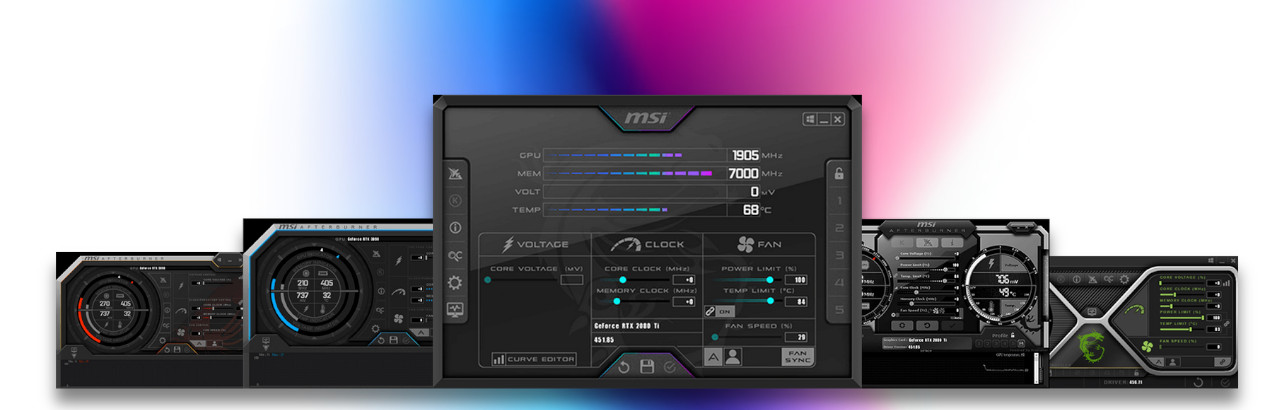
What can be done about it? You should reset the settings and stop overclocking or undervolting. Ideally, you’ll be rid of the problem for the time being. If you don’t want to give up these tricks, you could also lower your settings.
Sometimes, your computer might not cope with the increased temperatures caused by overclocking, and as a result, your game crashes. Tips and tricks on how to keep your PC cool can also be found here on MeinMMO:
8 Tips to Keep Your Gaming PC Cool and Running Fast
Outdated Drivers or Software
What is the cause? Manufacturers like AMD or Nvidia regularly release updates for their graphics card software. These often include bug fixes or adjustments for games. If you are using an outdated driver and want to play the latest top title, and your game keeps crashing, it might be due to outdated software.
It often pays to take a look at the patch notes, as AMD and Nvidia frequently mention tips and updates for games there.
What can be done about it? First of all, update your graphics card software. Both AMD and Nvidia allow you to update the software directly through their software suite. Some manufacturers also offer their own solutions, for example, for laptops. Alternatively, you can download the graphics card software directly from the manufacturer’s website. We will link the most important download pages here for you:
- Official Software Download at Nvidia
- Official Software Download at AMD
- Official Software Download at Intel
In a further step, you should also check whether your Windows installation is up to date. You can quickly download and install the latest and most important updates via “Windows Update”.
Tip for Windows 11: Are you currently considering switching to Windows 11? MeinMMO explains in a short check who could benefit from the switch to Windows 11:

Incorrect Game Settings
What is the cause? Many modern games offer you a menu where you can adjust settings in your games. Here you can change the graphics settings or enable or disable additional features. However, some settings can cause your game to crash, such as setting the graphics too high or enabling experimental features that do not work perfectly.
What can be done about it? In most cases, it is sufficient to deactivate various settings again. If, for example, you accidentally enabled ray tracing in a game and your game now crashes, remove that option.
If you are no longer sure what you have changed, you can often reset the settings in many games. However, you will then have to manually readjust all fine settings.
Corrupted Game Files
What is the cause? In some cases, corrupted game files may prevent you from starting your game or cause it to crash at certain points. This can happen, for example, if you download a game before its release and errors creep into the files. Large updates can also sometimes be faulty and prevent your game from starting.
There are often messages when starting or crashing a game that a specific file is corrupted or cannot be found.
What can be done about it? In the case of such errors, it’s best to reinstall the game. There are various methods for this:
- Some clients like Steam or Uplay (Ubisoft Connect) offer you the opportunity to verify your game files. This way, you don’t have to download the entire game again. Especially for small games, it is worth restarting the download.
- If you use GoG or other providers like HumbleBundle, you can use an already downloaded installation file.
- There is also the option to restore your game from a backup. However, in the worst case, this will mean installing a version of the game that is no longer up to date.
Your Graphics Card is Too Powerful for the Power Supply
What is the cause? A common reason for games crashing is an issue with the power supply (Power Supply Unit, short PSU). This is usually related to the graphics card needing more power than is available. This happens especially when upgrading your graphics card without considering the power supply.
What can be done about it? The only solution in this case is an upgrade to a power supply that provides enough power for the game. Do not only consider your graphics card, as other components like the processor or RAM also need power.


*Affiliate-Links. Wir erhalten bei einem Kauf eine kleine Provision von Amazon. Vielen Dank für Eure Unterstützung!
DRM or Anti-cheat Causes Your Game to Crash
What is the cause? With Digital Rights Management (DRM), developers try to protect their games or software to prevent illegal copying. Whether these protection mechanisms affect performance has been examined by GameStar in an extensive report on Denuvo.
Improperly implemented DRM or other issues can cause your game to crash because the DRM cannot connect to the corresponding server or the server is not running.
What can be done about it? Some games offer an offline function, which means that anti-cheat or some DRM systems are not in use. Because whether you cheat offline doesn’t concern many developers.
If this option is not available, you can also wait for an update from the developer. Many manufacturers remove protection mechanisms after the release, as they wanted to have a safeguard, especially at the start of the game.
Another alternative is to buy games directly without DRM mechanisms, such as from GoG, if offered.
In some games like Dying Light 2, Denuvo has caused quite a stir:
Antivirus Causes Your System to Crash
What is the cause? Antivirus programs are supposed to ensure that you do not pick up malicious software while you are online and browsing through strange websites or downloading things. However, antivirus software digs deep into your system and continuously uses resources to provide this protection.
In the worst case, your software is scanning a large file and putting a harmless file from your current game into quarantine, preventing you from playing.
What can be done about it? Many antivirus programs offer the option to pause scan processes during certain periods. Use this if you want to play or don’t want to be disturbed during an important competitive match.
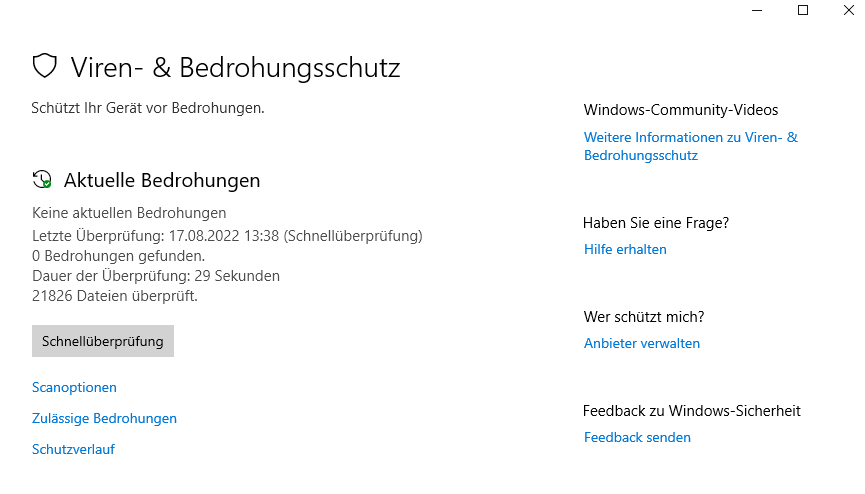
Alternatively, you might consider parting ways with your antivirus software and uninstalling it. According to independent tests, the standard Windows Defender is also regarded as a top product and even better than many third-party programs (via gamestar.de).
More tips and tricks about your gaming PC: Are you looking for more help with your gaming PC? In another article, MeinMMO explains when you notice that your graphics card is not long for this world. You can read about the 5 most important signs here:
5 signs that warn you that your graphics card is about to fail