

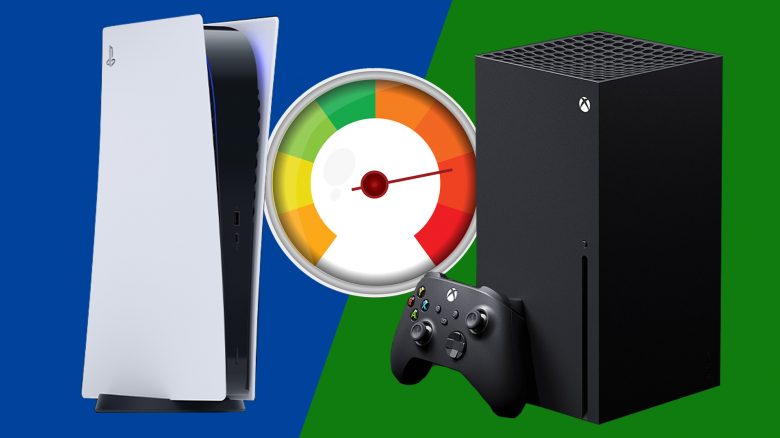
MeinMMO introduces you to some useful tips on which settings you should turn off on your gaming console.
Many interesting and helpful features are hidden in the settings of the Xbox and PlayStation that not every user knows about.
MeinMMO presents 6 settings that you should turn off. We also explain why this could help you and how you can disable the settings we presented.
Turn off Auto-HDR on the Xbox Series X
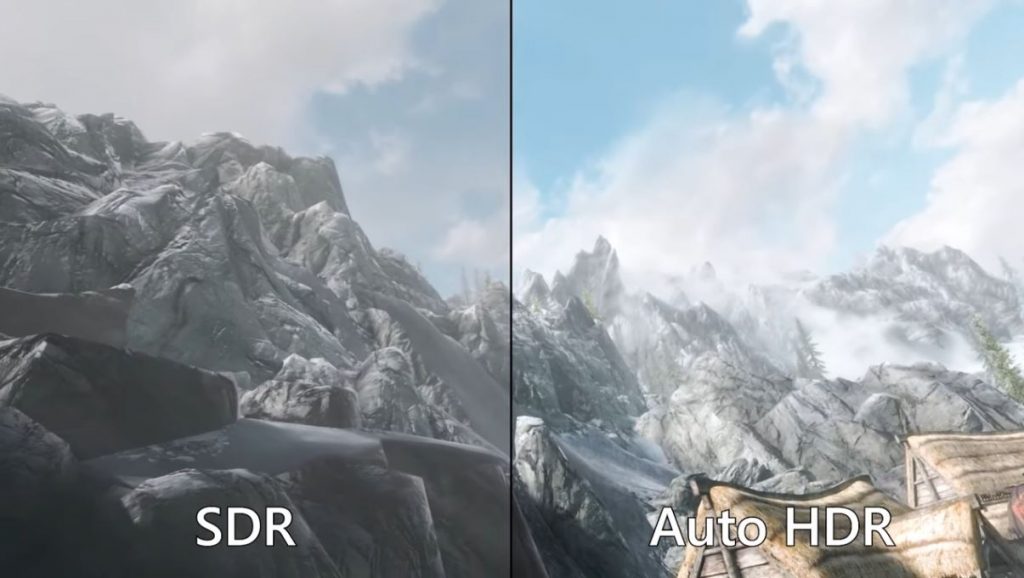
What is it? Auto-HDR enhances game lighting with the support of artificial intelligence. The feature also works for older titles. You can also use Auto-HDR on Windows 10. Anyone who wants to use Auto-HDR also needs an HDR-capable monitor.
Why you should turn off Auto-HDR: It really depends on which game you want to play and how it looks. Especially if you encounter problems, you should turn off the feature.
If the colors in your game appear extremely white or extremely black, making it hard to see anything, then you should turn off Auto HDR. However, you must differentiate from game to game whether Auto-HDR represents an improvement or deterioration of the picture.
Here’s how you can disable it: On the Xbox Series X, go to “My Games” and switch to the game settings. Here you can then turn off Auto HDR under Compatibility Options.
Turn off DVR game recordings on the Xbox One
What is it? This is a feature that saves special moments on your Xbox One and automatically shares them with your friends.
Why you should turn off DVR game recordings: Some users have criticized that DVR should burden the performance in some games. We cannot confirm that. However, if you are looking for ways to improve the performance on your Xbox One, then this is one possibility.
Here’s how you can disable it: In your Xbox One menu, go to Settings, then to Preferences and there you turn off “Record games with Game DVR”.

Turn off autoplay videos in the Xbox store
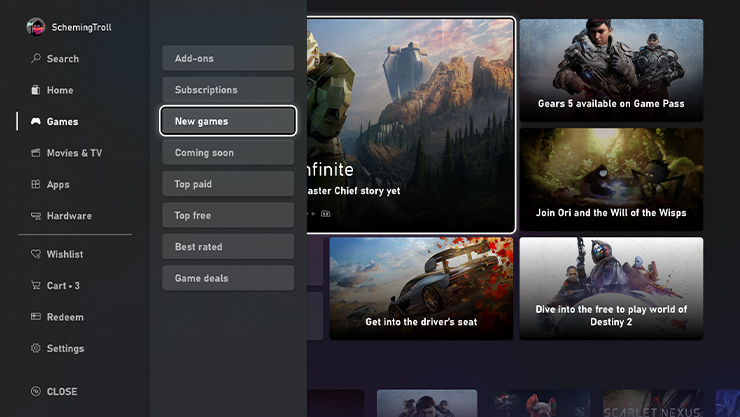
What is it? As soon as you open the Xbox store on the console or PC, the store automatically plays videos of the games. You can easily turn this off.
Why you should turn off autoplay videos: Are you annoyed by the autoplay videos or just want to browse the store quietly without being disturbed by the videos playing over the games? Then you can turn them off.
Here’s how you can disable it: Go to the Xbox store menu and select Settings. Here you then disable the checkbox for autoplay videos.
Turn off trophy videos on the PS5
What is it? On the PlayStation 5, you can collect trophies in almost all games. Once you unlock a trophy, the console automatically saves a video of the trophy.
Why you should turn off trophy videos: The storage space on the PS5 is limited, and on the console, you have a total of 667 GB available for games. Since games like CoD: Warzone require a lot of space, you can save storage space by turning off the videos.
Here’s how you can disable it: Go to “Settings” in the PS5 menu, then to “Captures and Broadcasts”. Under “Trophies”, you must now disable “Save trophy videos” – if you want, also “Save trophy screenshots”.
By now, you can also expand the storage of the PS5 with a new SSD. In our article, we introduce you to how you can do this:

PS5: Disable the microphone of the PS5 DualSense controller
What is it? The DualSense controller of the PS5 has a built-in microphone that you can use for speaking.
Why you should turn off the microphone: The microphone is always open by the system. This means whenever you join a multiplayer game with voice chat, you are directly sharing your private life with the chat or hearing things you don’t want to hear. We would therefore advise you to turn off the microphone.
Here’s how you can disable it: Under “Settings / Sound / Microphone / Microphone status when logged in” you can turn off the microphone. There you then need to select “Mute” and the microphone is turned off.
Disable background music and sounds on PS4 and PS5
What is it? When you start your PlayStation, you are greeted by a soundscape of the console in the menu. You hear the music and sounds whenever you are navigating the menu.
Why you should turn off background music and sounds: You’ve turned on your console and want to download a longer update, but feel annoyed by the sounds and music of the PlayStation? Then you can simply turn off the sounds.
Here’s how you can disable it: For PS4 and PS5, you need different approaches if you want to turn off the sounds.
- PS4: Go to Settings, then to Sound and Screen. Here you can then turn off System Music and also the sound.
- PS5: Here you go to settings and then select Sound. After that, go to Audio Output. Here you can turn off the Home Screen music and also the sound effects.
Are you looking for more useful tips for your PlayStation and want to know what to pay attention to with your new next-gen console before you play the latest PS5 exclusives? Then check out our overview of the most important tips for PlayStation 5.
5 settings and 8 important tips for the PS5 that you should know

Your opinion is important to us!
Do you like the article? Then let us know!